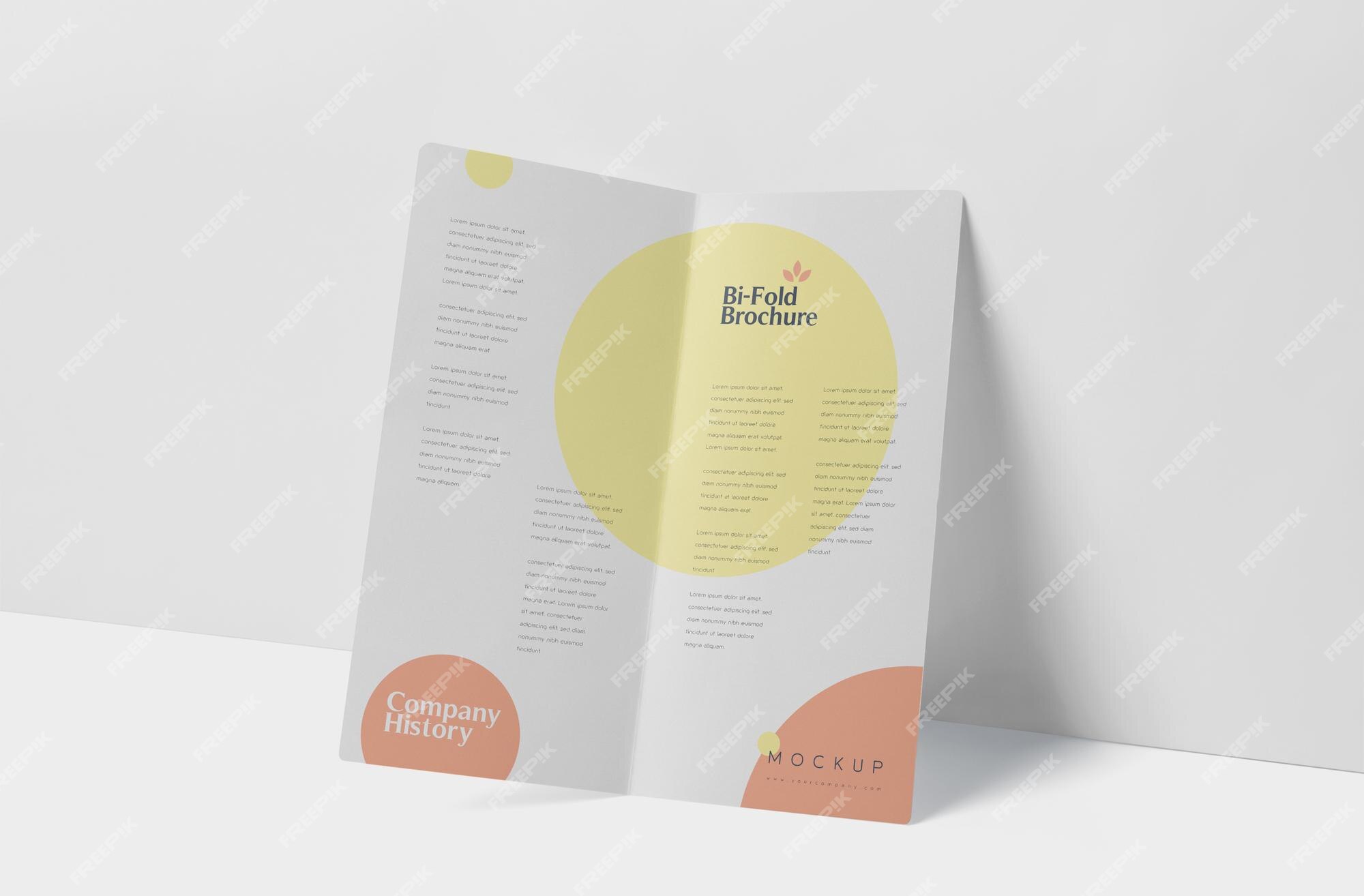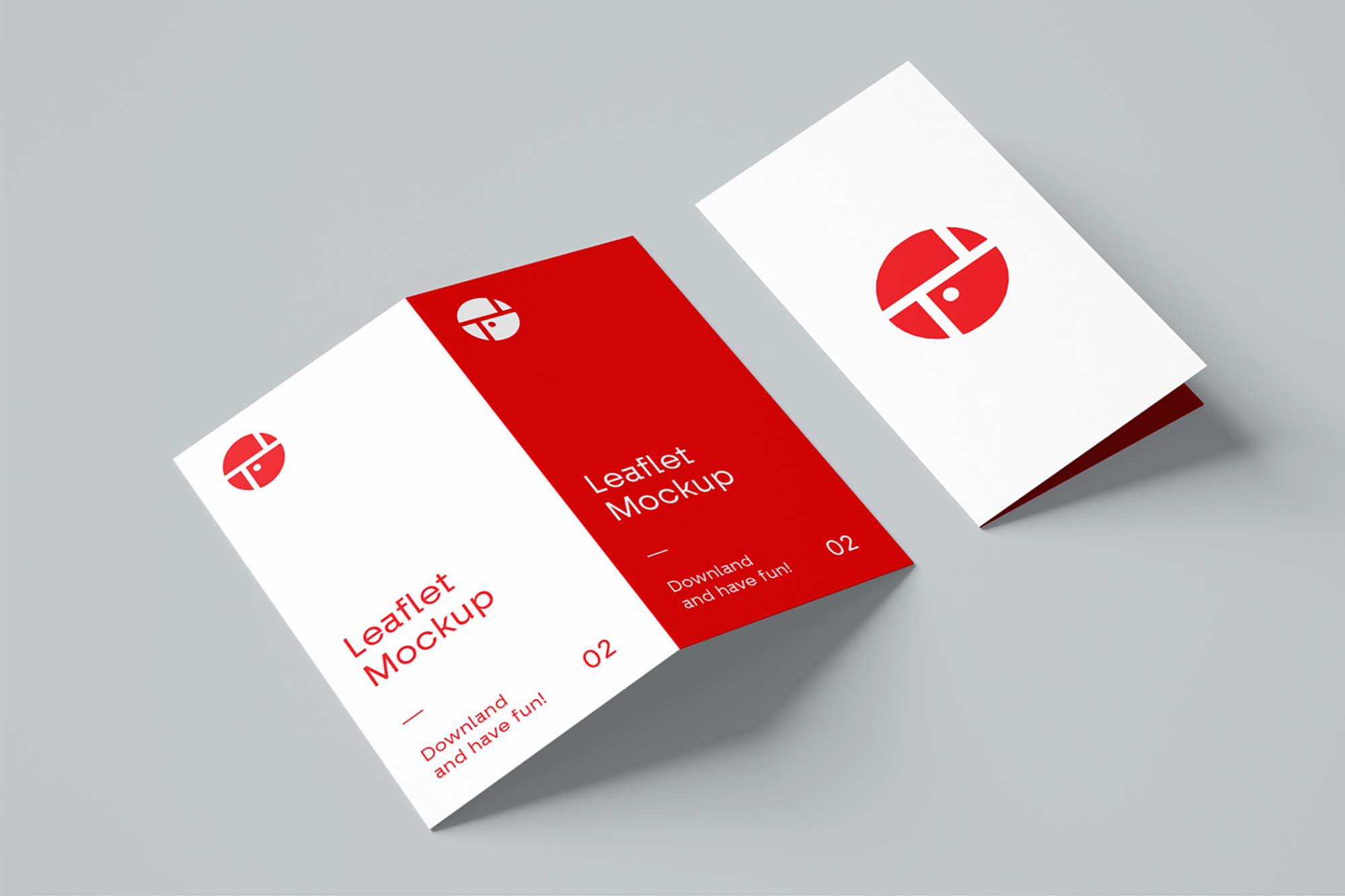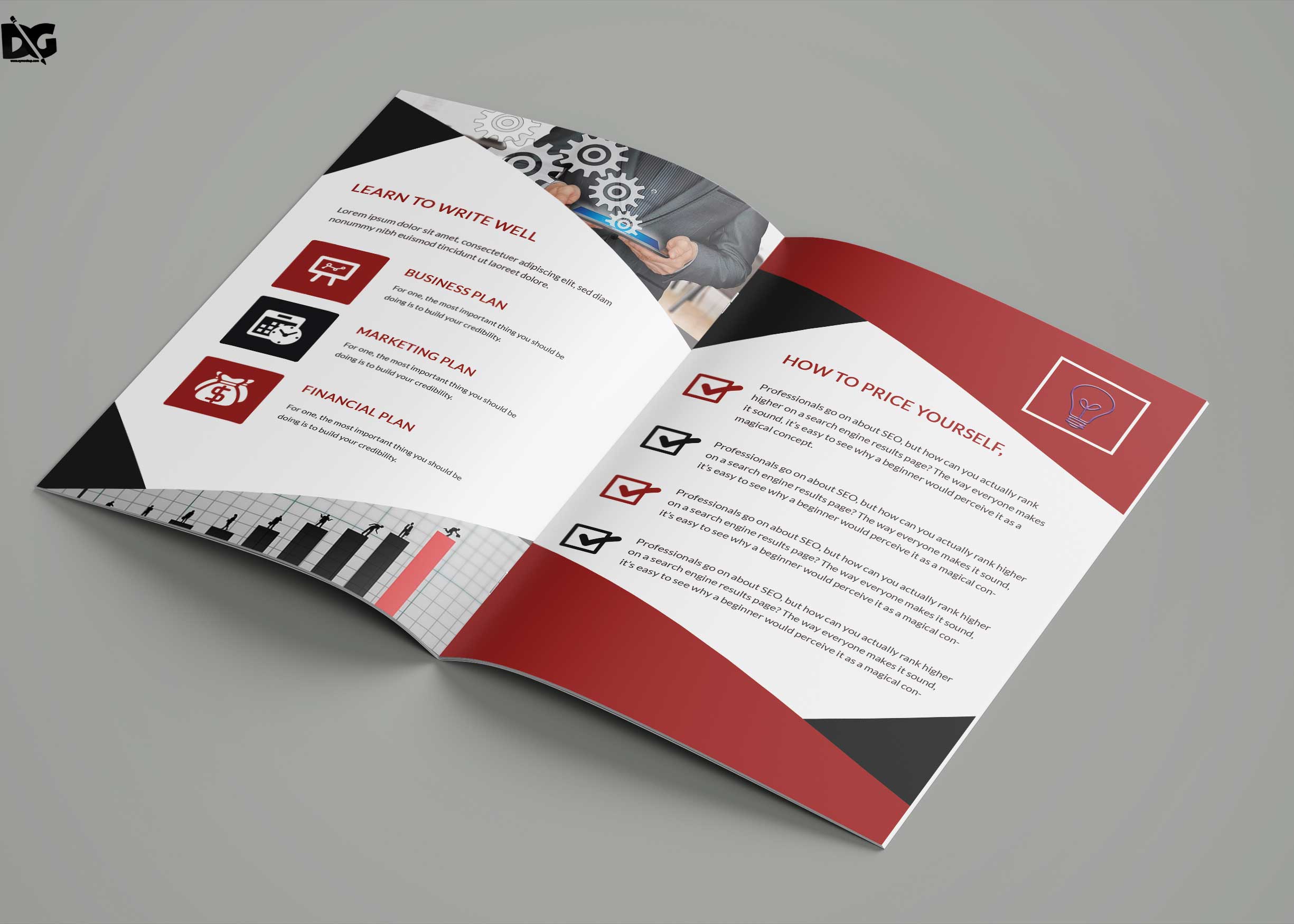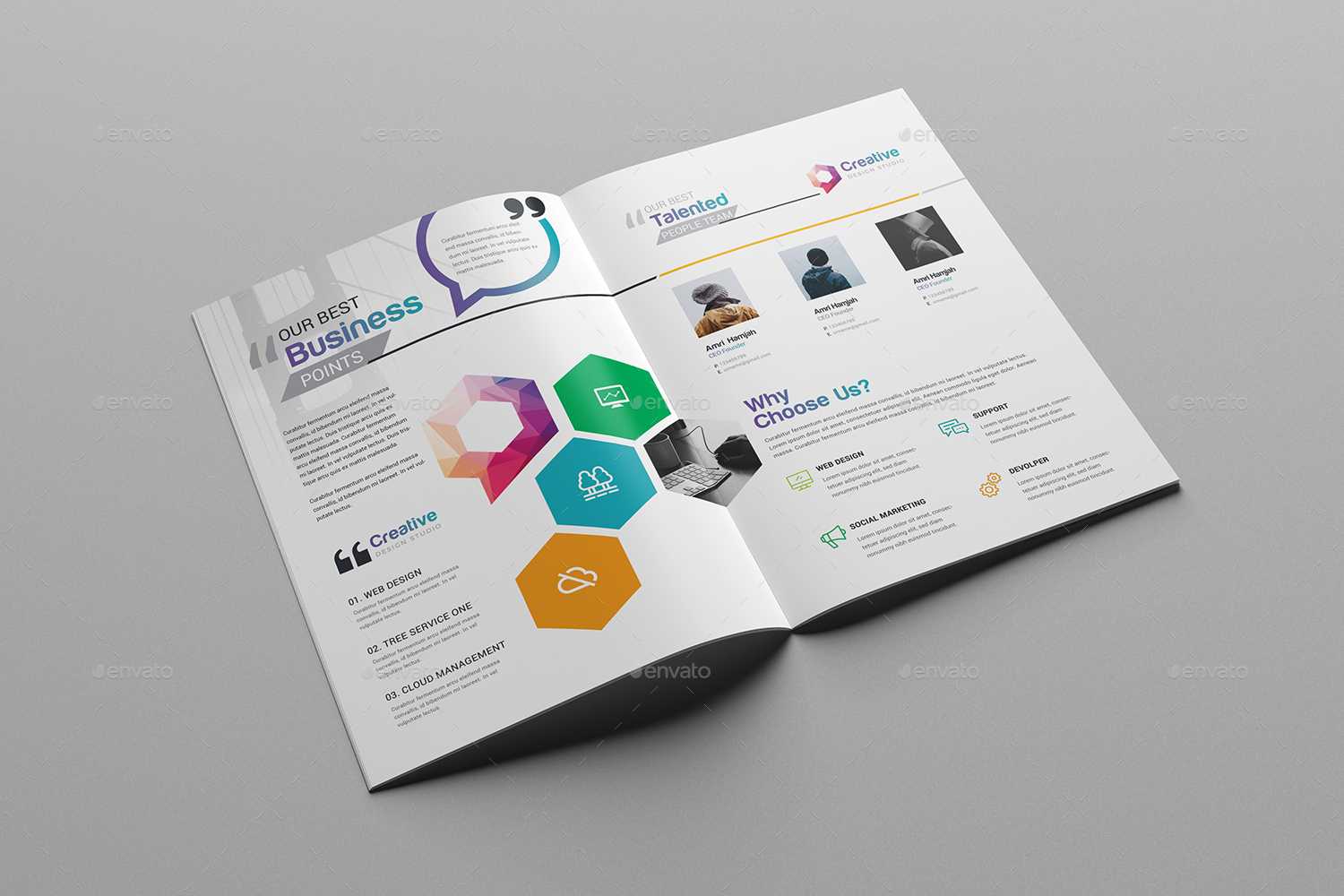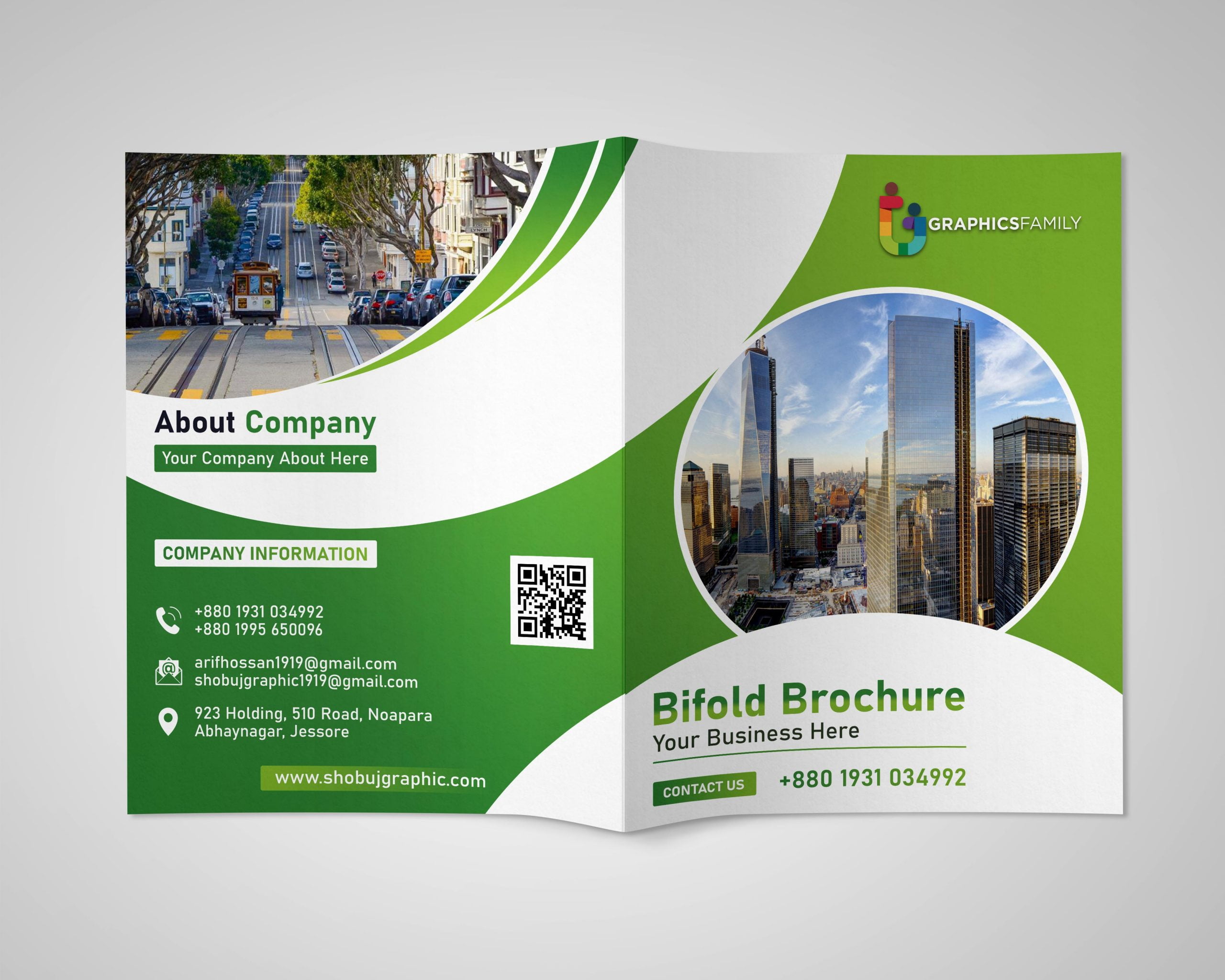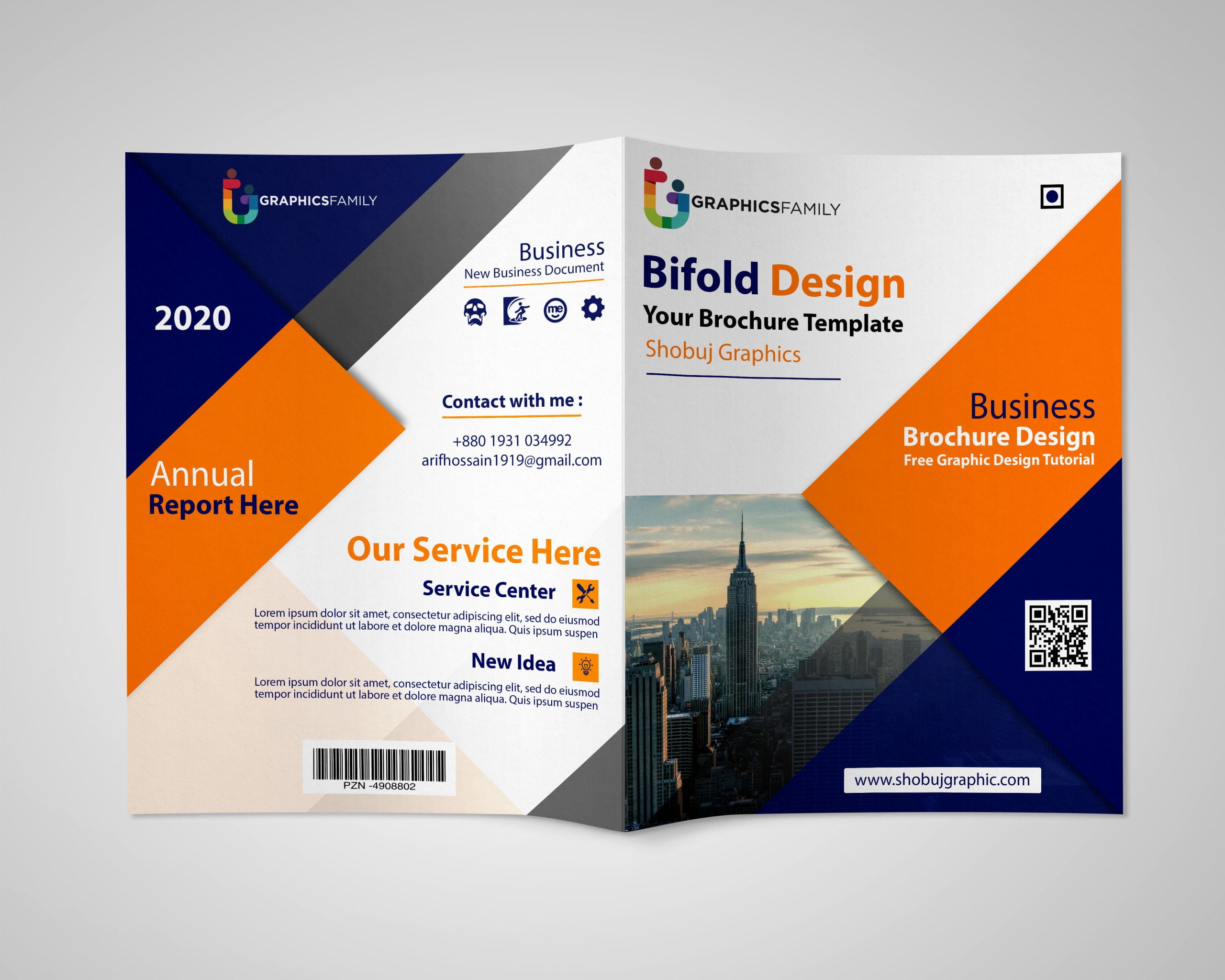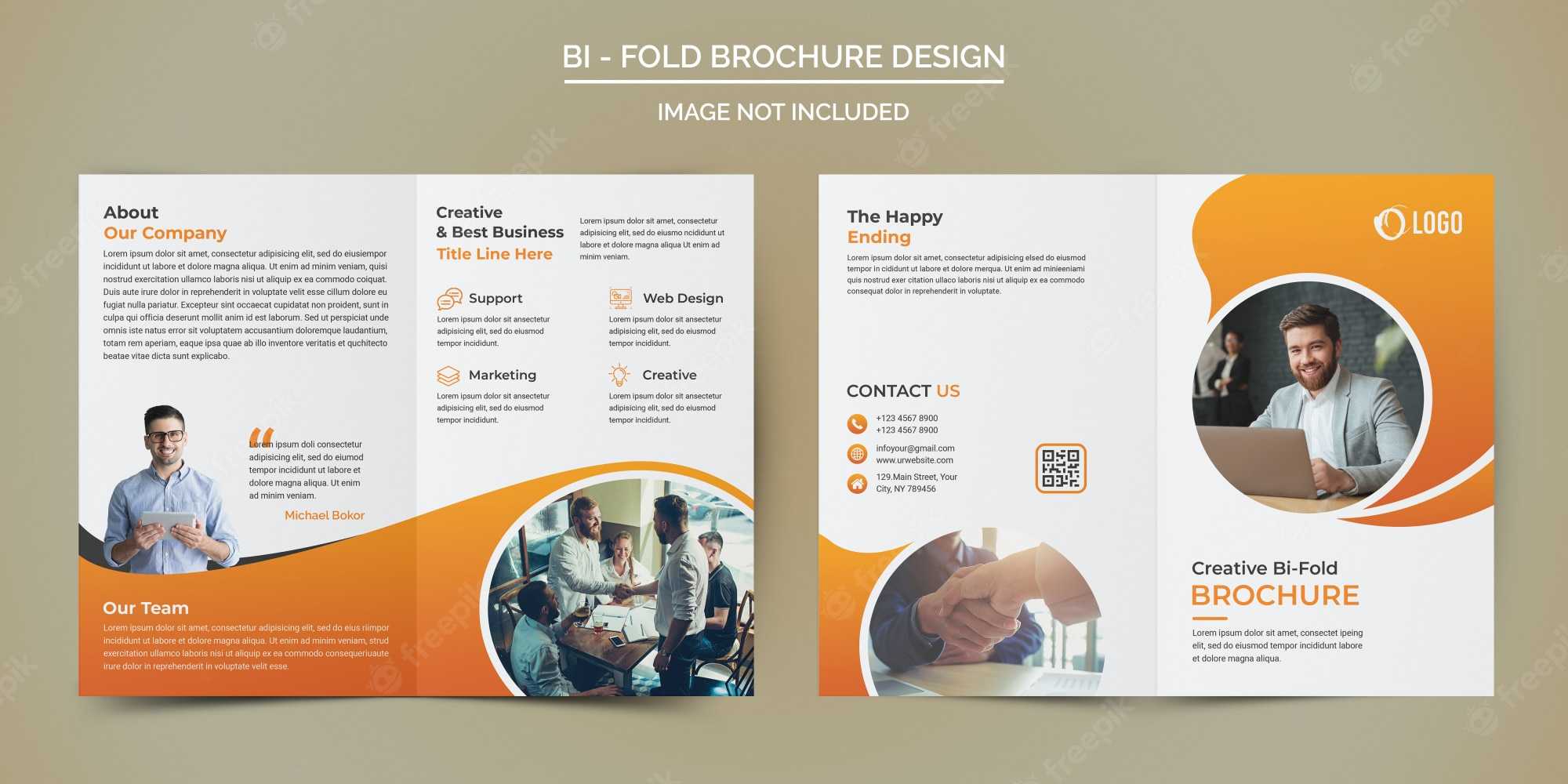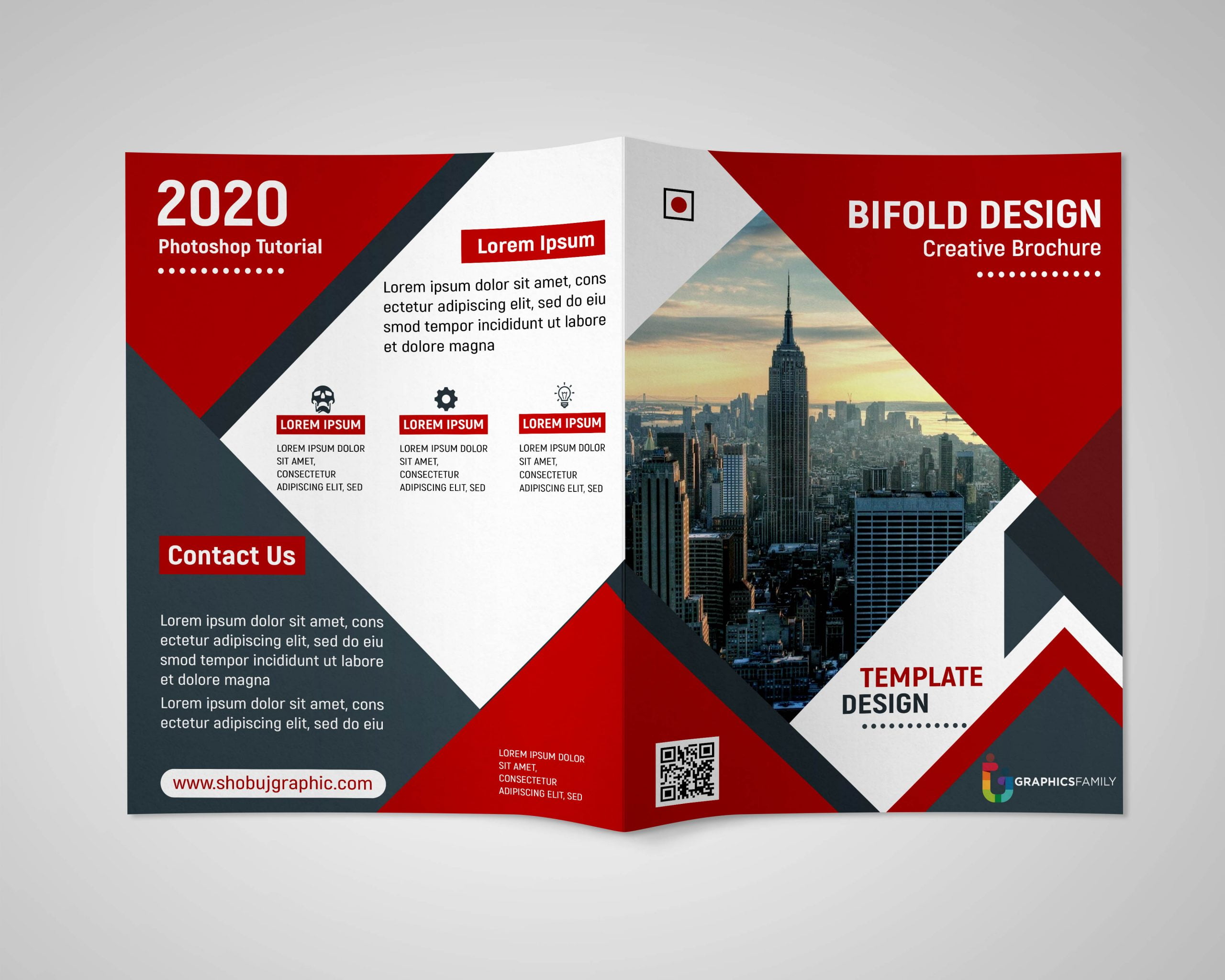
Two Fold Brochure Template Psd offers a versatile, ready‑to‑customize canvas that lets businesses showcase products, services, or events with professional polish without the steep learning curve of starting from scratch. In this guide we’ll explore why the two‑fold format remains a marketing favorite, how to edit a PSD template efficiently, and the best practices that turn a simple mockup into a high‑impact promotional tool.
Why Choose a Two‑Fold Layout?

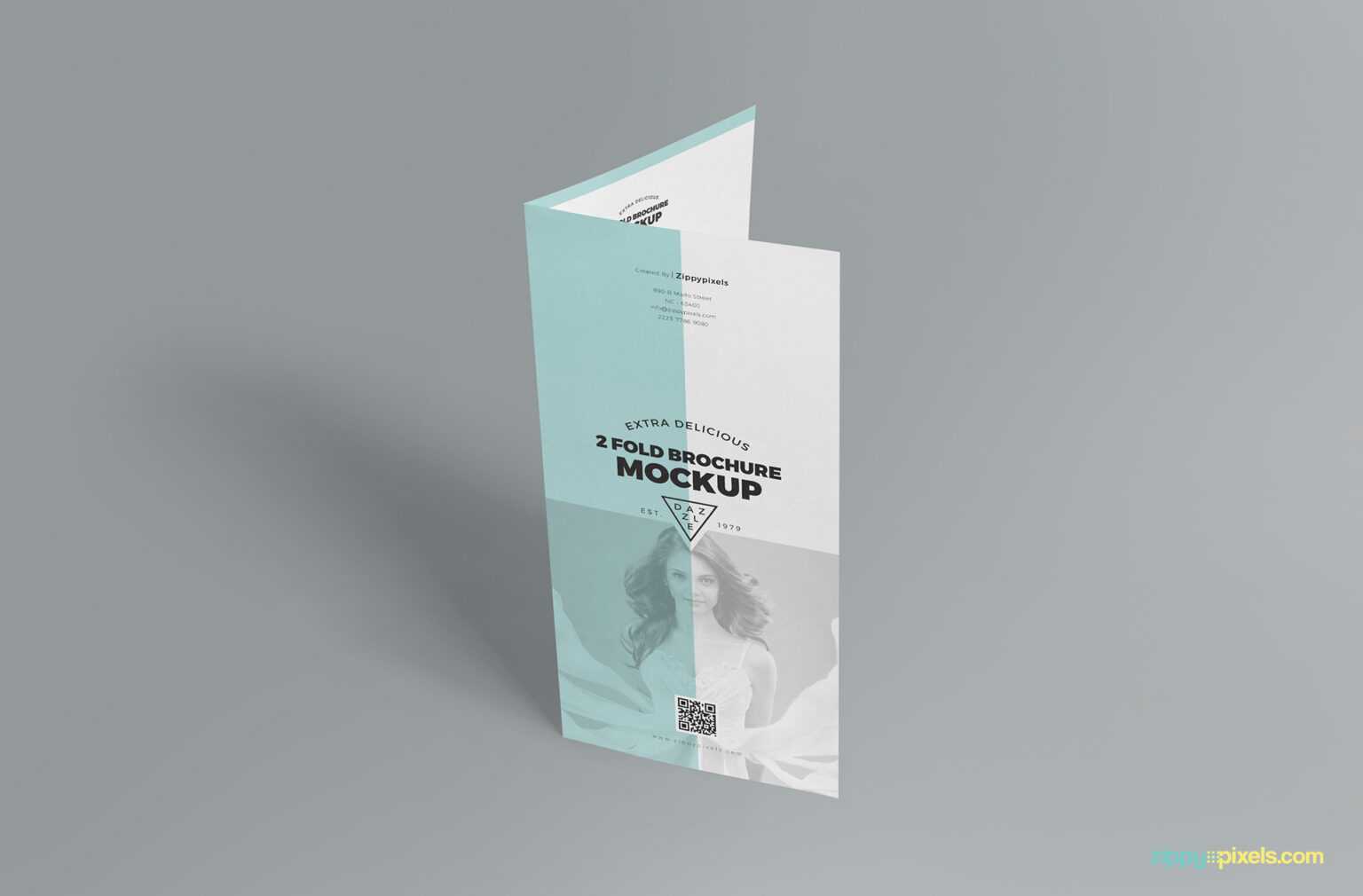
The two‑fold brochure—sometimes called a bi‑fold—splits a single sheet of paper into four panels, creating a clean, balanced flow that guides the reader from introduction to call‑to‑action. This structure delivers several strategic advantages:
- Compact yet comprehensive: Four panels provide enough space for headline, supporting copy, visuals, and contact details without overwhelming the audience.
- Print‑friendly dimensions: Standard sizes (e.g., 8.5 × 11 in or A4) fit easily into most printers and mailing envelopes, reducing production costs.
- Visual hierarchy: The front cover grabs attention, the inside spreads tell a story, and the back panel offers a clear next step.
- Versatility: Ideal for product catalogs, event invitations, corporate overviews, and nonprofit outreach.
Understanding the PSD File Structure
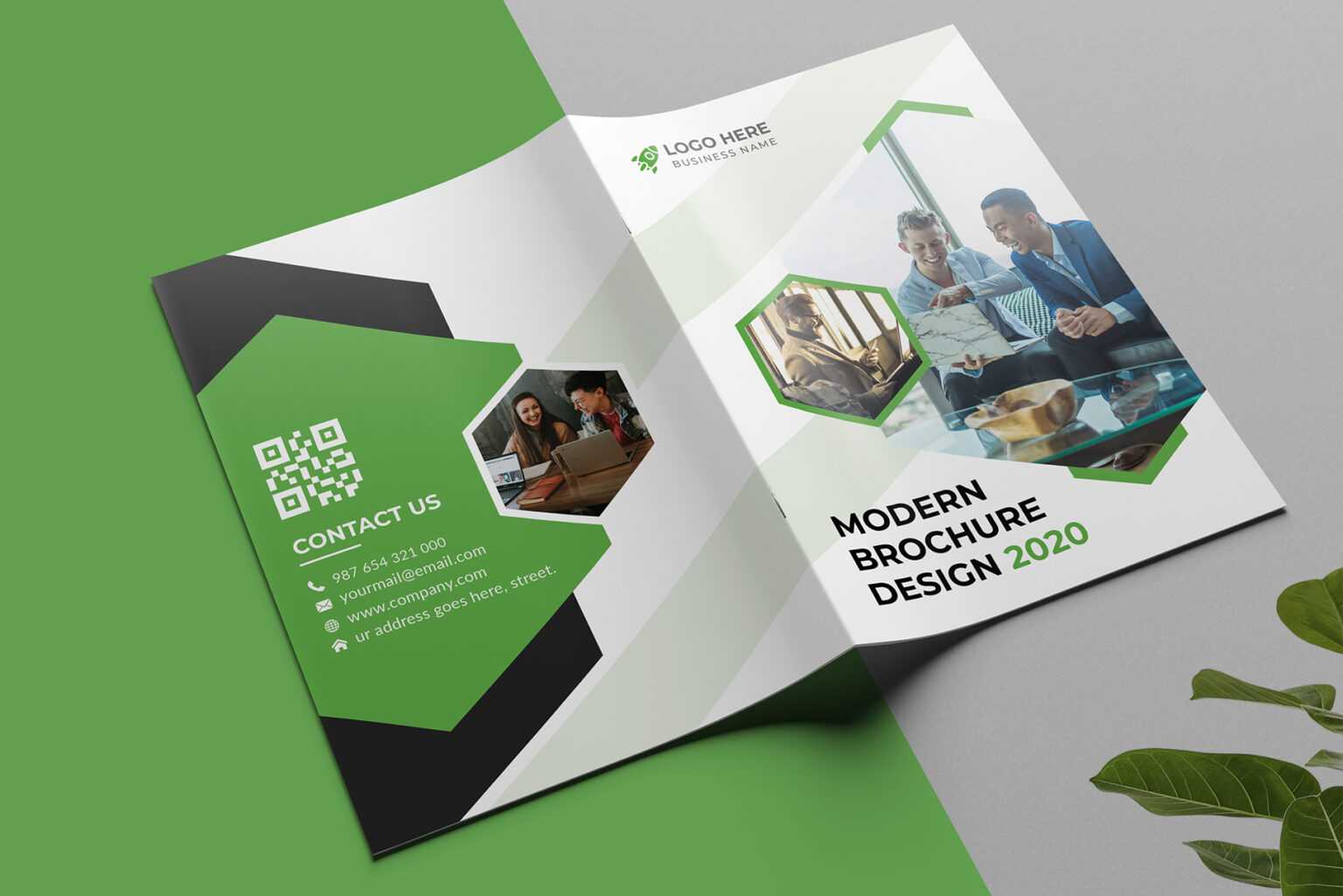
A high‑quality Two Fold Brochure Template Psd is layered thoughtfully to separate background elements, images, text, and guide lines. Knowing the typical layer hierarchy speeds up customization and prevents accidental edits.
Core Layer Groups
- Background: Often includes a subtle texture, gradient, or brand‑color block that sets the visual tone.
- Image Placeholders: Smart‑object layers that let you replace stock photos with your own visuals while preserving masks and effects.
- Text Layers: Pre‑styled heading, sub‑heading, and body layers using the brand’s typography.
- Guides & Bleed: Non‑printing layers that show safe zones and trim lines, ensuring the final print looks flawless.
When you open the template in Adobe Photoshop, enable the “Layers” panel and lock the background group to avoid moving it unintentionally. Then, rename any custom layers to keep the file organized for future edits.
Preparing Your Content for the Template
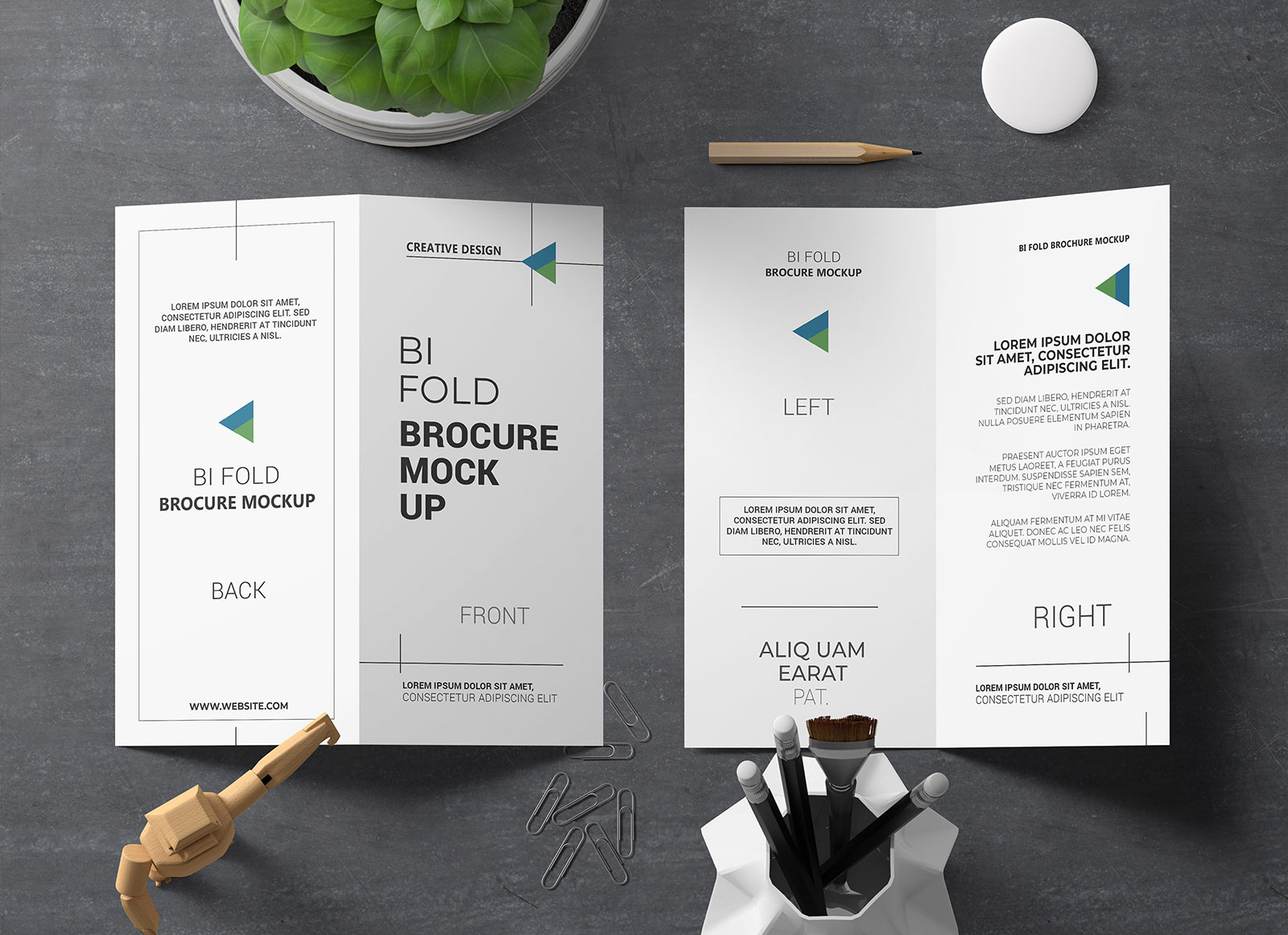
Before you dive into Photoshop, gather all copy, images, and brand assets. This preparation stage reduces back‑and‑forth adjustments and keeps the design timeline on track.
Copywriting Tips
- Headlines: Keep them punchy—under 10 words—and focus on a single benefit.
- Body Text: Use short paragraphs, bullet points, and active verbs to maintain readability.
- Call‑to‑Action (CTA): Place a clear, action‑oriented phrase on the back panel, such as “Call now for a free quote” or “Visit our website to learn more.”
Image Selection Guidelines
- Choose high‑resolution (300 dpi) images that align with your brand’s color palette.
- Prefer images with transparent backgrounds or simple subjects to blend seamlessly with the template’s design.
- Maintain visual balance—if the left panel features a large product photo, offset it with concise text on the right.
Step‑by‑Step Customization Process

Follow these precise steps to transform the generic PSD into a polished, brand‑consistent brochure.
1. Open and Duplicate the Template
Start Photoshop, open the PSD, and immediately duplicate the master file (File → Save As) to preserve the original template for future projects.
2. Replace Image Placeholders
Select the smart‑object layer, double‑click to open the linked file, paste your image, resize using Ctrl + T while holding Shift for proportional scaling, then save and close. Photoshop will automatically update the main canvas.
3. Edit Text Layers
Click the Text tool, select each placeholder, and type your copy. Use the character panel to adjust tracking, leading, and font weight to match brand guidelines. Remember to keep headings larger (typically 24‑30 pt) than body copy (12‑14 pt).
4. Adjust Colors and Branding Elements
If the template uses default colors, locate the “Color Swatches” layer group. Double‑click each color overlay to replace it with your brand’s HEX codes. This ensures consistency across all panels without manually recoloring each element.
5. Fine‑Tune Layout and Alignment
Turn on the “Rulers” (Ctrl + R) and “Snap” options to align text boxes and images precisely. Use the “Move” tool combined with arrow keys for pixel‑perfect placement. Check that no critical content sits within the bleed area (typically 0.125 in from the edge).
6. Proofread and Export
Zoom to 100 % and read every line for typos or spacing issues. Export the final design as a print‑ready PDF (File → Save As → PDF) with “High Quality Print” settings, ensuring “Trim Marks” and “Bleed” are enabled.
Optimizing for Print Production
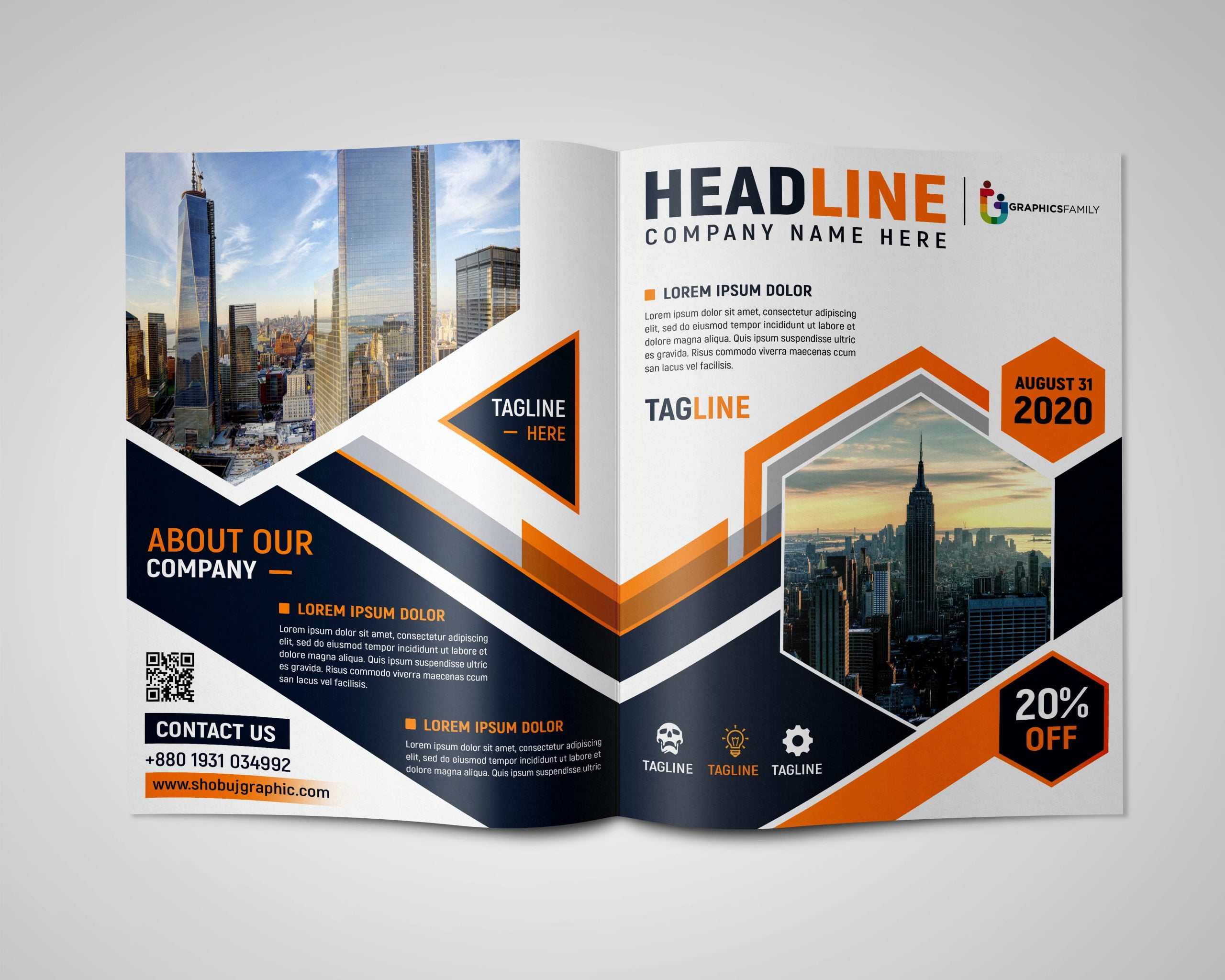
A well‑designed brochure can fall flat if the print specifications are off. Here’s how to guarantee a flawless output.
Paper Choice
- Weight: 14‑16 lb (210‑250 gsm) matte or gloss stock works for most applications; thicker cardstock (300‑350 gsm) adds a premium feel for high‑end products.
- Finish: Matte reduces glare and is easier to read under bright light, while gloss enhances color vibrancy for image‑heavy brochures.
Color Mode and Profiles
Set the document to CMYK color mode (Image → Mode → CMYK) to match print press standards. Use a standard profile like US Web‑Coated SWOP v2 to avoid unexpected color shifts.
Bleed, Trim, and Safety Zones
Extend background colors and images at least 0.125 in beyond the final page edge (the bleed). Keep essential text and logos at least 0.25 in inside the trim line (the safety zone) to prevent accidental clipping.
Digital Distribution Strategies
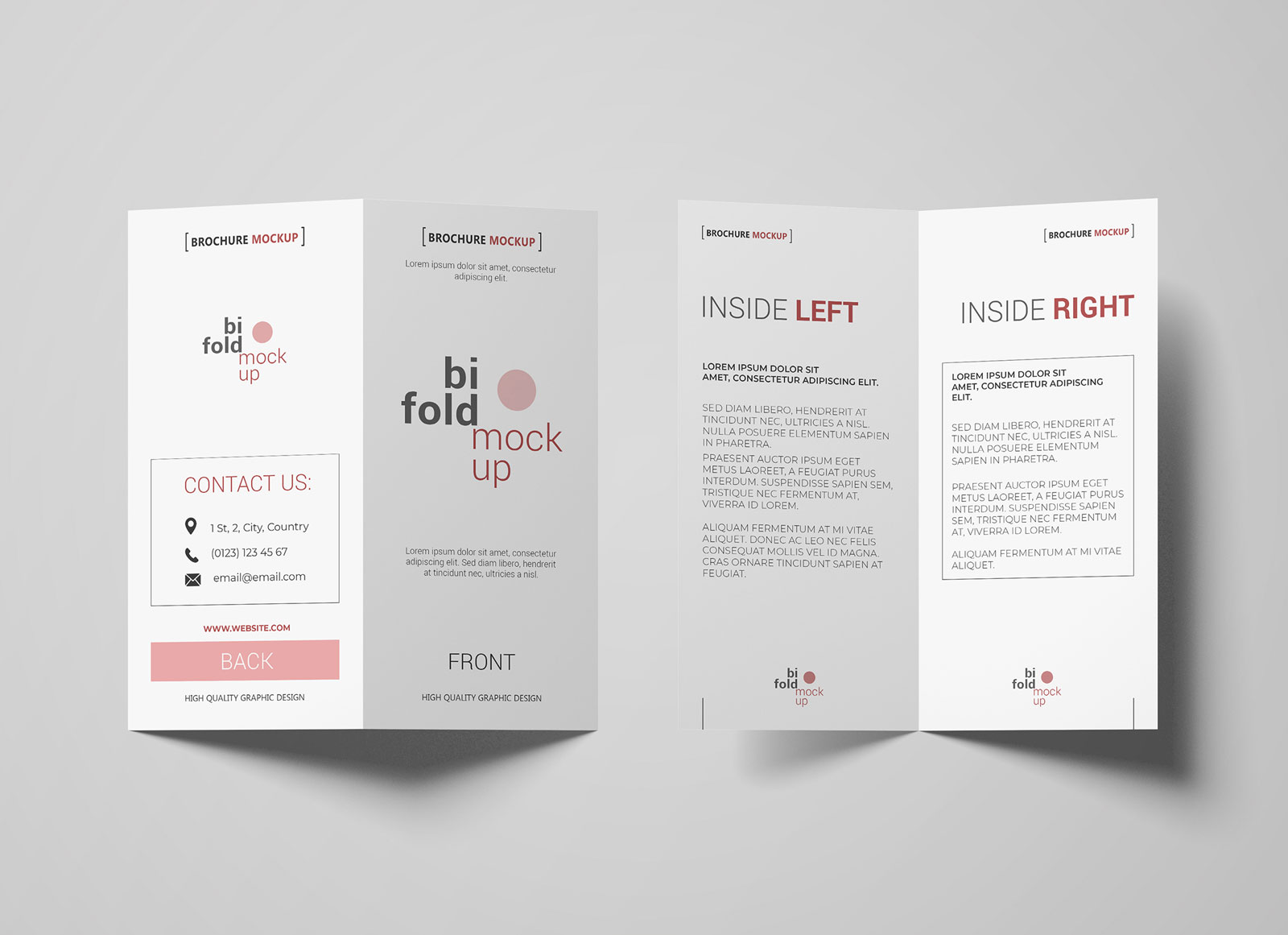
While the two‑fold brochure shines in print, a digital version extends its reach across email, social media, and websites.
Creating a Web‑Optimized PDF
- Compress images to a balance of quality and file size (target 150‑200 dpi for screen).
- Enable fast web view and add bookmarks for each panel to improve navigation.
- Consider adding clickable links on the CTA panel—embed a URL, phone number, or email address.
Embedding in Email Campaigns
Instead of attaching the PDF, host it on a secure server and place a compelling thumbnail image in the email with a “Download Now” button. This approach improves deliverability and tracks click‑through rates.
Social Media Teasers
Extract each panel as a high‑resolution JPEG or PNG and share a carousel post on platforms like Instagram or LinkedIn. Use concise captions that echo the brochure’s headline, driving viewers to the full PDF.
SEO Benefits of a Well‑Designed Brochure

Even a static PDF can boost search visibility when optimized correctly.
Keyword Integration
Incorporate primary keywords—such as “two fold brochure template psd,” “editable brochure design,” and “print‑ready brochure file”—naturally within headings, alt text of embedded images, and body copy. Search engines index PDF content, so thoughtful keyword placement matters.
Metadata and File Naming
Name the PDF file descriptively (e.g., two-fold-brochure-template-psd.pdf) and fill out document properties: Title, Author, Subject, and Keywords. This metadata signals relevance to crawlers.
Link Building
Host the brochure on a dedicated landing page and acquire backlinks from industry blogs, partner sites, or press releases. Each inbound link signals authority, improving rankings for the associated keywords.
Real‑World Applications and Success Stories
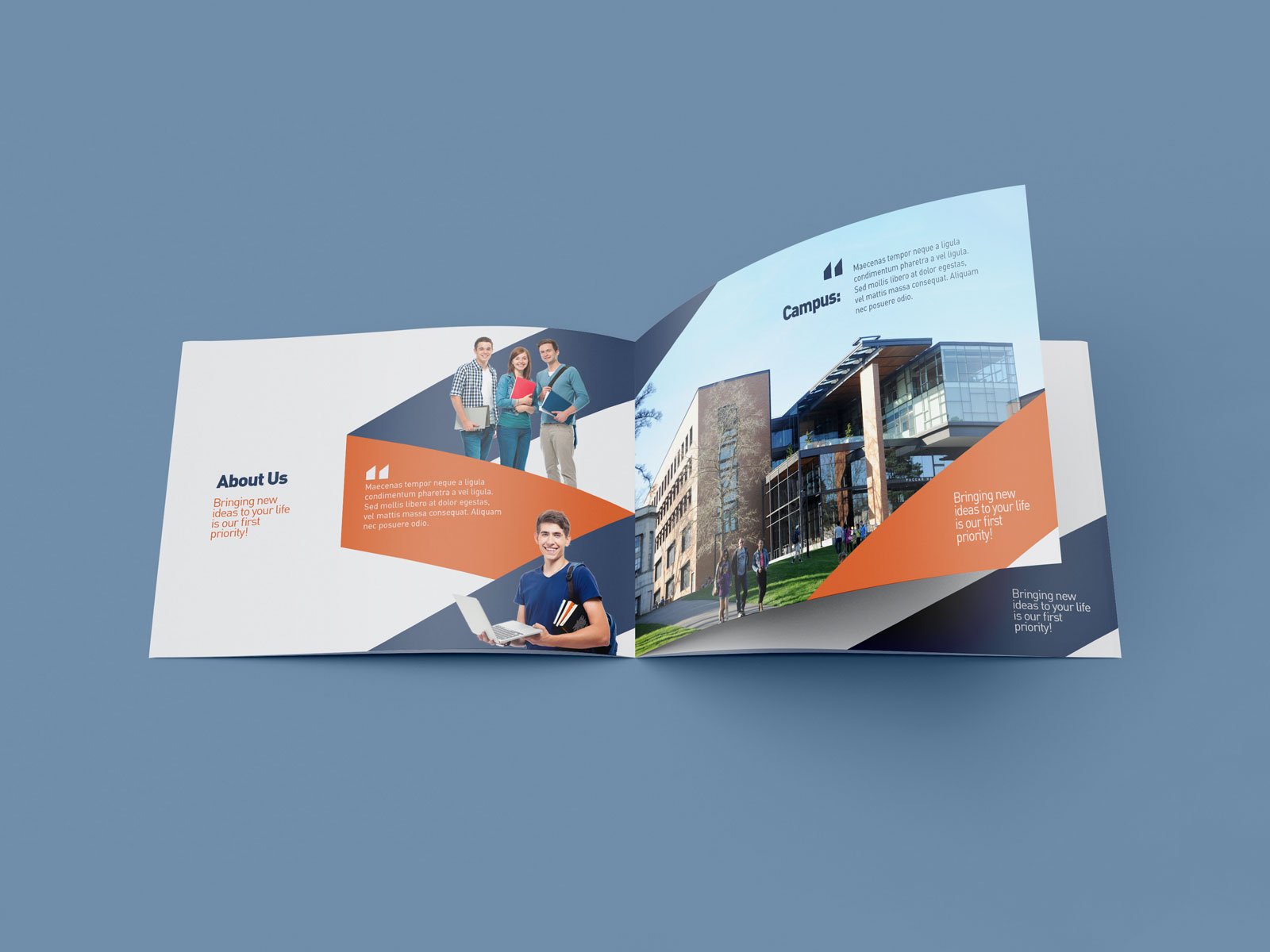
Seeing how businesses leverage a Two Fold Brochure Template Psd can inspire fresh ideas for your own project.
Event Promotion
A local arts festival used a bi‑fold brochure to showcase the schedule, featured artists, and ticket pricing. By customizing the template’s color palette to match the festival’s branding and adding QR codes to each panel, attendees could scan for instant ticket purchases. Attendance increased by 22 % compared to the previous year.
Product Launch
A tech startup released a new smartwatch and chose a sleek, dark‑mode brochure template. High‑contrast images of the device occupied the left panels, while the right side detailed specifications, battery life, and a limited‑time discount. The brochure was emailed to a targeted list of 5,000 subscribers, generating a 15 % conversion rate and securing pre‑orders before the official launch.
Nonprofit Fundraising
A community garden initiative printed a two‑fold brochure on recycled cardstock, highlighting volunteer opportunities, donation tiers, and upcoming workshops. By placing a compelling story and a clear CTA on the back panel, the organization raised $12,000 in a single month—exceeding its goal by 30 %.
Best Practices Checklist
Use this quick reference to ensure your brochure meets professional standards from start to finish.
- ✔︎ Confirm all copy is proofread and aligns with brand voice.
- ✔︎ Replace every placeholder image with high‑resolution, brand‑consistent visuals.
- ✔︎ Verify color mode is CMYK for print and RGB for digital versions.
- ✔︎ Ensure bleed and safety zones are respected.
- ✔︎ Export both a print‑ready PDF (with bleed, trim marks) and a web‑optimized PDF (compressed, clickable links).
- ✔︎ Optimize PDF metadata with relevant keywords.
- ✔︎ Test the final file on multiple devices and a physical print proof.
- ✔︎ Distribute via email, social media, and a dedicated landing page with SEO‑friendly URL.
Frequently Asked Questions
Can I use the template with software other than Photoshop?
Yes. Most PSD files are compatible with GIMP, Affinity Photo, and even online editors like Photopea. However, smart‑object functionality may be limited, so you might need to rasterize layers before editing.
How many colors can I safely use in a two‑fold brochure?
Stick to 2‑3 primary brand colors plus 1‑2 accent shades. This maintains visual harmony and simplifies the printing process, especially if you opt for spot‑color printing.
What is the ideal paper weight for a premium brochure?
For a high‑end feel, choose 300‑350 gsm coated cardstock with a matte or soft‑touch finish. This weight adds durability and conveys quality to the recipient.
Do I need a professional printer for small runs?
Digital printers handle short runs (under 500 copies) efficiently and cost‑effectively. For larger quantities, offset printing reduces per‑unit cost and offers tighter color control.
How can I track the performance of my digital brochure?
Embed UTM parameters in any CTA links, host the PDF on a platform that provides download analytics, and monitor click‑through rates in your email or social media dashboards.
Conclusion
Leveraging a Two Fold Brochure Template Psd equips marketers, designers, and small business owners with a powerful, adaptable tool that blends creative flexibility with production efficiency. By mastering the file structure, preparing compelling content, following a systematic customization workflow, and adhering to print and digital best practices, you can produce a brochure that not only looks polished but also drives measurable results. Whether you’re announcing an event, launching a product, or rallying community support, the bi‑fold format’s balanced layout and professional aesthetic make it an enduring choice for any communication strategy. Take the steps outlined above, apply the checklist, and watch your tailored brochure become a cornerstone of your brand’s outreach.