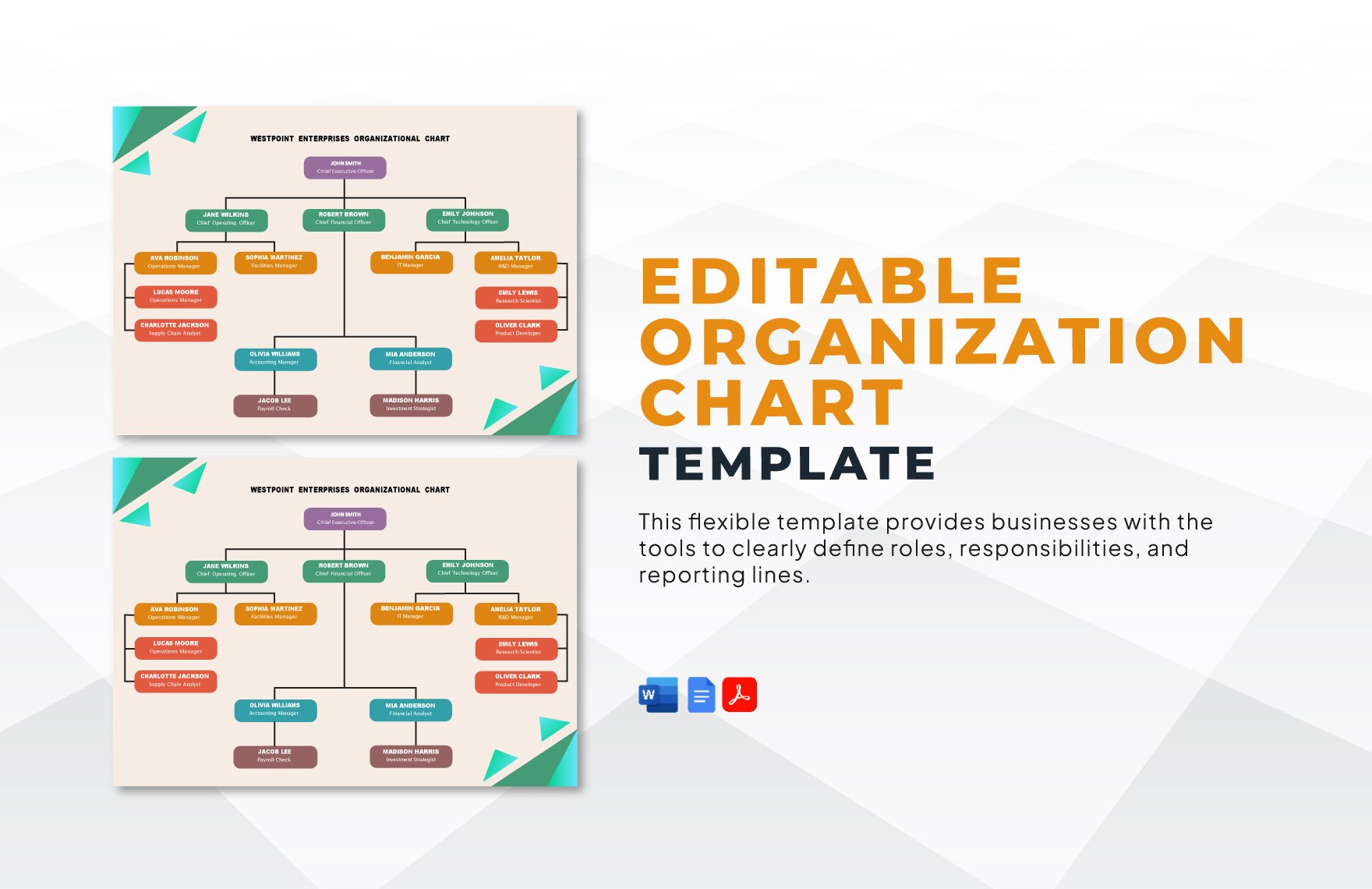
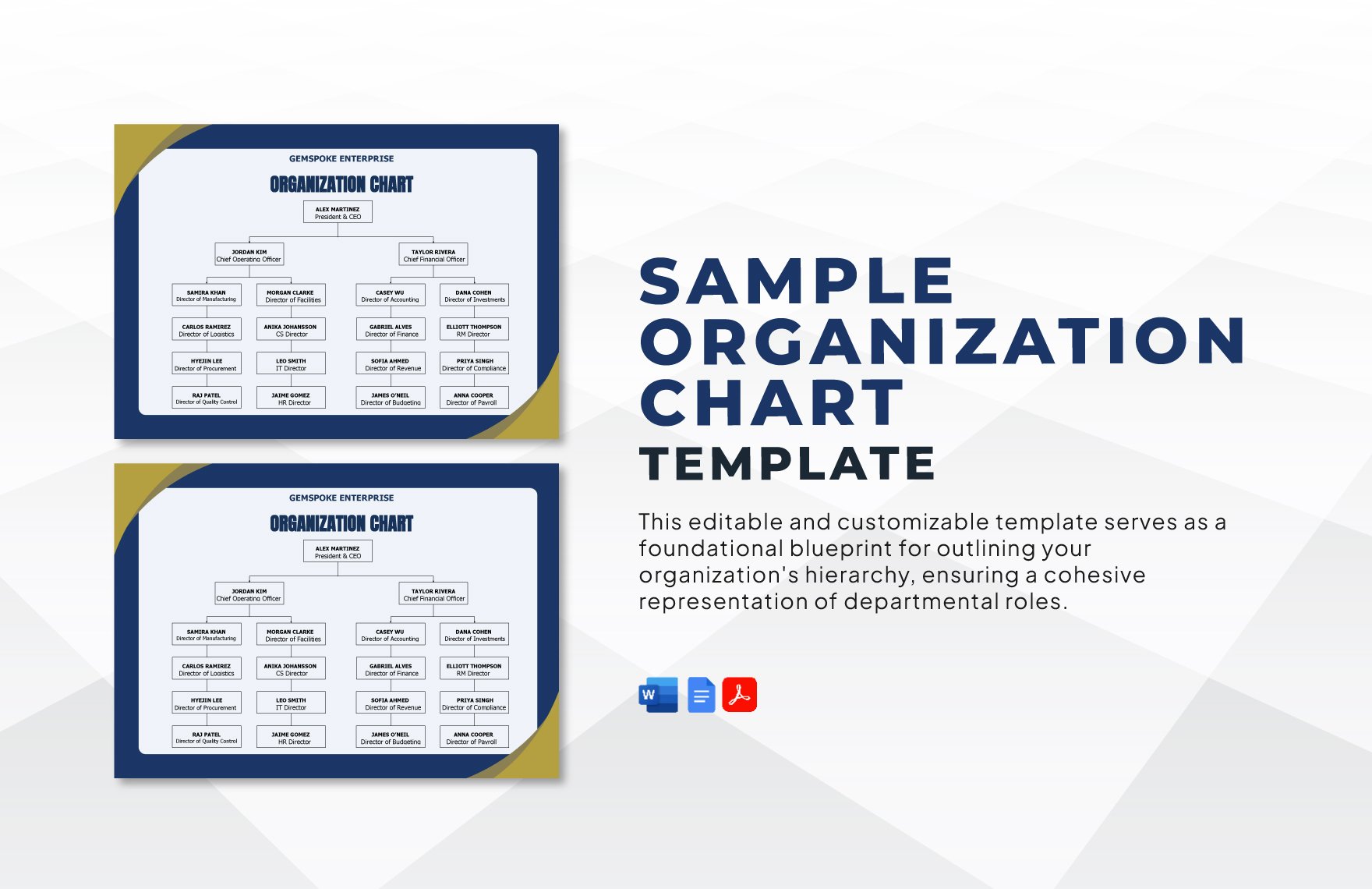
Organization Chart Template Word is a powerful tool for visually mapping the structure of a business, making it easier for managers, HR teams, and new hires to understand reporting lines, departments, and collaboration pathways. By using a ready‑made template, you save time, avoid layout headaches, and ensure consistency across all communication materials.
What Makes a Good Organization Chart?
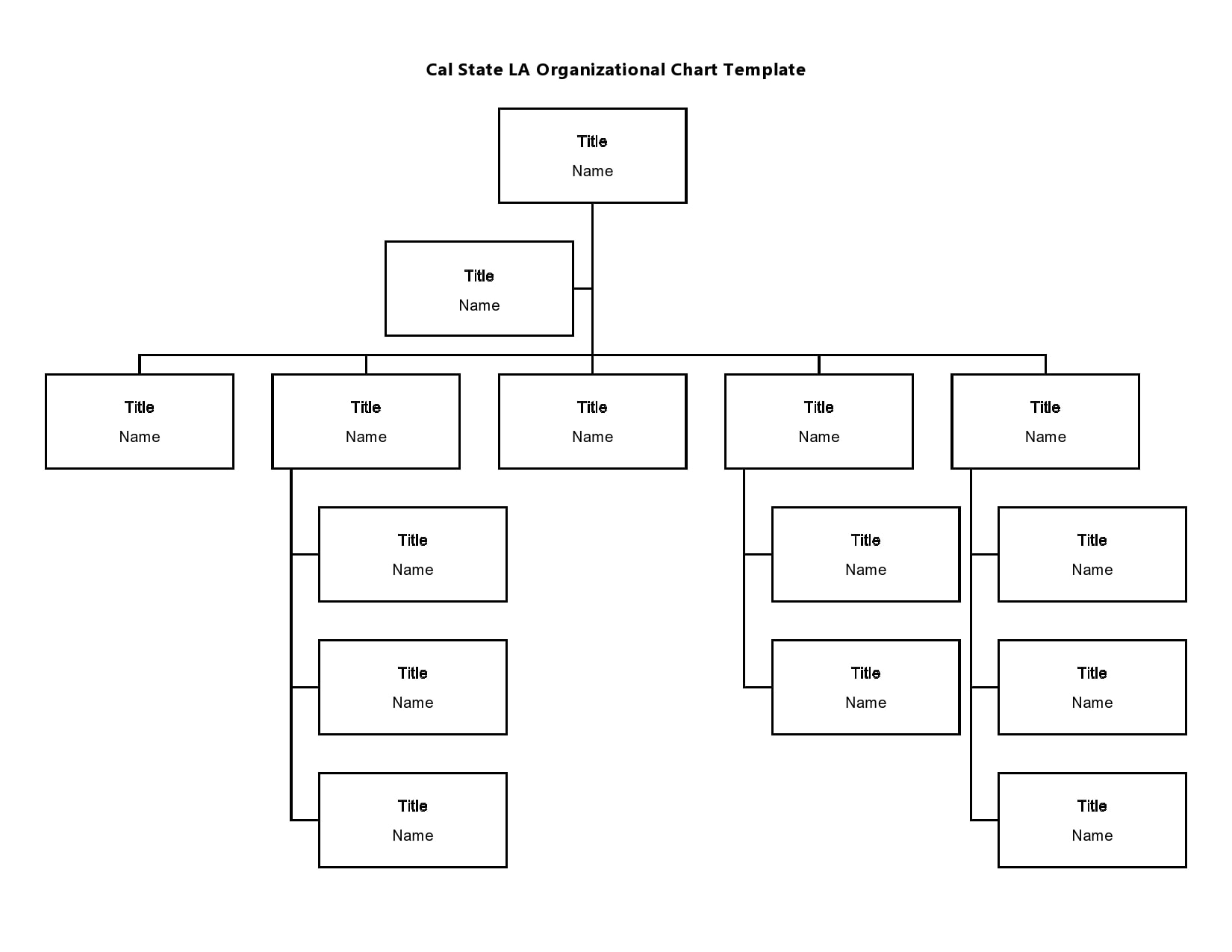
Before diving into templates, it helps to know what a solid chart looks like. A quality org chart should be clear, scalable, and aligned with your company’s branding. Key elements include:
- Hierarchical Clarity: Every level should be indented or spaced to show who reports to whom.
- Consistent Shape Usage: Squares, rounded rectangles, or circles, but stay consistent to reduce visual noise.
- Color Coding: Use color to differentiate departments or functional groups without overwhelming the viewer.
- Legibility: Font size should be readable on both screen and print; avoid fonts that look fine on a computer but blur when printed.
- Accessibility: Ensure that color choices pass contrast guidelines so the chart is usable for all employees.
Benefits of Using a Word Template
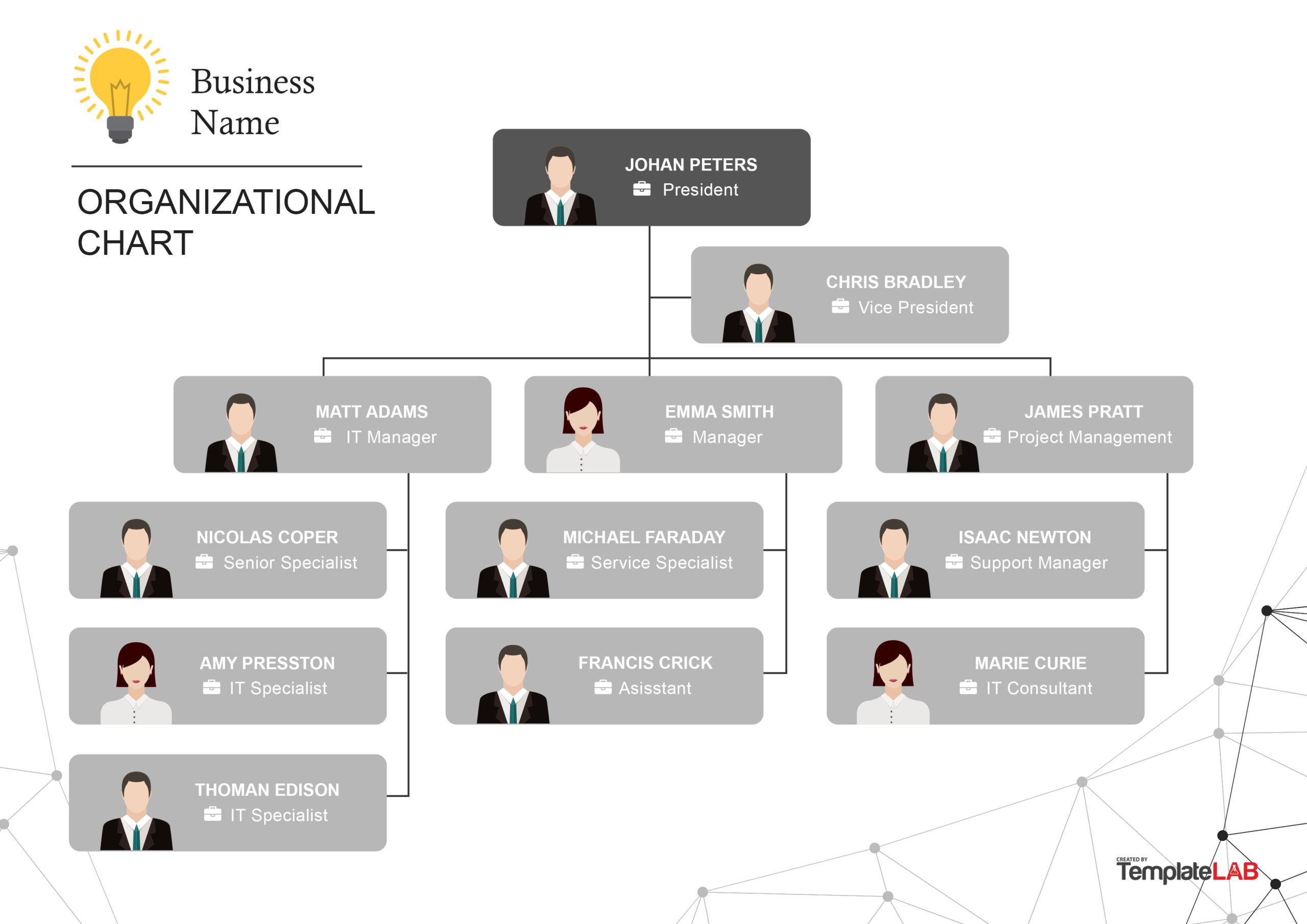
While you could create a chart from scratch using shapes and connectors, a Word template offers several advantages:
- Time Savings: Drag‑and‑drop nodes, auto‑align, and auto‑populate titles—no manual formatting.
- Ease of Editing: Add or remove employees in a single click; the layout updates automatically.
- Brand Consistency: Built‑in styles match your corporate identity—fonts, colors, and borders are pre‑set.
- Version Control: Store templates on shared drives or cloud storage so everyone uses the same format.
- Scalability: Whether you have 20 employees or 2,000, the template adapts without a complete redesign.
Choosing the Right Template for Your Company
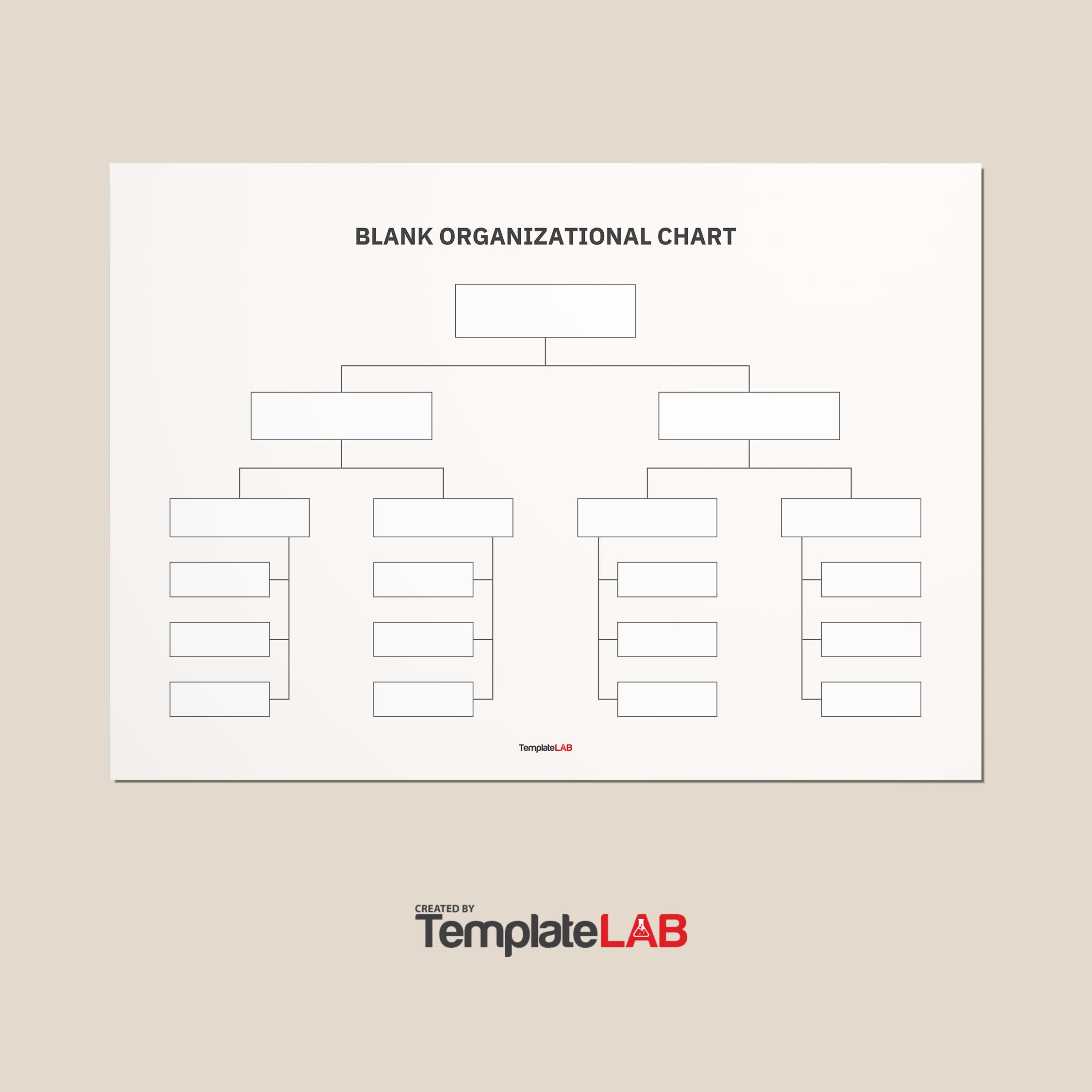
Not all templates are created equal. Here are three categories that match common organizational structures:
1. Flat Organization Chart
Ideal for startups or small businesses where there are few hierarchical layers. Features include:
- Minimal levels—typically 1 or 2.
- Simple grid layout that shows peer relationships.
- Color blocks to highlight teams or project groups.
2. Matrix Organization Chart
Used when employees report to more than one manager or work across multiple projects. The template will show:
- Dual reporting lines with dotted and solid connectors.
- Color coding for functional versus project teams.
- Legend to explain connector types.
3. Hierarchical Organization Chart
The classic tree structure, perfect for medium to large enterprises. Features include:
- Clear vertical hierarchy with levels numbered.
- Indented or nested boxes to show sub‑departments.
- Option to collapse branches for a high‑level view.
Step‑by‑Step: Creating a Chart in Word Using a Template
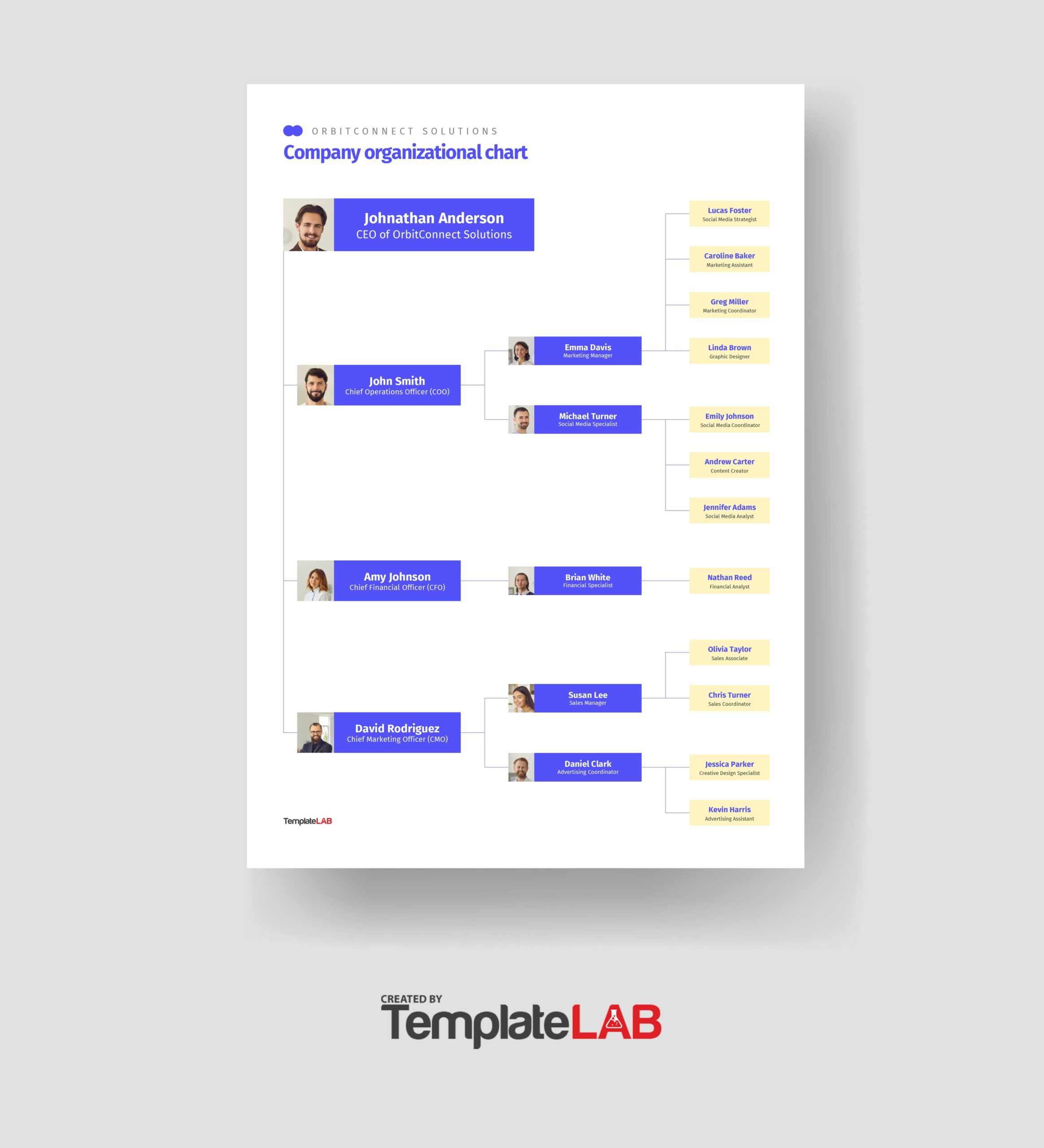
Follow this walkthrough to transform a blank document into a polished org chart.
Step 1: Open the Template
Launch Microsoft Word and choose “New.” Search for “Organization Chart” and select a template that matches your structure. Click “Create” to open the file.
Step 2: Adjust the Title and Company Name
Replace the placeholder title with your company’s name and the chart’s purpose (e.g., “Executive Team” or “Global Operations”). Use the built‑in heading style for consistency.
Step 3: Enter Employee Names and Titles
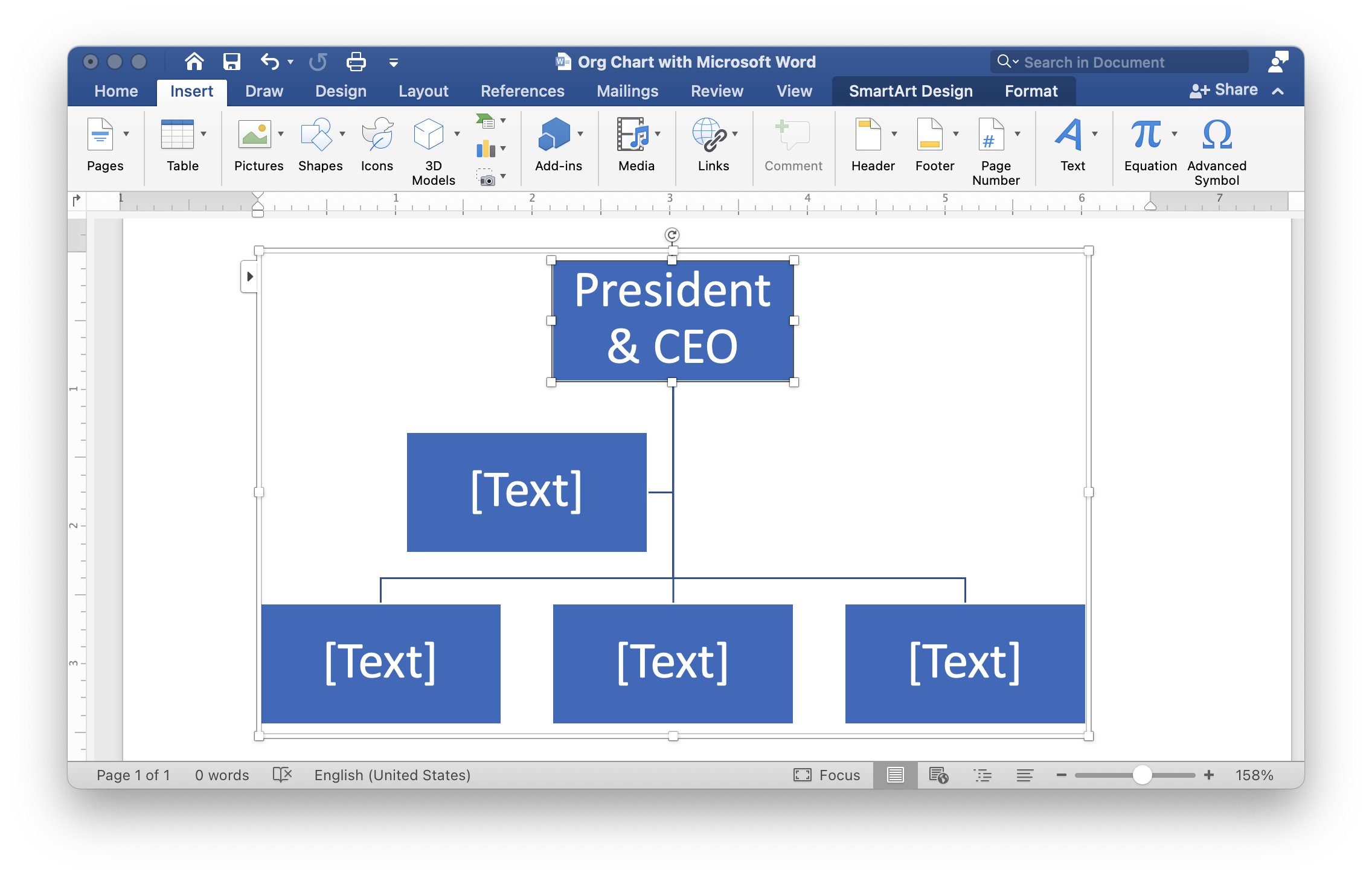
Click inside each shape to type the employee’s name, role, and optional contact details. Word’s SmartArt tool automatically resizes shapes to fit text.
Step 4: Add New Positions
Right‑click a shape, choose “Add Shape,” then select “Add Shape Below,” “Add Shape After,” or “Add Shape Before” depending on where the new role fits. The template will shift adjacent boxes to accommodate the change.
Step 5: Customize Colors and Fonts
Select the entire chart, then use the “Chart Tools – Design” tab to choose a preset color theme. If your company requires a custom palette, pick “Change Colors” and set the shades manually. Adjust fonts by highlighting text and choosing the desired typeface and size.
Step 6: Add a Legend
For complex charts—especially matrix structures—include a legend. Insert a small box, type “Legend,” and list each color or line style with its meaning. Place the legend in the corner to keep the chart clean.
Step 7: Finalize and Distribute
Proofread for typos, double‑check reporting lines, and save the document as both Word and PDF. Upload the PDF to your intranet or attach it to onboarding packets. Encourage the HR team to update the chart quarterly.
Real‑World Examples of Org Chart Use Cases
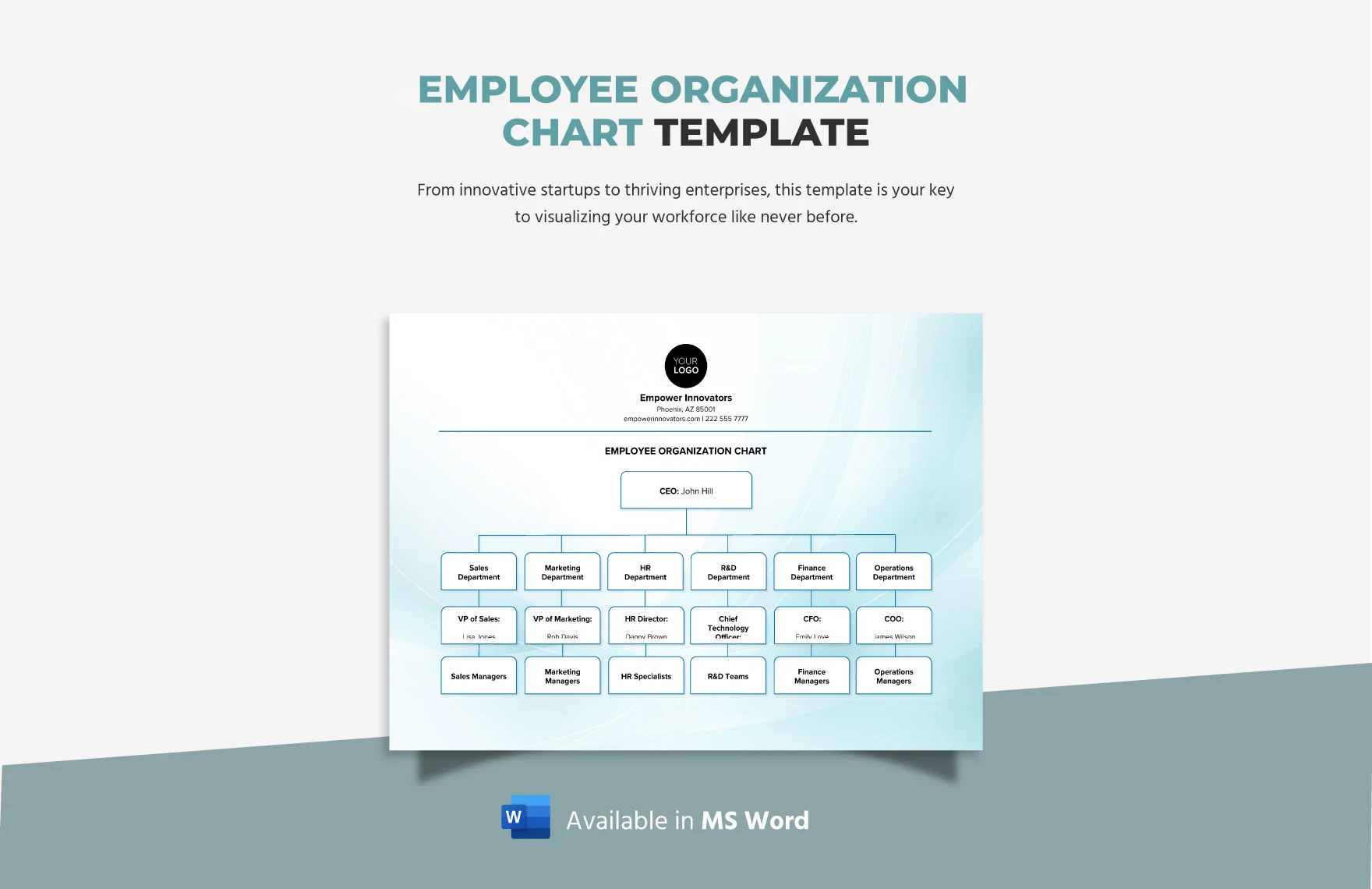
Seeing how others use org charts can inspire best practices.
Startup Scaling Fast
A tech startup with 30 employees uses a flat org chart template to show cross‑functional squads. When hiring, the team quickly adds a new product manager, and the chart auto‑rearranges. The updated chart is shared via Slack, keeping everyone aligned.
Global Corporation with Multiple Divisions
A multinational company uses a hierarchical chart template. Each regional office has its own sub‑chart that collapses into a master view. The template’s “Collapse/Expand” feature saves paper when printing the executive version.
Project‑Based Consulting Firm
Consulting firms often rely on matrix charts. A template that supports dual reporting lines lets project managers and functional leads see their direct reports side by side. This clarity reduces miscommunication during client engagements.
Common Mistakes and How to Avoid Them
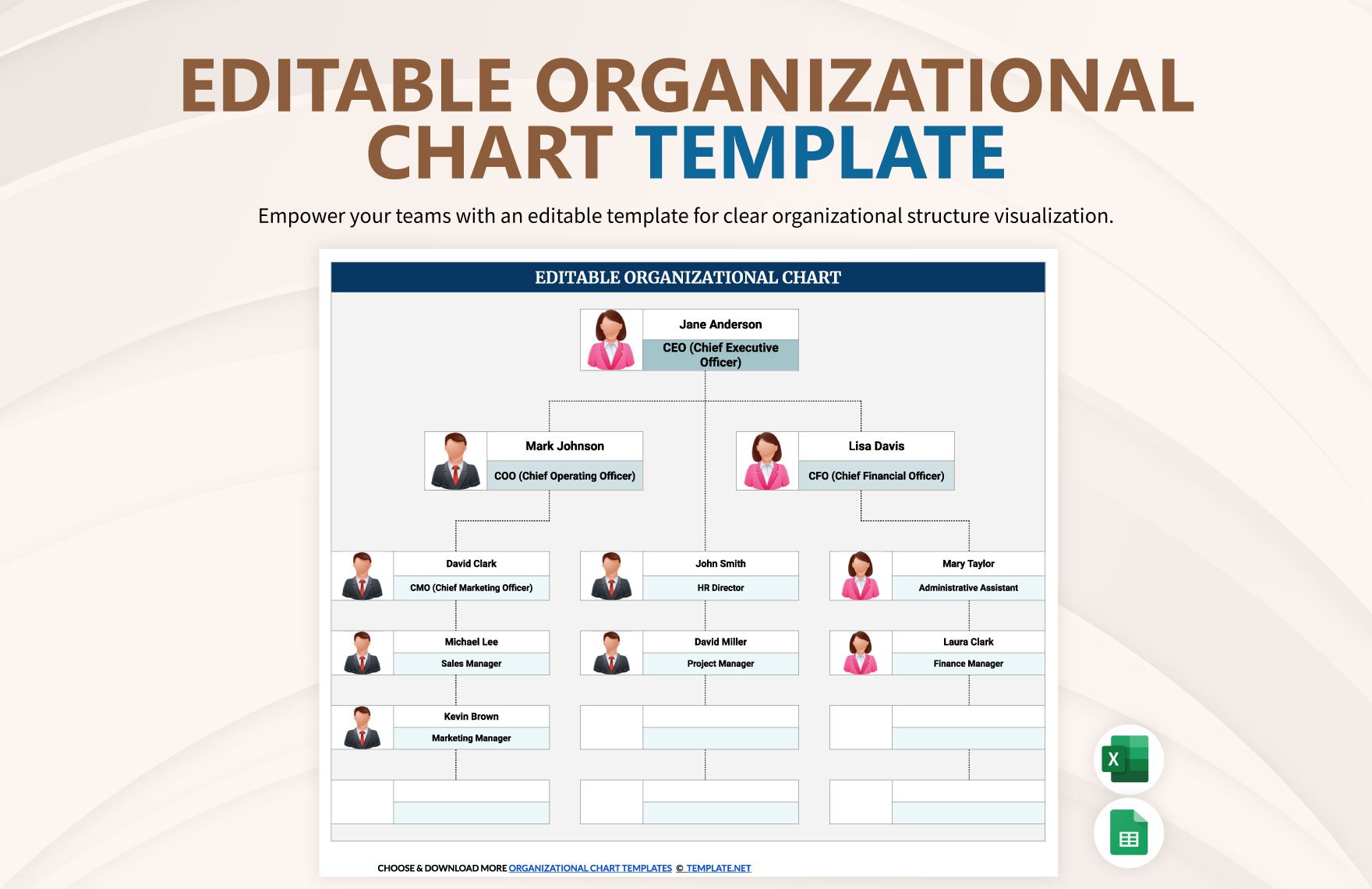
Even with a template, errors can creep in. Watch out for:
- Over‑crowding: Packing too many names into a single shape makes the chart unreadable. Use separate nodes for each employee.
- Inconsistent Naming Conventions: Mixing titles and numbers can confuse readers. Stick to one style—either “Title” or “Title – Department.”
- Missing Legends: Complex connectors need explanation. Always add a legend when using dotted lines, color codes, or symbols.
- Ignoring Accessibility: Ensure that color contrasts meet WCAG guidelines. If using a blue‑red pair, test with a contrast checker.
- Static Charts: If the org chart is never updated, it loses relevance. Schedule quarterly reviews and assign ownership to the HR manager.
Integrating the Org Chart Into Other Documents
Once you have a polished org chart, it can be embedded in a variety of materials:
- PowerPoint Presentations: Copy the chart into a slide to give investors a quick view of your leadership team.
- PDF Handouts: Include the chart in employee handbooks or strategic reports.
- Company Website: Use a web‑friendly version (PNG or SVG) in the “About Us” section.
- Onboarding Materials: Add the chart to the welcome packet so new hires can locate teammates and departments.
How to Keep Your Org Chart Up‑to‑Date
Maintaining an accurate org chart requires a simple process:
1. Assign Ownership
Choose an HR coordinator or a team lead to oversee chart updates. Provide them with a clear checklist.
2. Use a Change Log
Keep a spreadsheet that records when someone is added, promoted, or leaves. Link the log to the chart file for easy reference.
3. Automate Updates Where Possible
For larger companies, consider integrating HR software that can export org data into a Word template automatically. This reduces manual entry errors.
4. Review Quarterly
Schedule a brief meeting at the end of each quarter to review the chart. Update any changes before the next review cycle.
Optimizing the Org Chart for SEO and Accessibility
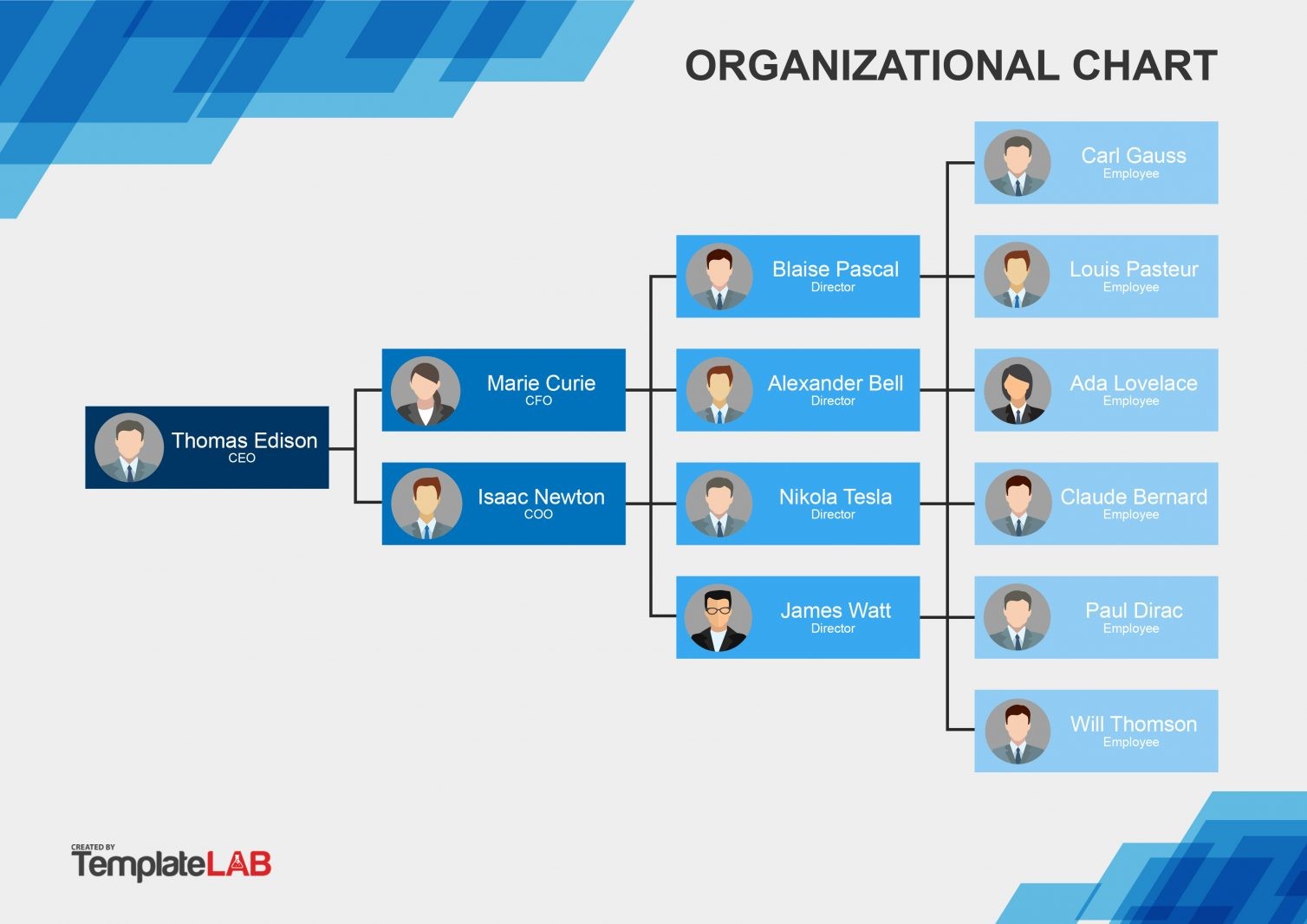
When publishing online, the org chart can be a valuable SEO asset if handled correctly.
- Alt Text: Add descriptive alt text to the image (e.g., “Organization chart for Acme Corp showing executive leadership and departmental structure”).
- Title Tag: Use a descriptive title tag on the page (e.g., “Acme Corp Org Chart – Leadership and Departments”).
- Schema Markup: If embedding the chart within a page, consider adding structured data for “Organization.” This helps search engines understand the content.
- File Size: Compress images to 100KB or less without losing clarity to improve page load times.
- Responsive Design: Use an SVG or high‑resolution PNG that scales on mobile devices.
Conclusion
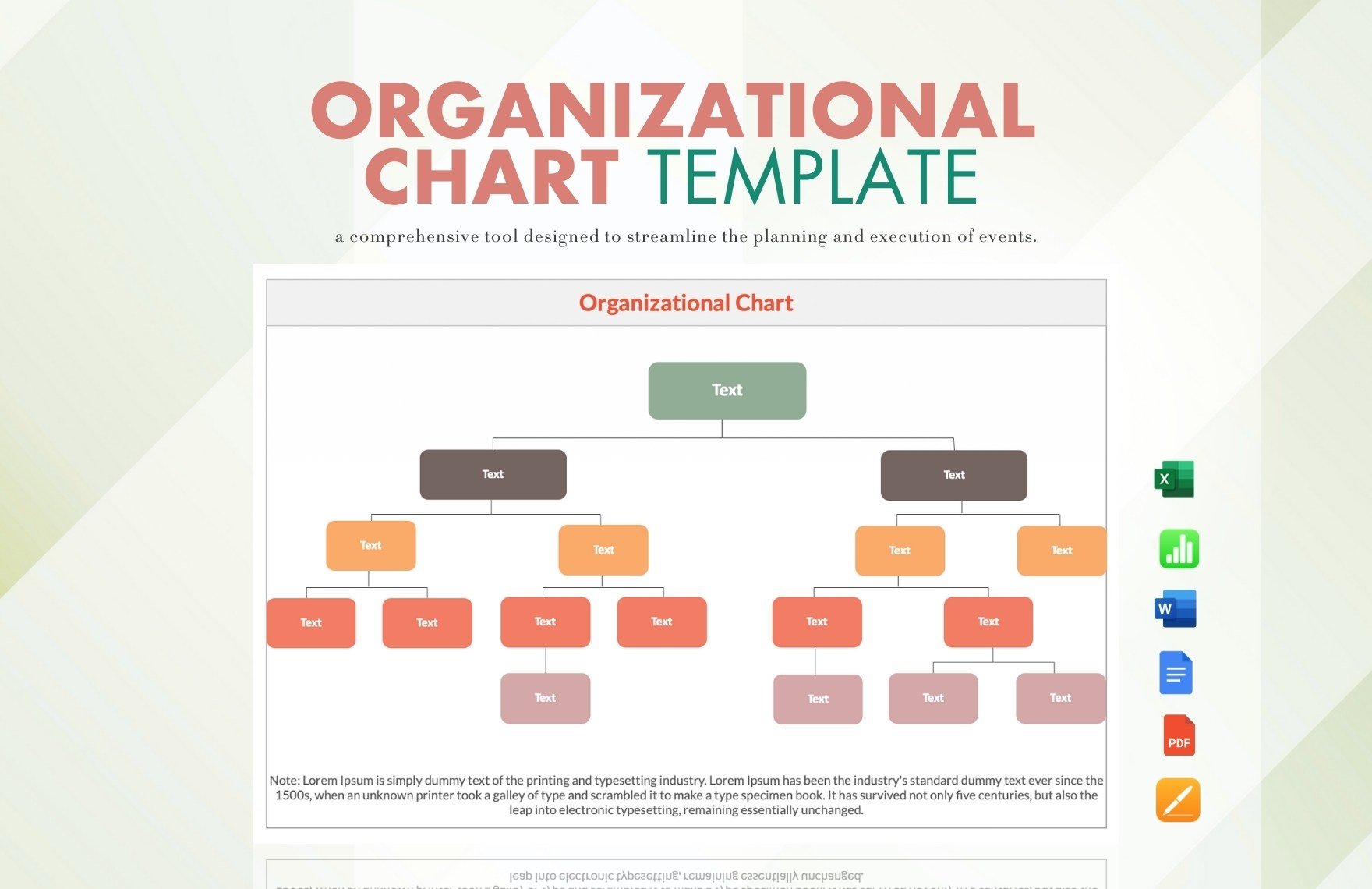
Leveraging an Organization Chart Template Word streamlines the process of visualizing and communicating your company’s structure. By selecting the appropriate template type, customizing it with brand colors, and maintaining an update routine, you create a living document that supports clarity, alignment, and growth. Whether you’re a startup building its first team or a global enterprise managing thousands of employees, a well‑crafted org chart is an indispensable tool that brings transparency and efficiency to your organization.
Related posts of "Organization Chart Template Word"
