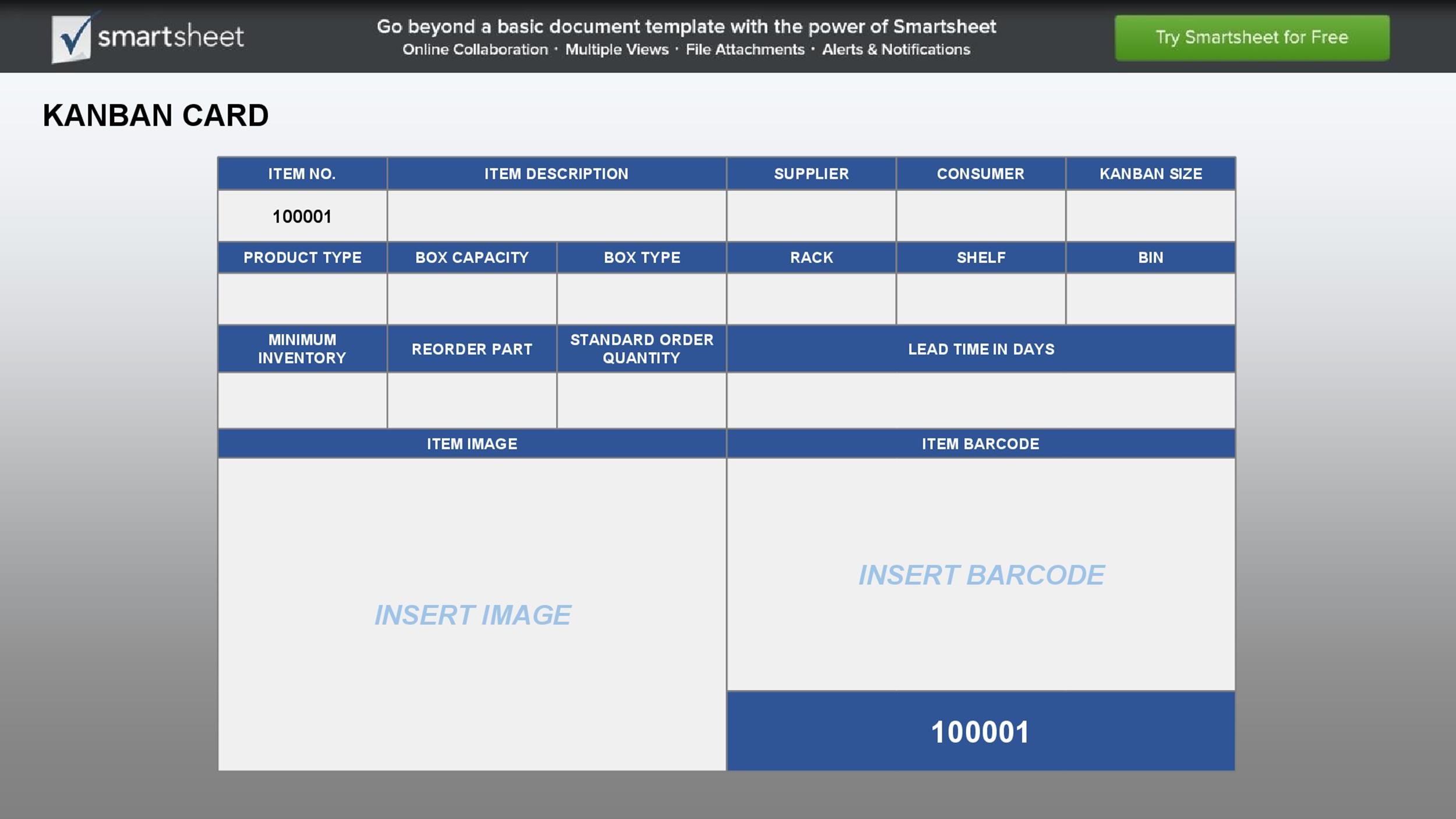
Kanban Card Template is the linchpin of any high‑velocity workflow, turning abstract tasks into tangible, bite‑size work items that can be moved across stages with a single flip. Whether you’re sprinting through software development, launching a marketing campaign, or orchestrating a production line, the right card format delivers clarity, accountability, and momentum.
What Is a Kanban Card Template?
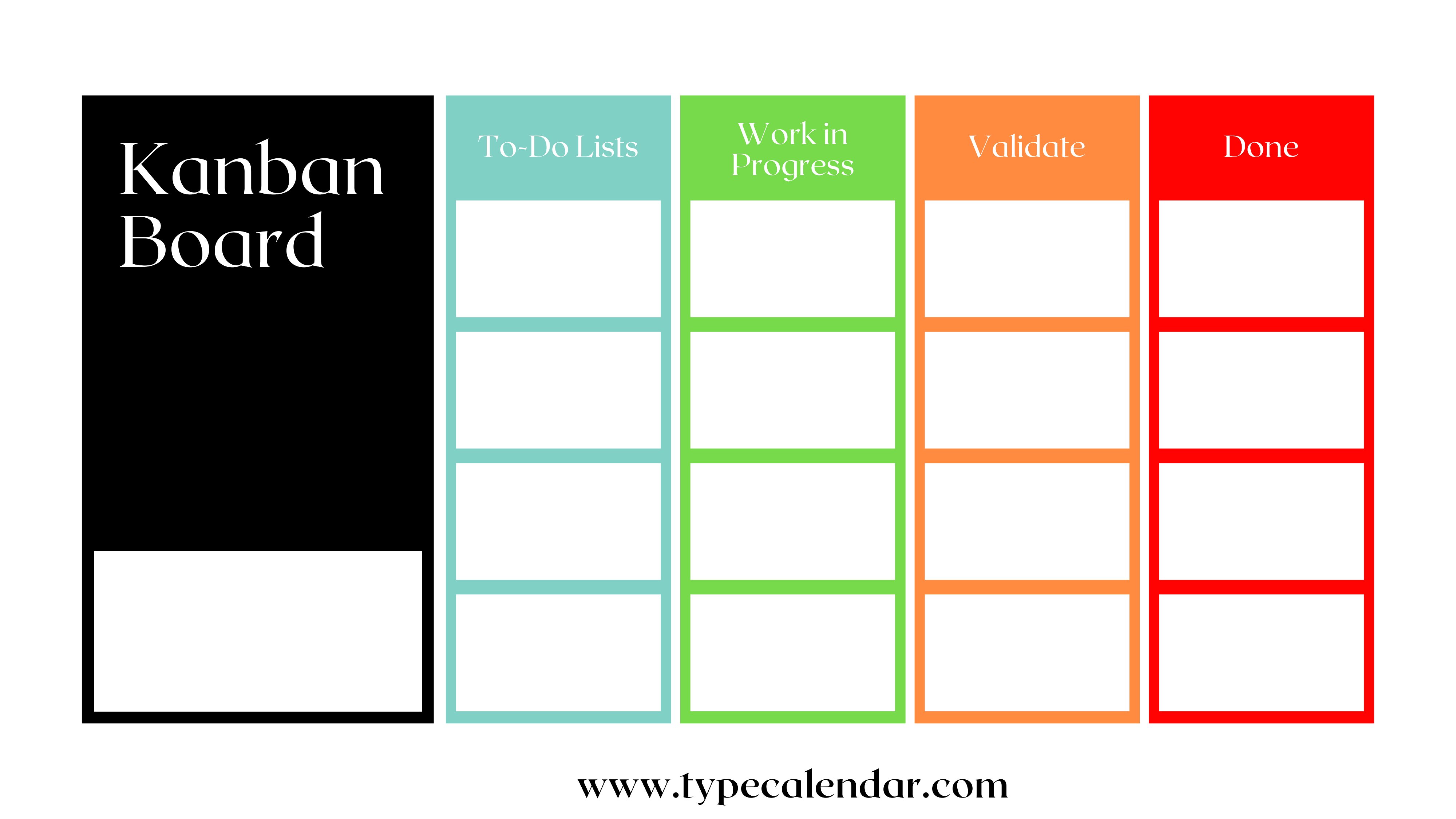
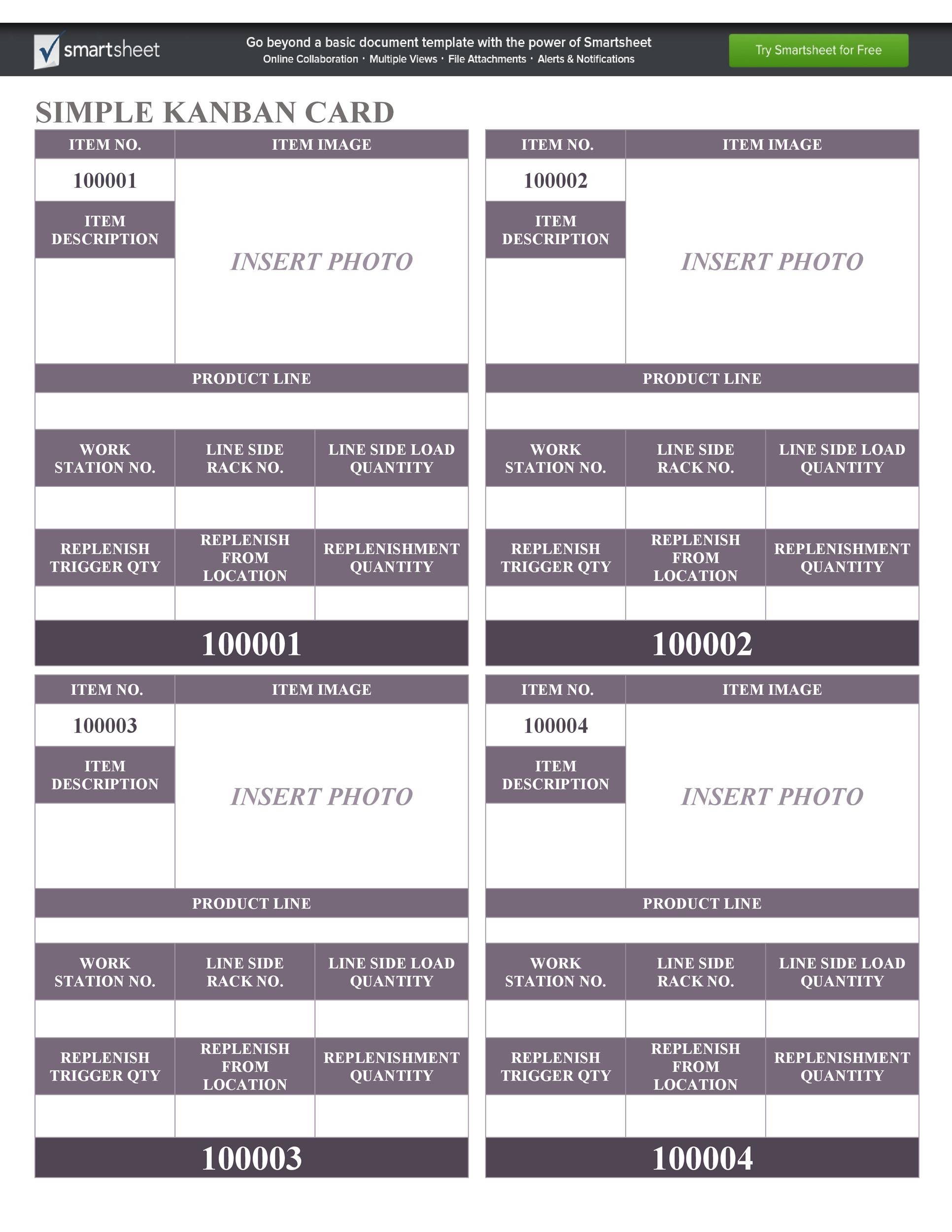
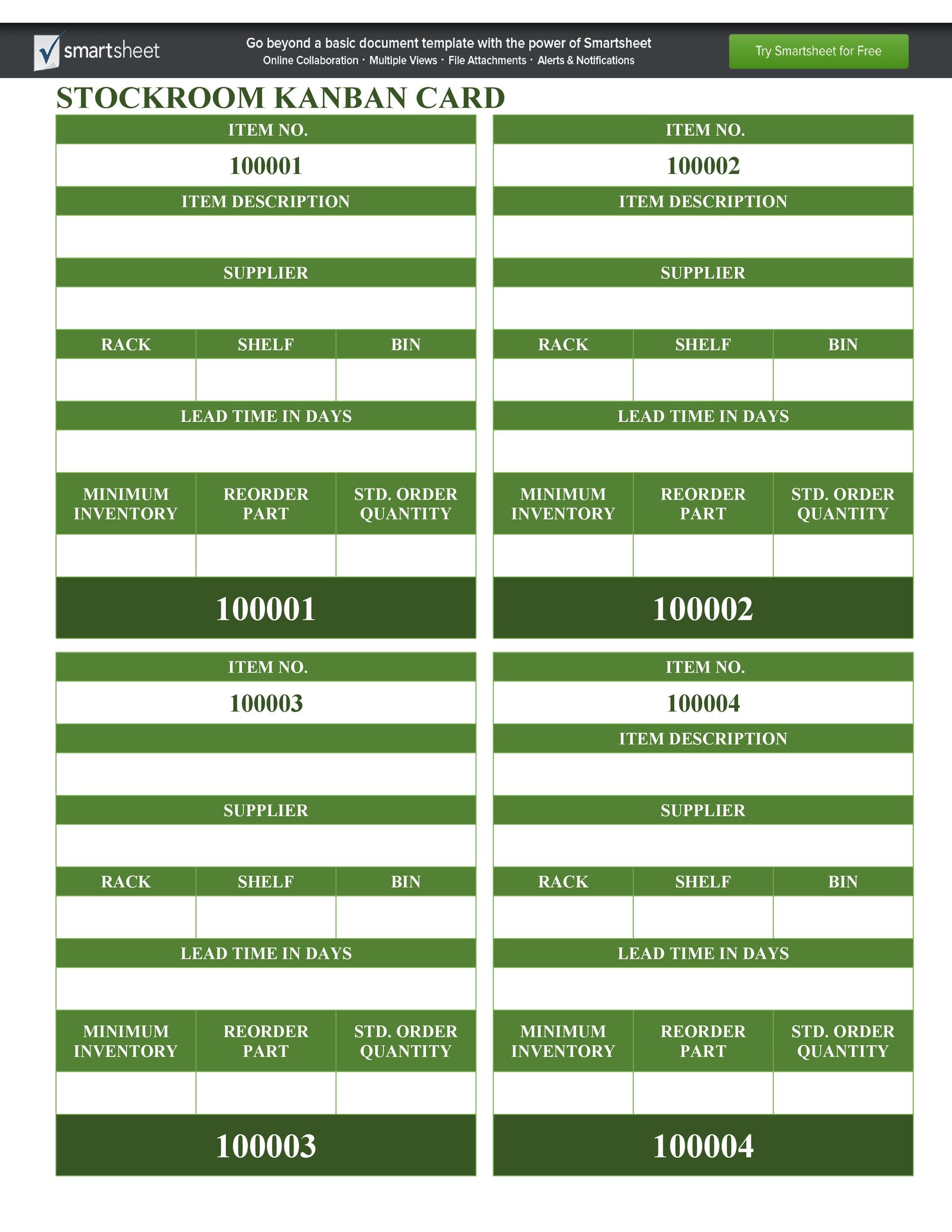
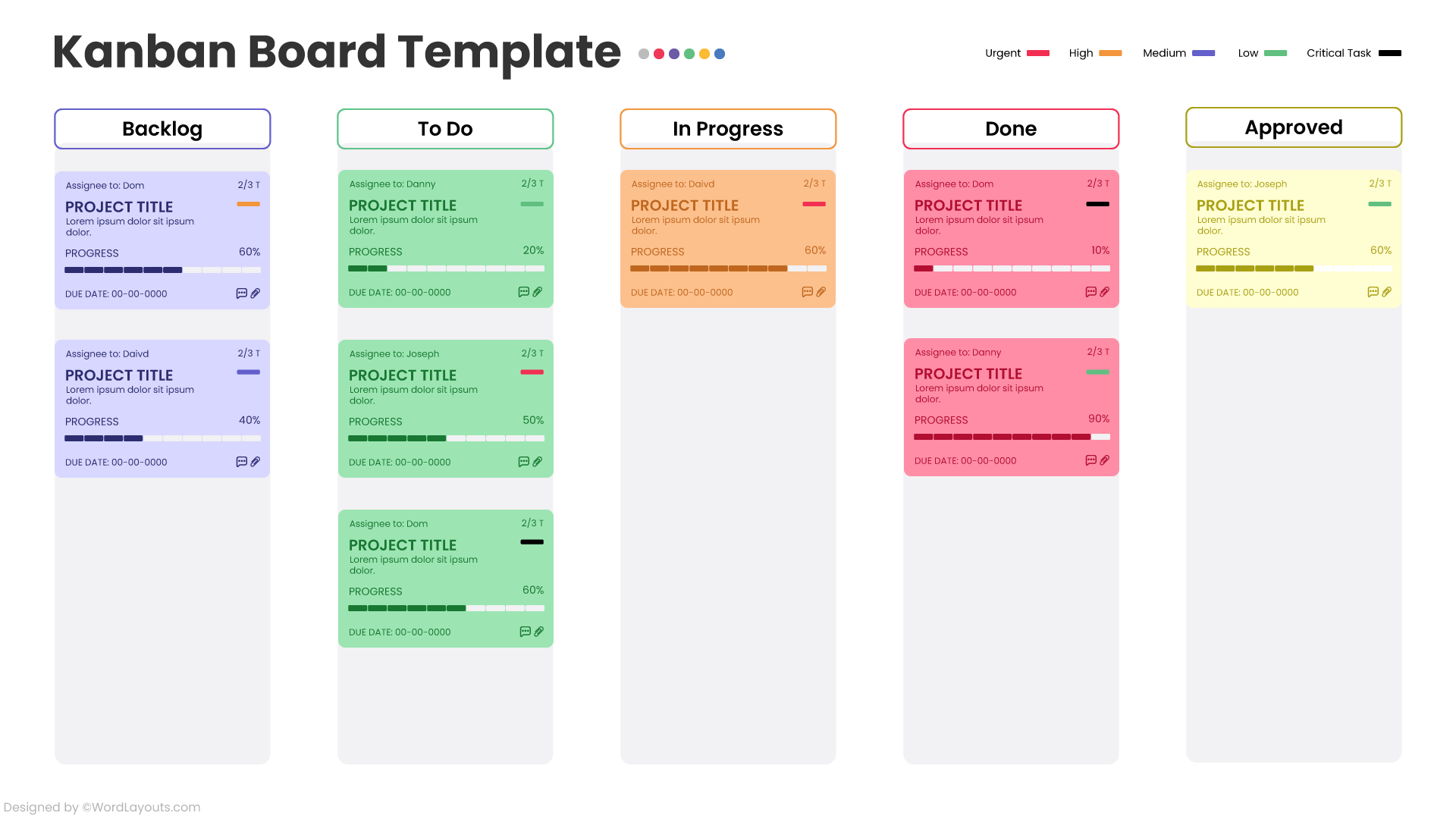
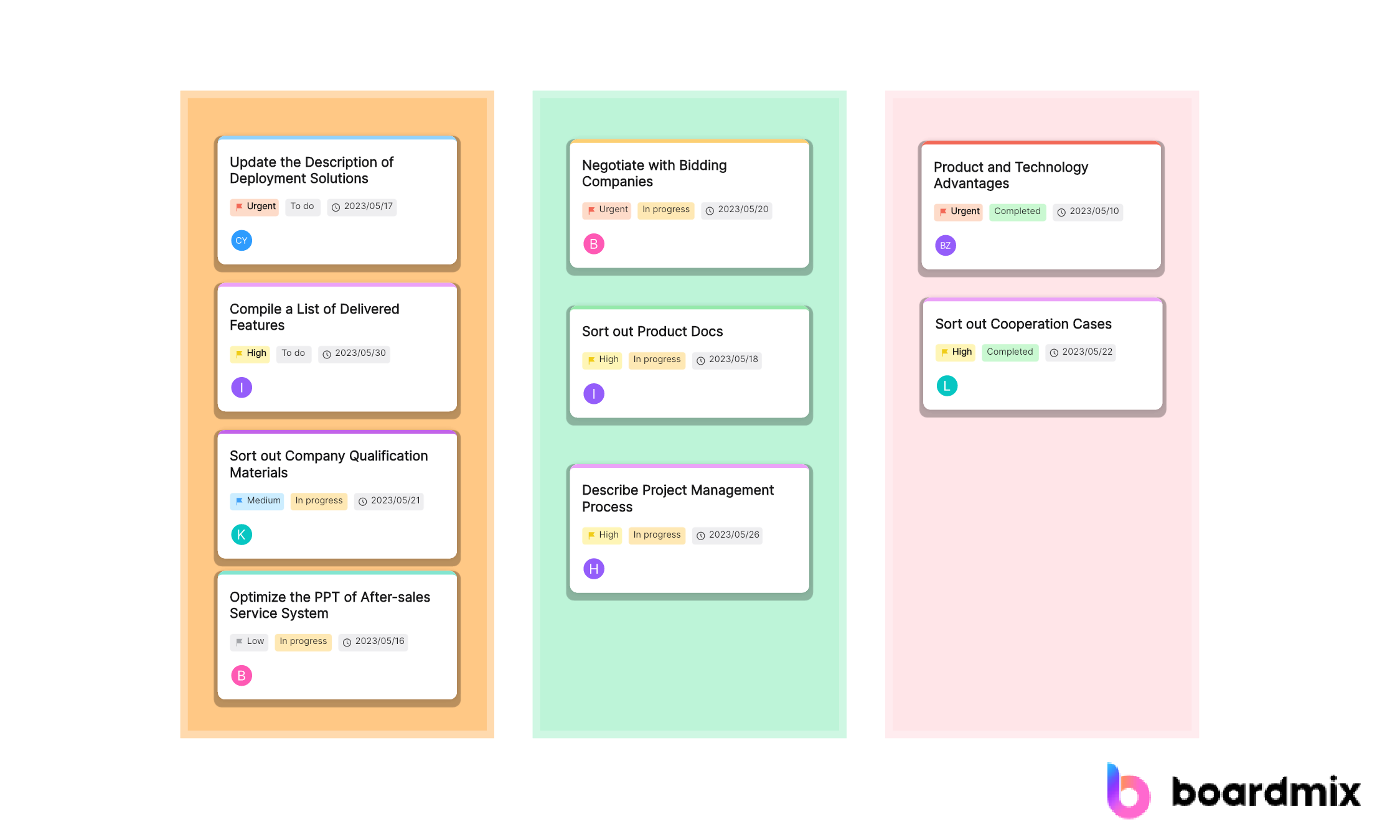
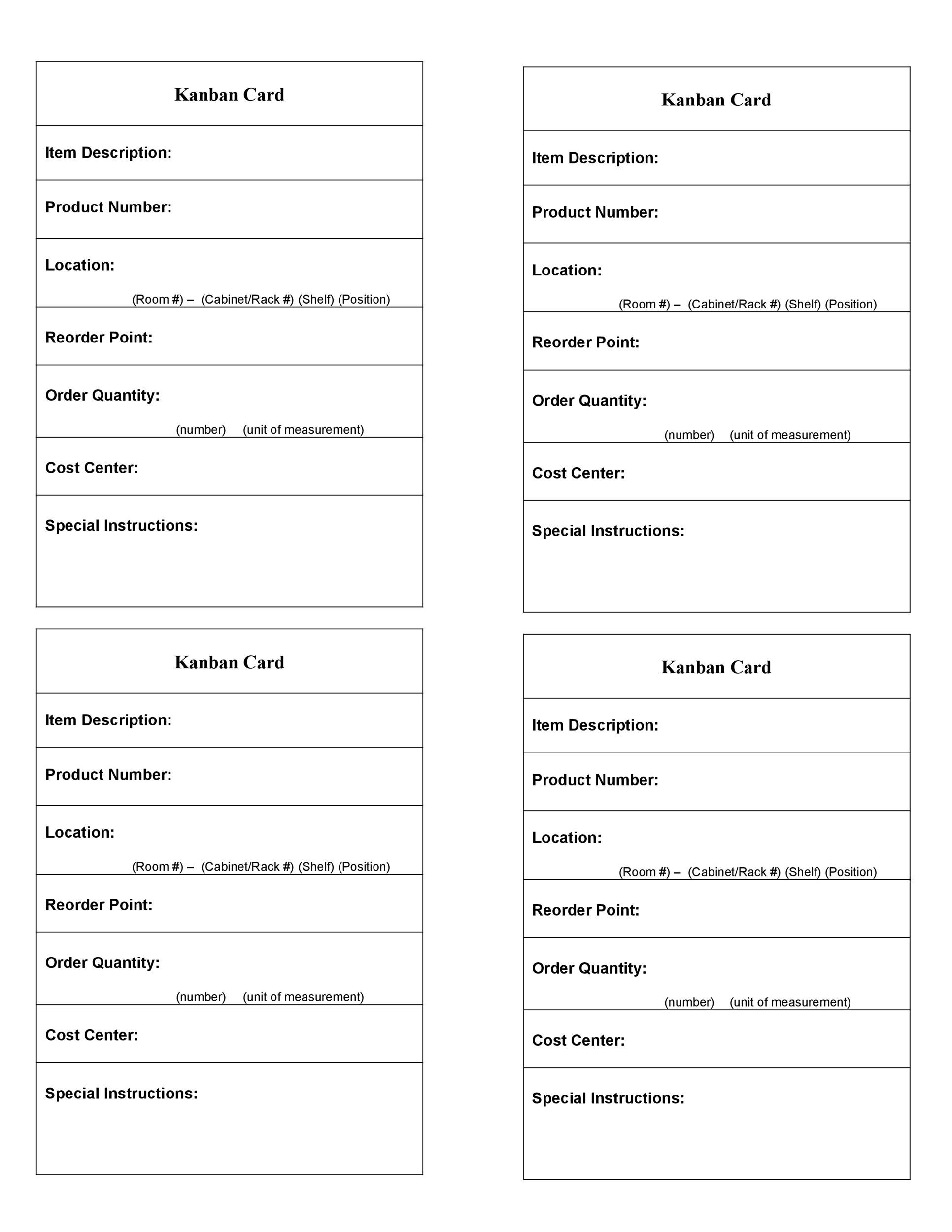
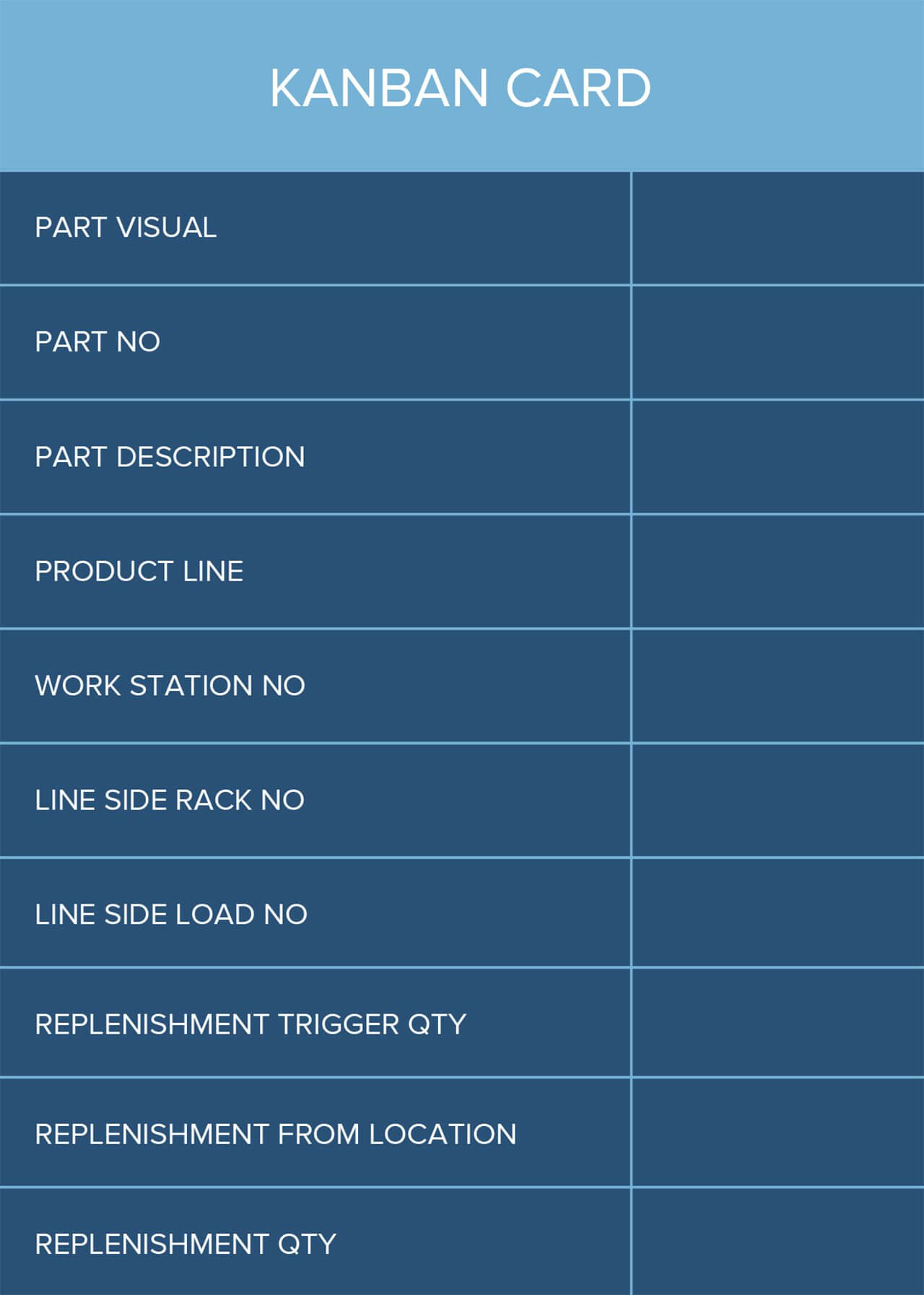
A Kanban Card Template is a standardized layout that outlines the essential information a task needs to be understood, tracked, and completed. Think of it as a recipe card for work: it lists the name, owner, status, priority, and any dependencies, all in a compact, readable format that fits onto a board or a digital ticketing system. The template ensures consistency across teams and projects, so that a card looks the same whether it’s in the “To Do” column or the “Done” column.
Core Elements of a Kanban Card
- Title – A concise, descriptive label that conveys the task at a glance.
- Owner – The person or role responsible for moving the card forward.
- Status – A short tag (e.g., “In Progress”, “Review”) that reflects the current stage.
- Priority – A clear indicator of urgency, often using colors or symbols.
- Due Date – A target completion time to keep the flow time‑bounded.
- Dependencies – Links to other cards that must be completed first.
- Notes/Comments – Space for brief updates or clarifications.
Including these core elements creates a “one‑page” view of each work item, eliminating guesswork and reducing hand‑off friction.
Visual Design Tips for Maximum Impact
- White Space – Don’t clutter the card; let important data breathe.
- Typography – Use a readable font and bold the title to establish hierarchy.
- Color Coding – Assign a single color per priority or status to enable instant scanning.
- Icons – Small, intuitive icons next to status or priority can convey meaning faster than text.
- Paper Quality – If using physical cards, choose a cardstock that resists wear and tear during frequent handling.
Design isn’t about aesthetics alone; it’s a functional shortcut that speeds up decision making.
How to Create an Effective Kanban Card Template from Scratch
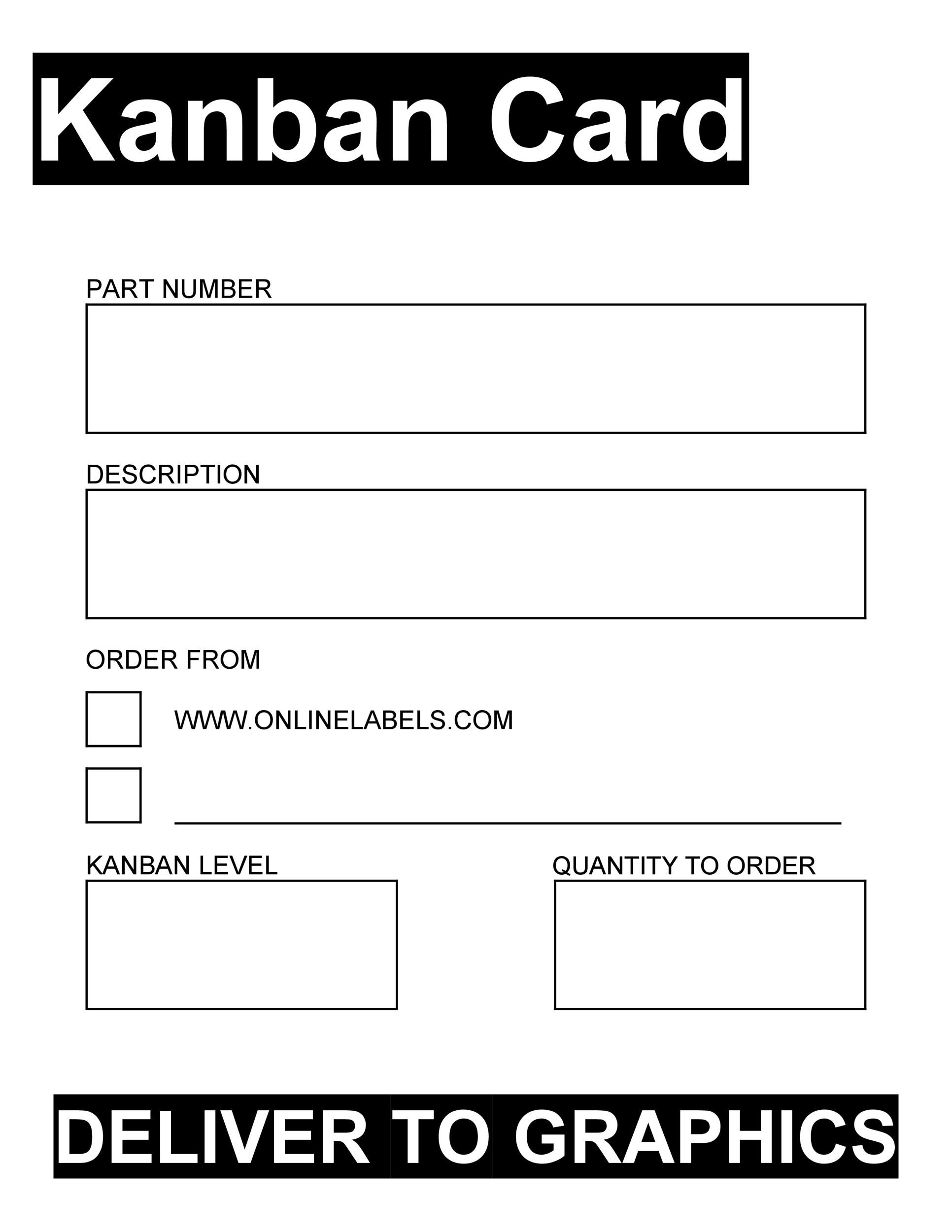
Choosing the Right Tool: Digital vs Physical
If your team is remote or heavily digital, a software solution like Trello or Jira may be ideal. For on‑site teams or those who benefit from tactile interaction, a physical board with printable cards remains powerful. The key is to keep the template consistent across platforms.
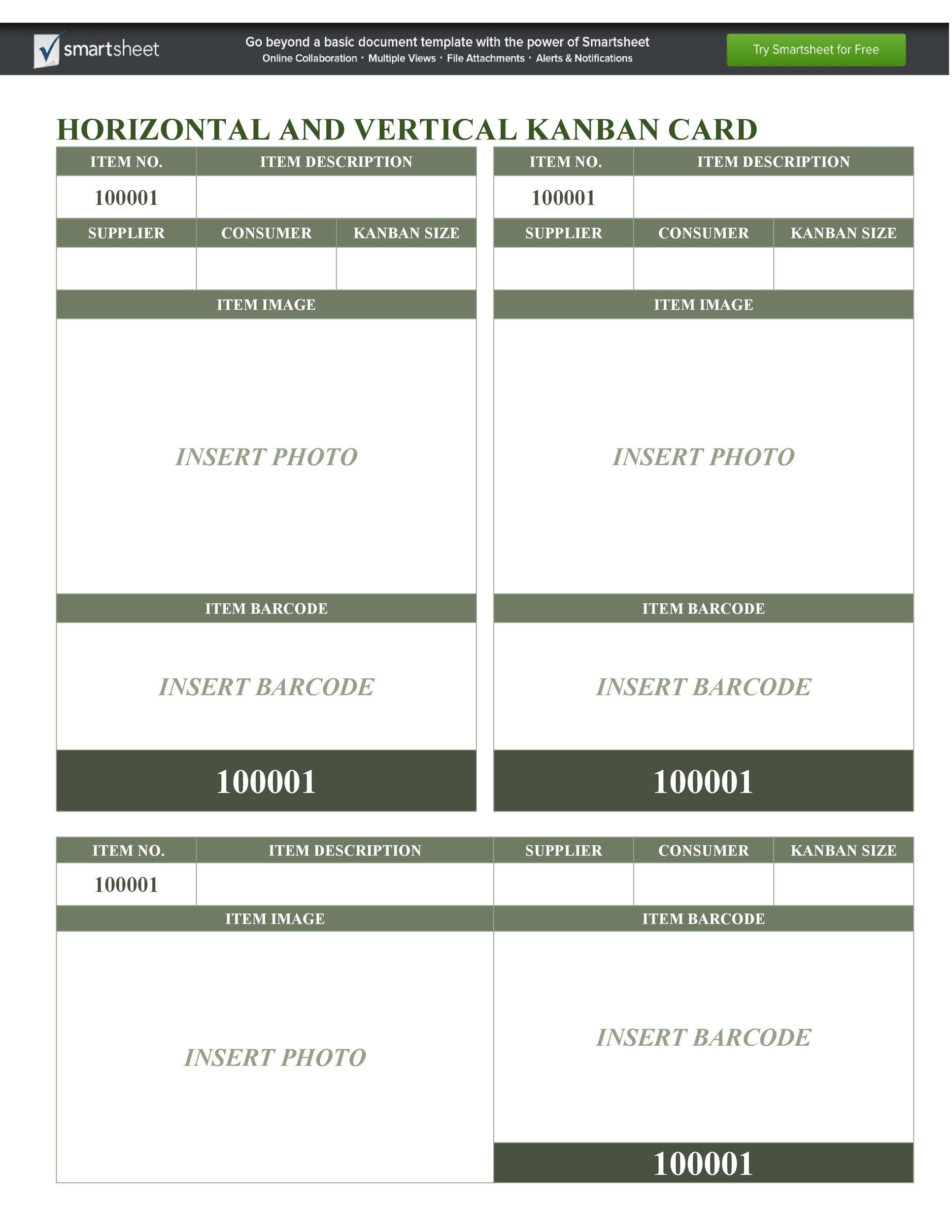
Layout Blueprint: Header, Body, Footer
- Header – Title, owner, and status sit here.
- Body – Priority, due date, and brief description.
- Footer – Notes, comments, and dependency links.
By segmenting information into three clear zones, you make scanning easier for anyone glancing at the board.
Crafting a Clear Workflow Title and Status Indicators
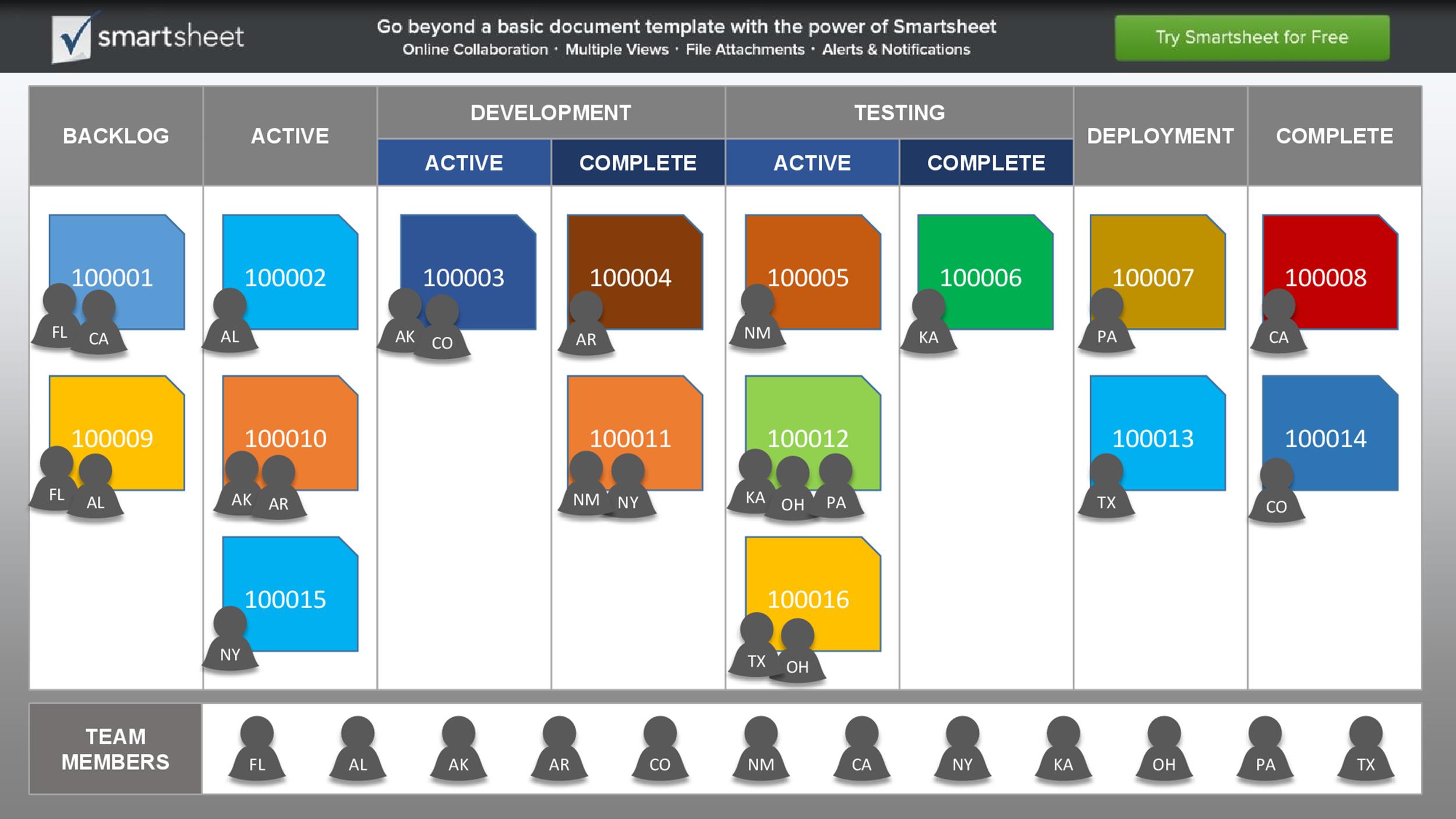
Choose a workflow that reflects your actual process: “Backlog”, “Ready”, “In Progress”, “Testing”, “Done”. Use a single word or two‑word status tags to keep the card legible. Add a small flag icon next to each status for quick visual identification.
Adding Task Details, Priority, and Dependencies
Include a 1–2 sentence description in the body to give context. Use a star or number to indicate priority—*★*, **★**, or 1–5. For dependencies, add a short note or a small arrow icon pointing to the prerequisite card, helping teams avoid bottlenecks.
Using Color Coding and Icons for Quick Recognition
- Priority Colors – Red for high, amber for medium, green for low.
- Status Icons – A spinning wheel for “In Progress”, a magnifying glass for “Review”.
- Dependency Badge – A small chain link icon with a number indicating how many cards are waiting.
Color and icons turn a static card into a dynamic visual cue, reducing the cognitive load during stand‑ups.
Customizing Your Kanban Card Template for Different Teams

Software Development Teams
Emphasize ticket IDs, sprint numbers, and test case links. Include a small “Bug/Feature” toggle and a “Story Points” field for capacity planning.
Marketing Campaigns
Feature campaign names, content owners, and publish dates. Add a “Creative Review” status and a “Launch” due date to keep timelines tight.
Customer Support
Prioritize tickets by SLA. Use a “Urgent” badge, add a “Customer ID” field, and a quick “Escalation Level” indicator to route tickets efficiently.
Integrating Kanban Cards into Your Workflow

Setting Up a Physical Kanban Board
Paint a board with clearly marked lanes for each status. Use a magnetic or Velcro system so cards can be moved without leaving residue. Hang a master reference card at the top to remind users of the workflow.
Leveraging Digital Kanban Software
Configure columns to match your status tags. Import card templates as JSON or CSV to populate the board. Enable card templates so new tasks automatically adopt the same structure.
Combining Physical and Digital: Hybrid Approach
Print a high‑quality version of your digital template for physical boards. Use QR codes on physical cards that link to the corresponding digital ticket for real‑time updates.
Real‑World Success Stories Using Kanban Card Templates
Case Study 1: Agile Software Team
A startup moved from a waterfall approach to Kanban by adopting a standardized card template. Within three months, lead time dropped from 14 days to 7, and defect density fell by 30% because status tags made blockers visible instantly.
Case Study 2: Digital Marketing Agency
By adding a “Creative Review” status and color‑coded priority tags, the agency reduced cycle time for campaign assets by 25%. The visual clarity helped designers, copywriters, and account managers stay on the same page.
Case Study 3: Manufacturing Process
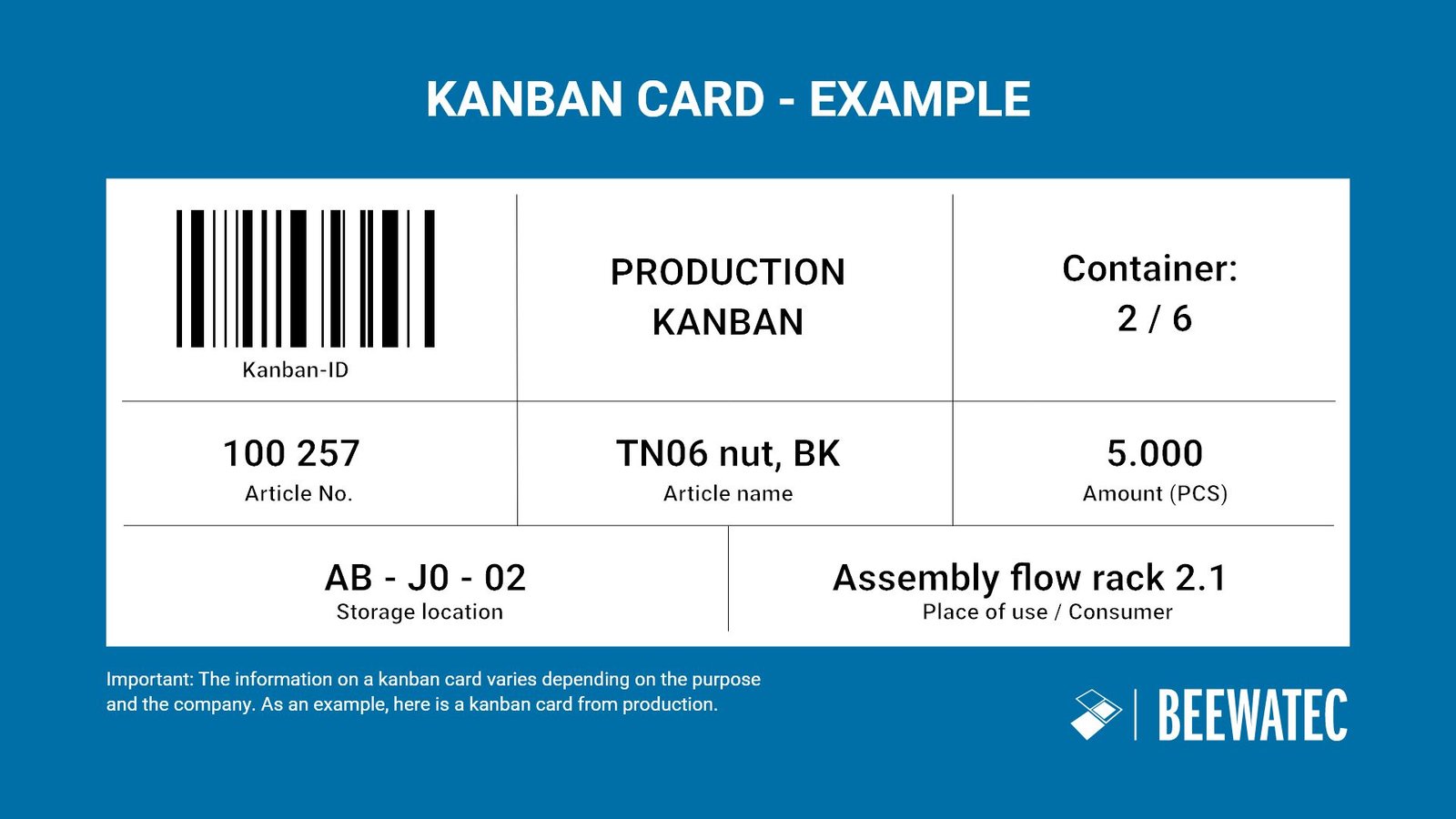
A factory implemented physical Kanban cards on a lean production line. Each card included a due date, priority, and machine operator. This change cut material waste by 12% and improved overall equipment effectiveness (OEE) by 8%.
Common Pitfalls and How to Avoid Them
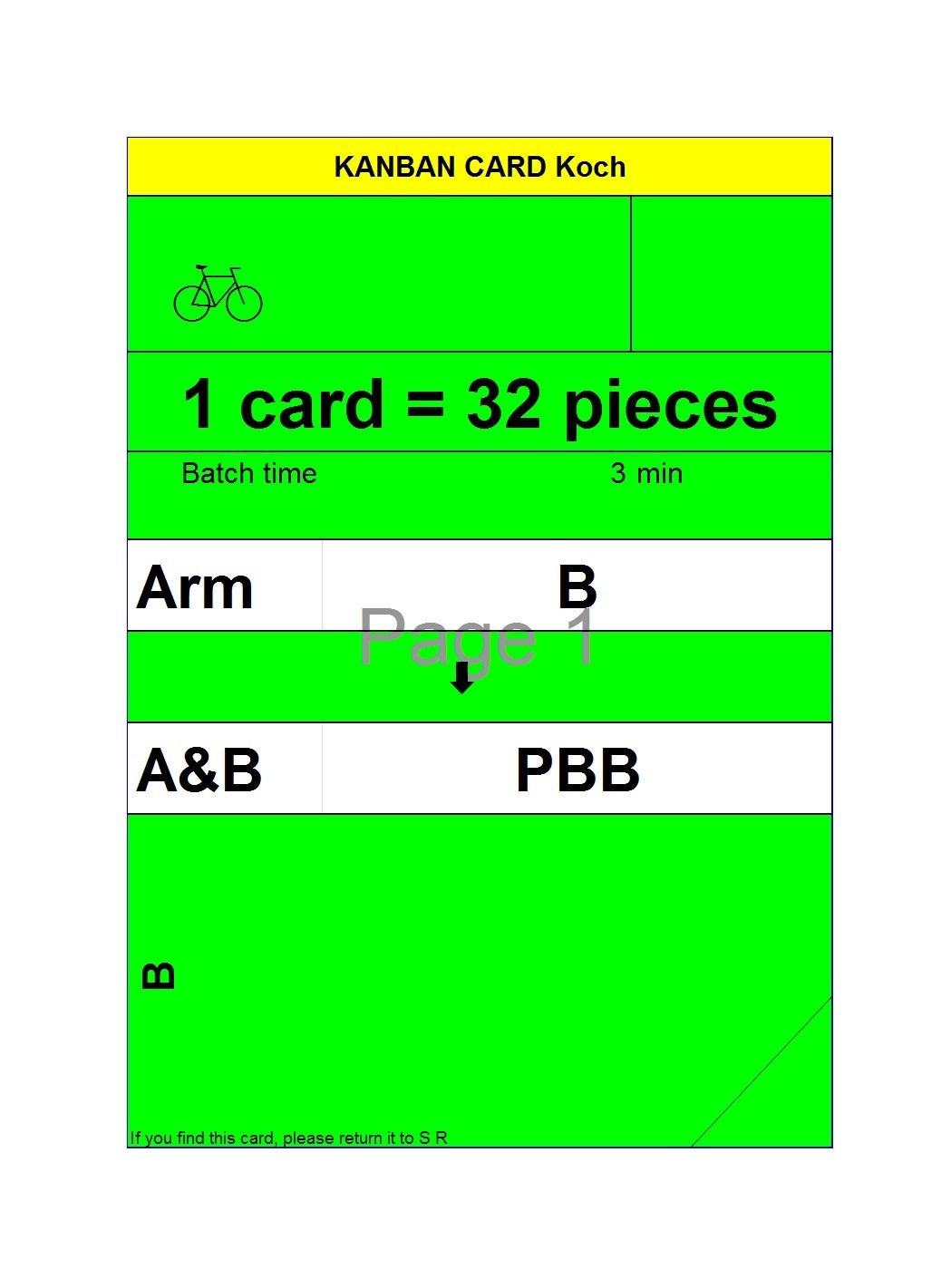
Overloading the Card
Too much text or too many icons can make the card unreadable. Keep it to the essentials: title, status, priority, and a short description.
Poor Color Contrast
Using light text on a light background or dark text on a dark background reduces legibility. Stick to high‑contrast combinations like white on black or yellow on dark blue.
Ignoring Card Rotation and Physical Handling
Physical cards can wear out. Choose durable cardstock, laminate if necessary, and rotate cards after use to distribute wear evenly.
Conclusion: Mastering Kanban Cards for Peak Productivity
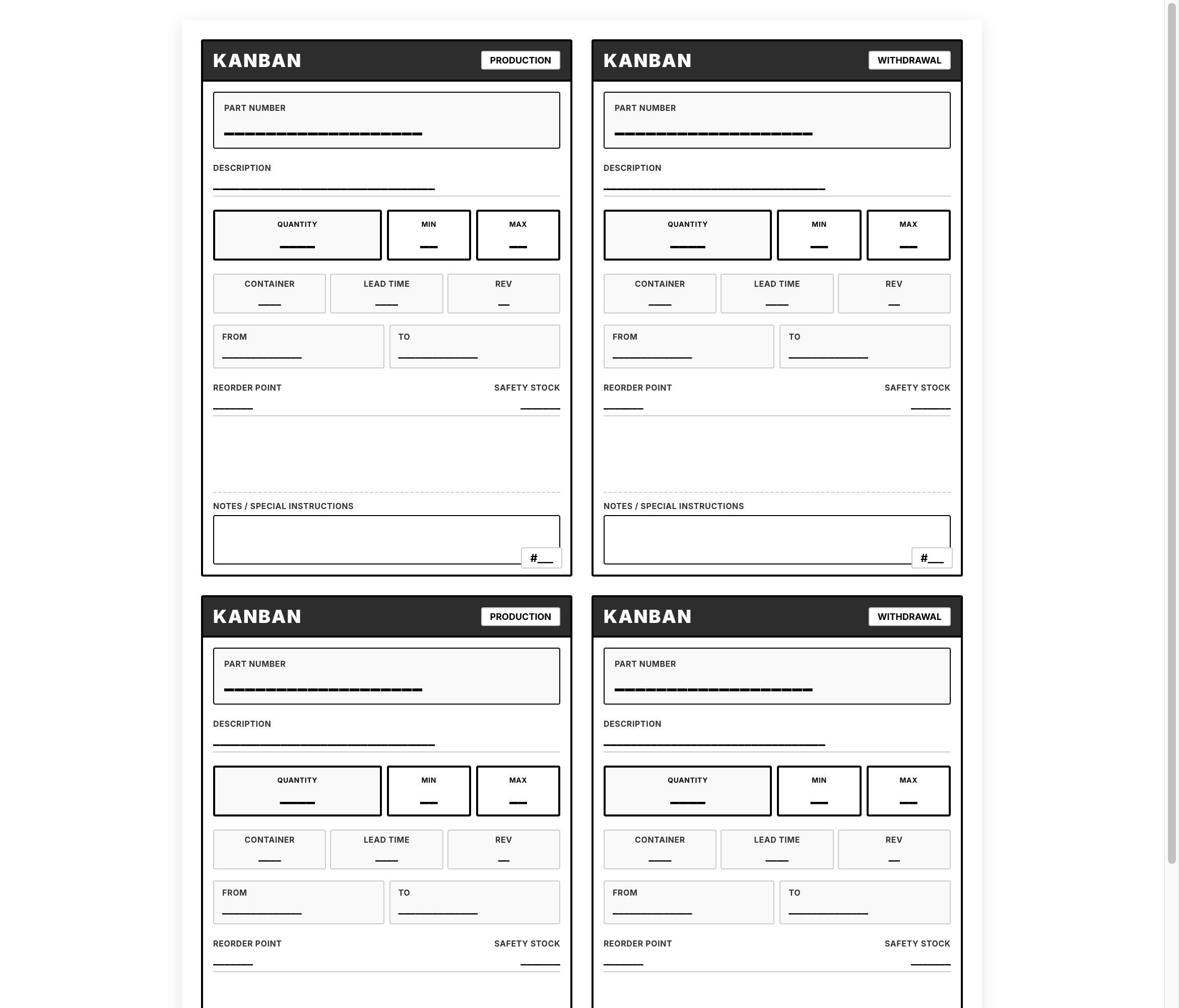
A well‑designed Kanban Card Template is more than a set of fields; it’s a shared language that turns chaos into clarity. By standardizing titles, status tags, priority indicators, and visual cues, teams can move tasks faster, spot bottlenecks instantly, and keep everyone aligned. Whether you opt for a physical board, a digital system, or a hybrid solution, the core principles remain the same: keep the card clean, color‑coded, and consistent across the organization. Implement these practices today, and watch your workflow transform from sluggish to seamless, delivering results with every swipe or flip.