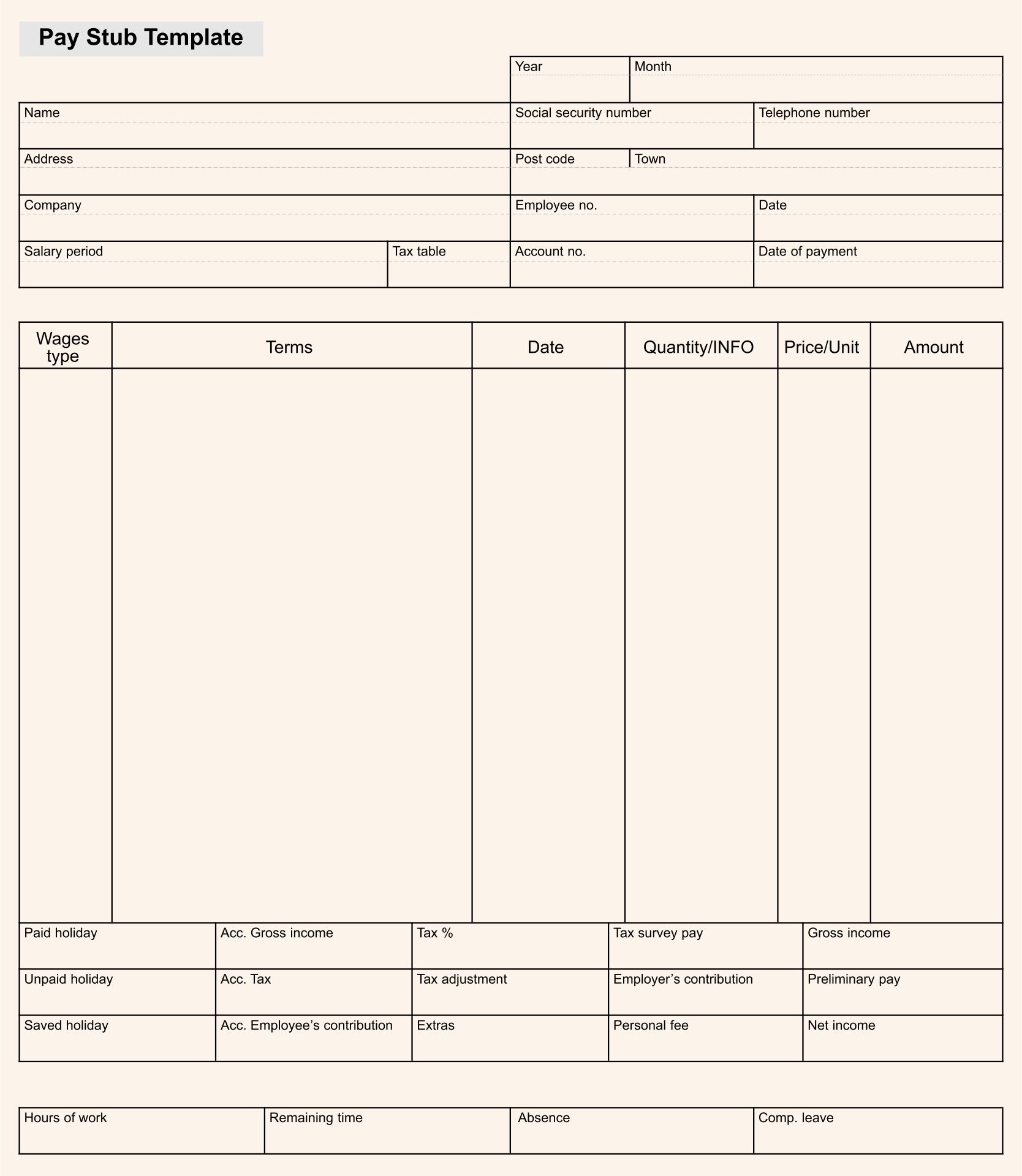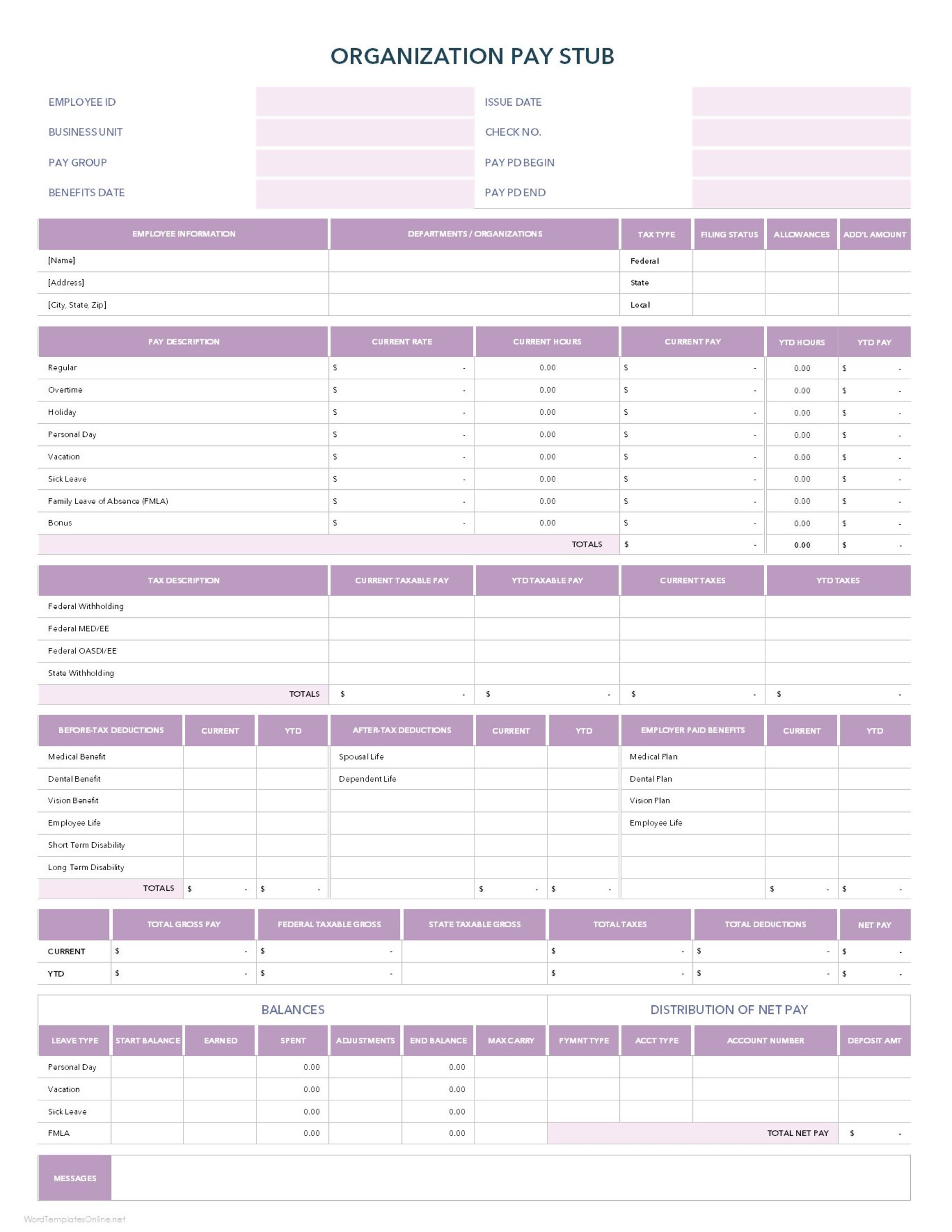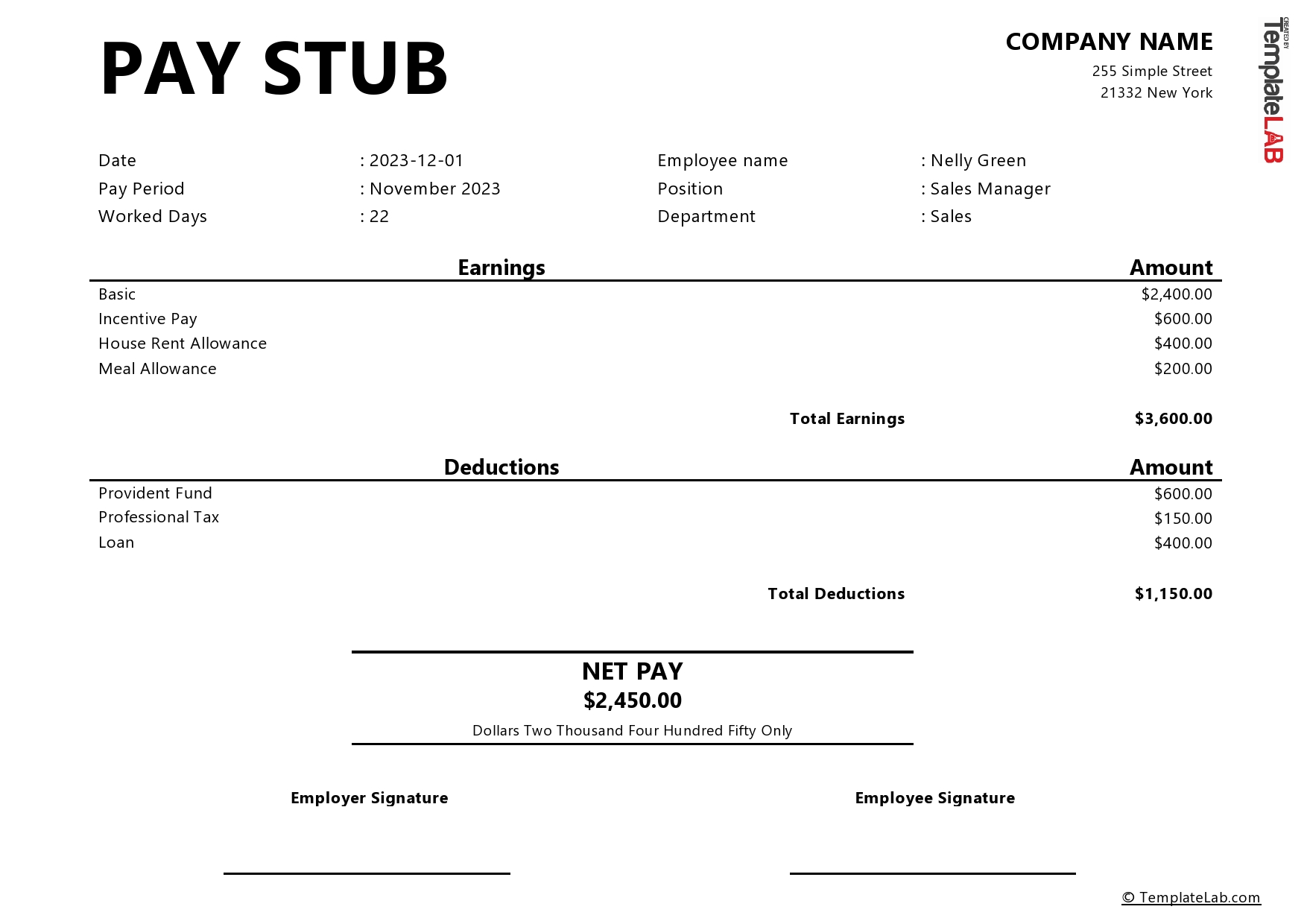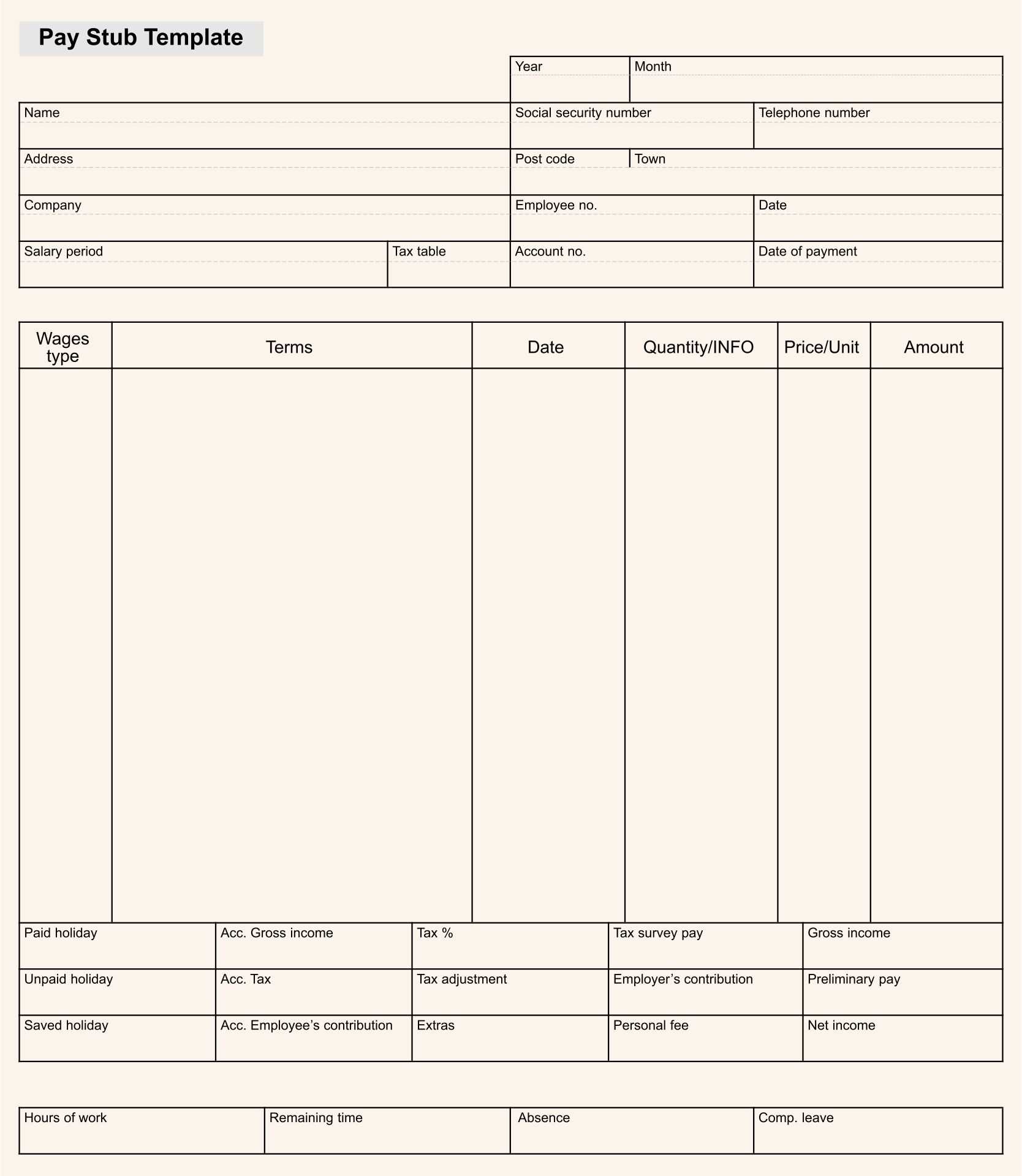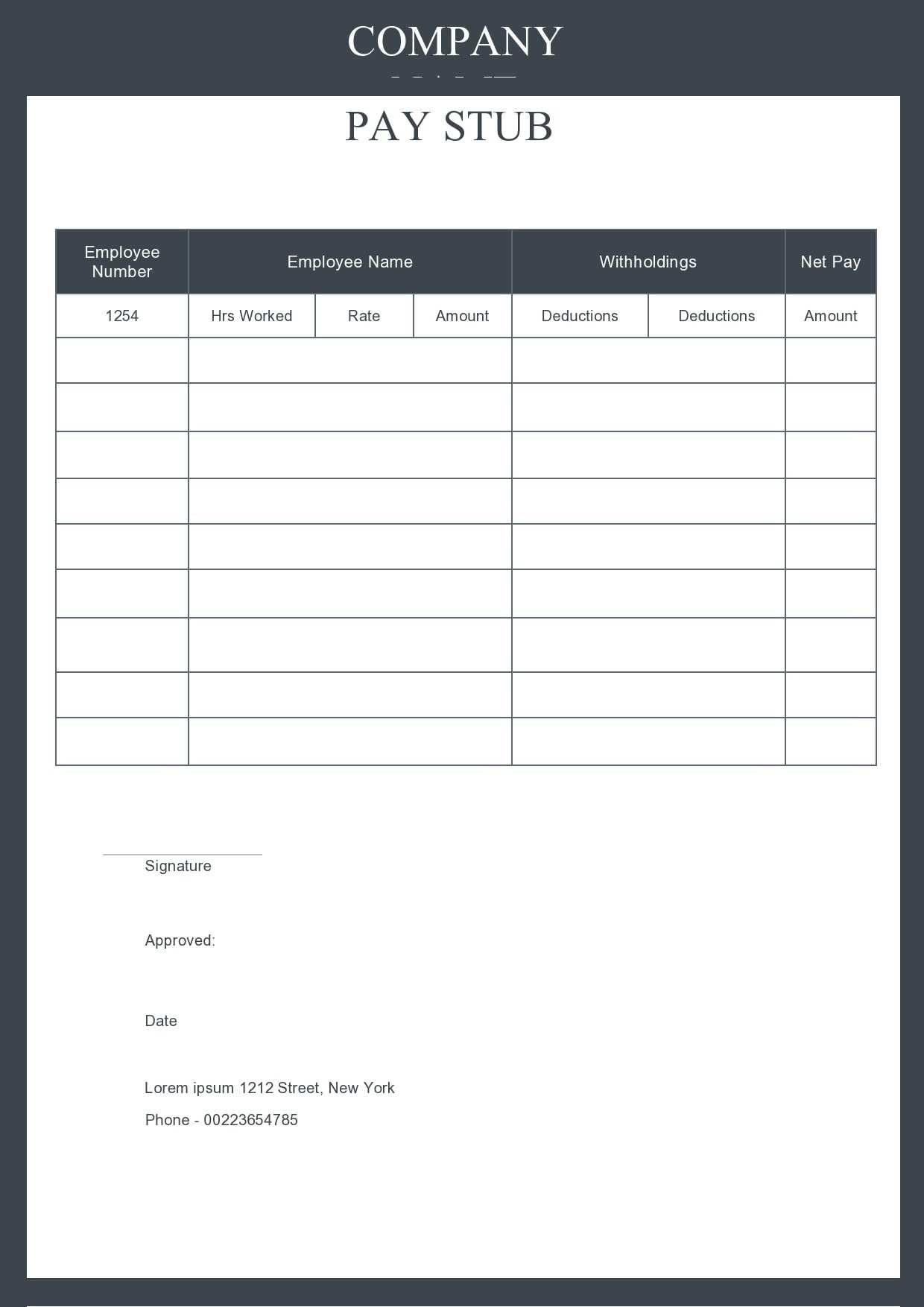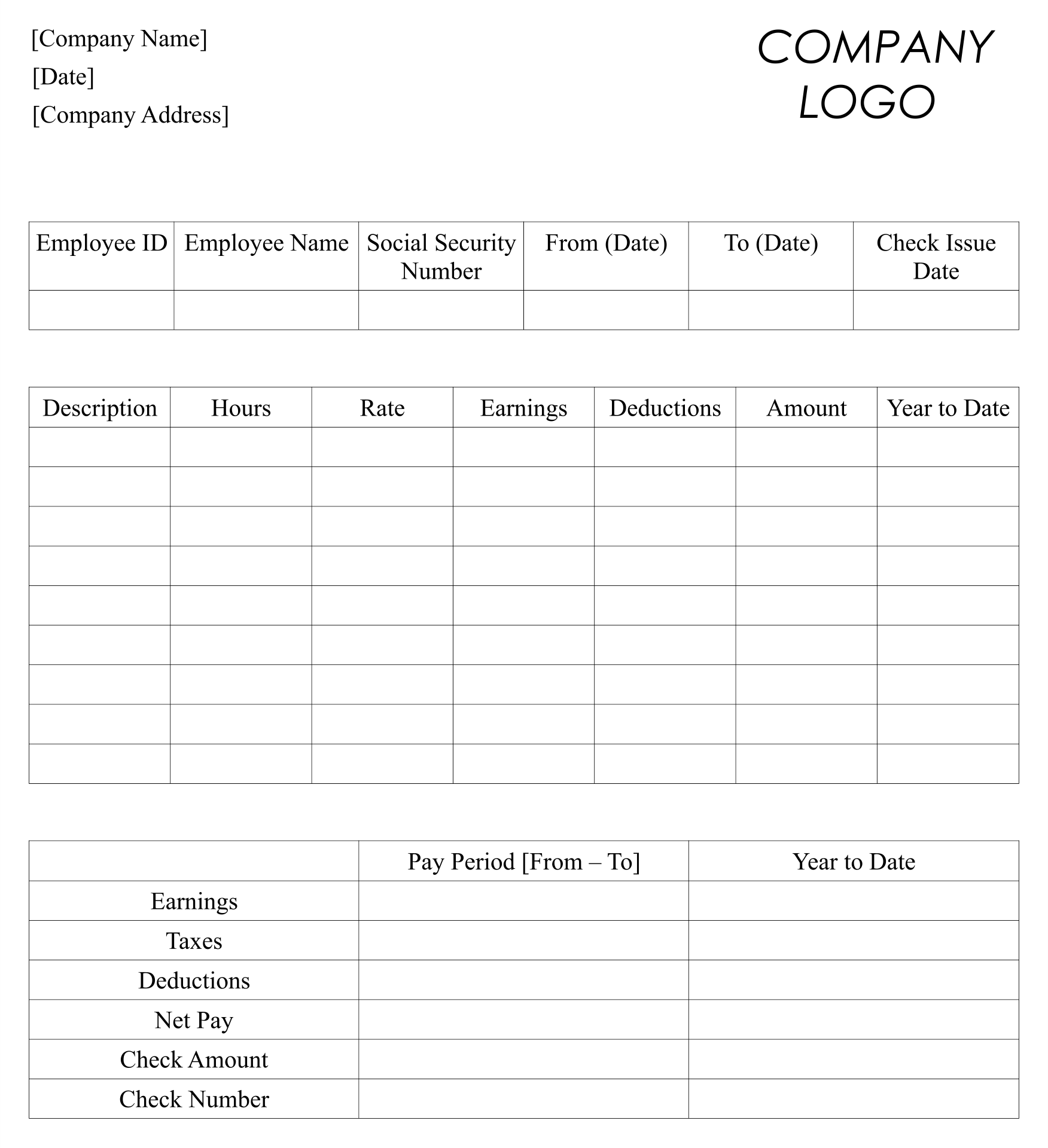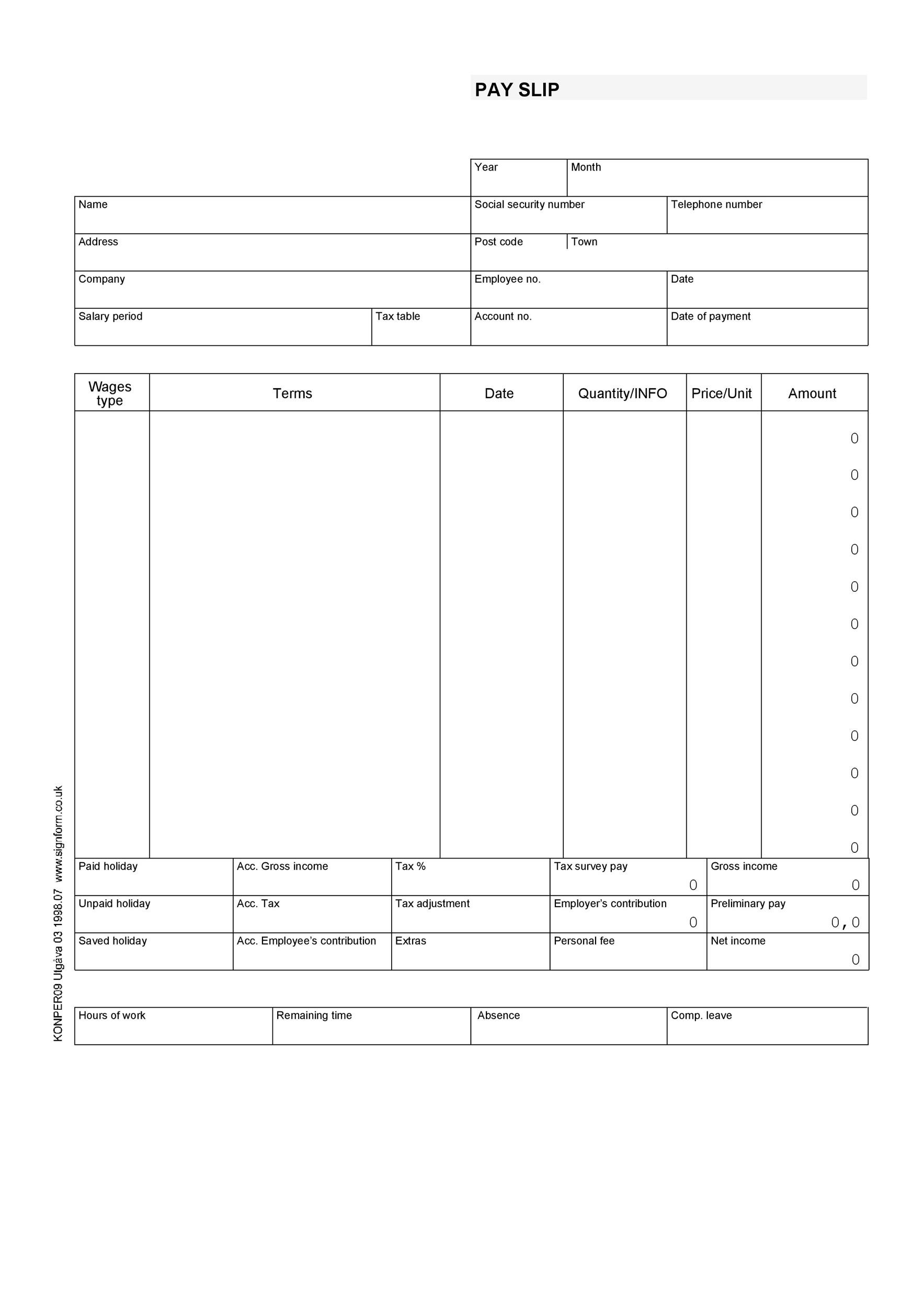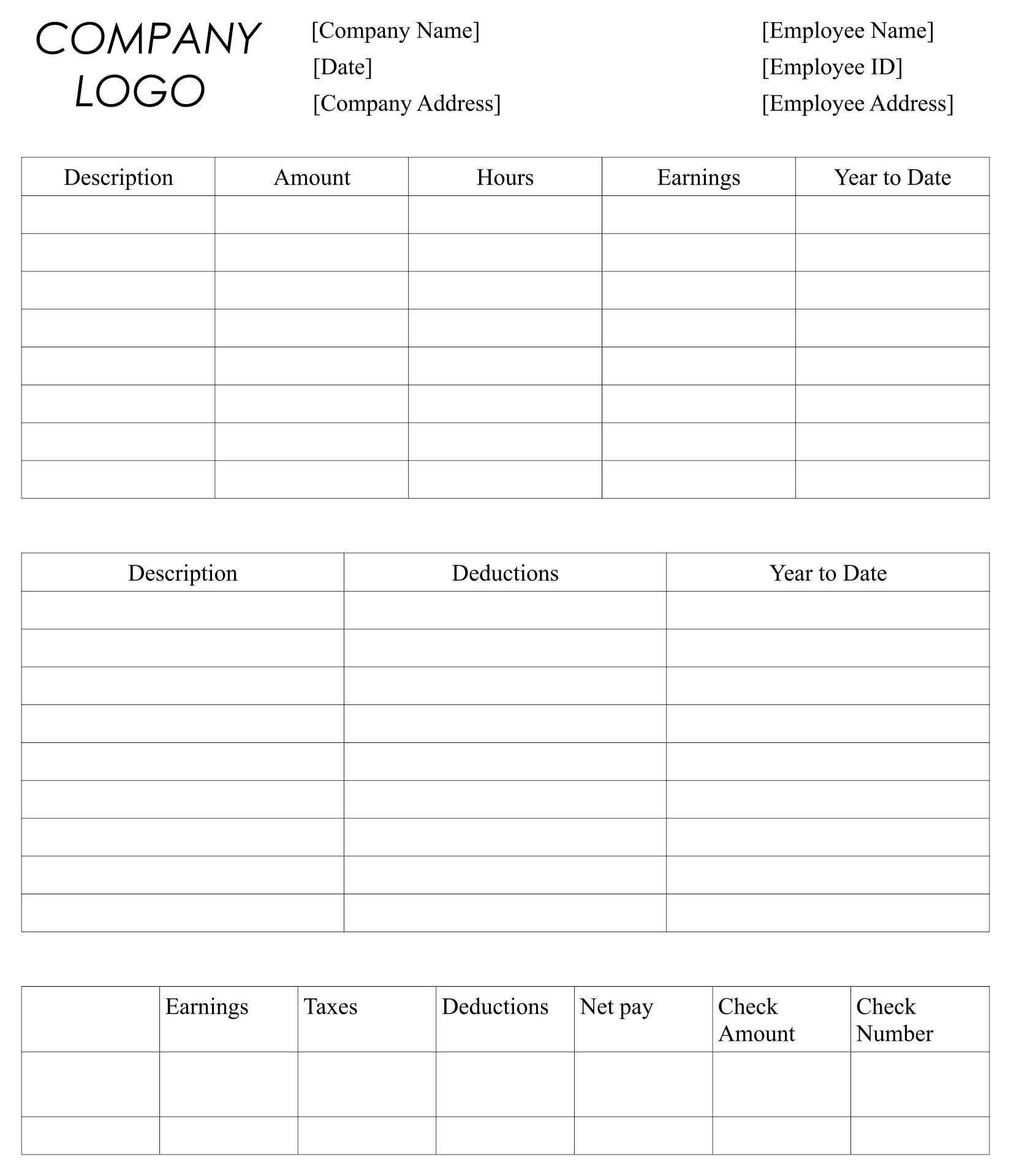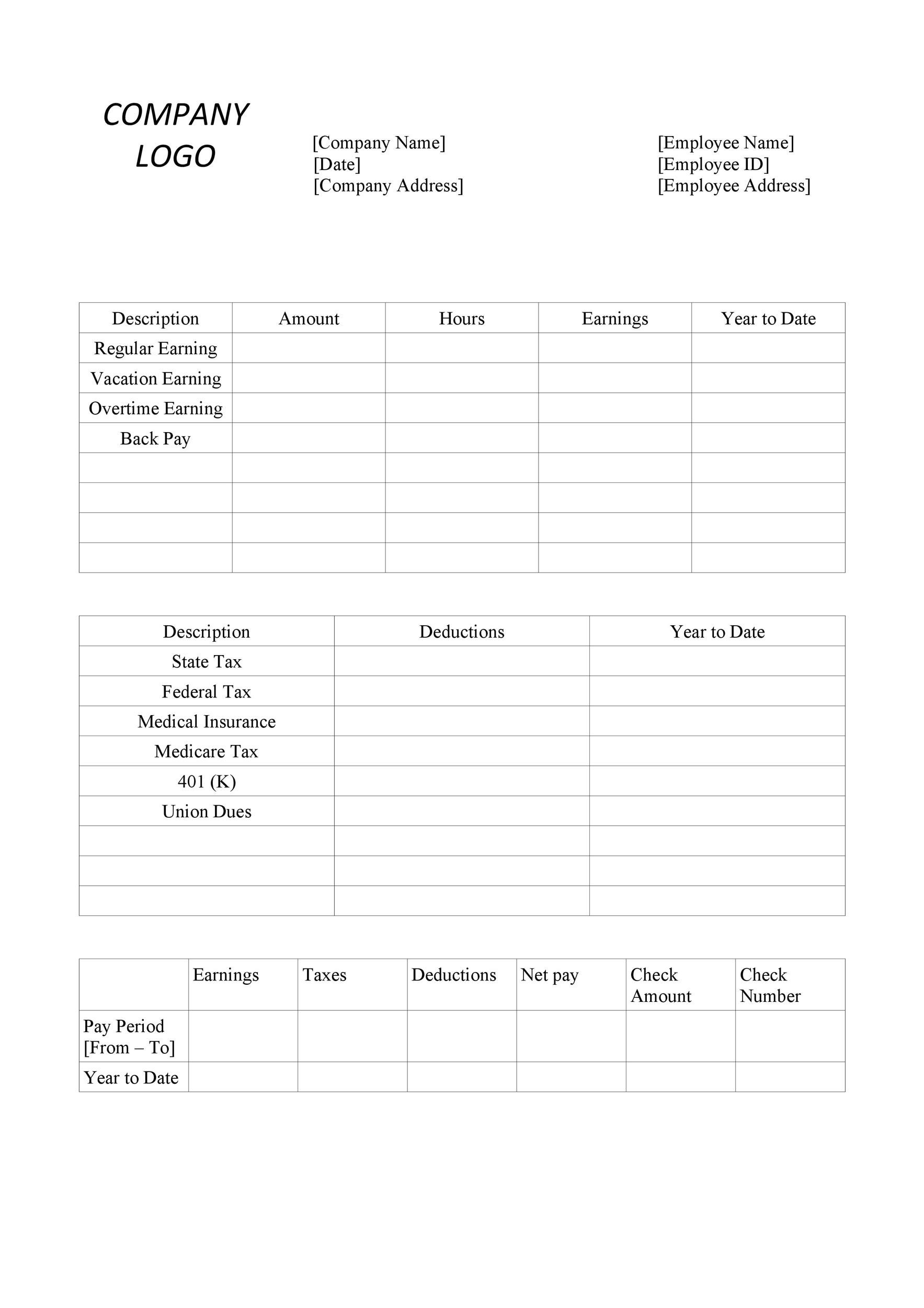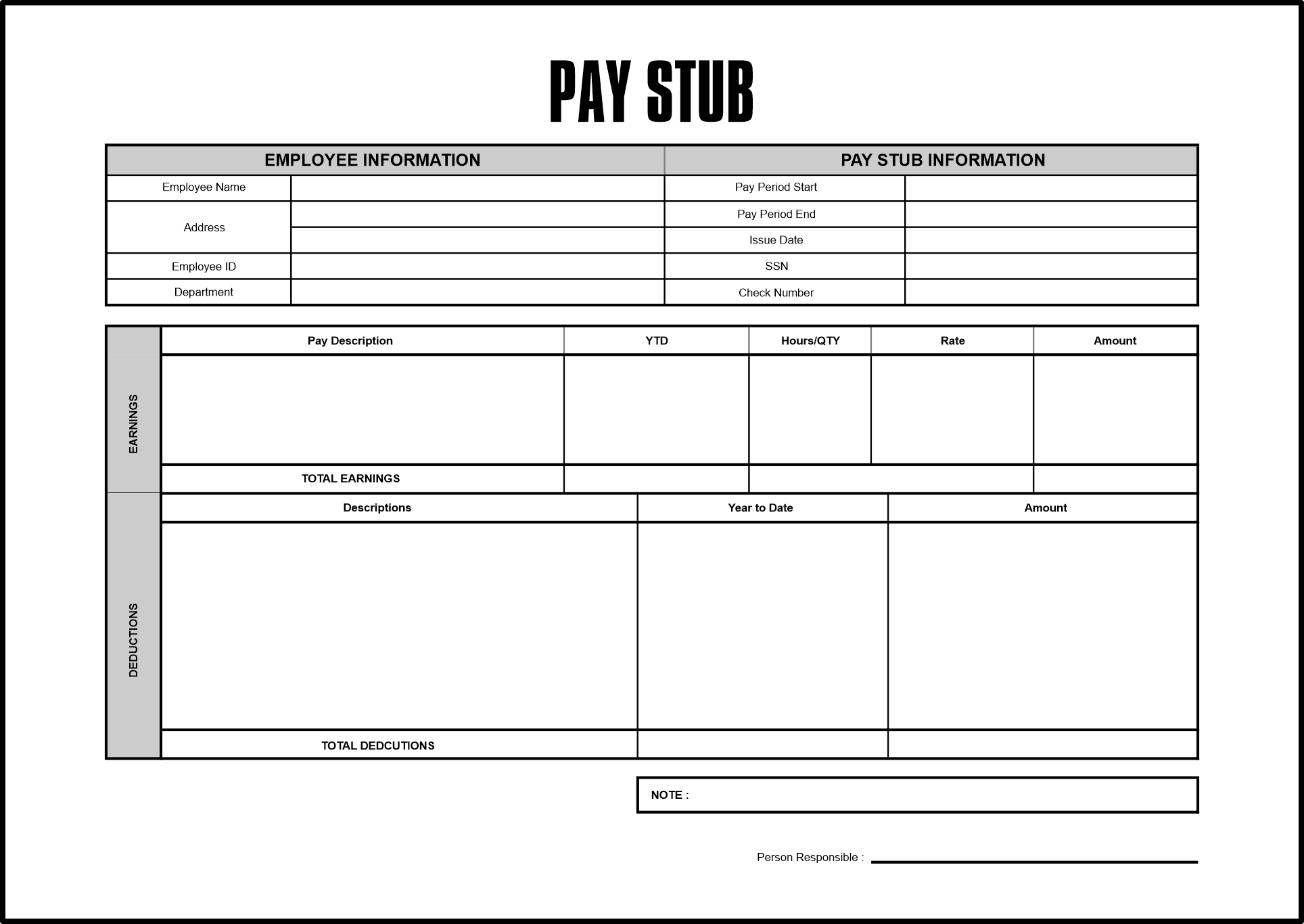
Blank Pay Stub Template Word is the Swiss Army knife of payroll documents—sleek, versatile, and oddly satisfying to fill out. Picture this: you’re a small business owner, a freelancer, or a corporate HR hero, and you’ve got a deadline to meet. With a single template, you can generate professional-looking pay stubs faster than you can say “check my deductions.” And the best part? It’s all in Microsoft Word, which means you can tweak fonts, colors, and formulas without hiring a designer or learning complex accounting software.
Why Blank Pay Stub Template Word Is Your Secret Weapon

Saves Time
Manually drafting a pay stub for each employee is like trying to bake a cake in a toaster oven—possible, but incredibly inefficient. A ready-to-use Word template lets you copy, paste, and update numbers in seconds. No more retyping headings, recalculating taxes, or hunting down the correct table layout. That extra time can be redirected to strategic tasks, like deciding whether to buy a new espresso machine for the office.
Customizable
Word gives you full control over the design. Want a bold company logo at the top? Insert it. Prefer a minimalist layout with thin lines? Adjust the table borders. Need to add a “Bonus” column for your superstar employee? Just insert a new column and the formula will automatically update. The beauty of a Word template is that it stays a template—once you save it as a .dotx file, it never gets overwritten by a single employee’s data.
Legal Compliance Made Simple
Payroll laws change more often than the weather in Seattle. A blank template can be updated with new tax tables or state-specific deductions in a few clicks, keeping your pay stubs compliant without a legal review each time. Many templates come pre‑loaded with standard deductions like Social Security, Medicare, and federal income tax, and you can add extra lines for local taxes or union dues.
Anatomy of a Perfect Pay Stub
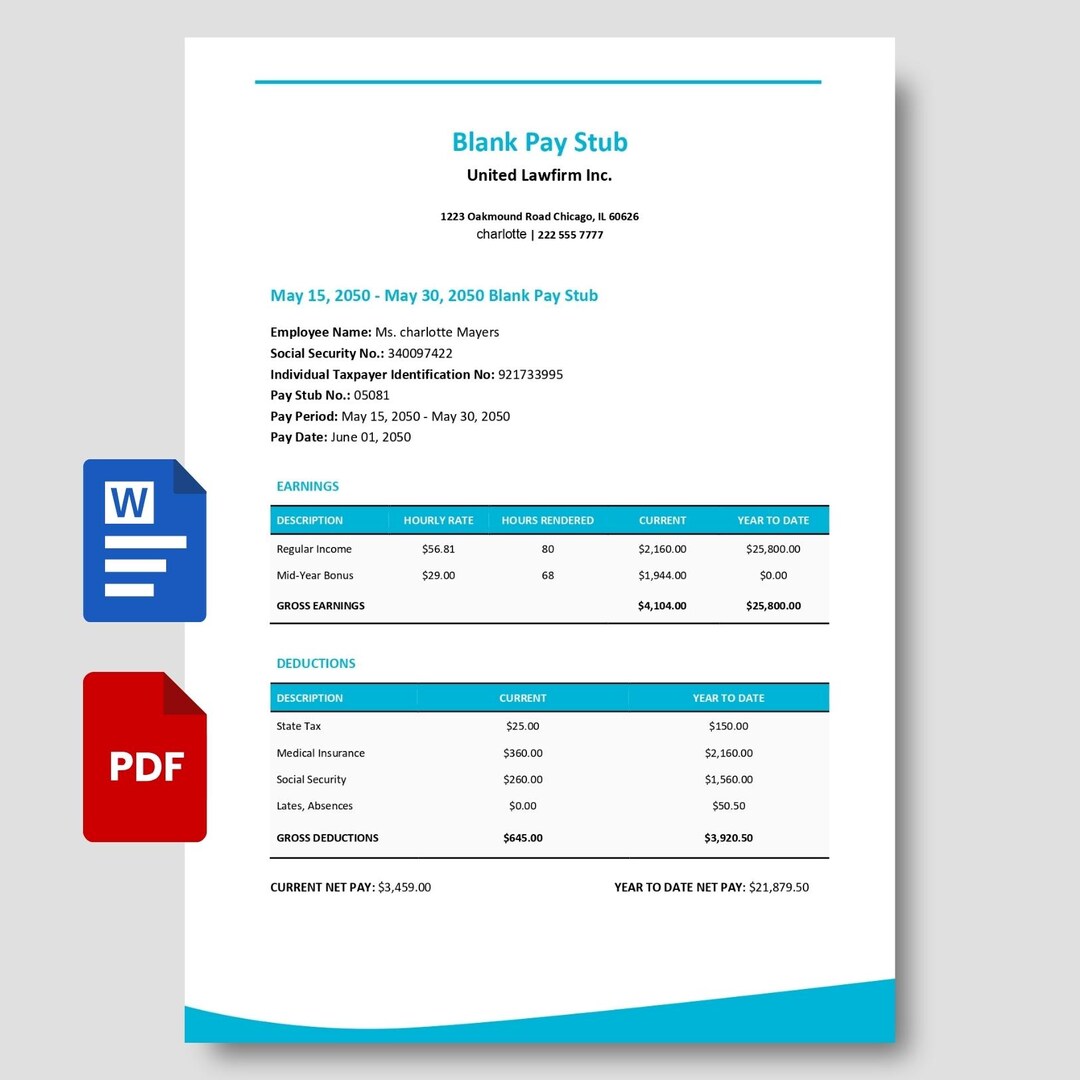
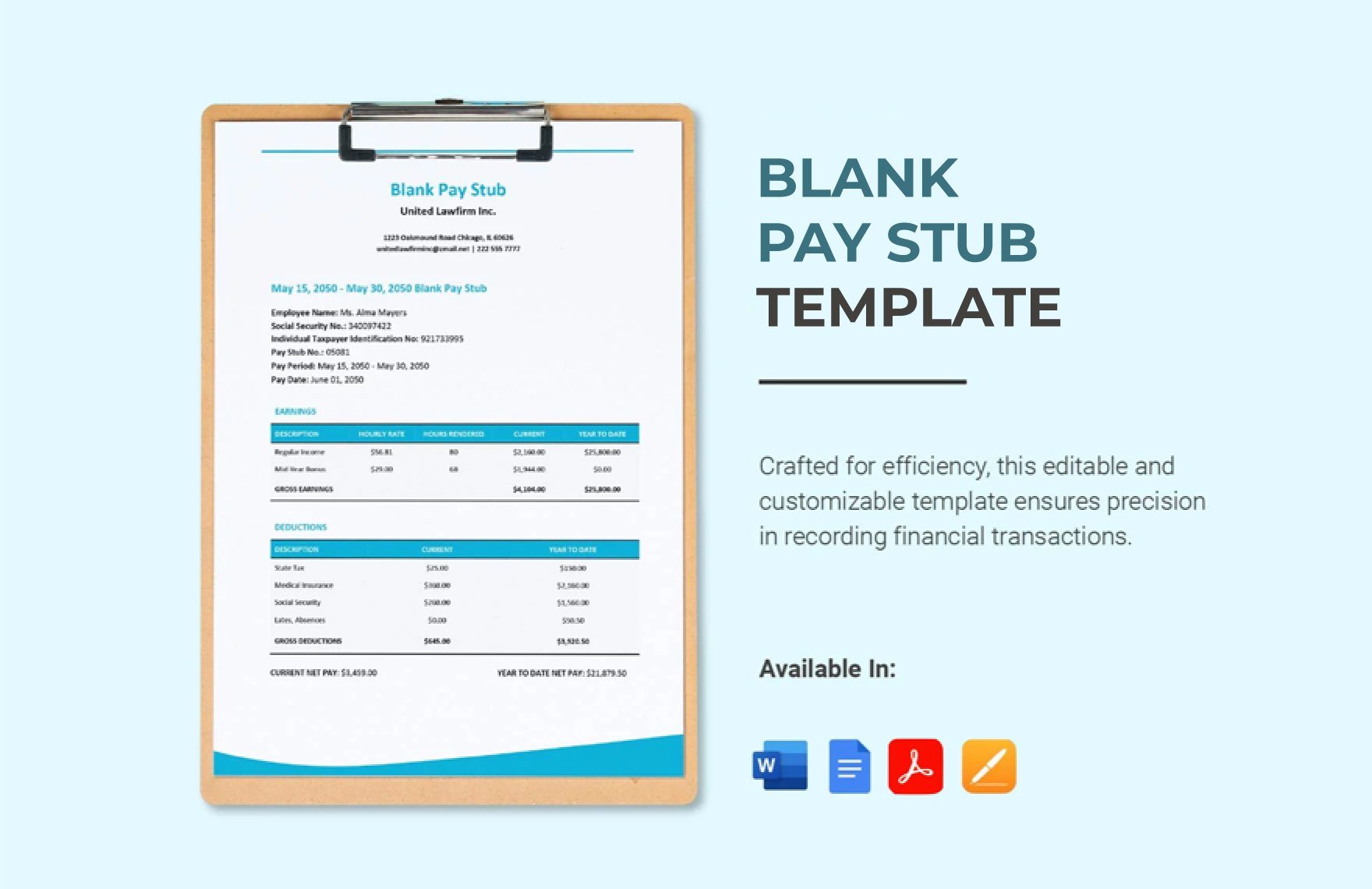
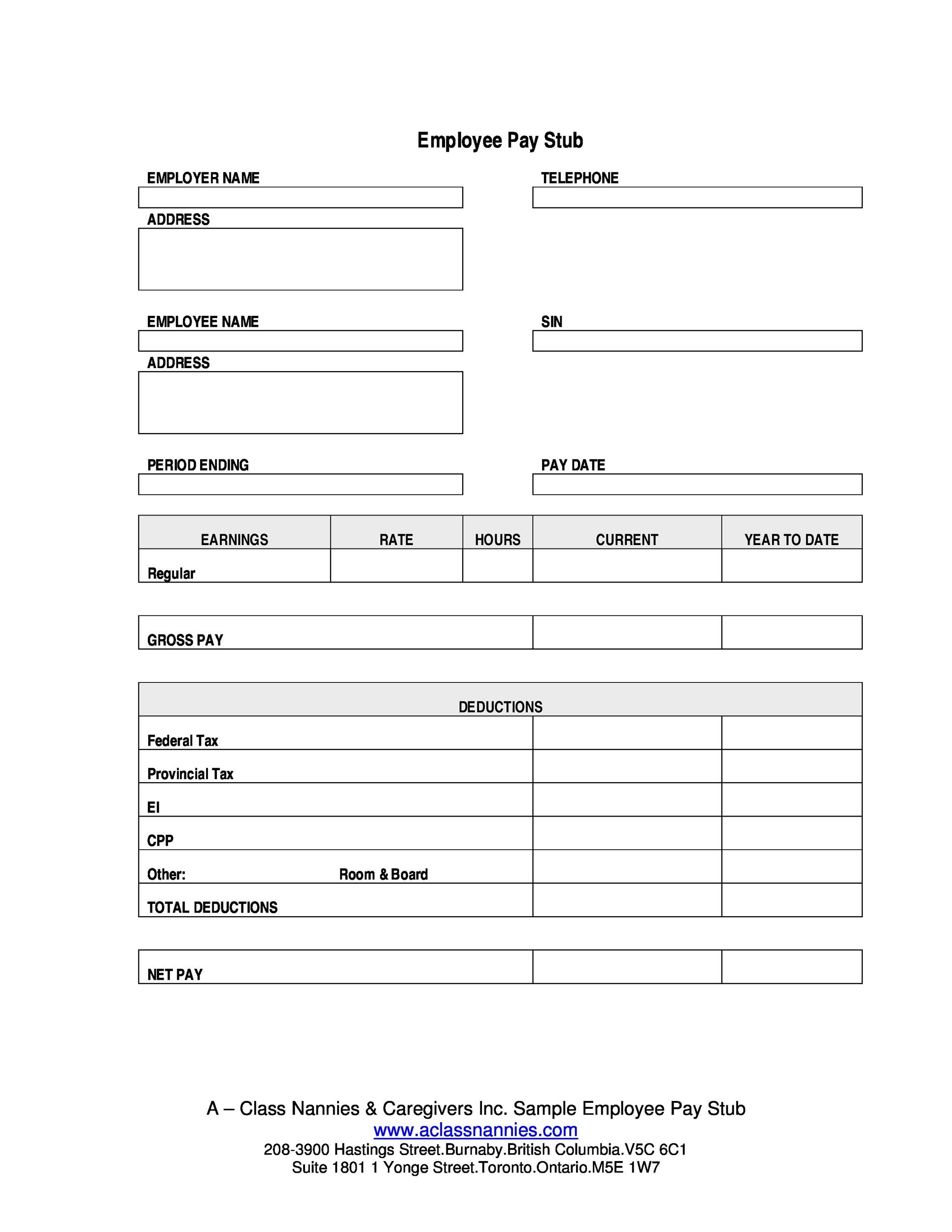
Header and Company Info
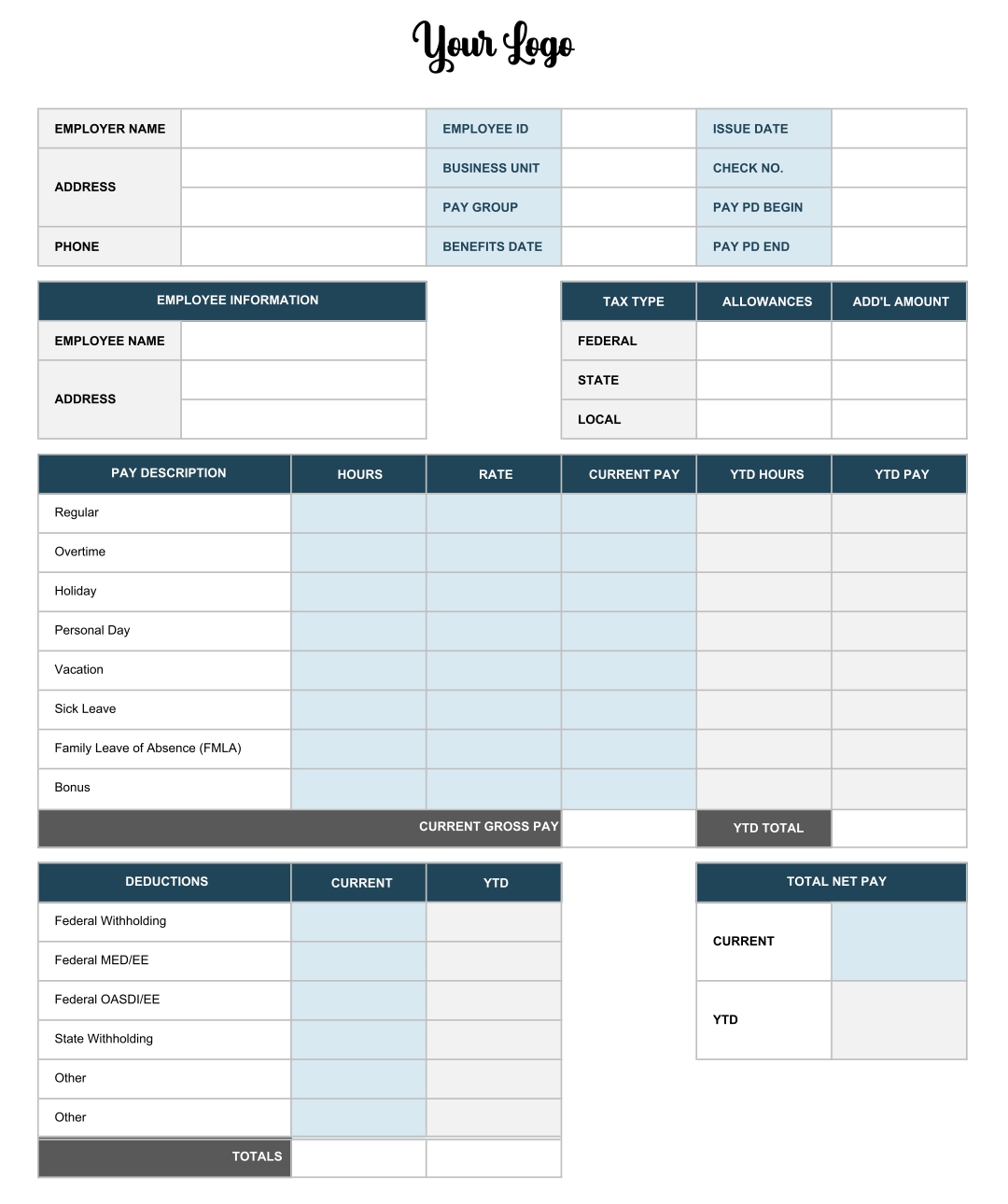
At the very top, list your company’s name, address, and contact details. Include a logo if you have one. This section establishes legitimacy and lets recipients immediately identify the source of the document.
Employee Details
Below the header, insert a small table with the employee’s name, employee ID, pay period, and job title. This ensures the stub is uniquely tied to the correct person and period.
Earnings Breakdown
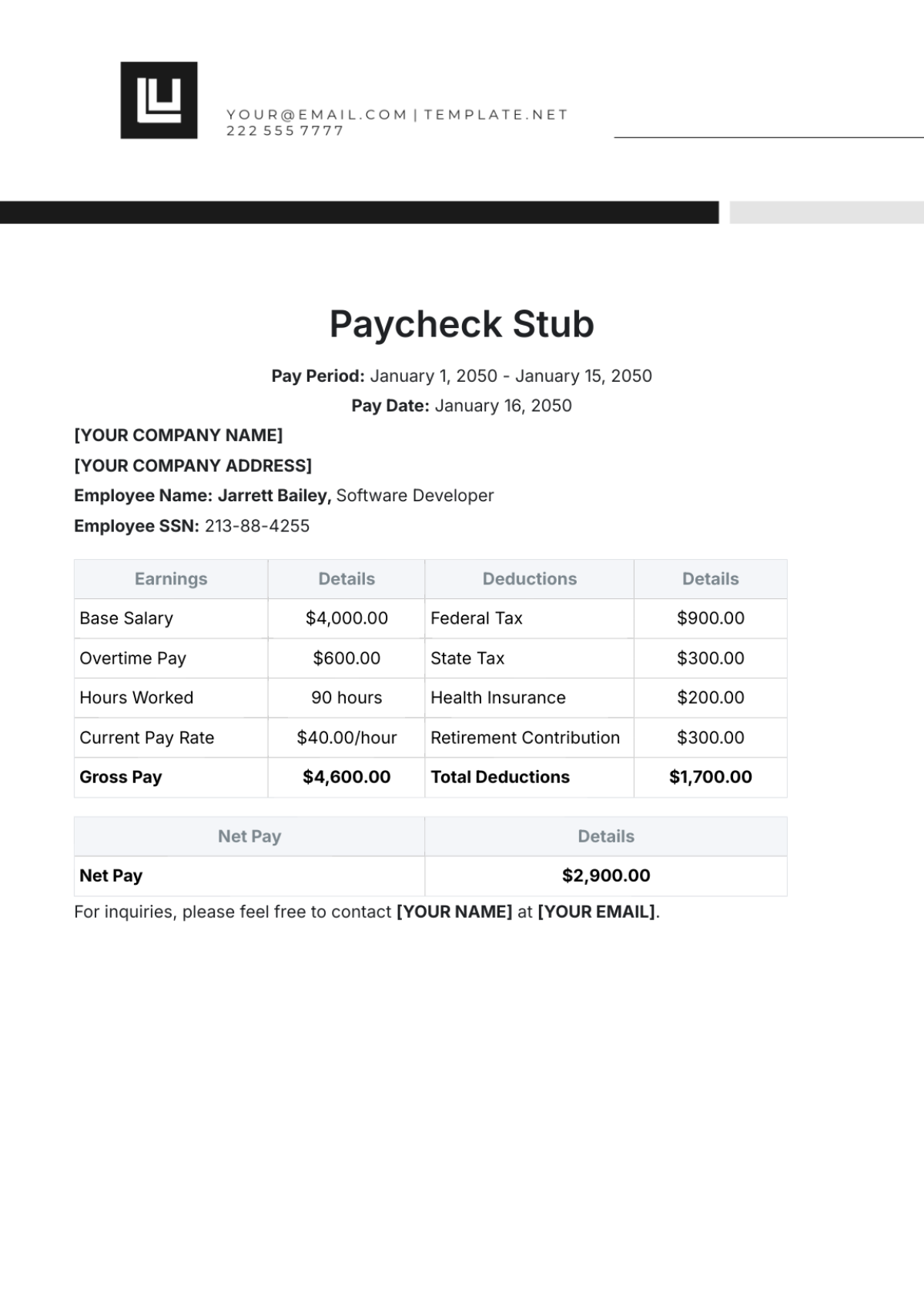
List all gross earnings: base salary, overtime, bonuses, commissions, and any other paid time. Use separate rows for each type so the employee can see exactly where every dollar comes from.
Deductions
Show pre‑tax deductions (like a 401(k) contribution), then post‑tax deductions (health insurance, wage garnishments). Each deduction should have a short description and a numeric value.
Totals and Bottom Line
Calculate the subtotal of earnings, subtract deductions to arrive at net pay. Use Word’s built‑in formula feature to ensure the math updates automatically when you change any figures. Add a final line labeled “Net Pay” in a bold font to make it stand out.
Step-by-Step: Creating a Pay Stub with Word
Step 1 – Set Up Your Document
Open a new Word document and set the orientation to Landscape for better horizontal space. Go to Layout → Margins → Narrow so the stub fits comfortably on one page.
Step 2 – Insert a Table
Insert a table with enough columns for each field: Company Info, Employee Info, Earnings, Deductions, Totals. A 7‑column table works well. Remove any default borders if you prefer a cleaner look.
Step 3 – Add Headers and Labels
In the first row, merge cells to create a header that reads “PAY STUB.” Below it, fill in company info and employee details. Use bold for headings and italic for sub‑headers to add visual hierarchy.
Step 4 – Formula Magic
Click inside the earnings column, then go to Layout → Table Tools → Formula. Set the formula to sum the earnings rows. Do the same for deductions and for net pay, using a subtraction formula that references the totals. Word will keep the math accurate whenever you update numbers.
Step 5 – Styling the Stub
Choose a professional font like Calibri or Cambria. Set the header to 14pt and the body to 10pt for readability. Use a light gray background for header rows and a subtle border around each column. Save the file as a .dotx template so the layout stays intact for future stubs.
Common Mistakes and How to Avoid Them
Forgetting Taxes
It’s all fun and games until you forget to subtract state taxes. Always double‑check that every tax category is present. Keep an update log so you know when you last refreshed tax tables.
Overlooking State Rules
Some states require additional deductions, like unemployment insurance or local taxes. If your company operates in multiple states, create a variable for the state name and link deductions to that variable so the template adapts automatically.
Not Updating Rates
Tax rates and wage thresholds change annually. Set a calendar reminder to revisit your template each January. Even a simple text note in the document can prevent a costly mistake.
Real-World Use Cases

Freelancers Who Need Receipts
Independent contractors often need to provide proof of income to banks or clients. A clean pay stub created from a Word template offers a professional appearance without the overhead of accounting software.
Small Businesses
Small firms with limited HR staff can manage payroll with a few hours a week by using a template. They save on software subscriptions and can keep all documents in a familiar Word environment.
HR Departments
Human Resources can generate bulk stubs for multiple employees using mail merge. This feature pulls data from an Excel spreadsheet and populates each stub automatically, turning a one‑hour task into a few minutes.
Advanced Tweaks for the Procrastinating Professional
Macros for Auto‑Update
If you’re comfortable with VBA, create a macro that updates all formulas and refreshes tax tables with a single click. Store the macro in the template so every time you open it, the calculations are current.
PDF Conversion Tips
When you’re ready to send the stub to an employee, convert the Word document to PDF to preserve formatting. Use File → Save As → PDF or the “Export” function for best results.
Shareable Templates
Save the template in OneDrive or Google Drive and grant edit access to the payroll team. Everyone uses the same layout, reducing the risk of inconsistent documents.
Final Thoughts
Blank Pay Stub Template Word may sound mundane, but it’s a powerhouse for anyone who needs quick, accurate, and compliant pay stubs. By mastering a few table tricks, formulas, and a splash of styling, you can transform a tedious task into a streamlined workflow. Whether you’re a freelancer printing receipts for a client or a small business owner issuing monthly payroll, this template gives you the power to create professional documents in a fraction of the time. So grab your Word, set up your table, and let the numbers do the talking—because you’ve got better things to do, like brainstorming that next big product line or finally ordering that office coffee machine.