
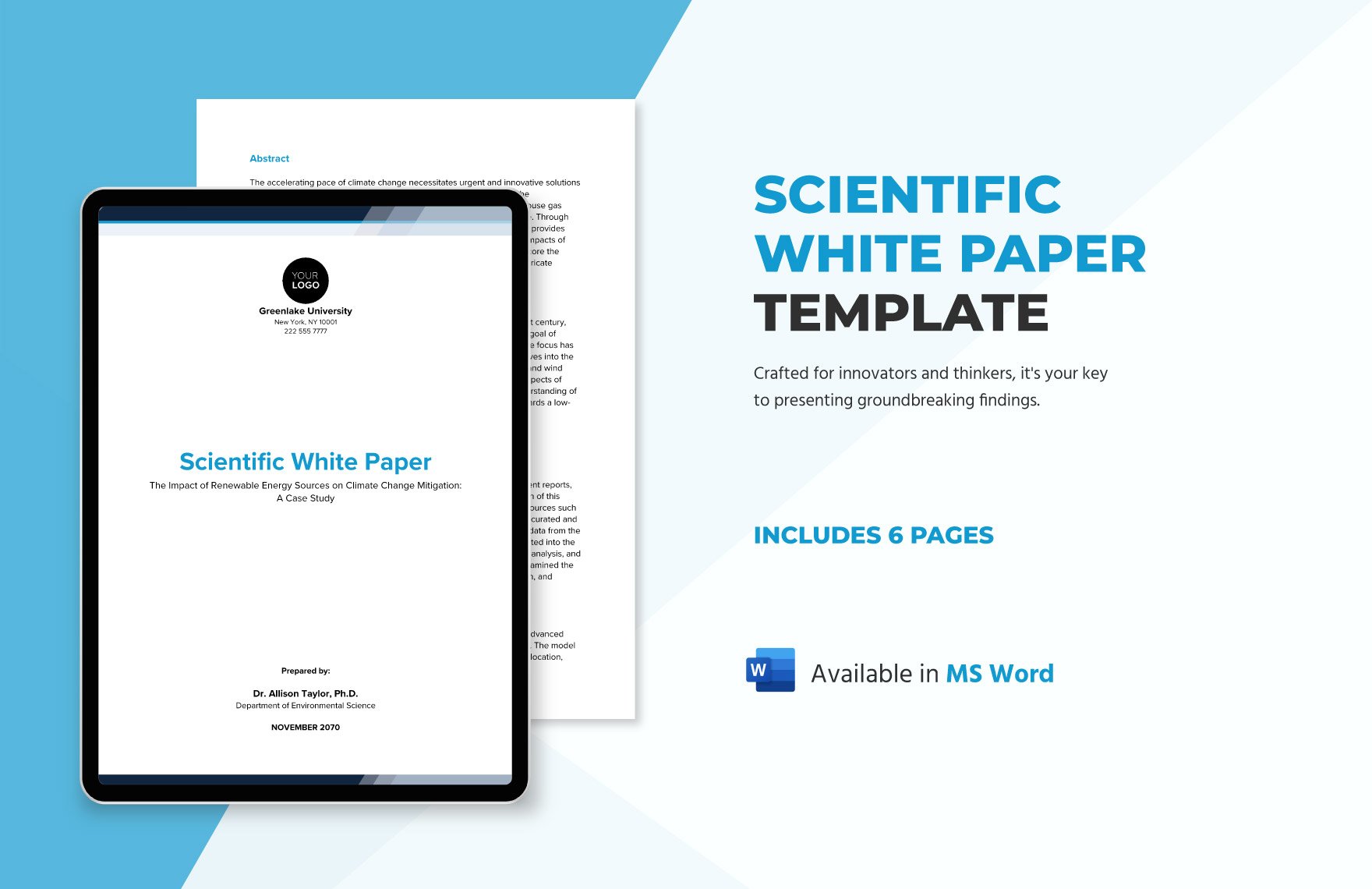
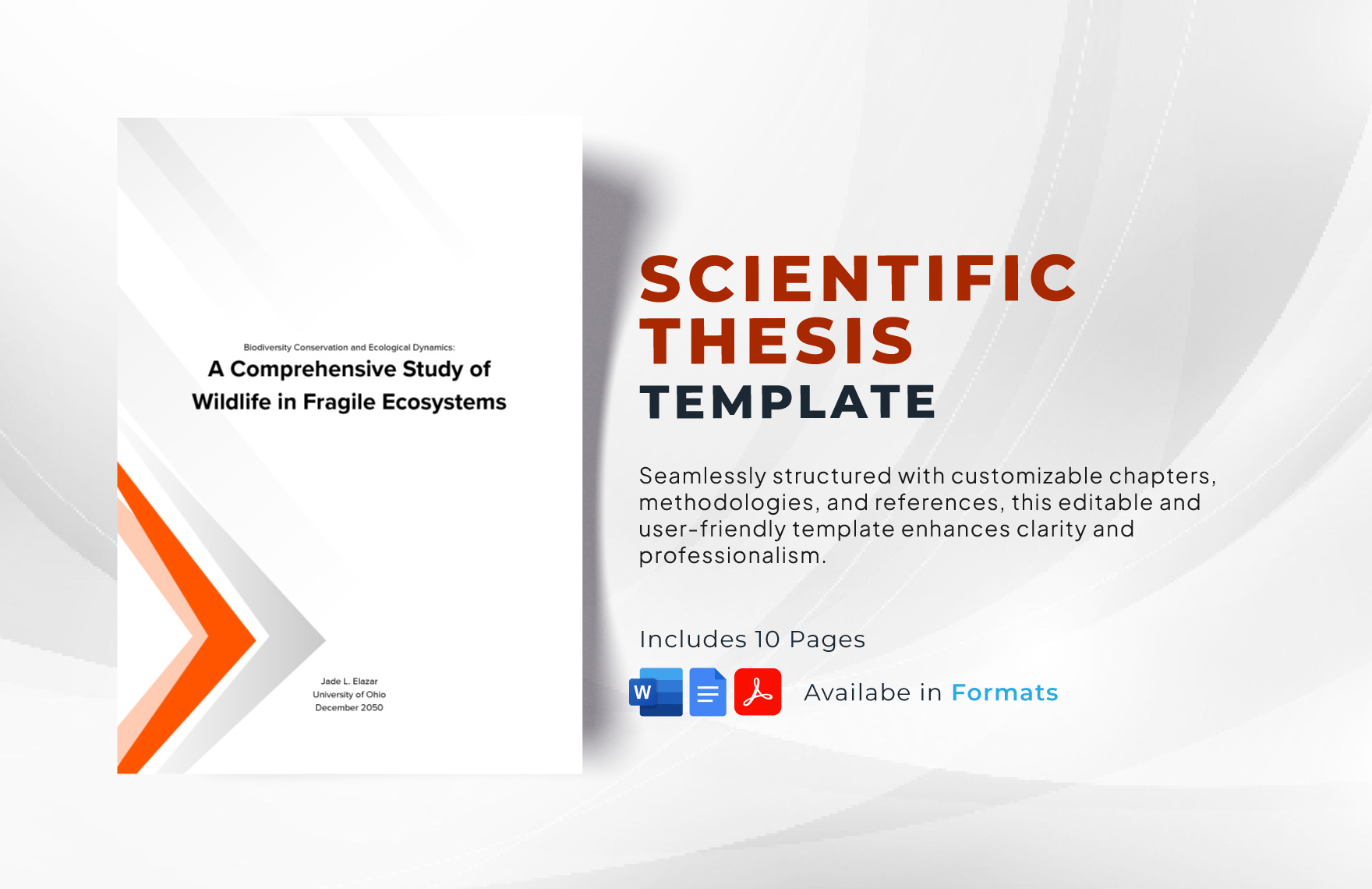
Scientific Paper Template Word 2010 offers researchers a polished, ready‑to‑publish framework that eliminates tedious formatting chores and lets you focus on the science itself, and this article will walk you through every advantage, feature, and practical tip for mastering the template in a way that boosts productivity and impresses reviewers.
Why Use a Scientific Paper Template

Academic writing demands strict adherence to style guides—whether it’s APA, IEEE, or a journal‑specific format. Manually configuring margins, headings, references, and figure captions is a time‑consuming trap that can lead to costly errors. A dedicated template automates these conventions, ensuring consistency across sections and simplifying the final submission checklist. Moreover, using a recognized template signals professionalism; reviewers instantly notice that the manuscript respects the venue’s guidelines, which can positively influence the peer‑review outcome. Finally, a template serves as a living document: once you master it, you can reuse it for future projects, saving countless hours on each new paper.
Key Features of the Word 2010 Template
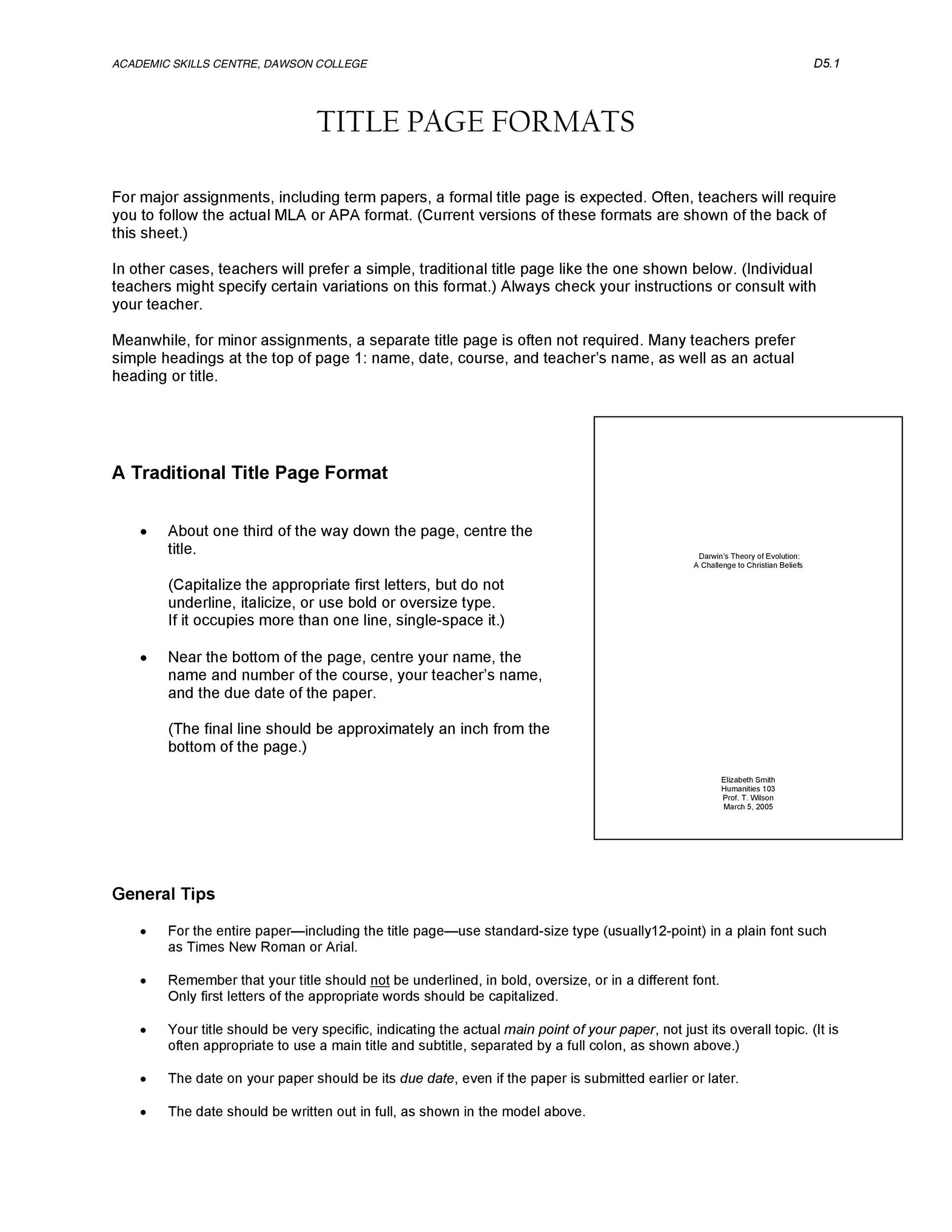
The Word 2010 scientific paper template is engineered with a blend of flexibility and rigidity—flexible enough to accommodate discipline‑specific nuances, yet rigid enough to lock in critical formatting rules. Below are the hallmark elements you’ll find:
Pre‑Defined Styles and Heading Hierarchy
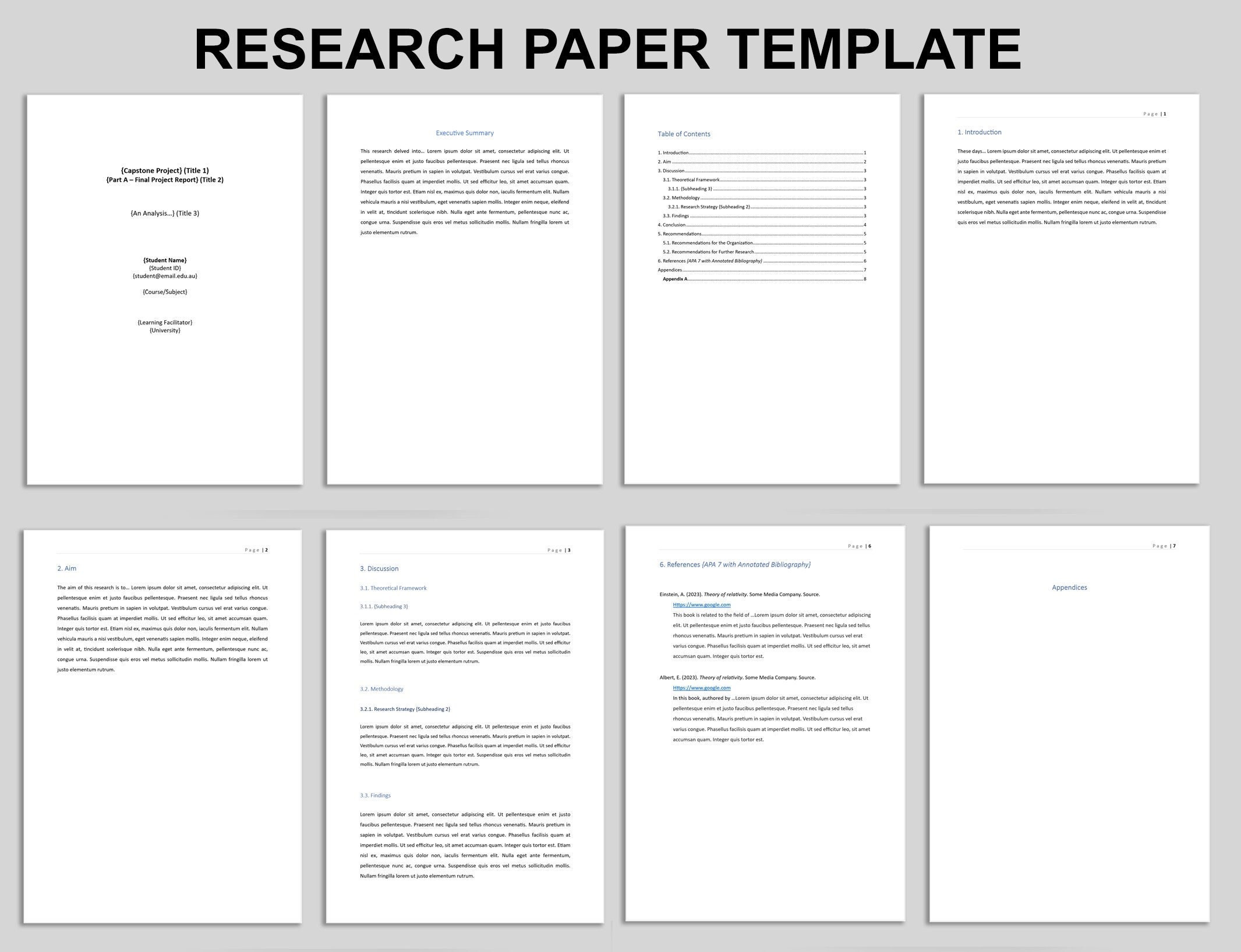
All heading levels (Title, Abstract, Introduction, Methods, Results, Discussion, References) are pre‑styled with appropriate font size, bolding, and spacing. Applying the built‑in style ensures that the table of contents updates automatically and that headings remain uniform throughout the manuscript.
Automatic Figure and Table Captions
Each figure and table placeholder is linked to a caption style that numbers items sequentially. When you insert a new figure, Word updates the caption numbers and cross‑references, eliminating the need for manual renumbering.
Reference Management Integration
The template includes a bibliography style that works seamlessly with Word’s built‑in citation manager as well as third‑party tools like EndNote or Zotero. By inserting citations through the “References” tab, the bibliography regenerates instantly in the correct format.
Margins, Headers, and Footers
Standard scientific margins (typically 1‑inch on all sides) are preset, and the header/footer region contains placeholders for running titles, page numbers, and author affiliations, which update automatically as you edit the document.
How to Install and Customize the Template
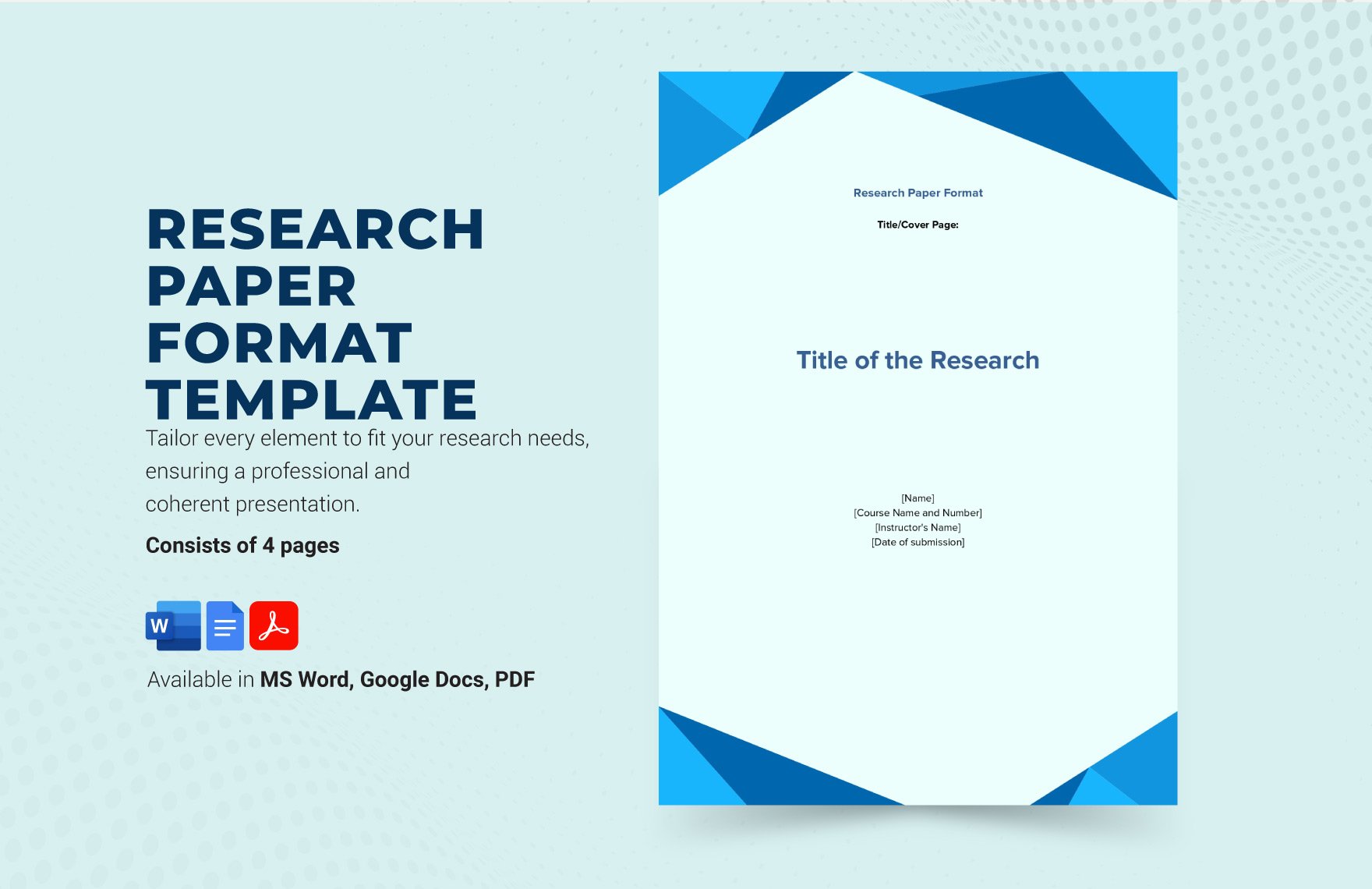
Getting the template onto your computer is straightforward, but a few customization steps ensure it aligns perfectly with your institution’s requirements.
Downloading and Saving the Template
Save the template file with a .dotx extension in a dedicated folder—e.g., “My Academic Templates.” This prevents accidental overwriting of the master file and allows you to create multiple drafts from the same source.
Creating a New Document from the Template
Open Word 2010, go to File → New → My Templates, and select the scientific paper template. Word will generate a new document that inherits all styles, headers, and placeholders while preserving the original template unchanged.
Modifying Styles to Match Journal Guidelines
If your target journal requires a different font (e.g., Times New Roman 12 pt for body text, 14 pt bold for section headings), modify the existing style definitions rather than editing each paragraph manually. Right‑click the style in the Styles pane, choose “Modify,” adjust the font, size, line spacing, and click “OK.” The changes propagate instantly throughout the document.
Setting Up Custom Macros for Repetitive Tasks
For power users, creating simple macros can accelerate tasks like inserting a pre‑formatted table or applying a specific caption style. Record a macro via View → Macros → Record Macro, perform the desired actions, stop recording, and assign the macro to a toolbar button for one‑click access.
Formatting Essentials for Academic Journals

Even with a template, certain formatting details require careful attention to avoid desk‑rejection. Below are the most common elements and how to handle them.
Abstract and Keywords
The abstract block is usually limited to a word count (often 150–250 words). Use the pre‑styled “Abstract” paragraph, and insert the Keywords line directly underneath, separated by semicolons. Keep the language concise and avoid citations within the abstract.
In‑Text Citations and Bibliography
When using Word’s citation manager, select the required style (APA, Vancouver, etc.) from the “Style” dropdown in the References tab. Insert citations by clicking “Insert Citation → Add New Source.” The bibliography updates automatically when you add or delete references. Ensure that every in‑text citation matches an entry in the reference list.
Figures, Tables, and Supplemental Materials
Insert figures using the “Insert → Pictures” command, then apply the “Figure Caption” style. For tables, use “Insert → Table” and then apply the “Table Caption” style. Both should be placed as close as possible to the first mention in the text, unless the journal specifies a separate “Figures” section at the end.
Section Numbering and Subheadings
Most scientific papers use Arabic numeral hierarchy (1, 1.1, 1.1.1). The template’s heading styles already include numbering; however, double‑check that the numbering restarts appropriately for each major section if required. You can adjust this in the “Multilevel List” settings under the “Home” tab.
Page Layout and Submission Requirements
Some journals request double‑spacing for the main text while keeping figures, tables, and references single‑spaced. The template provides a default double‑spacing, but you can adjust specific sections by selecting the paragraph and modifying the “Line and Paragraph Spacing” options. Additionally, verify that the file size meets the journal’s upload limits—compress images if necessary using Word’s “Compress Pictures” feature.
Tips for Seamless Collaboration
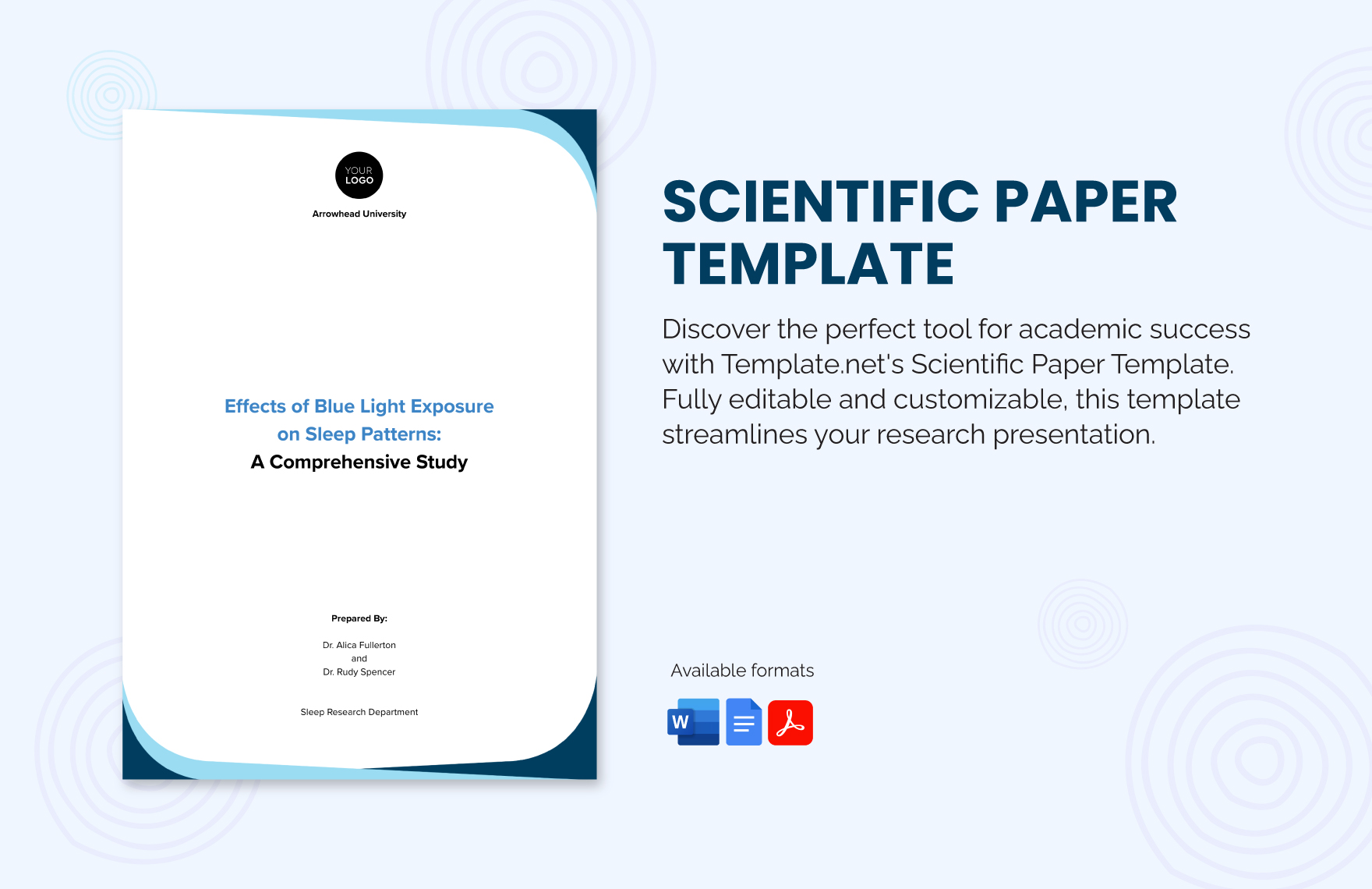
Research is rarely a solo effort, and the template can facilitate smooth teamwork across multiple authors, institutions, and time zones.
Track Changes and Comments
Enable “Track Changes” under the Review tab so every edit is recorded. Use the “New Comment” feature to ask questions or suggest revisions. When the document is shared via OneDrive or SharePoint, collaborators can view and respond to comments in real time.
Version Control with Document Properties
Populate the document’s built‑in properties (File → Info → Properties) with details like “Author,” “Title,” and “Version.” This metadata appears in the file’s properties window and helps keep track of which draft is the most recent.
Using a Shared Reference Library
Store a master bibliography file (a .bib or .xml file) in a shared folder. Each author can link to this library through Word’s “Manage Sources” dialog, ensuring that citations remain consistent across all contributors.
Locking Critical Sections
If certain sections—such as the methods or ethics statement—must not be altered, protect them by selecting the text, clicking “Restrict Editing,” and setting a password for that region. This prevents accidental overwrites while still allowing comments.
Common Mistakes and How to Avoid Them

Even seasoned writers can fall into formatting pitfalls that jeopardize a manuscript’s acceptance. Recognizing and correcting these errors early saves time.
Neglecting to Update the Table of Contents
The template auto‑generates the table of contents, but it only reflects changes after you right‑click the TOC and select “Update Field.” Make this a habit before each submission.
Using Incompatible Fonts or Styles
Never replace template fonts with personal preferences unless the journal explicitly allows it. Changing fonts manually can break the style hierarchy and lead to inconsistent heading appearances.
Embedding Images Instead of Linking
Large, high‑resolution images increase file size and may cause upload failures. Insert images at a reasonable resolution (300 dpi for print) and use Word’s compression options. For collaborative projects, store original images in a shared folder and link them rather than embedding them directly.
Forgetting to Remove Placeholder Text
Templates often contain placeholder headings like “Insert Title Here.” Perform a final search (Ctrl + F) for keywords such as “Insert” or “Lorem” to ensure no dummy text remains.
Incorrect Citation Formatting
Even when using Word’s citation manager, double‑check the generated bibliography against the journal’s style guide. Some journals require specific punctuation or ordering that may need manual tweaking.
Resources and Next Steps
Now that you understand the template’s capabilities, consider the following actions to integrate it into your research workflow.
- Practice by drafting a mock paper. Choose a recent study you’re familiar with and recreate it using the template. This hands‑on exercise reveals any gaps in your knowledge.
- Join academic writing forums. Communities such as ResearchGate or the Academic Writing subreddit share tips, macro scripts, and template customizations that can enhance your experience.
- Explore advanced Word features. Learning to use fields, cross‑references, and custom styles can further streamline the writing process.
- Maintain a style guide checklist. Create a short checklist that mirrors the journal’s author instructions and tick off each item before submission.
- Backup your work regularly. Use cloud storage and versioned backups to protect against data loss and to retain a history of revisions.
Conclusion
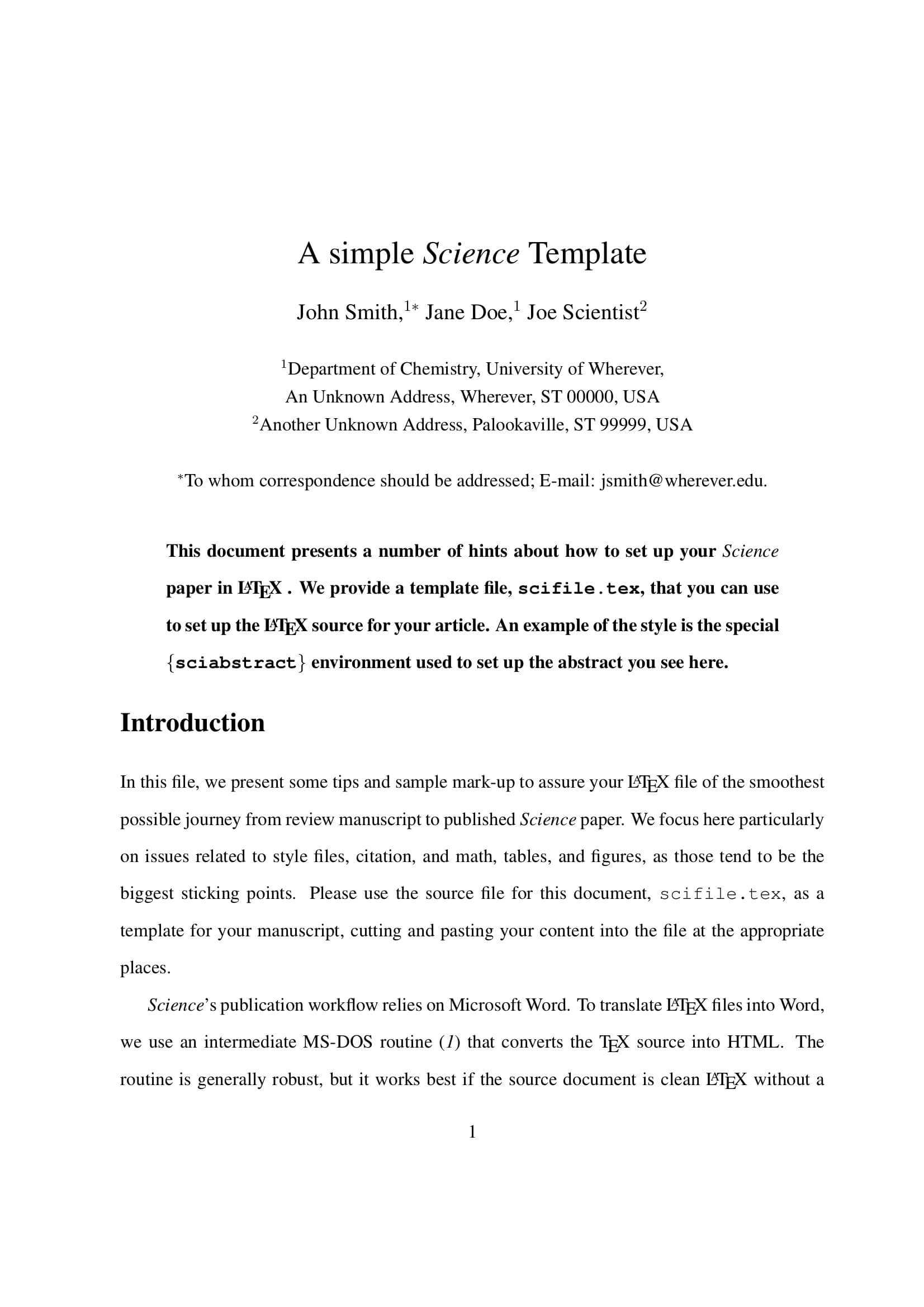
The Scientific Paper Template Word 2010 is more than a cosmetic layout—it is a strategic tool that reduces formatting friction, enforces consistency, and presents your research in a polished, journal‑ready format. By mastering its built‑in styles, customizing it to meet specific editorial requirements, and leveraging collaboration features, you can focus on the core scientific narrative and accelerate the path from manuscript draft to published article. Implement the tips, avoid common mistakes, and continually refine your workflow, and you’ll find that producing high‑quality, submission‑ready papers becomes a seamless part of your research routine.




Related posts of "Scientific Paper Template Word 2010"
