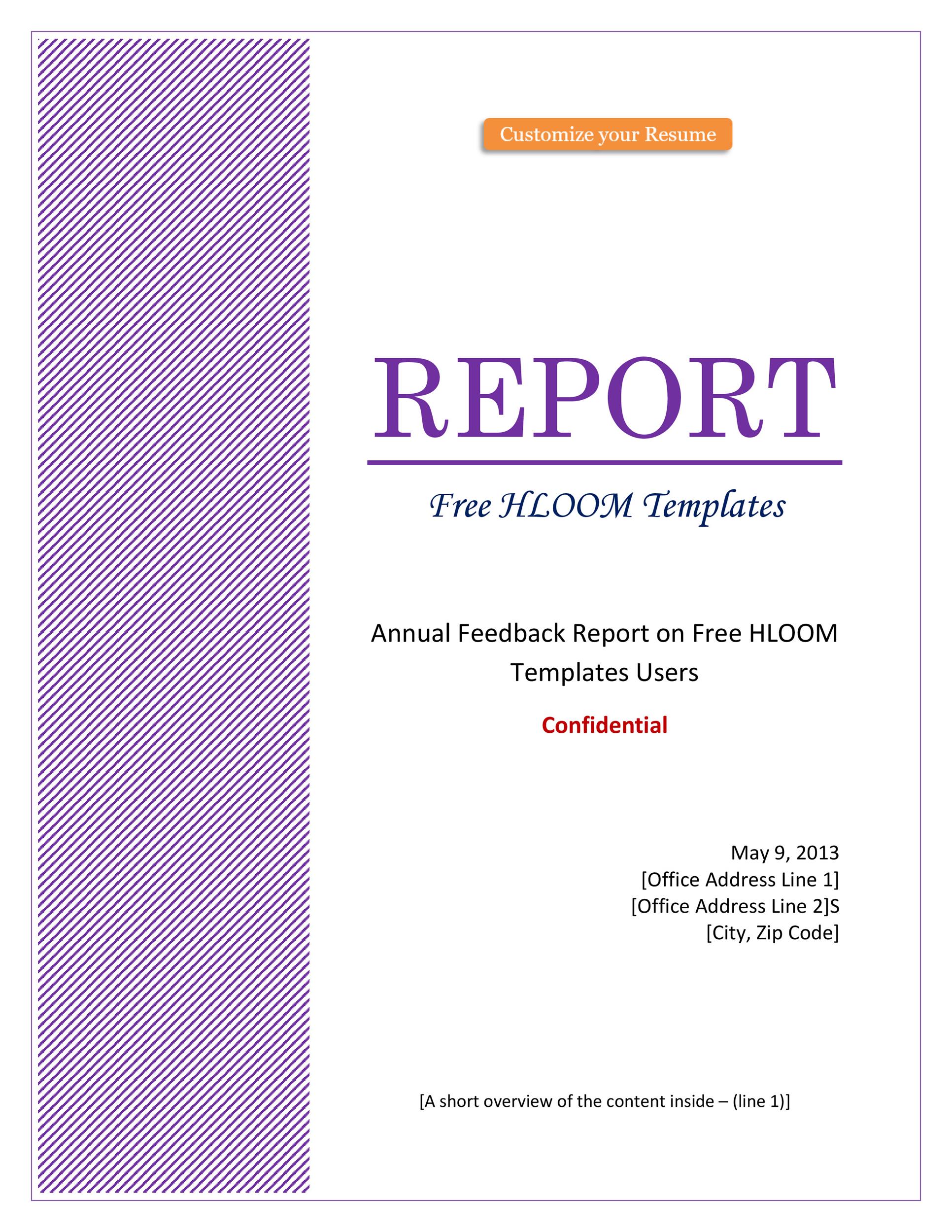
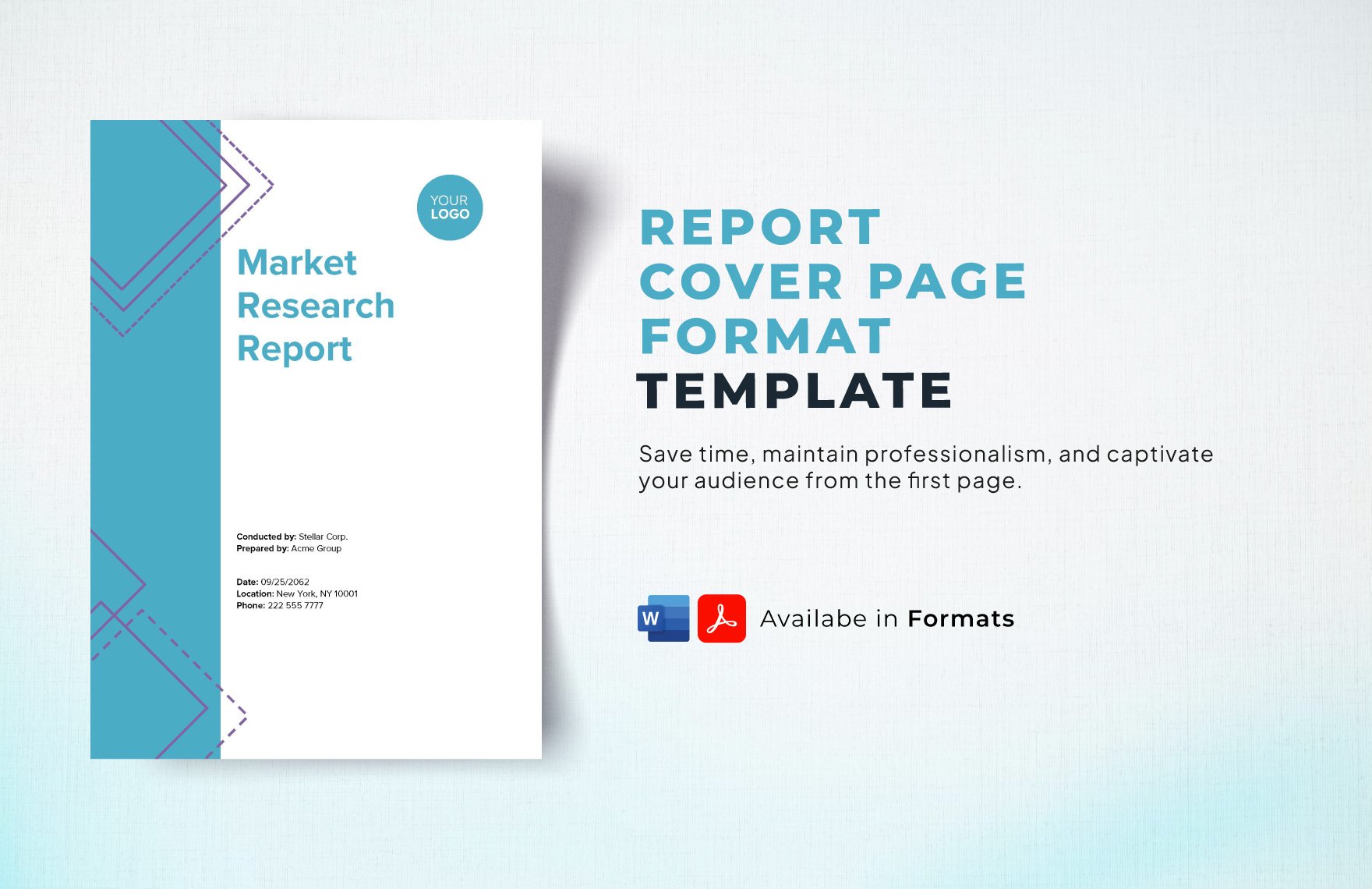
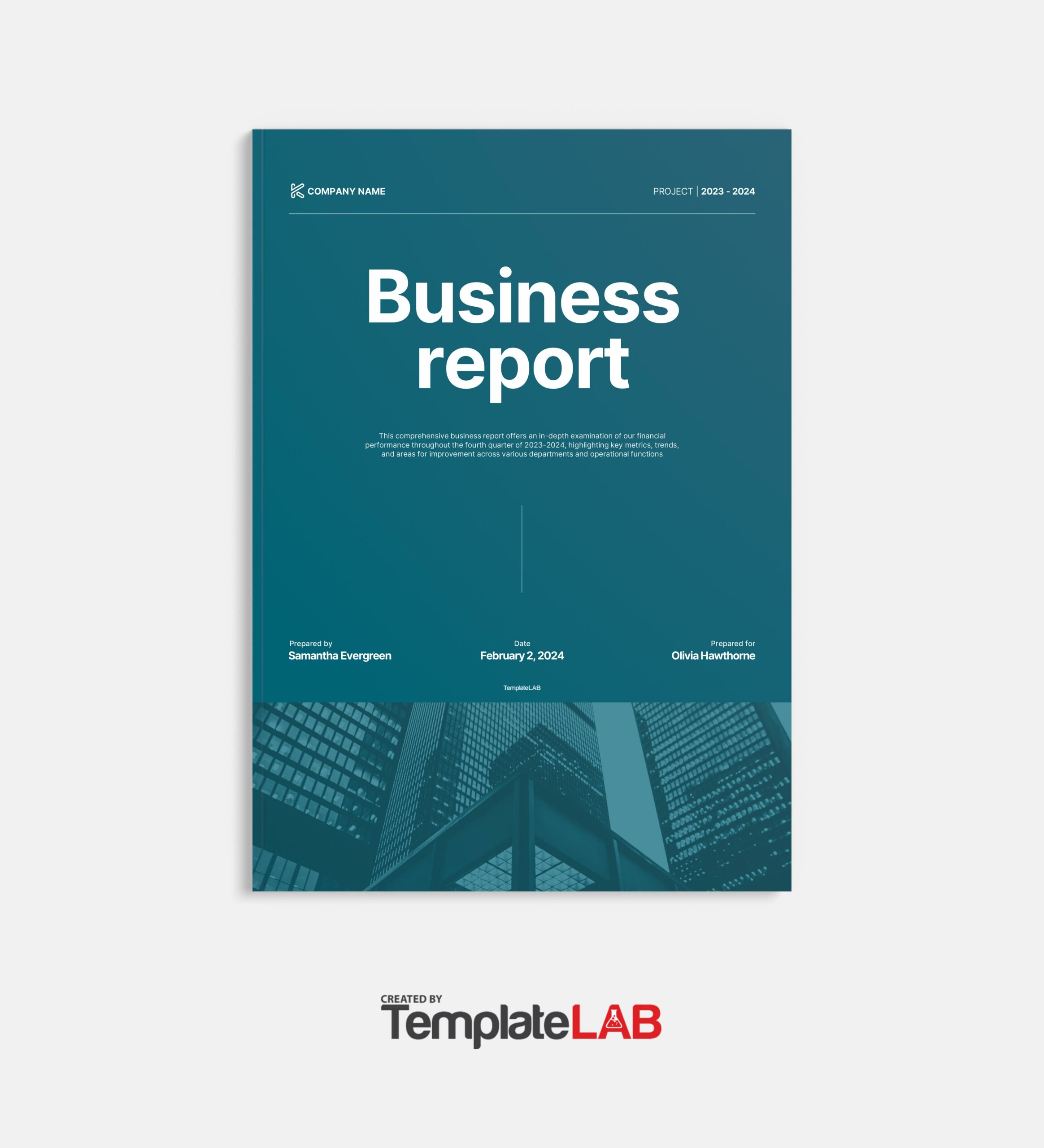
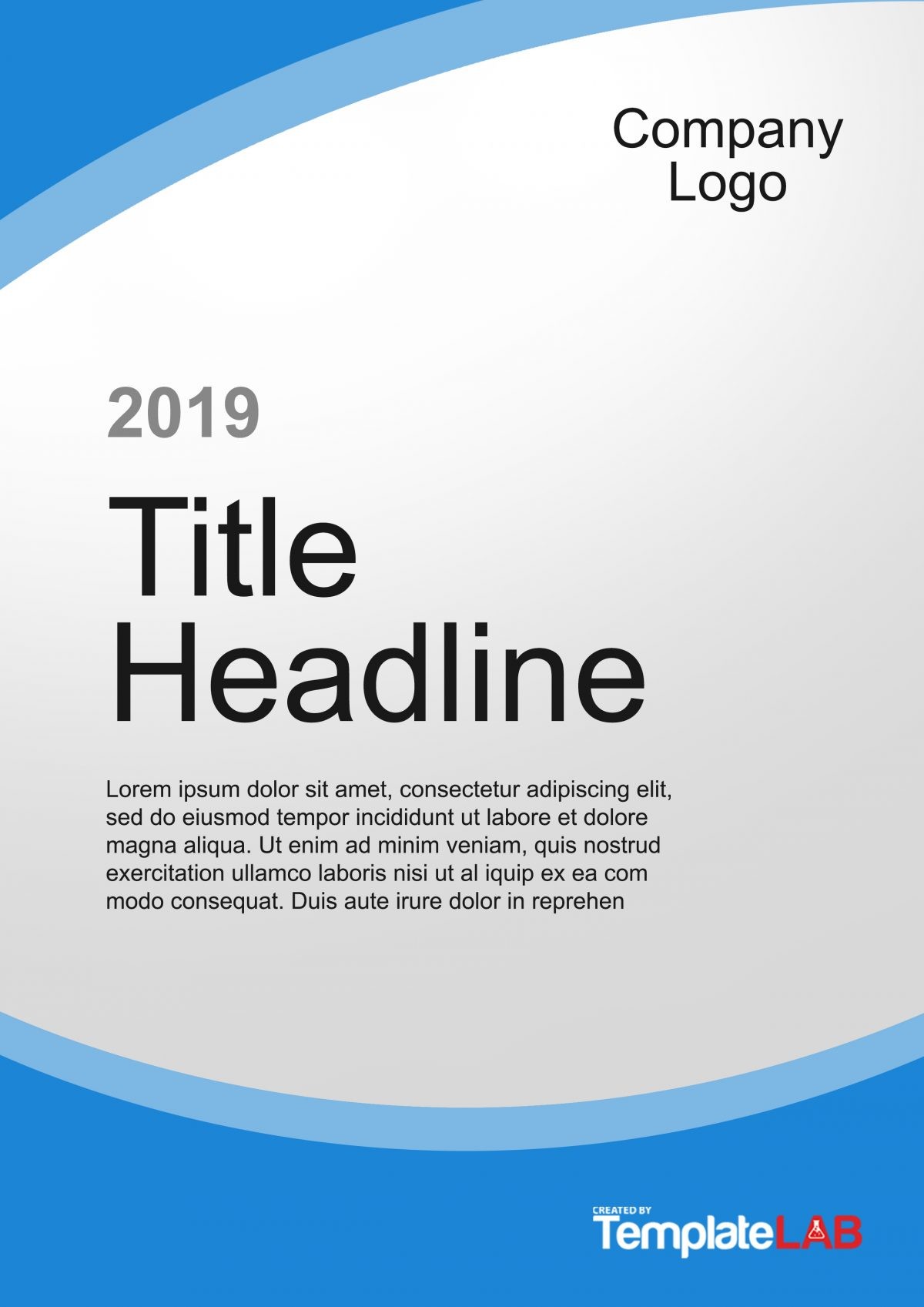
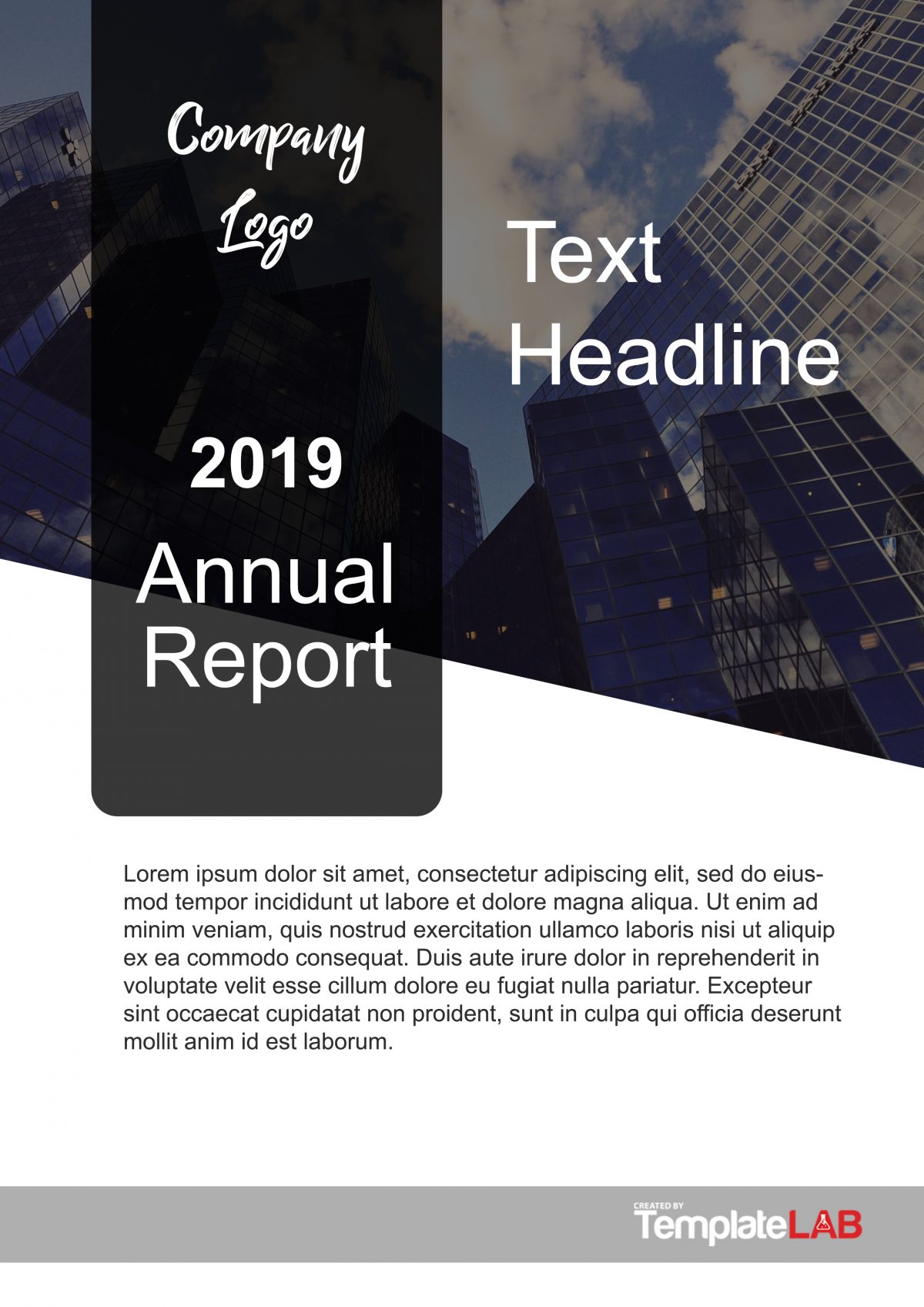
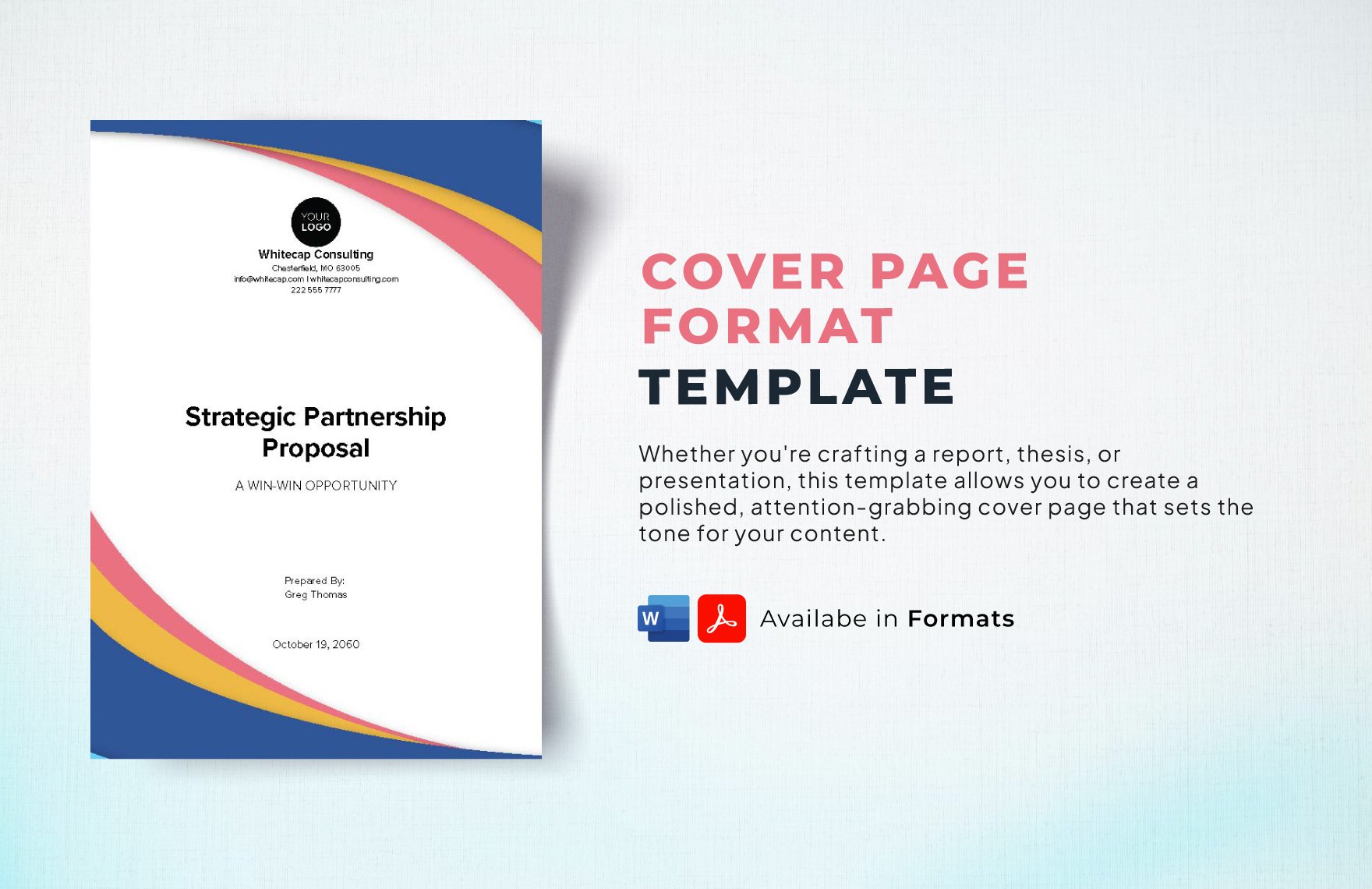
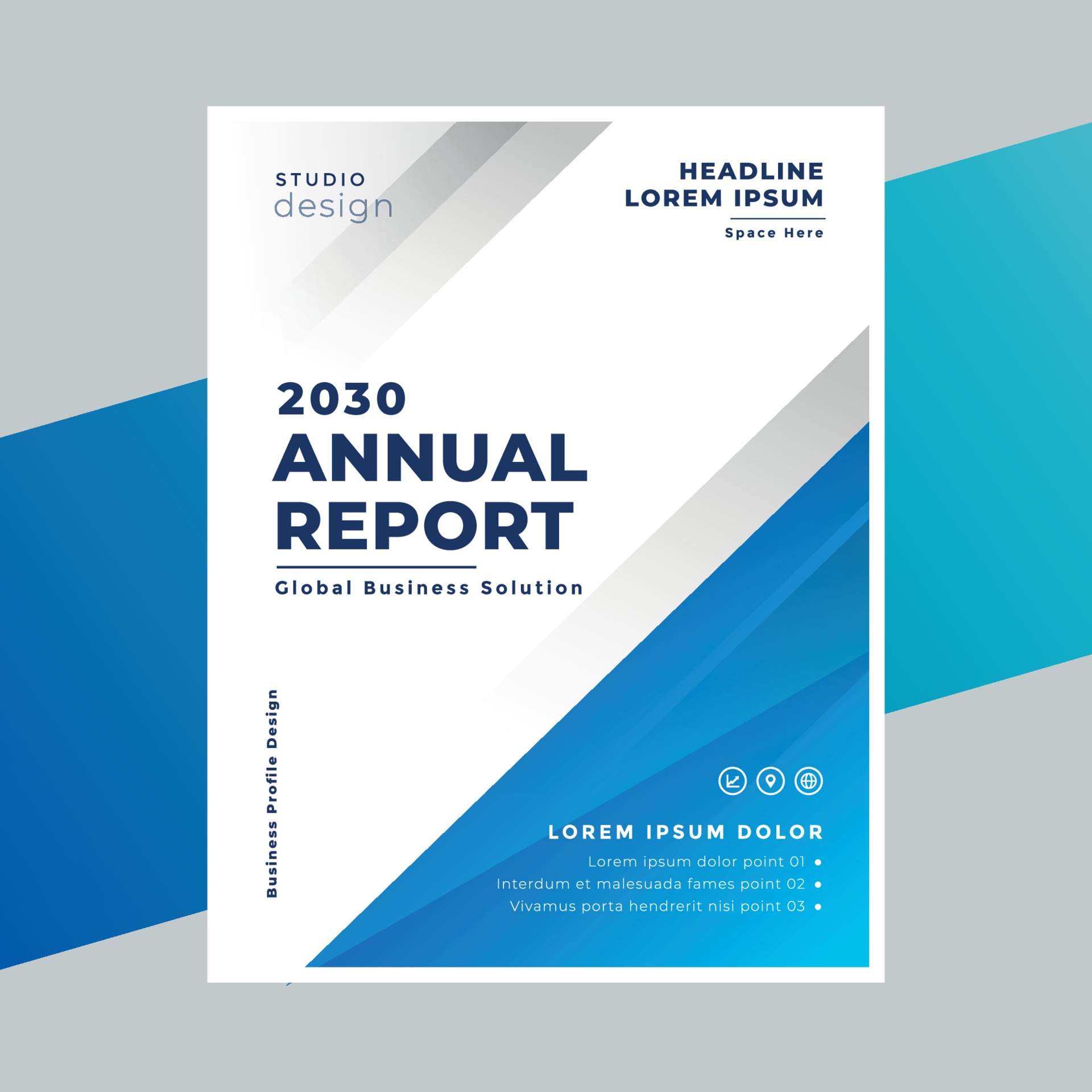
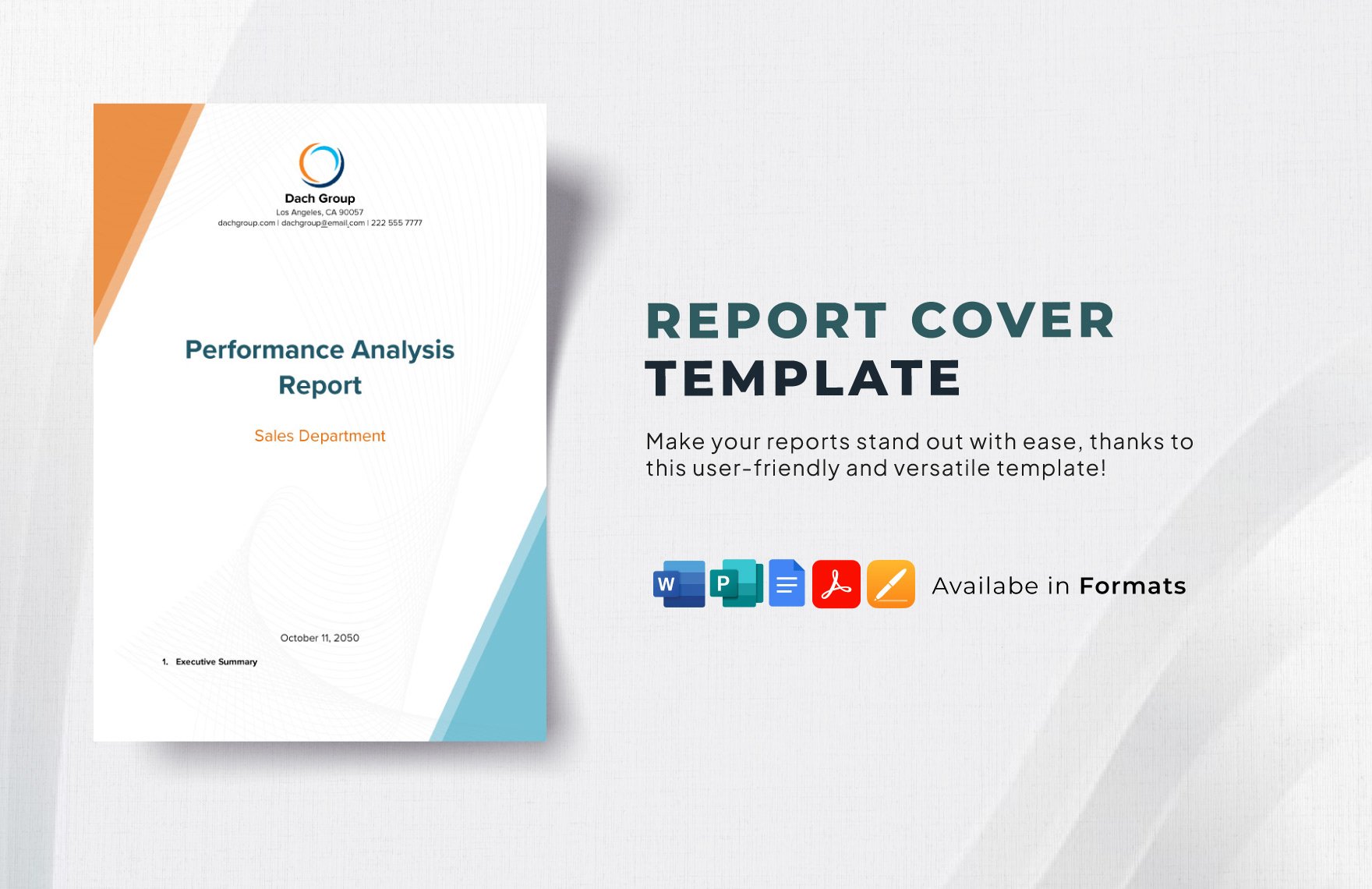
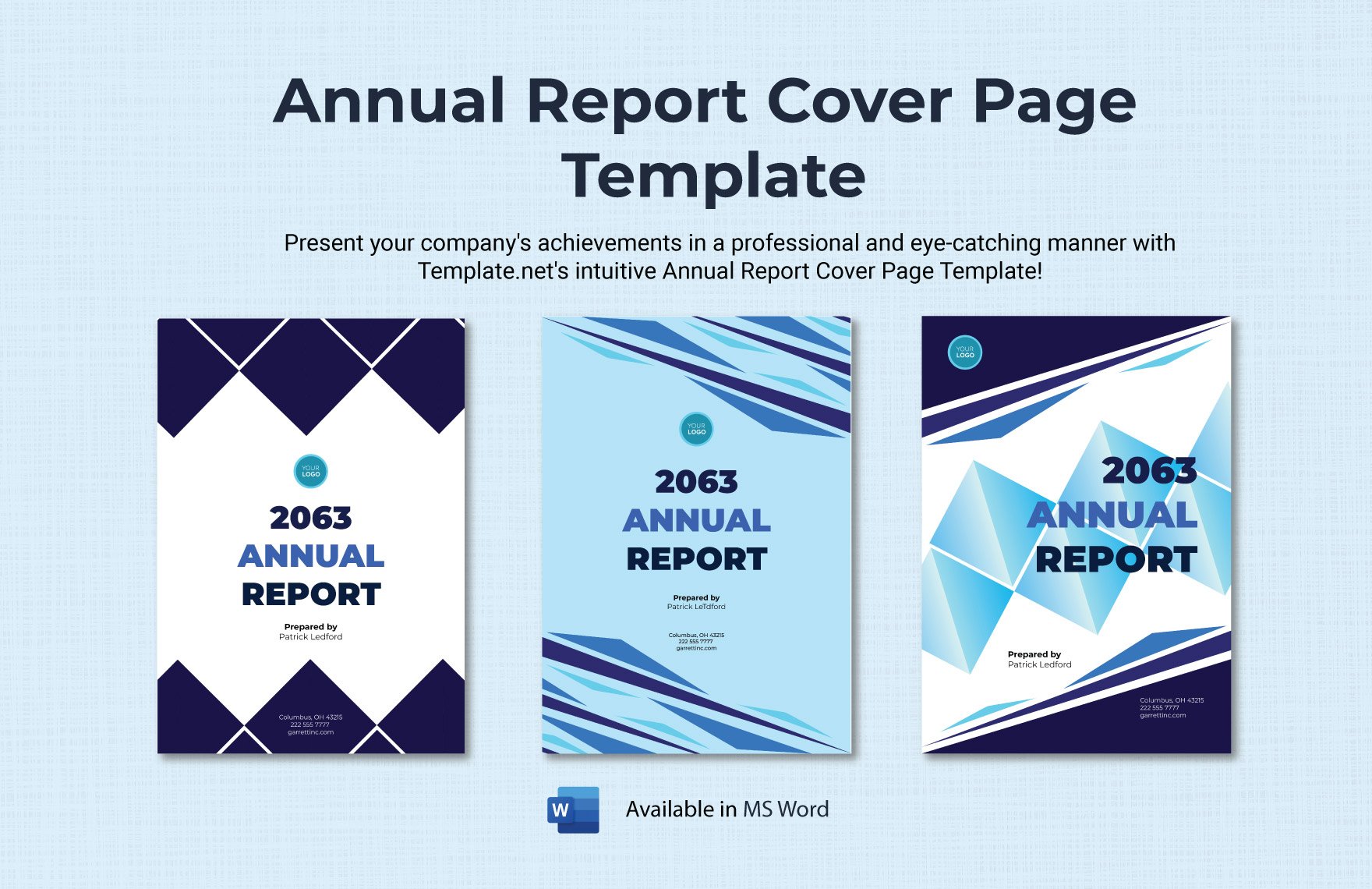
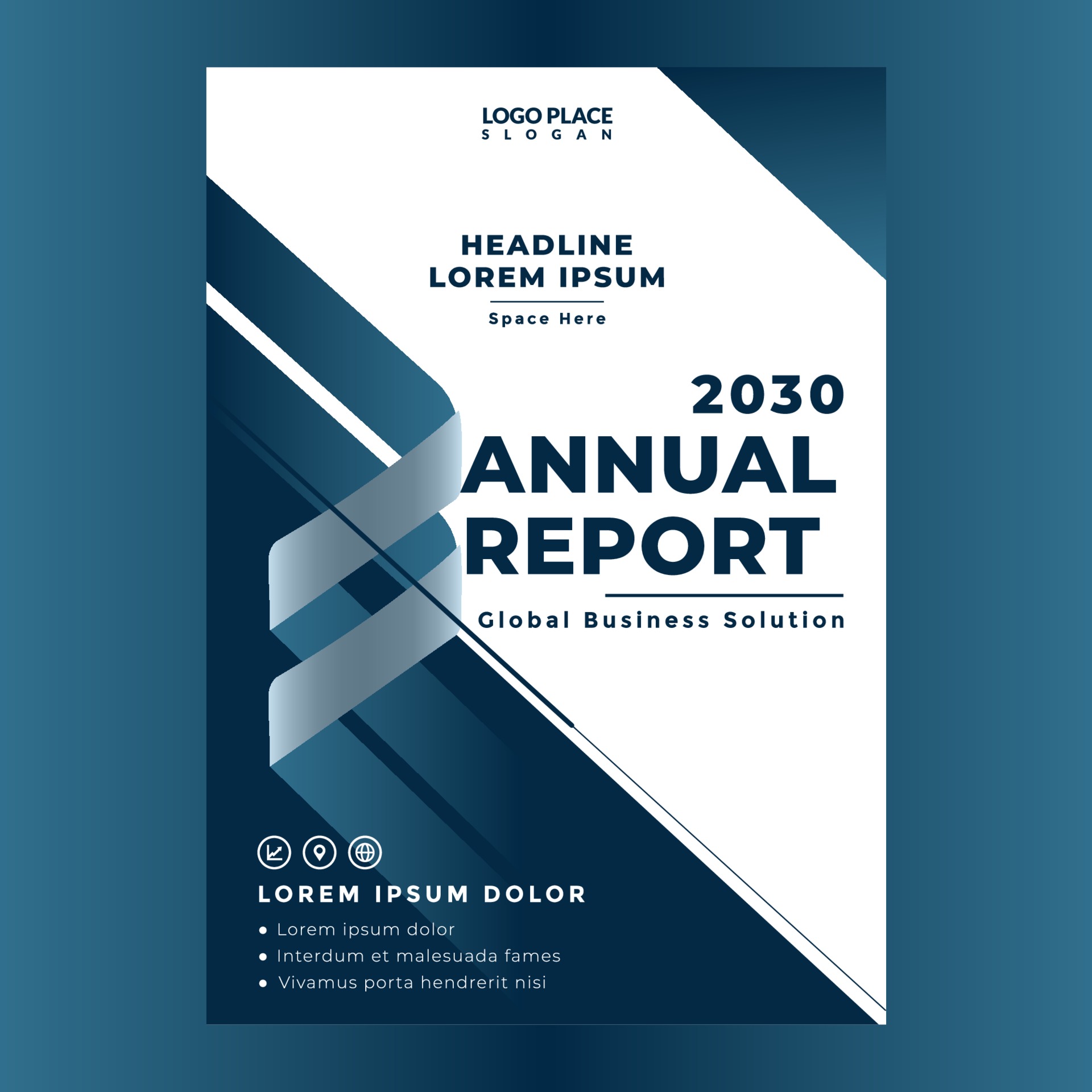
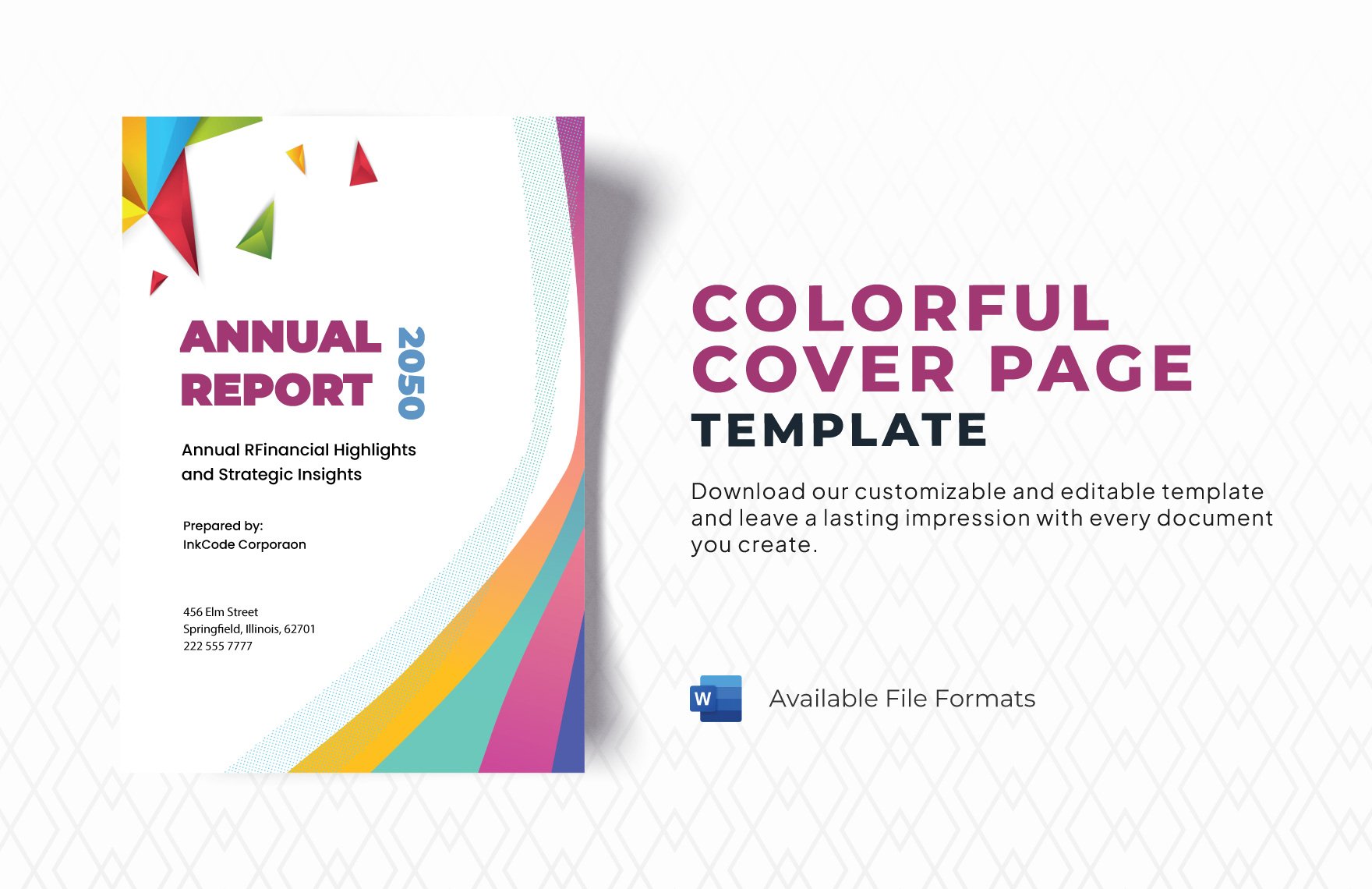
Report Cover Page Template Word is the secret weapon that turns a plain document into a polished, professional masterpiece that grabs attention before the first line of text is even read. I’ve spent countless hours tweaking layouts, swapping fonts, and playing with color palettes, only to discover that a well‑designed cover page can make the difference between a report that lands on a senior executive’s desk and one that gets lost in a crowded inbox. In this post I’ll walk you through everything you need to know—from the psychological impact of a strong cover to step‑by‑step instructions for building your own template in Microsoft Word, plus tips for customizing it for different industries and audiences. Grab a coffee, open Word, and let’s get creative together.
Understanding the Power of a Cover Page
First Impressions Count
Humans make snap judgments in seconds, and a report’s cover page is the visual handshake that sets the tone. A clean, balanced layout signals organization, while clutter or mismatched colors can suggest a lack of attention to detail. Studies in visual cognition show that readers are 70% more likely to engage with a document that features a compelling cover, because it reduces perceived effort and builds trust.
Brand Consistency and Credibility
When your cover page mirrors your company’s branding—using the same logo, typefaces, and color scheme—you reinforce brand identity. This consistency isn’t just aesthetic; it signals that the content inside follows the same rigorous standards. For consultants and freelancers, a personalized cover page becomes a subtle portfolio piece that showcases design sensibility alongside analytical expertise.
Core Elements of an Effective Cover Page
Title and Subtitle
The title should be concise, descriptive, and placed prominently—usually centered and occupying the top third of the page. A subtitle can add context, such as the report’s purpose, date range, or a catchy tagline. Use a larger font size for the title (e.g., 36‑48 pt) and a slightly smaller size for the subtitle (24‑30 pt) to create visual hierarchy.
Company Logo and Tagline
Insert a high‑resolution PNG or SVG of your logo near the top or bottom of the page. Keep the logo proportionate; a common rule is that it should not exceed 15% of the page width. Pair the logo with a short tagline that reinforces your value proposition, but avoid overcrowding the space.
Prepared By and Contact Information
Readers often need to know who authored the report and how to reach them. Include the author’s name, title, department, and contact details in a smaller font (10‑12 pt) near the bottom. Align this block to the left or right margin to maintain balance.
Date and Version Number
Adding the report date and version number helps stakeholders track revisions and ensures they are looking at the latest data. Place these elements in the lower‑right corner, using a light gray font color to keep them visible but unobtrusive.
Step‑by‑Step Guide to Building a Cover Page Template in Word
1. Start with a Blank Document
Open Microsoft Word and choose a blank document. Set the page orientation to Portrait and adjust the margins to 1 inch on all sides. This creates a clean canvas that works for most professional reports.
2. Insert a Header for Branding
Go to Insert → Header → Blank. Click inside the header area and paste your logo. Use the Picture Tools → Wrap Text → Behind Text option so the logo can sit flush against the top edge without affecting the body text. Add a thin line (via Insert → Shapes → Line**) beneath the header to visually separate it from the rest of the page.
3. Add Title and Subtitle Text Boxes
Select Insert → Text Box → Simple Text Box. Drag the box to the center of the page and type your report title. Highlight the text, choose a bold sans‑serif font like Calibri or Helvetica Neue, and set the size to 42 pt. Duplicate the text box for the subtitle, use a complementary font weight, and reduce the size to 28 pt. Center‑align both boxes for a symmetrical look.
4. Create a Footer for Author Details
Click Insert → Footer → Blank. Type the author’s name, title, and contact information. Apply a smaller font size (11 pt) and a muted gray color (#666666) to keep the focus on the main title while still providing essential details.
5. Insert Date and Version
Within the footer, press Tab twice to push the cursor to the right side, then type “Date: September 4, 2026” and “Version 1.0”. Use the same gray tone as the author details. This ensures consistency and readability.
6. Apply a Consistent Color Scheme
Choose two primary colors that match your brand—one for headings and one for accent lines. Use the Design → Colors** menu to create a custom palette, then apply the heading color to the title and subtitle, and the accent color to the separating line. Avoid more than three colors to maintain a professional appearance.
7. Save as a Reusable Template
When the layout is complete, go to File → Save As and select “Word Template (*.dotx)” from the file type dropdown. Name it something descriptive like “Annual Report Cover Template”. Now every new report can start with a click, guaranteeing brand consistency across the organization.
Customizing the Template for Different Scenarios
Academic Papers
For research reports or theses, swap the corporate logo for a university crest, and replace the subtitle with the course name and instructor’s title. Use a serif font such as Times New Roman for the title to meet academic style guidelines, and add a “Submitted to” line under the author block.
Marketing Pitch Decks
When the audience is potential clients, incorporate vibrant accent colors that match the campaign’s visual identity. Add a brief tagline that speaks directly to the client’s pain point, and include a high‑impact statistic or quote right under the subtitle to pique curiosity.
Financial Statements
Financial reports benefit from a more restrained look. Use a dark navy or charcoal for headings, and place a subtle watermark of the company’s logo in the center of the page (set the image transparency to 15%). Include the fiscal year and quarter prominently in the subtitle.
Design Best Practices and Common Pitfalls
Keep It Simple
White space is your friend. Overloading the cover with graphics, text, or decorative elements can distract from the core message. Aim for a balanced composition where each element has breathing room.
Font Pairing Rules
Limit yourself to two typefaces—one for headings and one for body text. Pair a bold sans‑serif with a light serif, or vice versa, to create contrast while maintaining readability. Avoid using more than three font families in a single cover page.
Resolution Matters
Always use high‑resolution images (300 dpi or higher) for logos and background graphics. Low‑quality images appear pixelated when printed, which can undermine professionalism.
Avoid Overly Bright Colors
While a splash of color can draw attention, neon or overly saturated hues can be jarring. Stick to your brand palette and use accent colors sparingly for emphasis.
Practical Tips for Faster Template Creation
Leverage Word’s Built‑In Styles
Define custom styles for the title, subtitle, and author block. This allows you to update the font or color across the entire template with a single click, saving hours of manual formatting.
Use the “Quick Parts” Feature
Save recurring text blocks—like the author line or version number—as Quick Parts (via Insert → Quick Parts → Save Selection to Quick Part Gallery**). Insert them instantly in future reports, ensuring consistency and reducing typing.
Create a Master Page for Multi‑Section Reports
If your report spans multiple sections, add a second cover page for each major chapter. Duplicate the original template, replace the title and subtitle, and adjust the header/footer as needed. This keeps the visual language uniform throughout the document.
SEO Considerations for Online Report Distribution
File Naming Conventions
When you export the Word document to PDF for online sharing, use a descriptive file name that includes primary keywords, such as “annual‑financial‑report‑2026‑cover‑page‑template.pdf”. Search engines read file names, so this small step boosts discoverability.
Metadata Optimization
Before saving the PDF, go to File → Info → Properties** and fill out the Title, Subject, and Keywords fields with relevant terms like “Report Cover Page Template Word”, “Professional Report Design”, and “Business Report Cover”. This metadata is indexed by search engines and improves organic traffic.
Alt Text for Embedded Images
If you embed the logo or decorative graphics, right‑click the image, choose Format Picture → Alt Text**, and write a concise description that includes your target keyword. This not only aids accessibility but also reinforces SEO relevance.
Real‑World Example: Transforming a Quarterly Sales Report
Imagine you’re preparing a Q3 sales analysis for a mid‑size tech firm. The raw data is solid, but the executive team expects a sleek presentation. Here’s how you could apply the template:
Title: “Q3 2026 Sales Performance Overview”
Subtitle: “Driving Growth Through Strategic Partnerships”
Logo Placement: Company logo centered at the top, muted gray line beneath.
Date/Version: “Date: September 4, 2026 | Version 2.1”
By swapping the generic placeholders with the specifics above, the report instantly feels tailored, professional, and ready for boardroom review. The consistent visual language also reassures stakeholders that the data has been vetted and presented with care.
Final Thoughts on Mastering Report Cover Pages
Investing time in a well‑crafted Report Cover Page Template Word pays dividends in perception, readability, and brand integrity. Whether you’re a solo consultant, a corporate analyst, or a student, the principles of clear hierarchy, brand alignment, and purposeful simplicity apply universally. Use the step‑by‑step workflow to build a master template, adapt it to each project’s unique needs, and remember to keep the design clean and the metadata SEO‑friendly. With a polished cover page leading the way, your reports will not only convey data effectively but also command the respect and attention they deserve.
Related posts of "Report Cover Page Template Word"
Fact Sheet Template Word is the unsung hero behind crisp, professional one‑page overviews that capture attention in boardrooms, trade shows, and digital newsletters across the bustling markets of Asia and the United States alike. Whether you’re a startup founder in Seoul, a marketing manager in Singapore, or a product analyst in San Francisco, a well‑crafted...
Microsoft Word Lined Paper Template is a game‑changing feature that transforms how students, writers, and professionals format their documents. By blending the simplicity of classic ruled paper with the versatility of modern word processing, this template offers a clean, organized canvas that boosts productivity and reduces clutter. Why Lined Paper Templates Matter in Today’s Digital...
Project Status Report Template Word 2010 serves as a foundational tool for keeping stakeholders informed about progress, risks, and resource utilization across a project’s lifecycle. By leveraging Word’s familiar interface, teams can produce consistent, visually engaging status reports that translate complex data into actionable insights. In this guide, you’ll discover why the 2010 template remains...
Scientific Paper Template Word 2010 offers researchers a polished, ready‑to‑publish framework that eliminates tedious formatting chores and lets you focus on the science itself, and this article will walk you through every advantage, feature, and practical tip for mastering the template in a way that boosts productivity and impresses reviewers. Why Use a Scientific Paper...