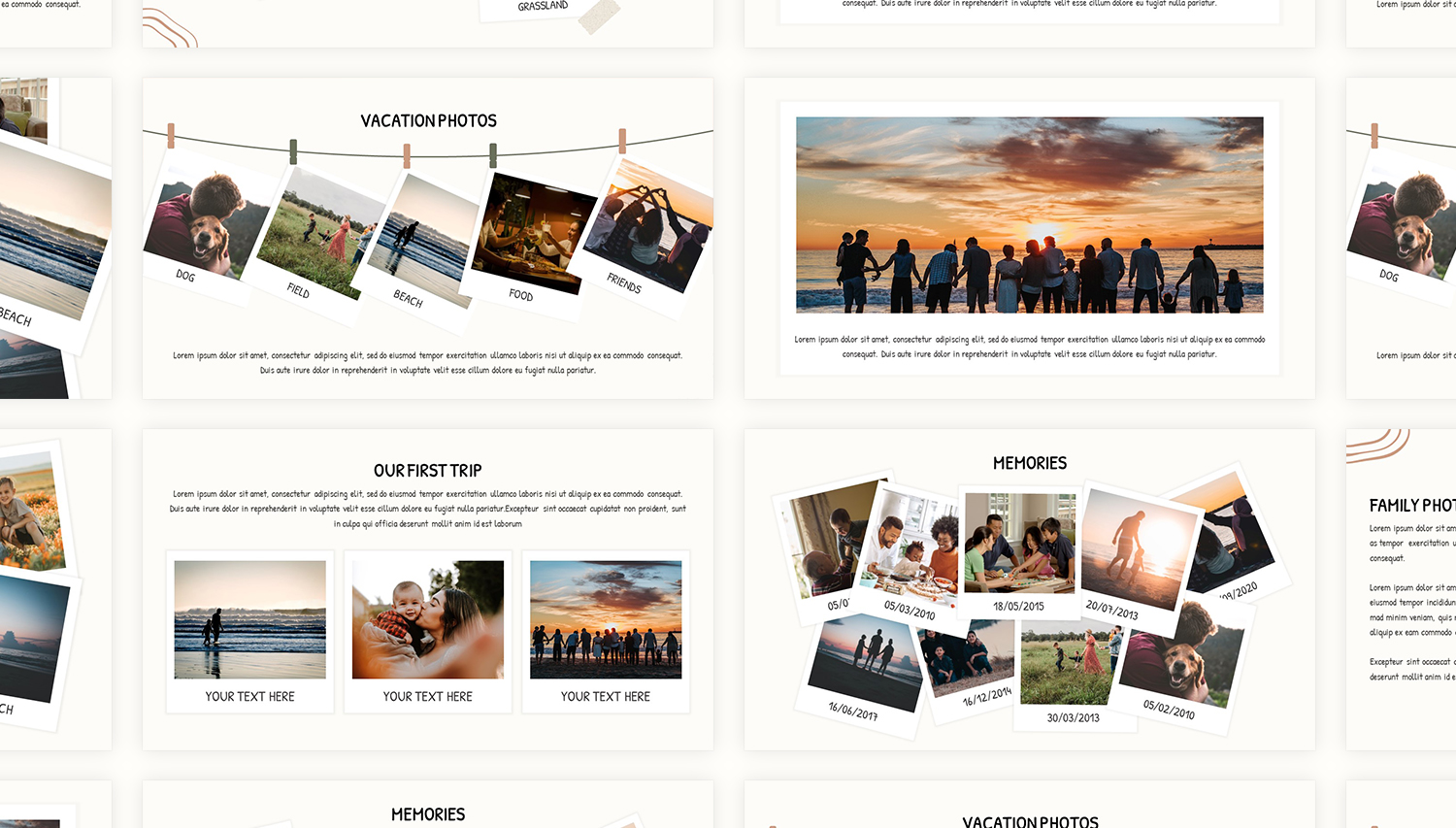
Powerpoint Photo Slideshow Template is the secret sauce that turns your awkward “look at my pictures” moments into blockbuster cinema experiences—minus the popcorn, of course. If you’ve ever tried to present a collection of blurry selfies or your cat’s life in 60 slides, you know the struggle. Lucky for you, a good template can save your sanity and make your audience wonder if you’re a wizard, not a tech‑noob.
Why a Photo Slideshow Is a Life‑Saver
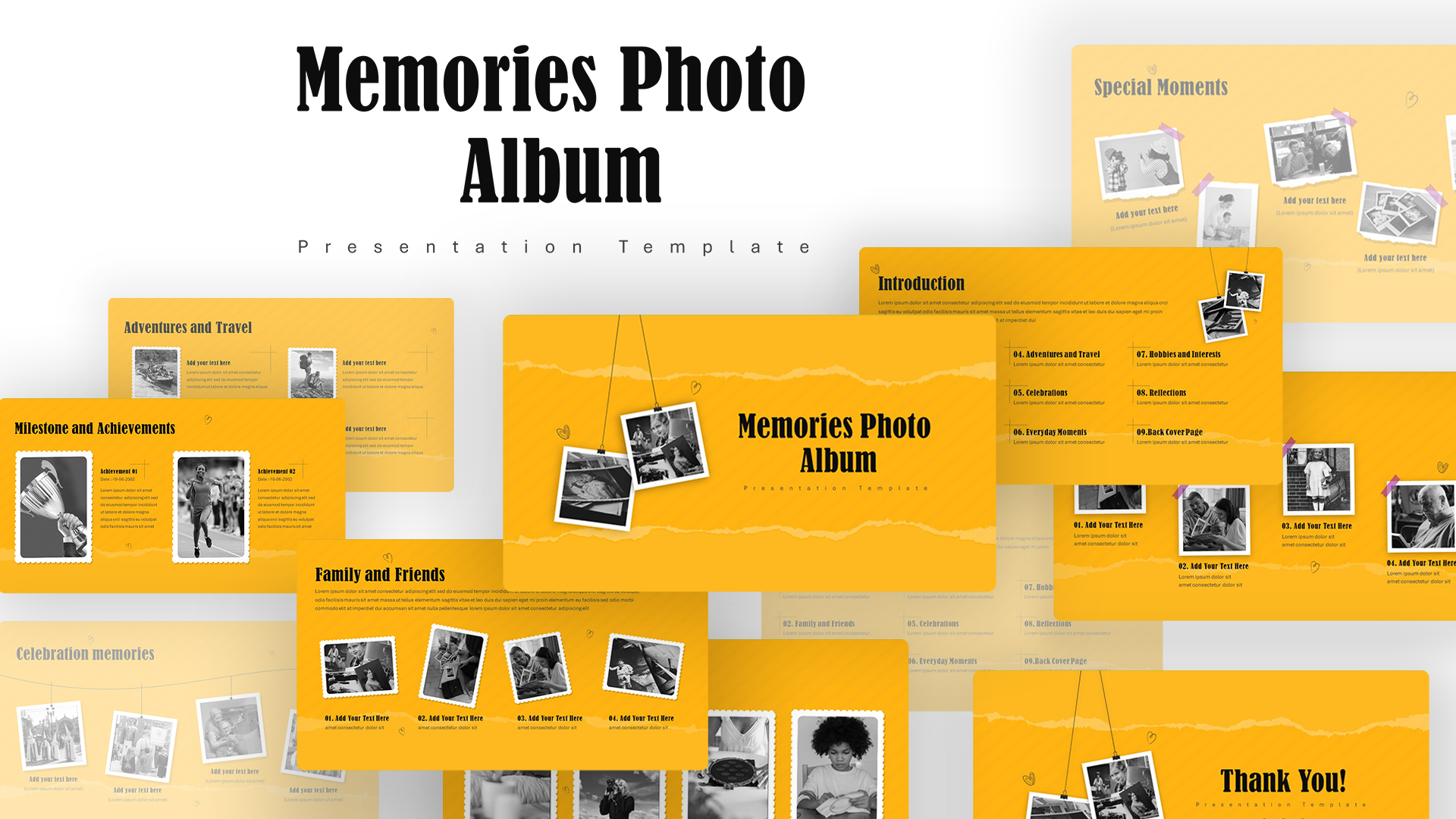
We all know the universal horror movie: the endless scrolling through a phone gallery at a party, hoping someone will pick a good photo. A Powerpoint Photo Slideshow Template transforms that chaos into a coherent story. It lets you:
- Set a tone: Wedding romance, graduation triumph, or your cat’s dramatic life cycle.
- Control pacing: No more “blink and you’ll miss the best pic” moments.
- Add flair: Animations, music, and captions that make your slides feel like a mini-movie.
- Save time: Templates come pre‑built with layouts; you just drop your photos in.
Types of Powerpoint Photo Slideshow Templates

Classic
Think clean grids, subtle transitions, and a timeless look. Classic templates work best for formal events like corporate presentations or wedding keepsakes.
Minimalist
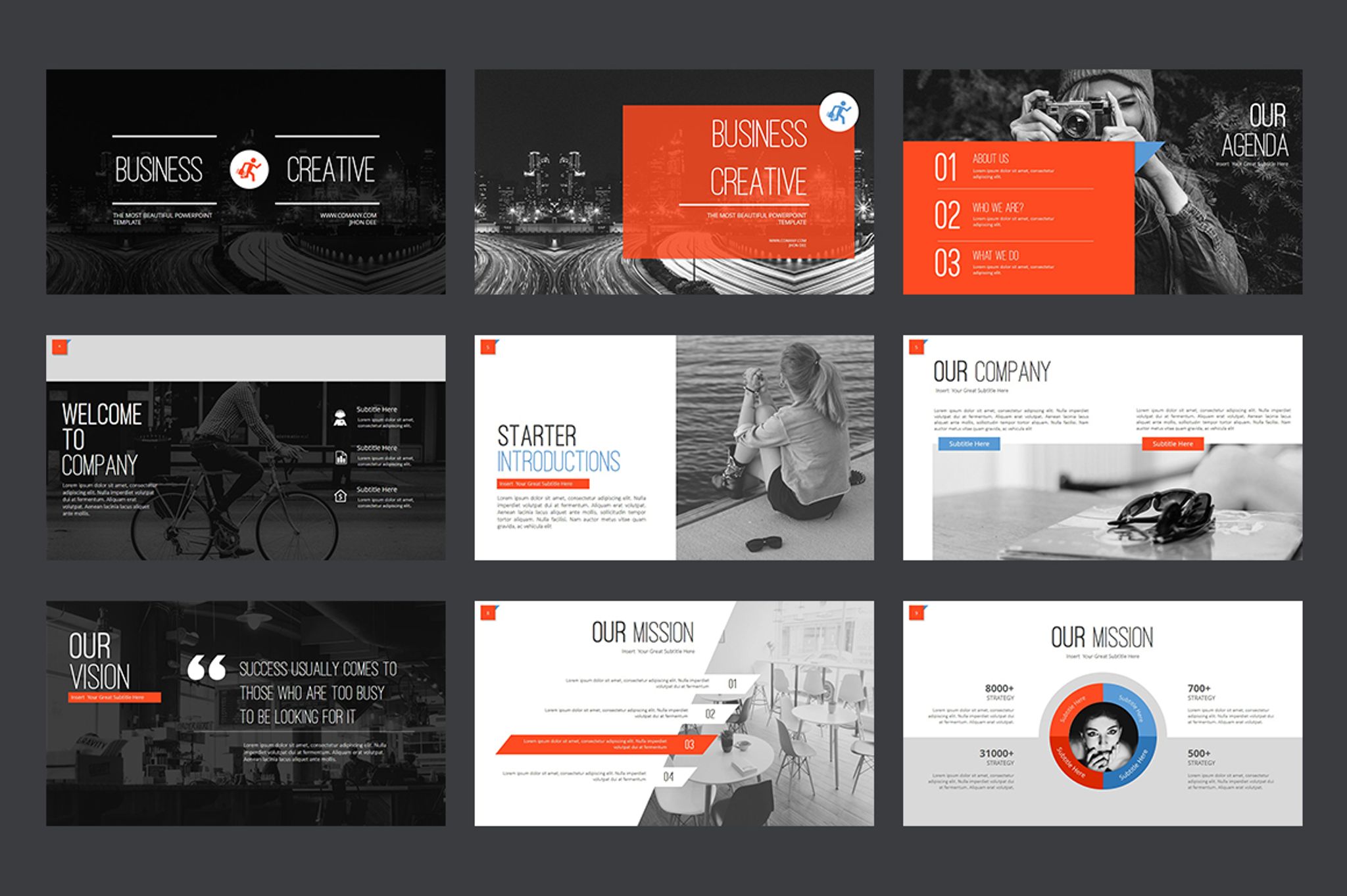
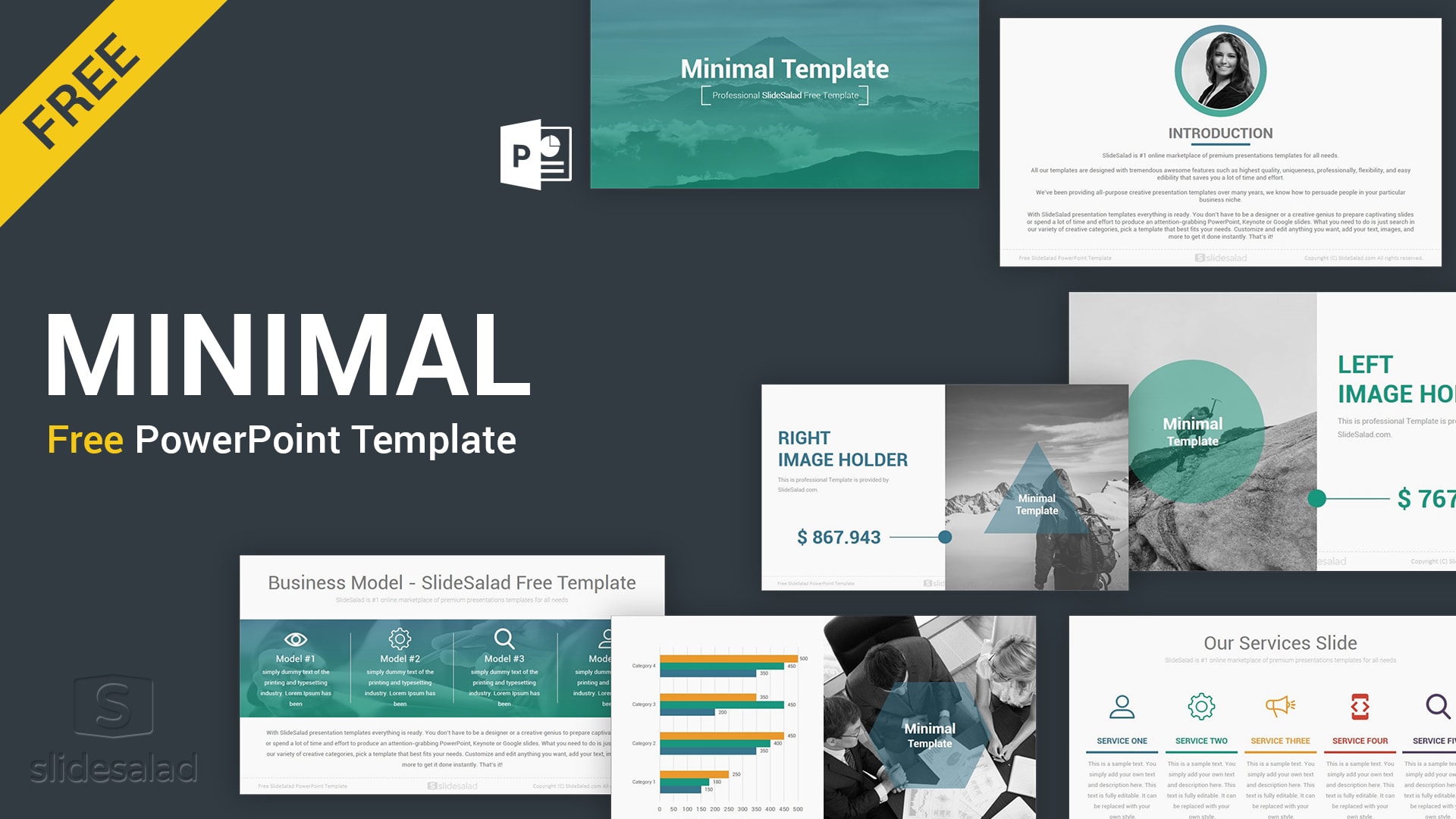
All white space and black text. Ideal for modern audiences who appreciate “less is more.”
Animated
Dynamic slide‑to‑slide motion, splash effects, and playful fonts. Great for birthdays, kids’ parties, or anything that needs a splash of personality.
Theme‑Based
Templates that come with matching backgrounds—beach vibes, autumn leaves, or city skyline—to match the event’s mood.
How to Pick the Right Template for Your Event
- Audience matters: A corporate executive audience prefers subtle; a teenage group wants flashy.
- Event type: A wedding needs romance; a tech expo needs sleek professionalism.
- Time constraints: Quick slides require minimal animations; a long event can afford richer transitions.
- Device compatibility: Make sure the template works on older Powerpoint versions if your host uses legacy software.
Step‑by‑Step Guide to Using the Template

1. Open Powerpoint and Insert the Template
Launch Powerpoint, click “New,” and search for “Photo Slideshow.” Pick a template that fits your event. Once selected, the deck populates with placeholder slides.
2. Add Your Photos
Drag and drop your images into the placeholder frames. Powerpoint automatically crops them to fit, but you can double‑click to adjust the crop manually.
3. Customize Transitions
Hover over a slide, click the “Transitions” tab, and choose from options like “Fade,” “Morph,” or “Zoom.” Don’t overdo it; a single transition style keeps the flow smooth.
4. Add Music & Captions
Insert a background track via “Insert” → “Audio” → “Audio on My PC.” Make sure it’s royalty‑free if you plan to share publicly. For captions, use the text boxes in the template. Keep them short—just enough to explain the image without reading a novella.
5. Fine‑Tune Timing
Select a slide, then go to “Animations” → “Timing.” Set each slide to advance automatically after a few seconds. A good rule of thumb: 3‑5 seconds per image unless it’s a masterpiece that deserves a 10‑second spotlight.
Tips and Tricks for a Wow Slideshow
Use High‑Resolution Images
Blurry photos are the ultimate “oops” moment. Save your images at least 1920×1080 pixels for sharpness.
Keep Text to a Minimum
Powerpoint is visual; too much text can drown the image. Use captions sparingly, like a witty one‑liner.
Leverage Powerpoint Animations Cleverly
Subtle zooms or “fly‑in” effects add personality without stealing the show.
Save as Video for Sharing
Go to “File” → “Export” → “Create a Video.” This allows you to upload to YouTube, Instagram, or simply email the final product.
Common Pitfalls and How to Avoid Them
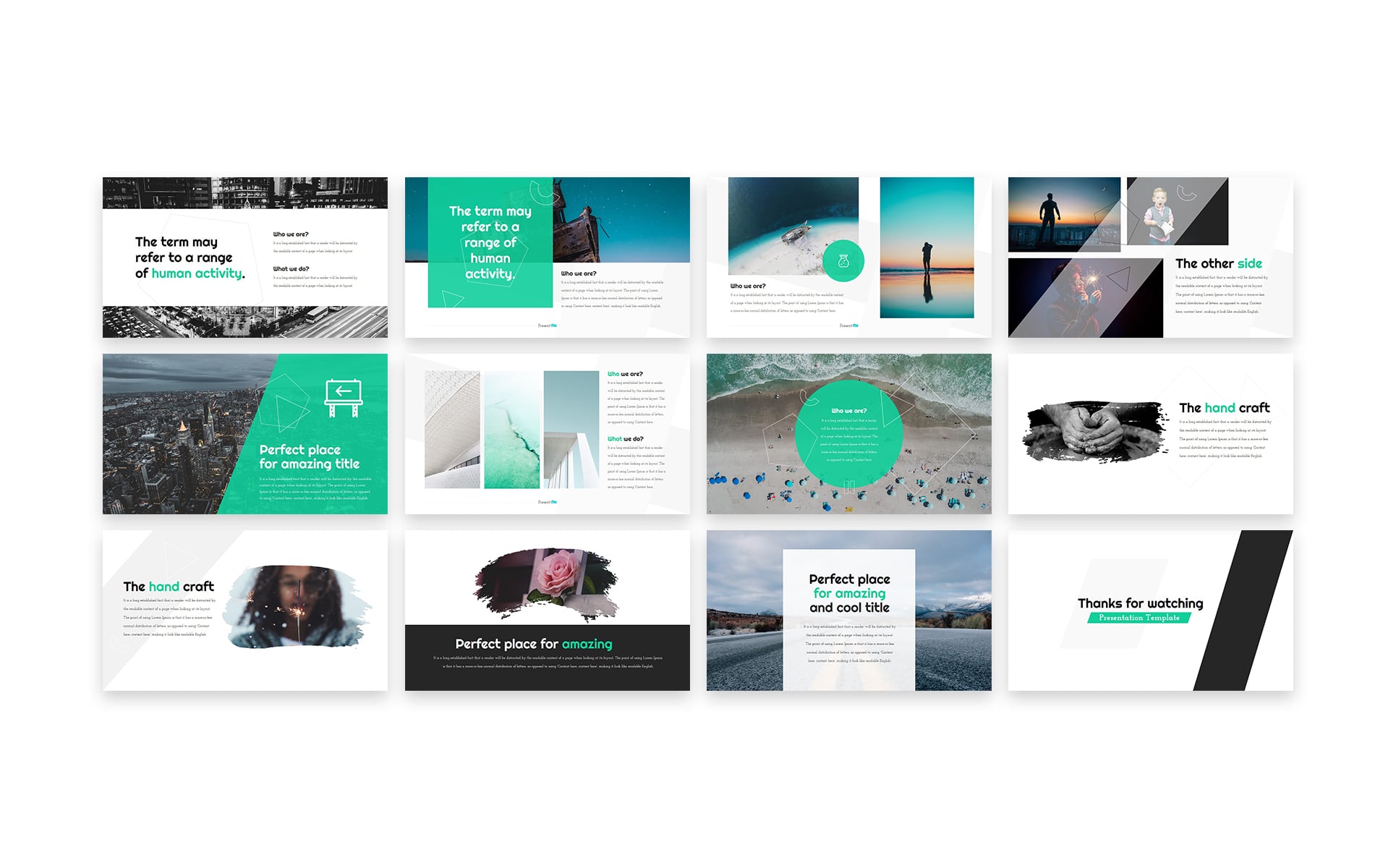
- Too Many Transitions: A slide deck with 20 different transitions feels like a circus. Stick to one or two styles.
- Low‑Resolution Photos: Pixels will pop out of the screen like bad magic tricks. Use high‑quality images.
- Overloading Captions: Long paragraphs turn viewers into passive readers. Use bullet points or short quotes.
- Inconsistent Font Sizes: Mixing fonts confuses the brain. Pick one or two complementary fonts.
Where to Find the Best Free & Premium Templates

The Microsoft Store offers a solid library of free options—perfect for the budget‑conscious. For premium flair, look at marketplace sites that offer themed slides and advanced animations. If you’re a creative, you can also craft your own template in Powerpoint, saving it for future projects.
Real‑World Examples of Photo Slideshow Success

Wedding
Start with a “Just Married” slide, transition into a “From the Day Before” montage, and finish with a “Thank You” slide. Add soft piano music and a subtle fade for each image. The result? A tear‑jerker that leaves guests whispering about the “best slideshow ever.”
Graduation Ceremony
Use a clean, collegiate color scheme. Insert graduation photos, campus shots, and a final “Future is Bright” slide. A triumphant soundtrack adds drama, and the audience will feel the pride in every transition.
Corporate Event
Keep it sleek. Use a minimalist template with a dark background and sharp white text. Highlight key moments—product launches, employee photos, milestones. Add subtle animations to maintain professionalism.
Birthday Party
Go wild with animated templates. Add funny captions and quirky music. Show a progression from baby pictures to the present, ending with a “Happy Birthday” banner that zooms in dramatically.
Frequently Asked Questions

Can I Export the Slideshow as MP4?
Absolutely. Use the “Create a Video” feature. Choose the resolution and whether you want the slide duration or to set it manually.
Is the Template Compatible with Powerpoint 2019?
Most modern templates are backwards compatible, but check the file’s format (.pptx). If it’s a .ppt file, you may need to convert.
Can I Use a Template on a Mac?
Yes. Powerpoint for Mac supports the same template formats. Just keep an eye on font availability, as some Windows fonts might not exist on macOS.
Do I Need a Powerpoint Pro Version?
For most templates, the free Powerpoint version works fine. If you want advanced animations or more customization, a pro license gives you more tools.
Conclusion

Crafting a Powerpoint Photo Slideshow Template isn’t just about showing pictures; it’s about telling a story, evoking emotions, and leaving an audience glued to the screen. With the right template, a few strategic tips, and a sprinkle of humor, your slideshow can go from “meh” to “mind‑blow.” So next time you’re faced with a mountain of photos, remember: a good template is your secret weapon, and the audience will thank you for the cinematic experience—no popcorn required.





Related posts of "Powerpoint Photo Slideshow Template"
