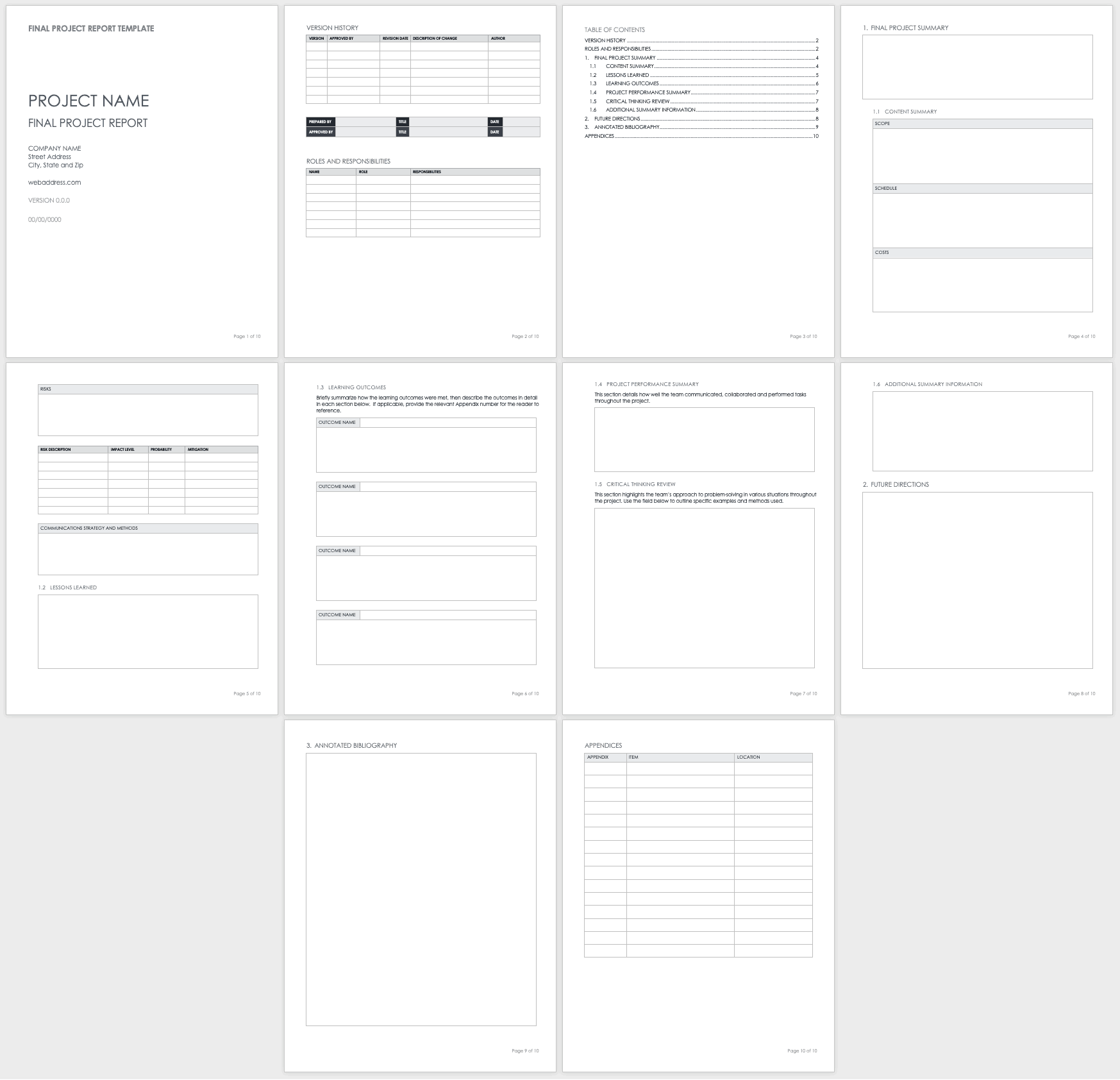
Ms Word Templates For Project Report have become a cornerstone for professionals seeking a polished, consistent, and efficient way to communicate project progress, risks, and outcomes. In an era where time is scarce and stakeholders demand clarity, leveraging a well‑designed Word template can transform a chaotic collection of data into a compelling narrative that drives decisions and showcases competence. This article dives deep into the why, what, and how of using Microsoft Word templates for project reporting, offering actionable guidance, best‑practice tips, and a real‑world example that demonstrates the full lifecycle of a report—from inception to final delivery.
Why Choose Ms Word Templates for Project Reports
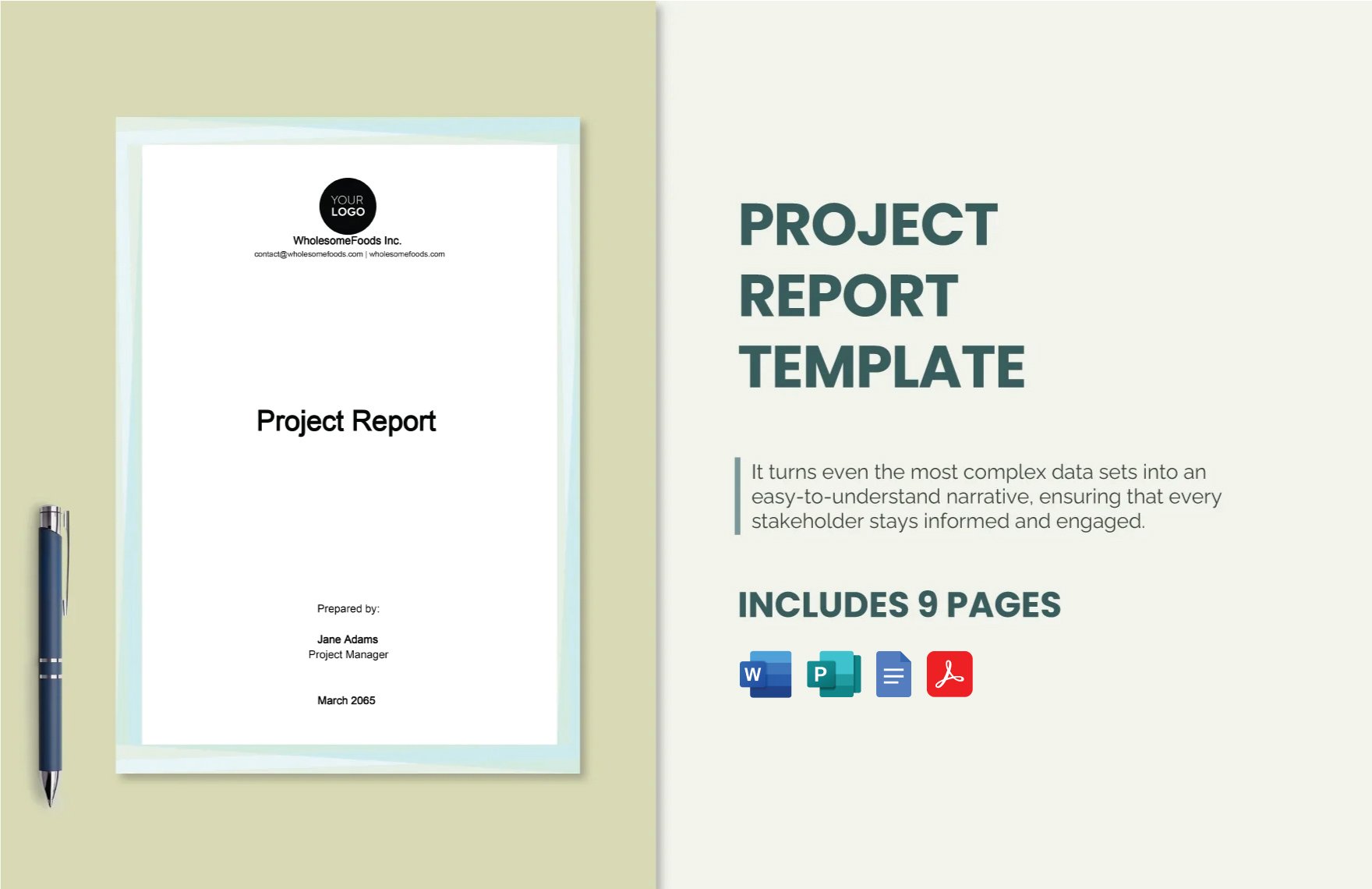
Microsoft Word remains the most ubiquitous word‑processing tool in corporate environments, which means templates created in Word are instantly accessible to virtually any team member without the need for additional software or training. Beyond accessibility, Word templates bring a suite of advantages that directly address the pain points of project reporting.
Professional Look and Consistent Branding
A template enforces a uniform style guide, ensuring that fonts, headings, color palettes, and page layouts match corporate branding guidelines. This consistency not only reinforces a professional image but also reduces the cognitive load on readers, who can focus on content rather than deciphering varied formats.
Time Savings and Reduced Errors
Pre‑populated sections such as cover pages, tables of contents, and standard disclaimer blocks eliminate repetitive manual entry. By automating repetitive formatting tasks, teams can allocate more time to analysis and strategic insight, while also minimizing typographical or layout errors that often slip through in ad‑hoc documents.
Collaboration and Version Control
Word’s built‑in track‑changes and commenting features integrate seamlessly with template structures. When a template defines where comments belong—such as in a “Risks & Issues” table—team members can provide feedback in a predictable location, streamlining review cycles and simplifying version control.
Key Features to Look for in a Template
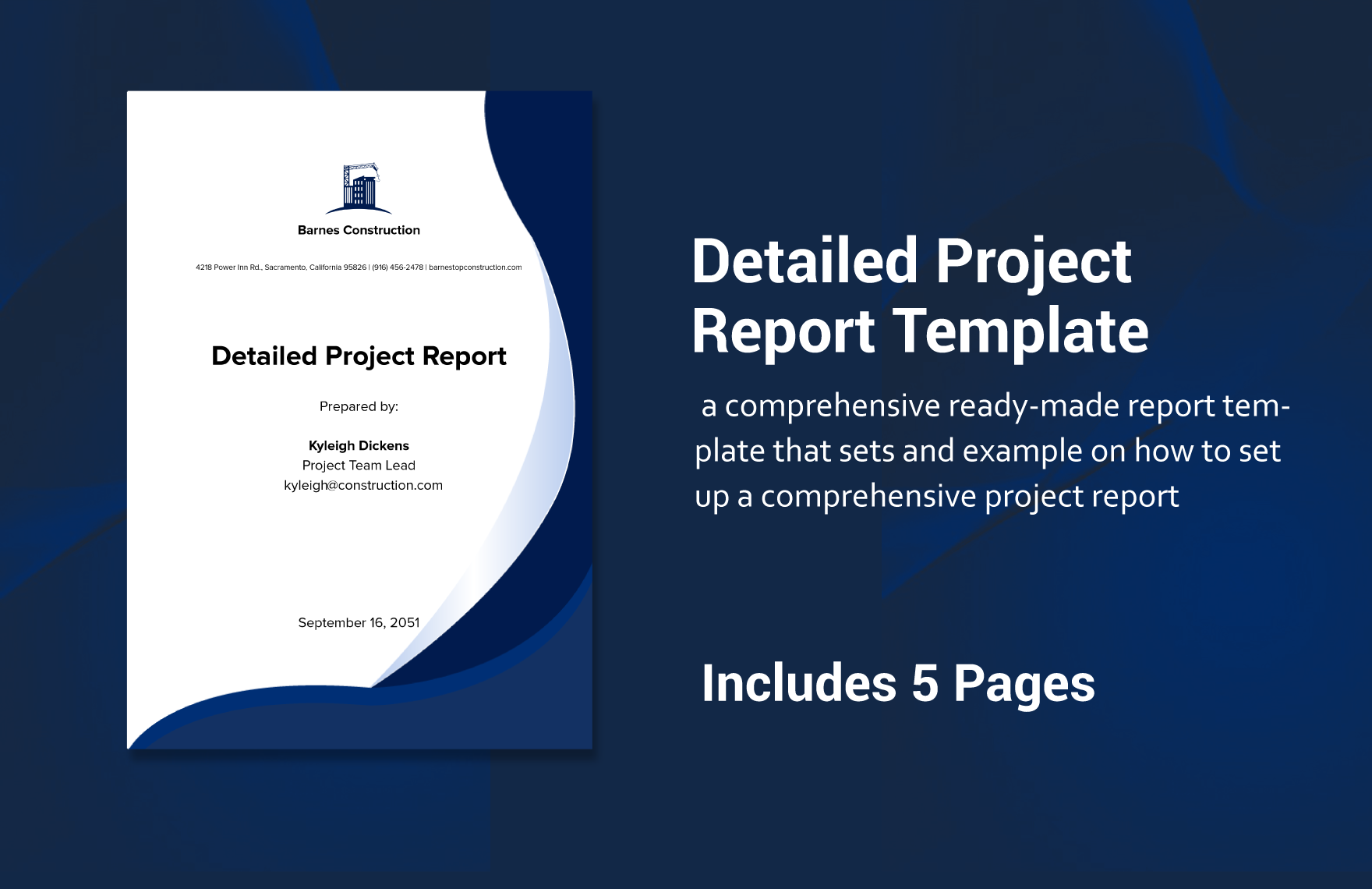
Not every Word template will suit every project. Selecting a template with the right components ensures that you capture all critical information without unnecessary clutter.
Cover Page
The cover page should include the project title, sponsor, reporting period, and a concise tagline or project tagline. A well‑designed cover page sets the tone and provides instant context for senior executives who may only skim the front matter.
Table of Contents
An auto‑generated table of contents linked to heading styles (Heading 1, Heading 2, etc.) allows readers to navigate large reports effortlessly. Ensure the template includes a placeholder that updates automatically when headings are added or removed.
Executive Summary
This section distills the entire report into a few bullet points or short paragraphs. Look for a template that provides a clear space for status highlights, key milestones achieved, and immediate next steps.
Milestones and Timeline
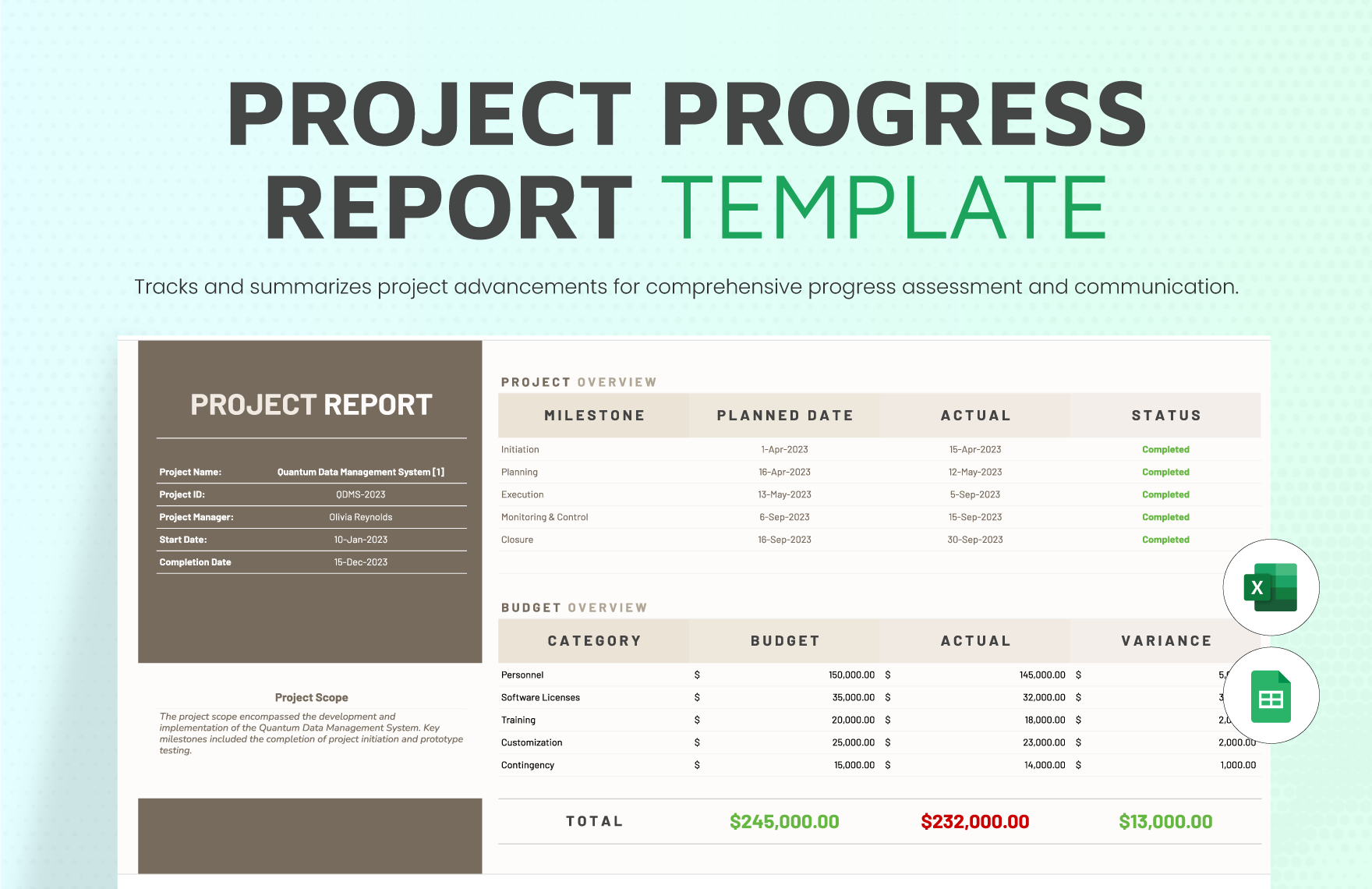
A visual timeline or Gantt‑style table that maps planned versus actual dates gives stakeholders a quick health check of schedule adherence. Templates that embed a simple table with conditional formatting (e.g., green for on‑track, amber for at‑risk, red for delayed) are especially powerful.
Risk Management
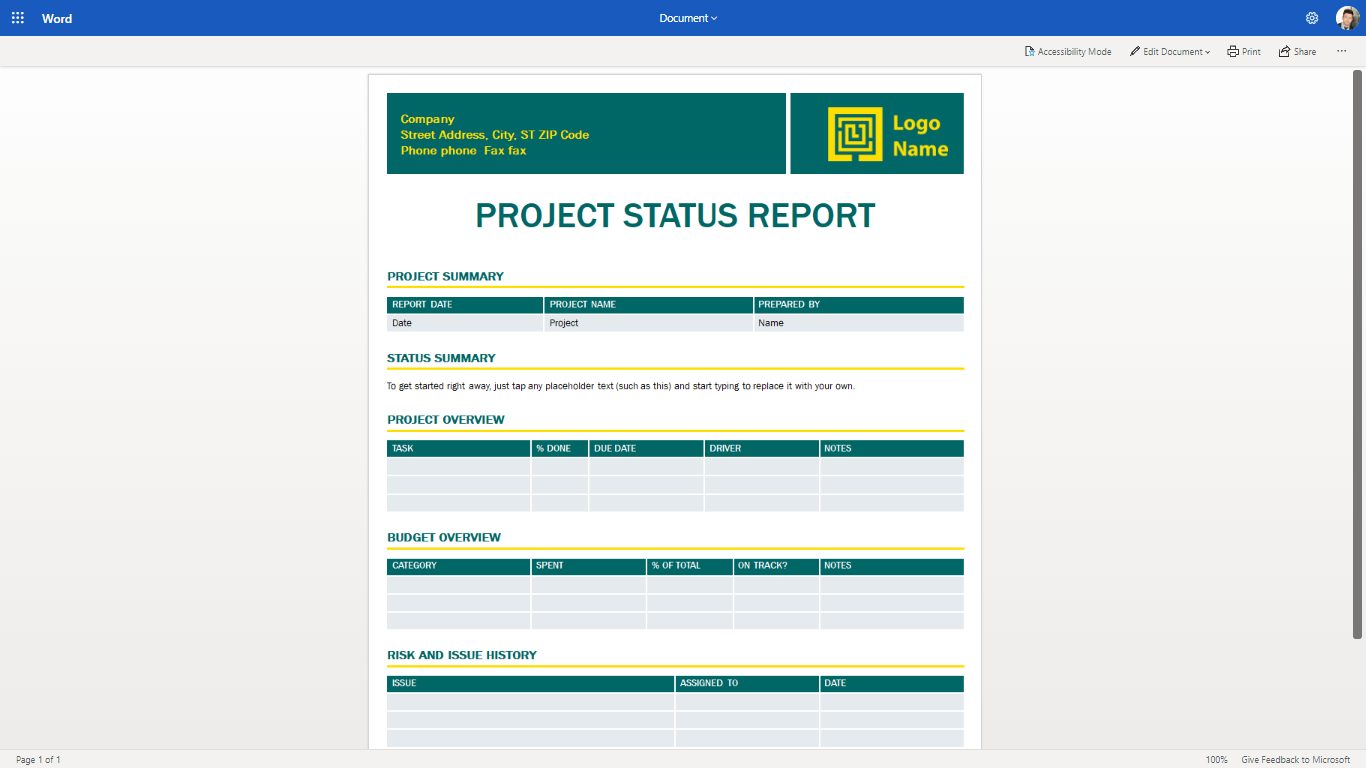
Effective risk reporting includes columns for risk description, probability, impact, mitigation strategy, and owner. A template that pre‑defines these columns encourages thorough risk analysis and accountability.
Budget Overview
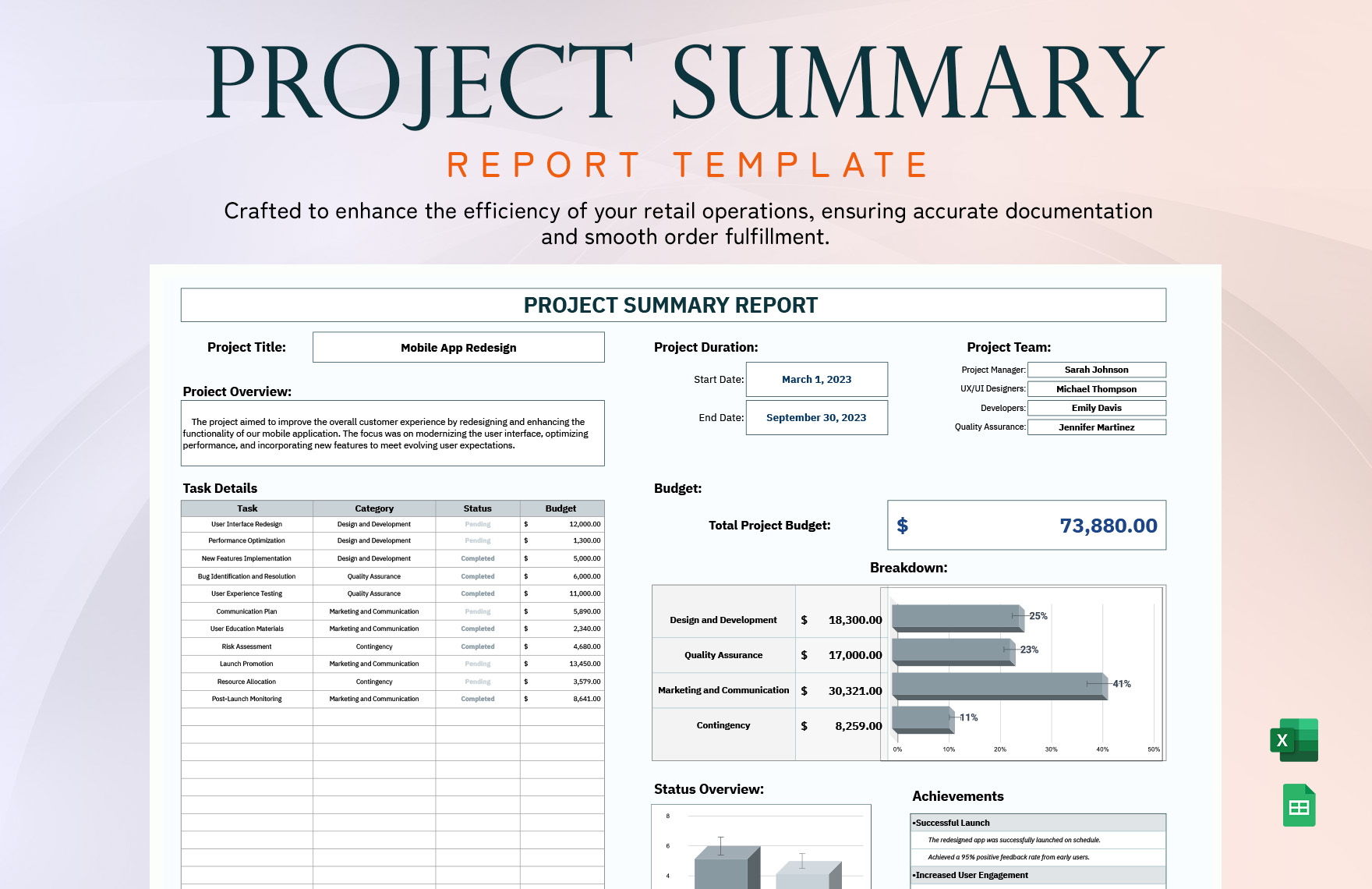
Financial health is a top concern for any project sponsor. A budget section should feature columns for planned cost, actual cost, variance, and a brief commentary. Templates that integrate simple formulas or placeholders for variance calculations can streamline financial reporting.
Issues Log
Issues differ from risks in that they have already occurred. A dedicated issues log with status (Open, In Progress, Resolved) and resolution date helps keep the team focused on remediation.
Appendices and Supporting Documents
Finally, a placeholder for appendices—such as detailed data tables, stakeholder contact lists, or technical specifications—ensures that supplementary information is organized and easily referenced.
How to Customize a Template for Your Project
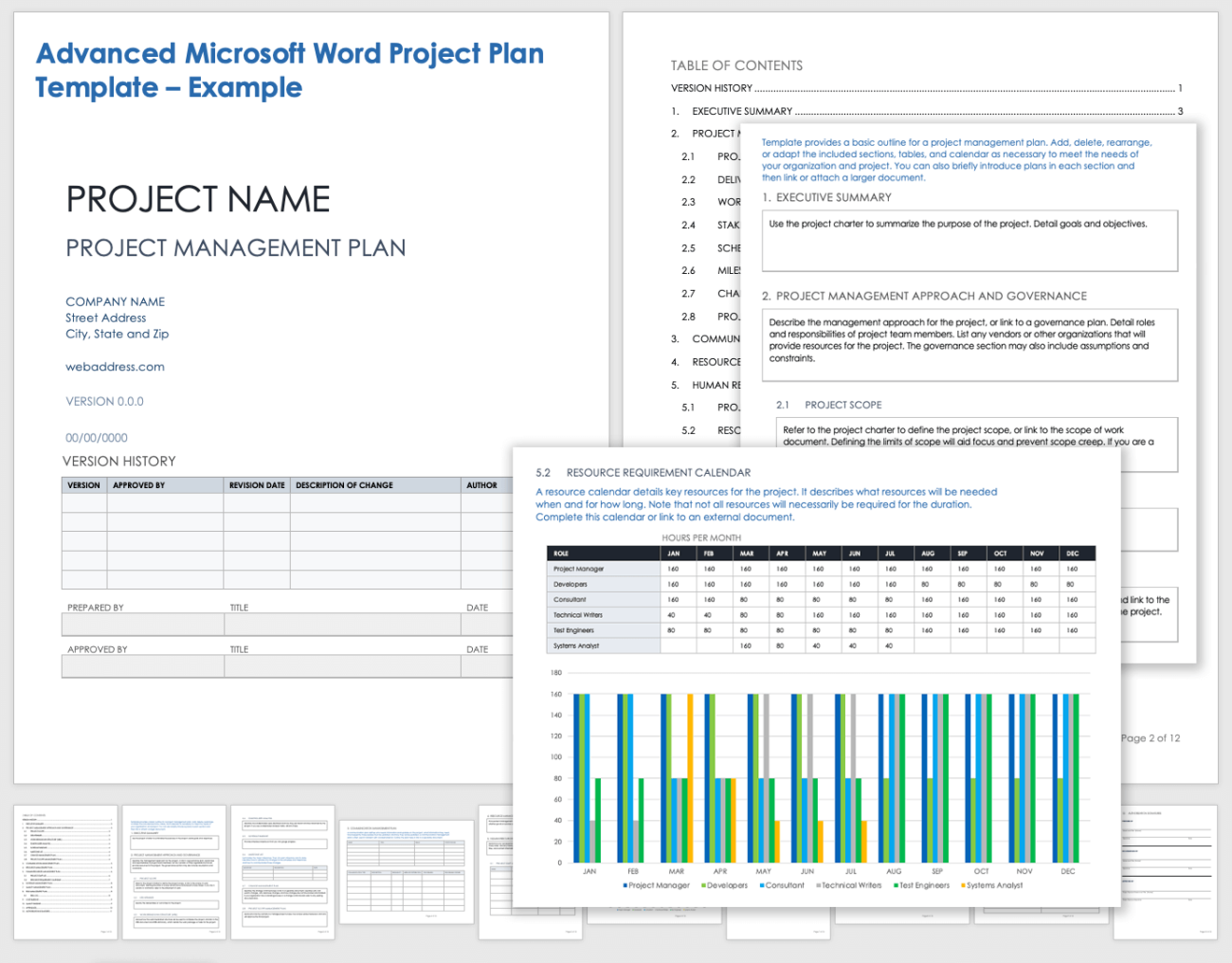
Even the most feature‑rich template will require tailoring to align with your project’s unique context. Follow these step‑by‑step instructions to make the template truly yours.
Step 1: Insert Project‑Specific Branding
Replace placeholder logos with your organization’s official logo, adjust the color scheme to match brand guidelines, and update the footer with the appropriate confidentiality statement.
Step 2: Define Heading Styles
Map the template’s built‑in heading styles (Heading 1, Heading 2, Heading 3) to your preferred naming conventions. For example, set Heading 1 to “Section Title” with a 14‑pt bold font, and Heading 2 to “Subsection Title” with a 12‑pt italic font. Consistent styles guarantee that the table of contents updates correctly.
Step 3: Populate Static Content
Enter static information that will not change across reporting cycles, such as project sponsor name, project ID, and the reporting frequency (weekly, monthly, quarterly). Lock these fields using content controls to prevent accidental edits.
Step 4: Adjust Tables and Charts
If the template includes sample tables, replace them with real data sources. Use Word’s “Insert → Chart” feature to embed dynamic charts that can be linked to Excel for automatic updates. Ensure column widths and row heights are optimized for readability.
Step 5: Add Custom Sections
Some projects require additional sections, such as “Stakeholder Feedback” or “Compliance Checklist.” Insert new heading levels and corresponding content blocks, then update the table of contents to reflect these additions.
Step 6: Set Up Automation
Leverage Word’s field codes (e.g., DATE , AUTHOR ) to automatically populate date stamps and author names. For budget variance calculations, consider embedding simple Word formulas within table cells (e.g., =SUM(ABOVE) – SUM(LEFT)).
Step 7: Save as a Master Template
Once customization is complete, save the document as a .dotx file. This ensures that each new report generated from the template starts with a clean copy, preserving the master format while allowing project‑specific data to be entered.
Best Practices for Using Word Templates Effectively
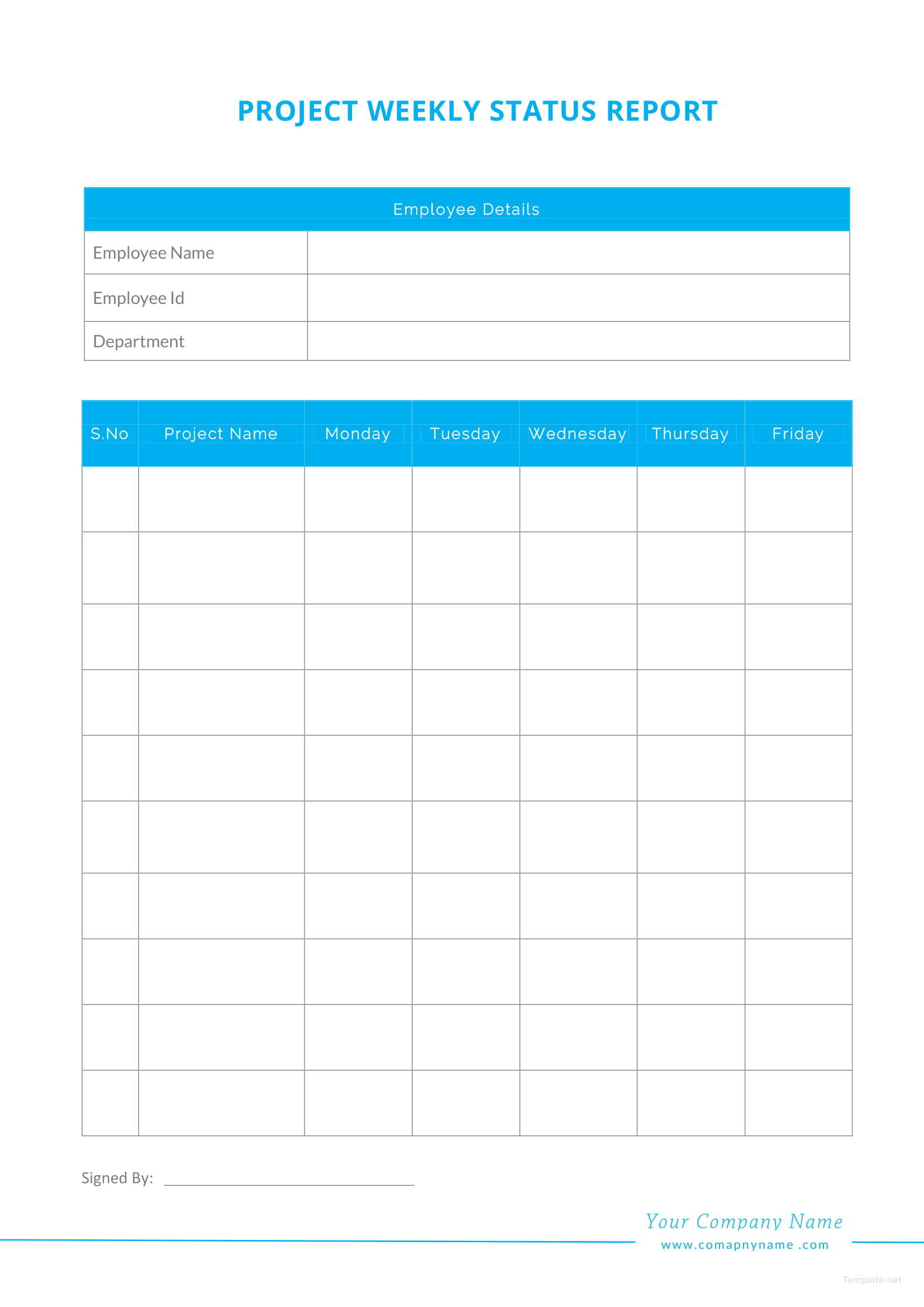
Adopting a template is only the first step; disciplined usage maximizes its benefits. Below are proven practices to embed into your reporting workflow.
- Maintain a Master Repository—Store the master .dotx file in a centralized, version‑controlled location such as SharePoint or a dedicated network drive. This prevents divergent versions from circulating.
- Use Content Controls—Employ plain‑text content controls for fields that require user input (e.g., “Project Manager Name”). Content controls provide a visual cue and can be locked to protect surrounding formatting.
- Standardize Naming Conventions—Name each report file with a consistent pattern, such as ProjectName_YYYYMMDD_Report.docx, to simplify archiving and retrieval.
- Schedule Review Cycles—Integrate the template into your project management software so that report generation aligns with milestone completion dates.
- Leverage Styles for Consistency—Never apply manual formatting; always rely on predefined styles to ensure that any global style changes propagate throughout the document.
- Include a Revision History Table—Track changes across reporting periods by maintaining a small table that logs version number, date, author, and a brief change description.
Common Mistakes and How to Avoid Them
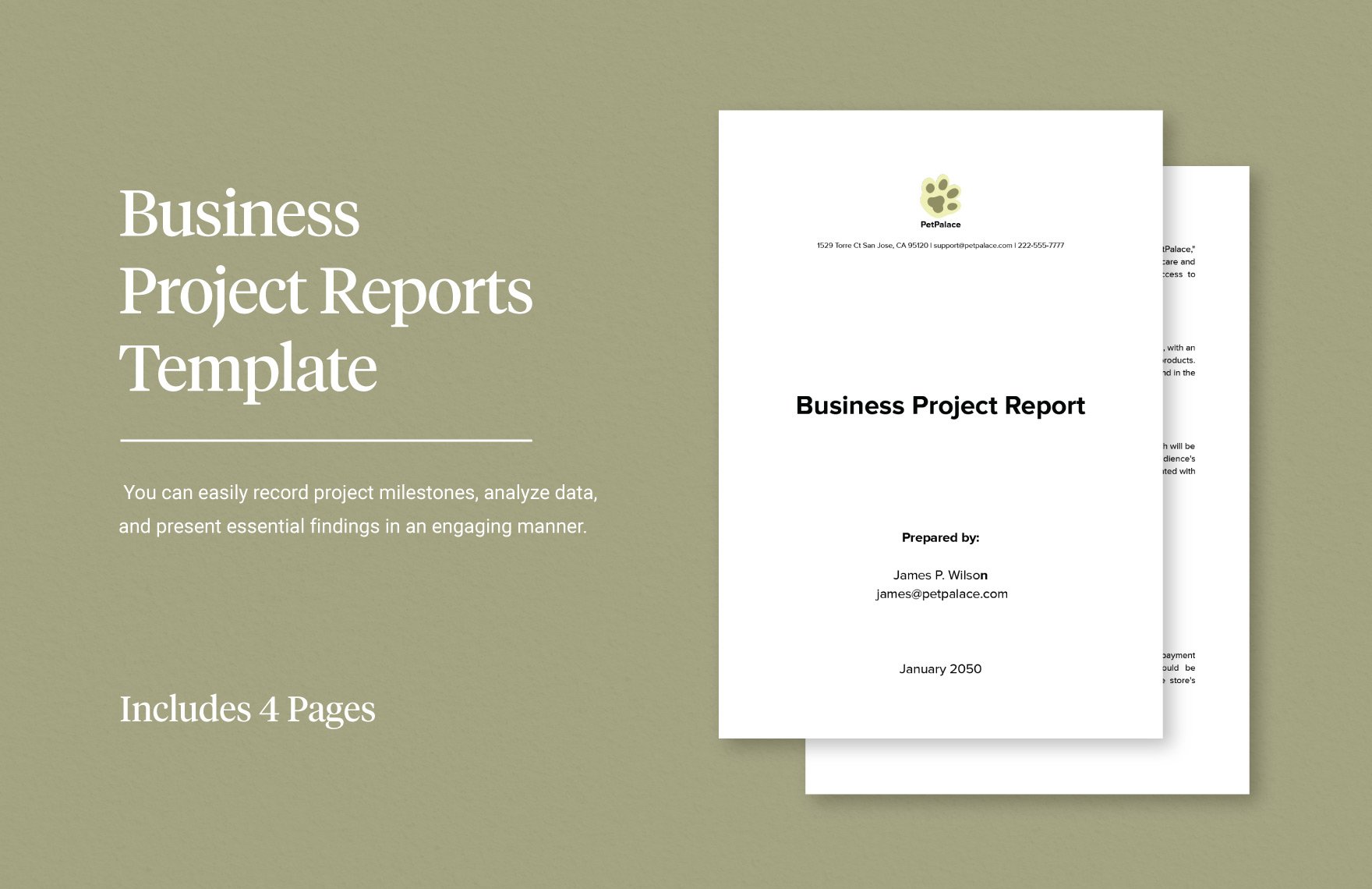
Even experienced project managers can fall into traps that diminish the value of a template. Recognizing these pitfalls early helps you stay on track.
Over‑Customizing the Template
Adding excessive custom sections or altering the core layout can defeat the purpose of standardization. Keep customizations focused on essential project-specific needs and avoid reinventing the wheel for each report.
Neglecting to Update the Table of Contents
Failing to refresh the table of contents after adding or removing headings results in broken navigation links. Press Ctrl+A followed by F9 to update all fields before finalizing the document.
Using Inconsistent Terminology
Mixing terms like “Milestones,” “Deliverables,” and “Outputs” without clear definitions can confuse readers. Define key terms in a glossary section and stick to them throughout the report.
Embedding Large Images Without Compression
High‑resolution images can bloat file size, making sharing cumbersome. Compress images via Word’s “Picture Format → Compress Pictures” feature, selecting a resolution appropriate for screen viewing.
Skipping the Executive Summary
Stakeholders often skim straight to the executive summary. Omitting it—or providing a vague overview—reduces the report’s impact. Ensure the summary succinctly captures status, risks, and next steps.
Real‑World Example: From Kick‑off to Delivery
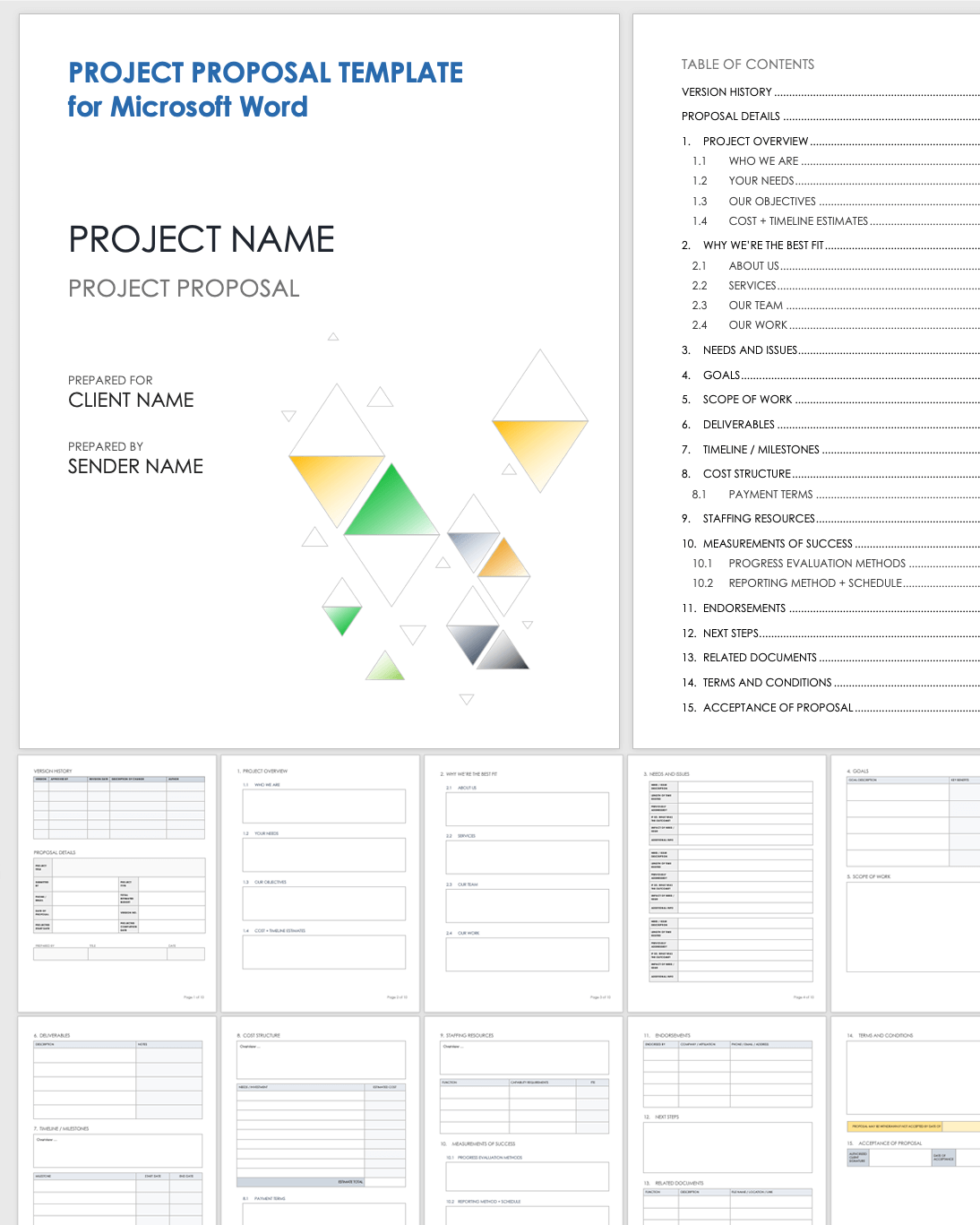
Consider a mid‑size software development project titled “Project Aurora.” The team adopted a Ms Word template that included a cover page, executive summary, timeline, risk matrix, and budget overview. Here’s how the template guided the reporting process across three key phases.
Kick‑off Phase
During the initial kick‑off meeting, the project manager filled out the template’s “Project Overview” section, inserting the project charter, stakeholder list, and high‑level objectives. The timeline table was populated with major phases—Requirements, Design, Development, Testing, and Deployment—each with planned start and end dates.
Mid‑Project Review
At the end of the Development sprint, the team updated the “Milestones” table to reflect completed user stories, while the “Risk Management” matrix highlighted a newly identified risk: “Third‑party API latency.” The template’s conditional formatting automatically turned the risk row amber, prompting the team to add a mitigation plan. Budget variance was calculated using embedded formulas, revealing a 5% overspend due to additional licensing costs, which the finance officer noted in the “Budget Overview” commentary.
Final Delivery
For the final delivery report, the executive summary distilled the entire project into three bullet points: “Delivered on schedule,” “Budget variance within 3% of plan,” and “All critical risks mitigated.” The appendices included a detailed test results matrix and a stakeholder satisfaction survey, both linked directly from the table of contents. The polished, consistent format impressed senior leadership, leading to a formal project close‑out and a commendation for the reporting team.
Conclusion
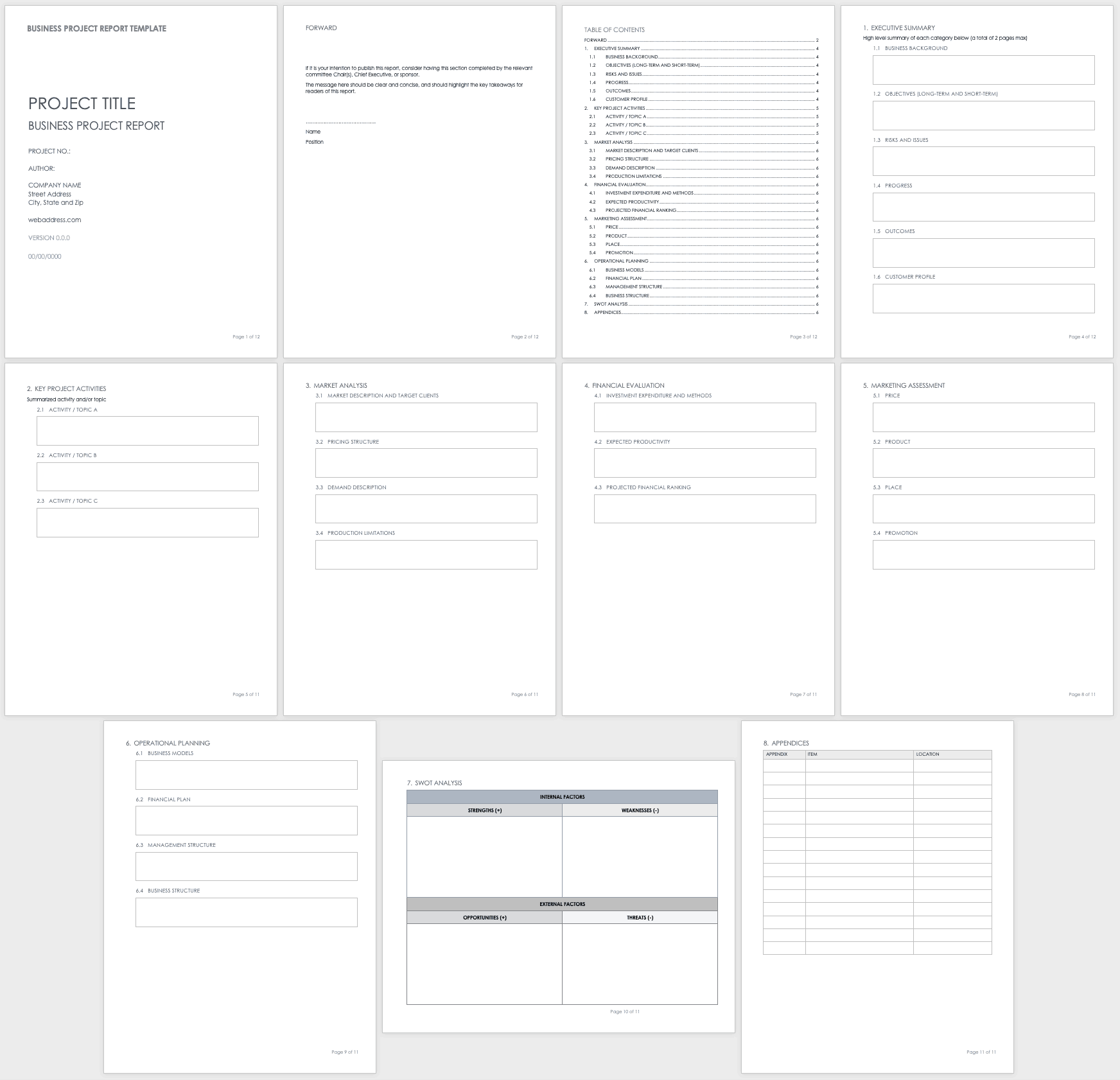
Ms Word Templates For Project Report empower teams to produce clear, consistent, and professional documents that meet the high expectations of modern stakeholders. By selecting a template with essential features—cover page, executive summary, timeline, risk and budget sections—and customizing it thoughtfully, you can streamline the reporting workflow, reduce errors, and focus on delivering strategic insights. Adhering to best practices such as centralized version control, disciplined use of styles, and regular table of contents updates ensures that each report remains reliable and easy to navigate. Avoid common missteps like over‑customization or neglecting executive summaries, and you’ll consistently deliver reports that drive decisions, build credibility, and keep projects on track from kickoff through final delivery.





Related posts of "Ms Word Templates For Project Report"
