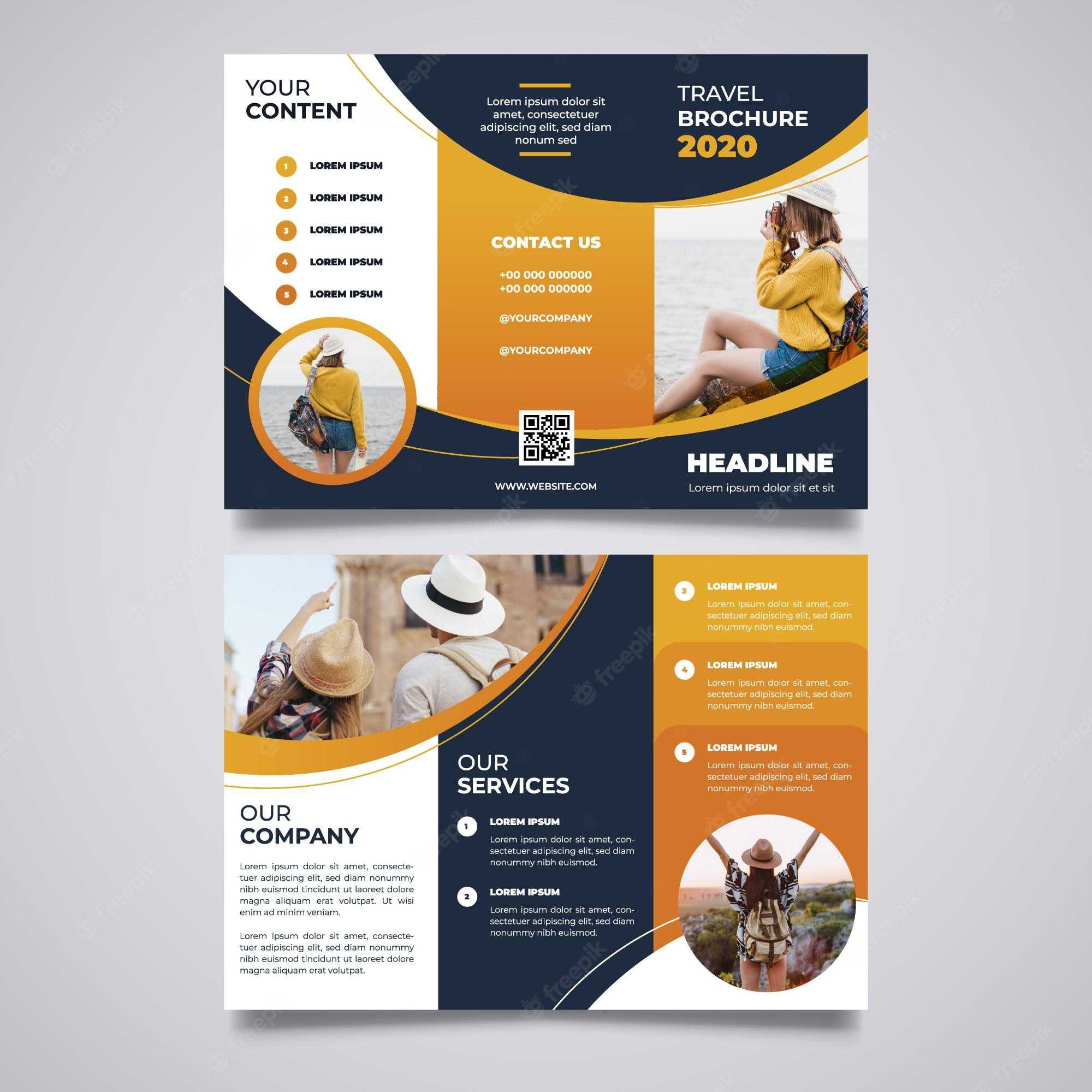
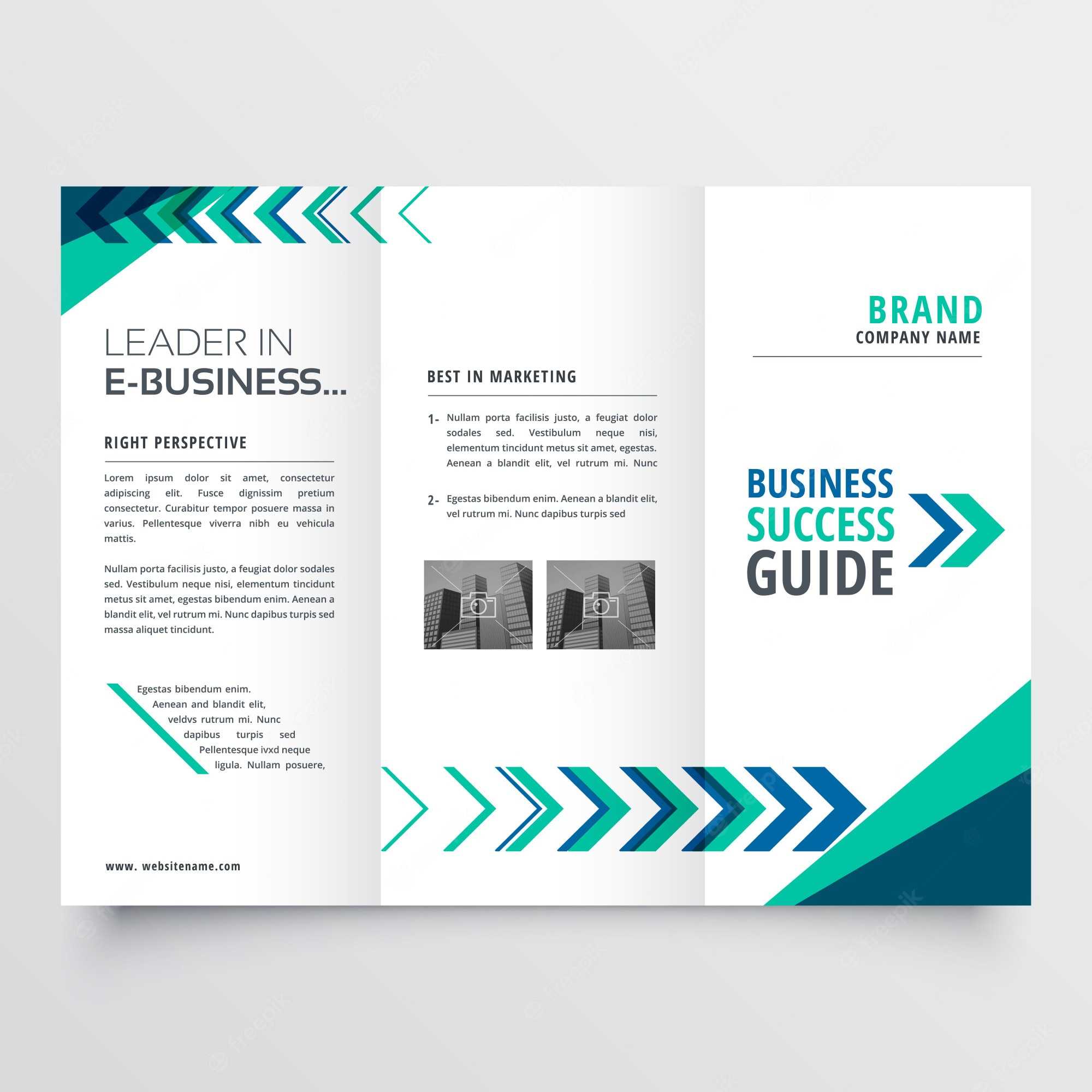
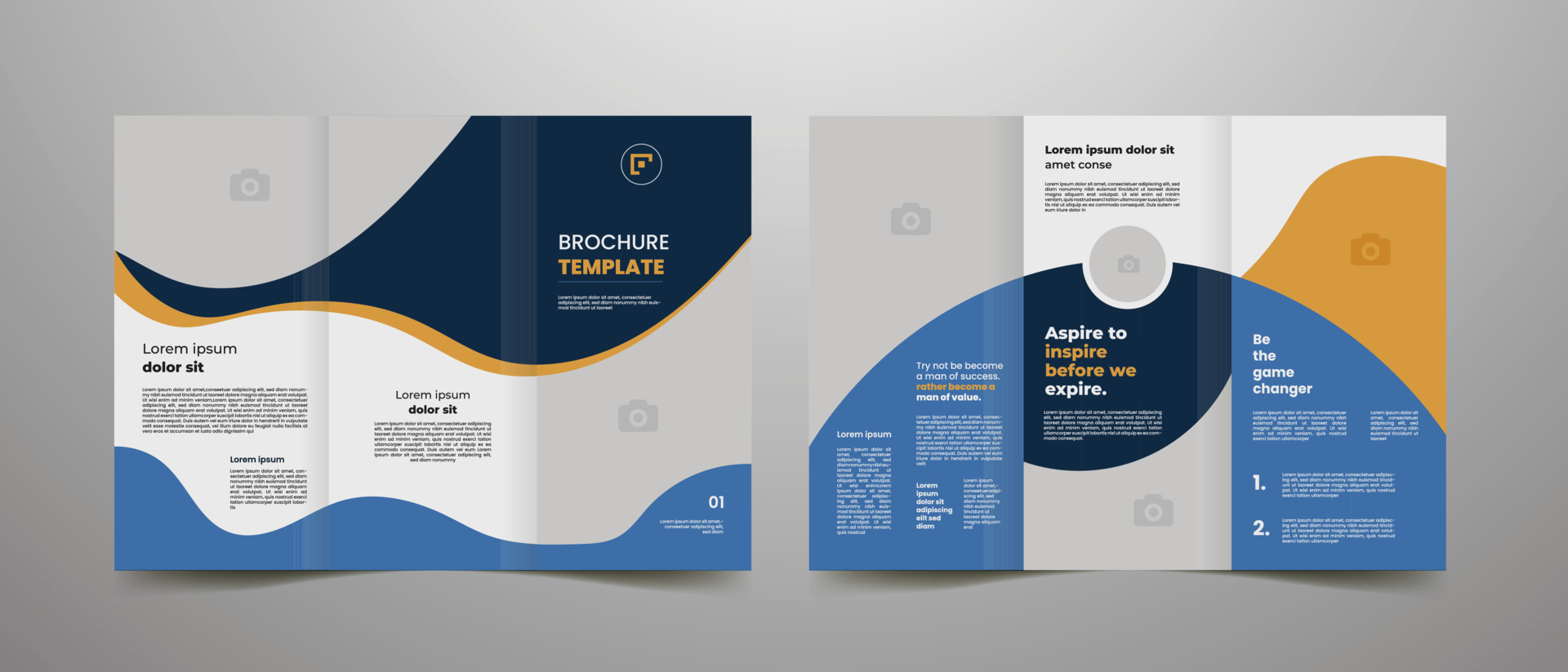
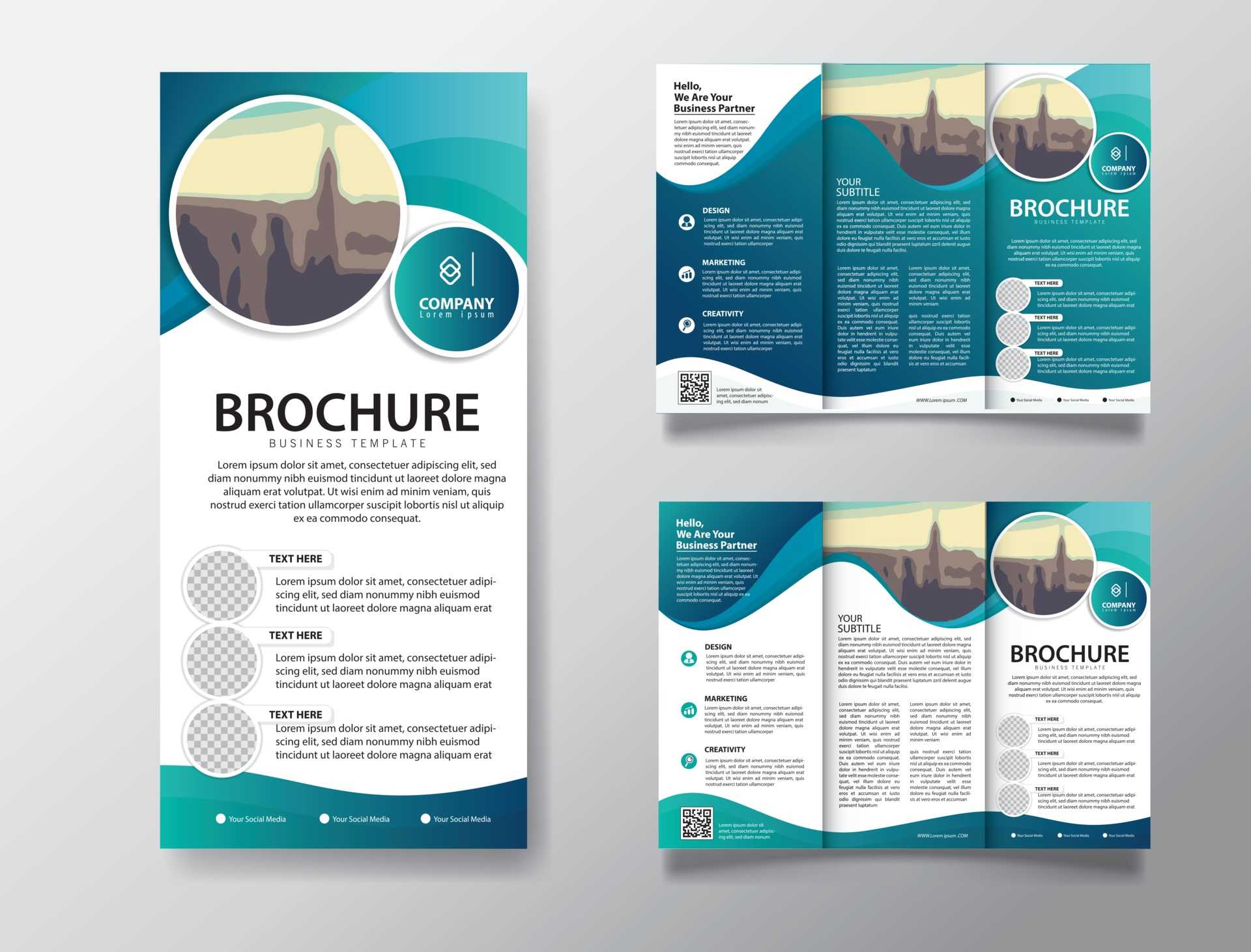
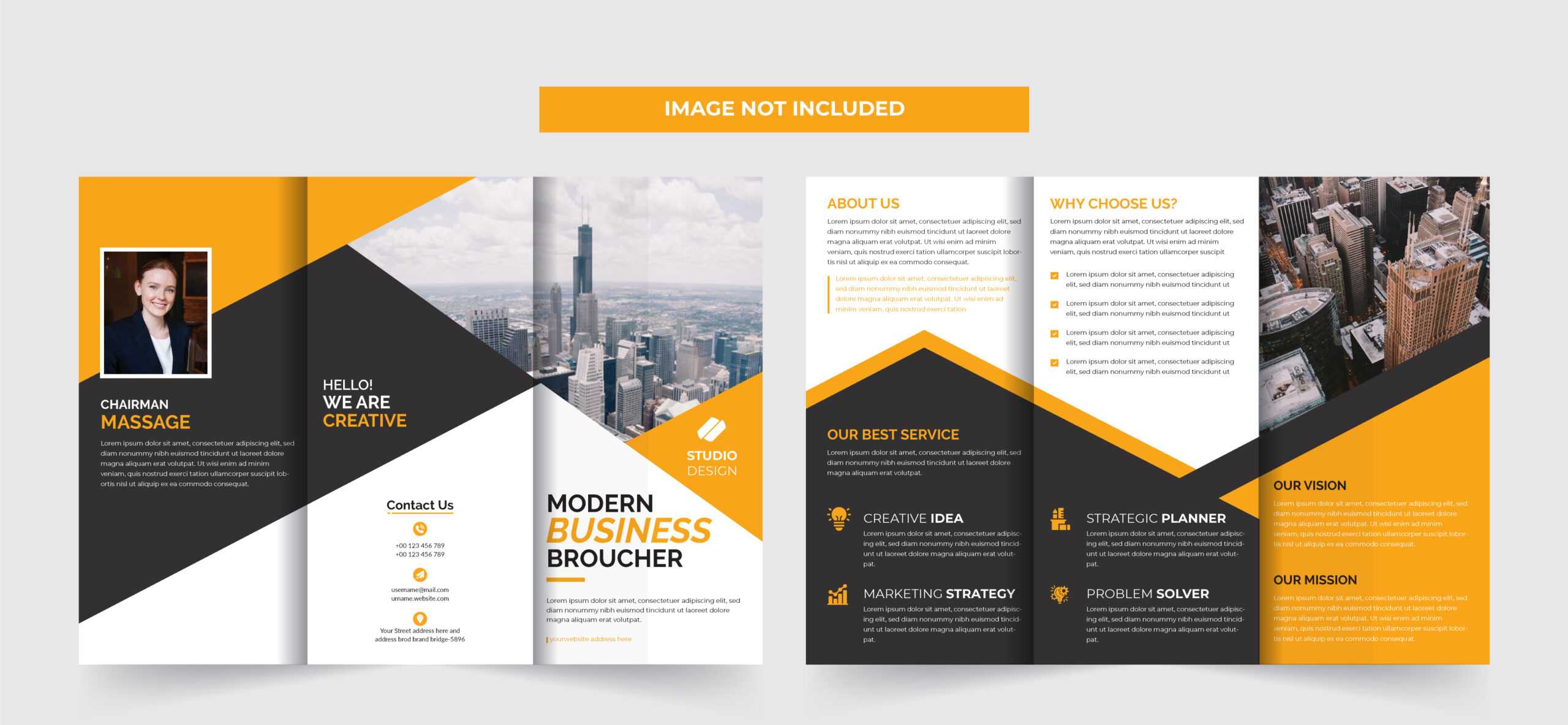
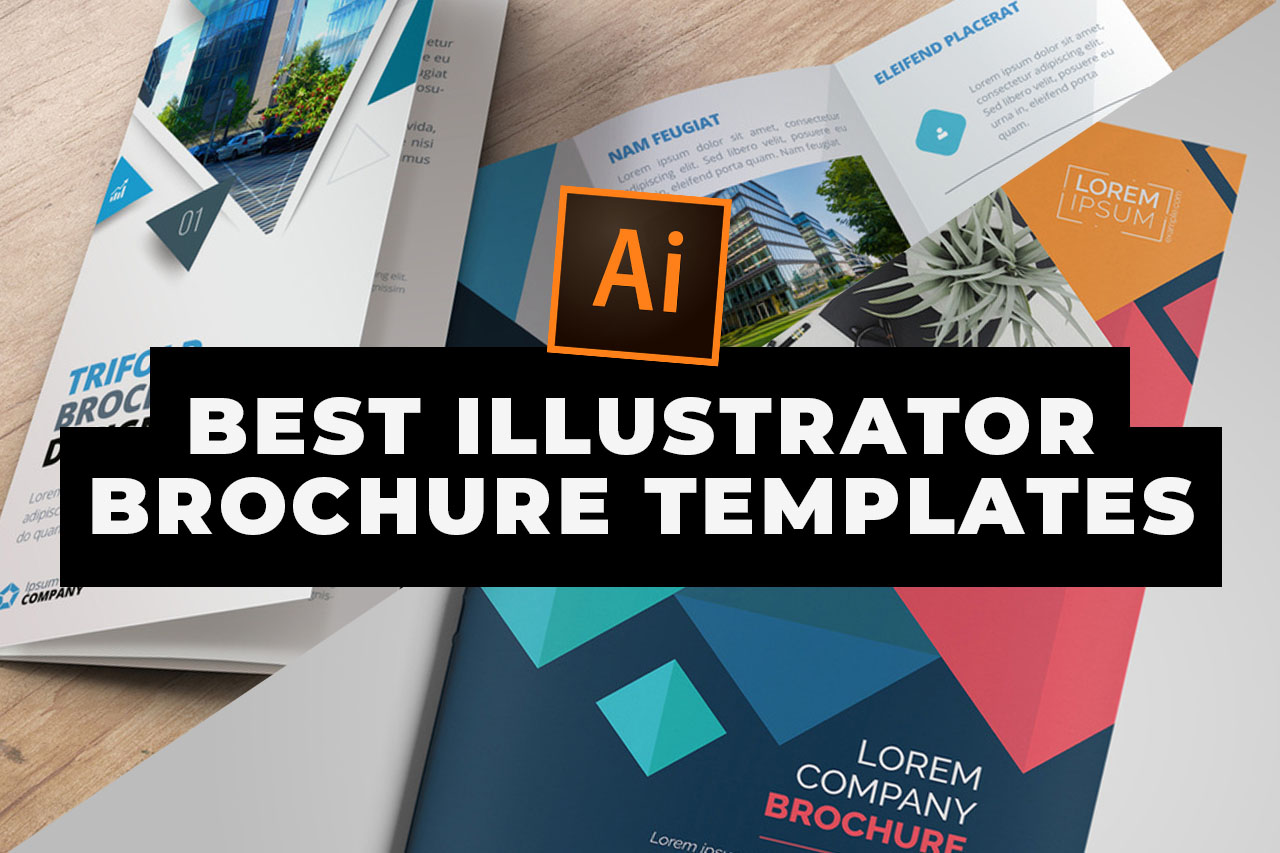
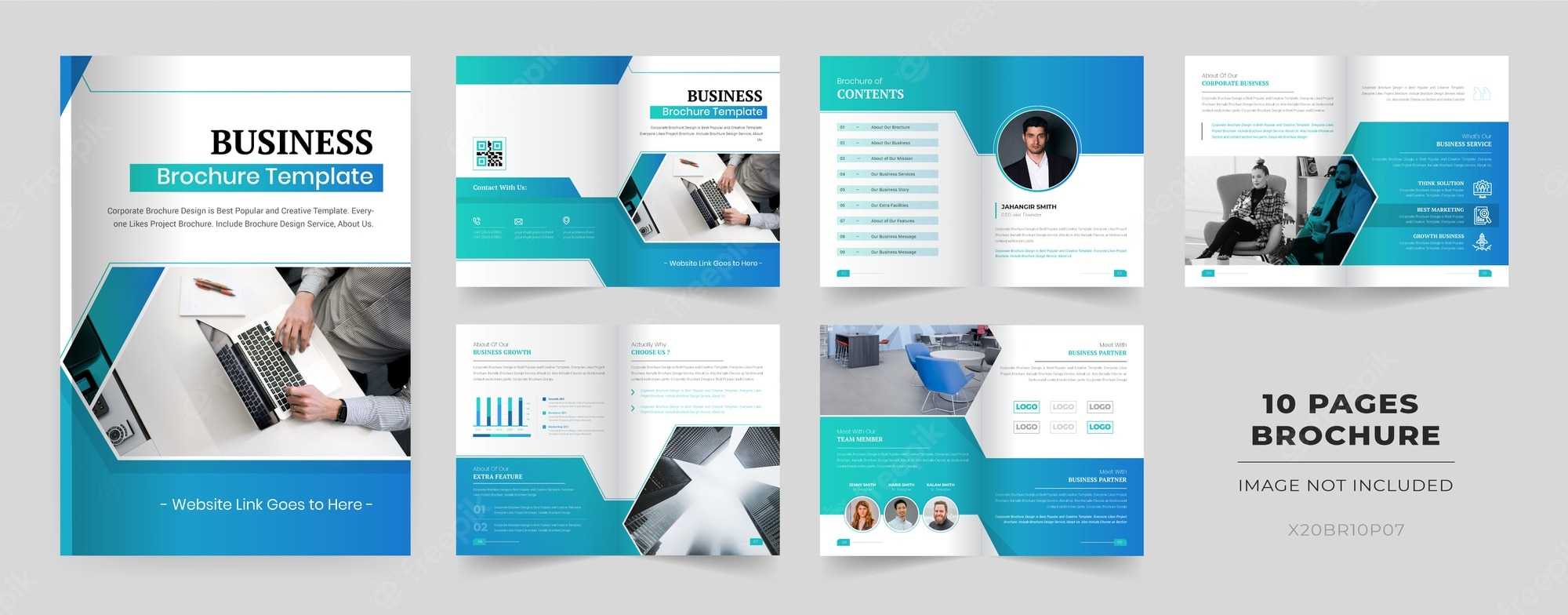
Illustrator Brochure Templates Free Download offers a powerful way to create eye-catching marketing materials without starting from scratch. Whether you’re a small business owner, a freelance designer, or a marketing specialist, these templates give you a professional base to customize, saving time while ensuring your brochure looks polished and on brand.
Why Illustrator Brochure Templates are a Game‑Changer

Creating a brochure from scratch in Illustrator can be tedious and time‑consuming. You have to set up page size, margins, color swatches, and text frames before even sketching a layout. Templates eliminate this overhead, giving you ready‑made layers, master pages, and placeholders that adapt to your content. This efficiency translates into faster project turnaround and reduced design costs, making high‑quality brochures accessible to anyone who needs a strong visual presence.
Time Savings
Templates come pre‑formatted with text boxes, image placeholders, and consistent branding elements. Instead of building a layout from scratch, you simply replace placeholders, adjust colors, and tweak fonts. That means a design that would normally take hours can be completed in a few minutes.
Consistent Branding
Brand guidelines are critical for maintaining a professional image. Templates embed brand colors, logo placement, and typography guidelines. Even if you’re a one‑person team, you can ensure every brochure follows your brand standards without manual adjustments.
Access to Professional Design Techniques
Many template creators are seasoned designers who have incorporated proven layout principles, such as the rule of thirds, balanced whitespace, and visual hierarchy. When you download a template, you inherit these best practices, making your brochure more engaging and readable.
Choosing the Right Template for Your Brand
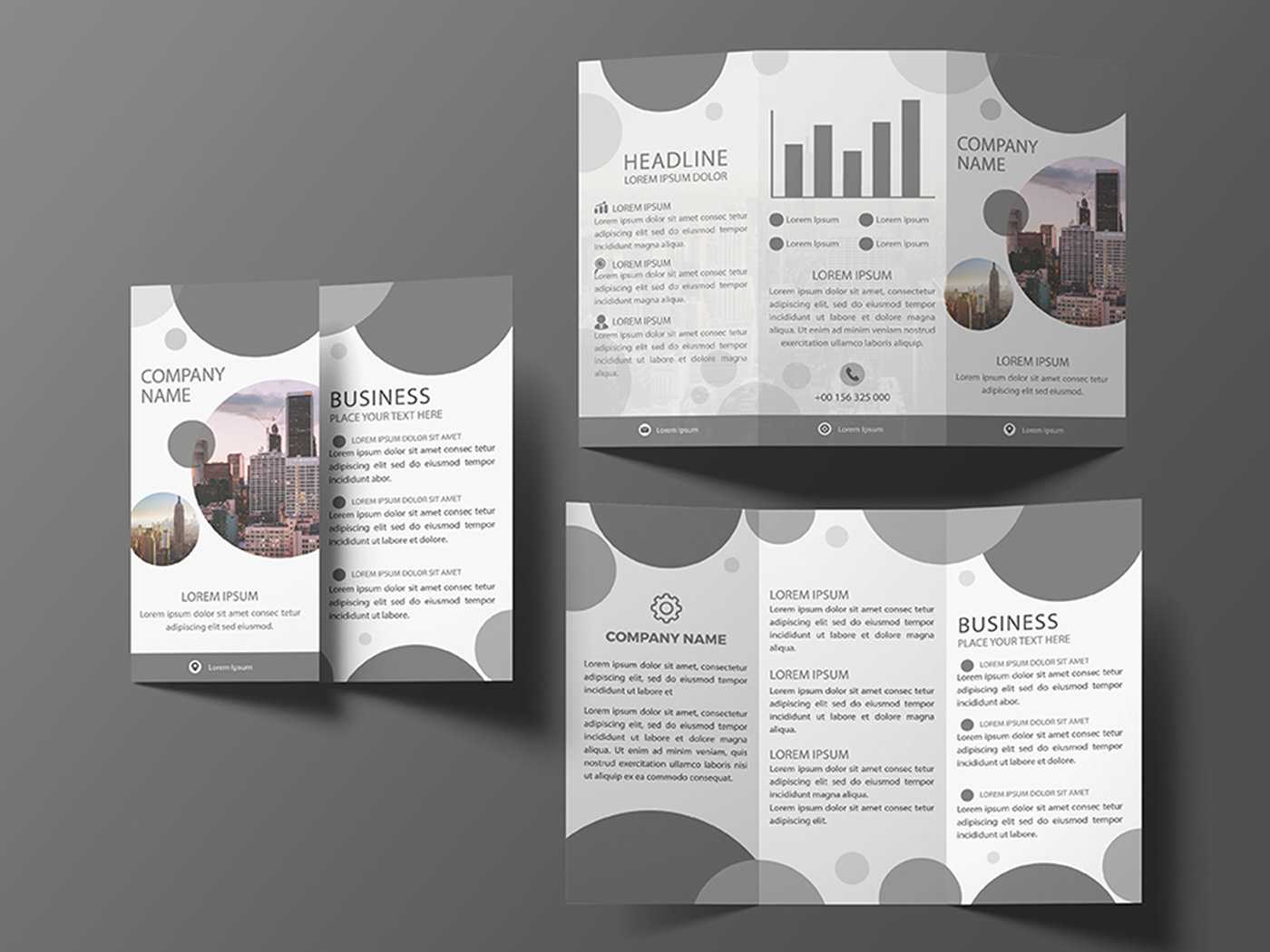
Not all templates are created equal. To get the most out of a free download, consider the following factors before selecting a template.
- Industry Relevance: Look for templates that reflect your sector—tech, hospitality, education, or retail—so the imagery and layout resonate with your target audience.
- Color Scheme Compatibility: The template’s base colors should either match or complement your brand palette. A good template allows you to swap colors without compromising the visual balance.
- Format Flexibility: Ensure the file is available in AI format (Adobe Illustrator) and that it supports layers and master pages. This gives you the ability to edit content without destroying the original layout.
- Print and Digital Options: Some templates are designed for print only, while others are optimized for both print and web. Choose a template that aligns with your distribution strategy.
- Complexity and Customizability: If you’re new to Illustrator, start with a simpler layout. More complex templates are ideal for experienced designers who want to experiment with advanced effects.
Step‑by‑Step Guide to Downloading and Customizing Templates
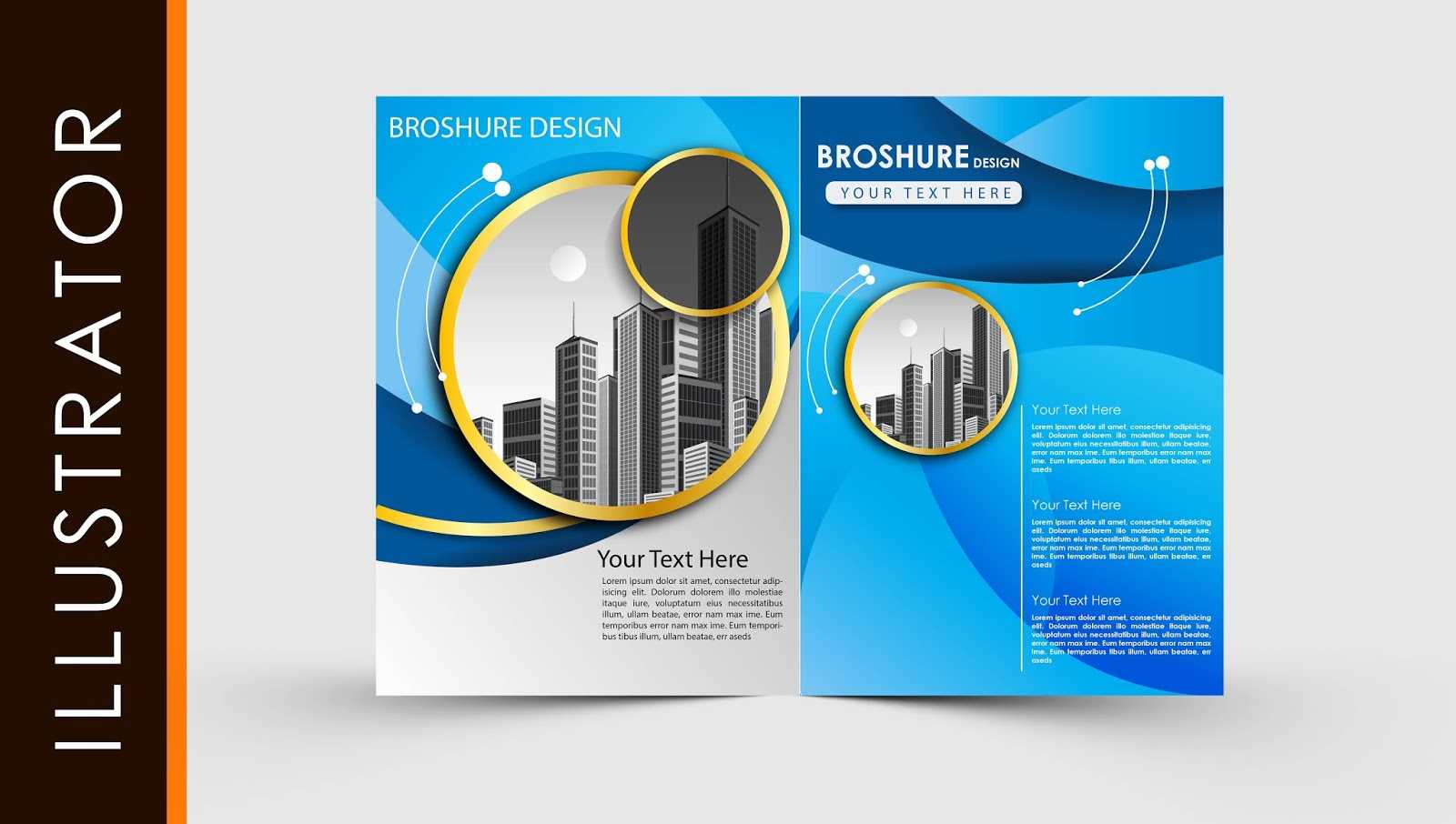
Here’s a practical workflow that takes you from file download to final brochure ready for print or distribution.
1. Secure a Reliable Free Download
When searching for “Illustrator Brochure Templates Free Download,” use reputable design resource sites. Ensure the template is in AI format and that it includes a readme or documentation file. This documentation often provides guidance on how to open the file, recommended font usage, and color codes.
2. Open the Template in Adobe Illustrator
- Launch Illustrator and choose “Open.” Locate the downloaded AI file on your computer.
- Confirm that all layers are visible. If the file contains a master page, double‑click the master page to edit it.
3. Familiarize Yourself with the Layer Structure
Most templates use a consistent naming convention: “Text,” “Images,” “Background,” “Colors.” Understanding this structure lets you quickly find and edit the elements that need changing. It also helps prevent accidental modifications to background or design elements.
4. Replace Placeholder Images
- Click on the image frame you want to replace. Drag a new image file into Illustrator or go to File > Place.
- Choose the “Clip” option if the template uses clipping masks. This ensures your image conforms to the frame shape.
- Resize and reposition as needed, keeping an eye on alignment guides.
5. Update Text Content
- Select the text layer and edit directly. Use your brand’s copy style: headline, body, bullet points, and call‑to‑action.
- Adjust font families and sizes if the template’s default fonts don’t match your brand.
- Make sure there is enough whitespace between paragraphs and around images to maintain readability.
6. Adjust Color Palette
- Open the Swatches panel. If the template’s colors are stored as swatches, you can quickly replace them by selecting all swatches of the same color and applying your brand’s new color value.
- For more complex color changes, use the “Replace Color” tool to swap a specific hue throughout the document.
7. Refine Layout and Alignment
- Use Illustrator’s “Smart Guides” to snap objects into place. Ensure all elements align on a grid to create a clean, professional look.
- Check that margins are consistent. If you need to change the page size, adjust the artboard in File > Document Setup and then realign key elements accordingly.
8. Export for Print or Web
- For print, choose File > Save As and select PDF (Print) or PDF/X-1a for maximum compatibility.
- For digital use, export to PNG or JPEG with appropriate resolution (72–150 dpi for web; 300 dpi for print). Use File > Export > Export As, and set the color mode to RGB for web or CMYK for print.
Best Practices for Designing Stunning Brochures in Illustrator
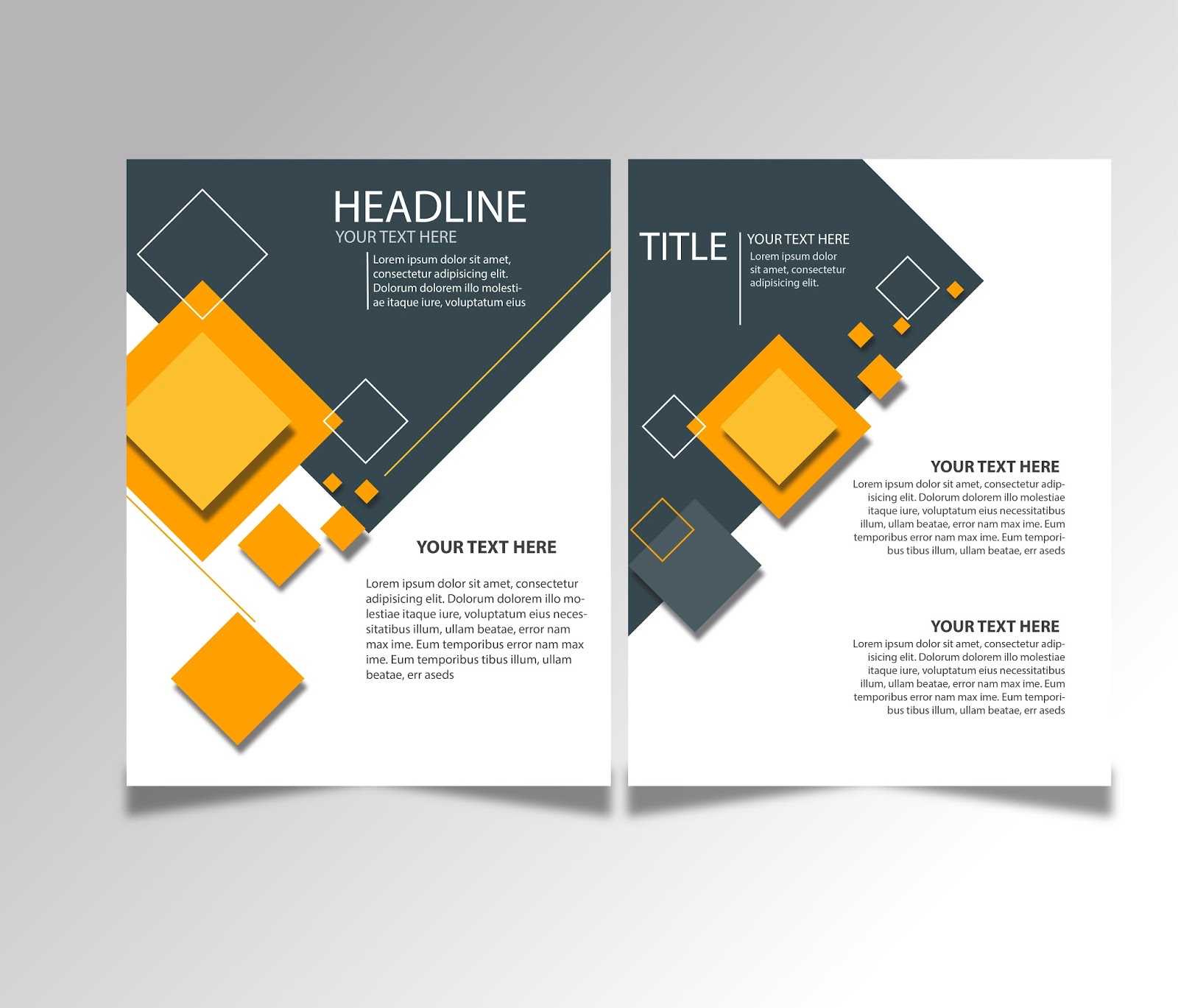
Even with a template, a well‑designed brochure requires attention to detail. Follow these best practices to elevate your project.
1. Maintain Visual Hierarchy
Use font size, weight, and color to guide the reader’s eye. Headlines should stand out, followed by subheadings, and then body text. Consistency in heading styles helps readers navigate the content effortlessly.
2. Leverage Contrast
Contrast isn’t only about color. Use contrasting shapes, textures, and lighting effects to separate sections or emphasize key messages. This technique enhances readability and visual impact.
3. Use High‑Quality Images
Low-resolution images can make a professional brochure look amateurish. Ensure each image is at least 300 dpi for print and that they are properly cropped and centered within their frames.
4. Keep the Layout Clean
A cluttered design distracts from the message. Use whitespace strategically to separate blocks of text and images. Aim for a balanced composition that feels open and inviting.
5. Test Print Proofs
Before committing to a full print run, order a single test print. Check color accuracy, bleed, and alignment. Printing on a test page can uncover issues that are hard to spot on-screen.
Common Mistakes to Avoid When Using Templates
Templates can be a shortcut, but misusing them can backfire. Here are frequent pitfalls and how to sidestep them.
1. Ignoring Layer Organization
Failing to keep layers organized can lead to accidental edits. Rename layers and group related objects to preserve the template’s structure.
2. Over‑Customizing Beyond the Template’s Intent
Adding too many new elements can clash with the template’s original design. Stick to the layout’s core structure and only add elements that enhance the message.
3. Using Incompatible Fonts
Substituting fonts without considering space and hierarchy can break the layout. Always test how new fonts affect line spacing and overall balance.
4. Neglecting to Update Color Profiles
For print, not using CMYK can result in color shifts. Ensure that your color swatches are set to CMYK for printed brochures.
5. Skipping Proofreading
A template may have placeholder text that looks correct but is grammatically wrong. Double‑check all copy to maintain credibility.
Leveraging Templates for Marketing Campaigns
Illustrator brochures are more than static print pieces; they can serve as integral components of broader campaigns.
1. Multi‑Channel Consistency
Use the same template across digital flyers, social media posts, and email newsletters. Consistent design reinforces brand recognition and creates a cohesive campaign aesthetic.
2. Quick Revisions for Seasonal Promotions
Seasonal events—holiday sales, new product launches—often require rapid content updates. With a template, you can swap text and imagery within minutes, keeping your marketing agile.
3. Data‑Driven Design Tweaks
Collect metrics on brochure performance (e.g., QR code scans, click‑throughs). Use this data to refine layout elements that drive engagement, such as placement of call‑to‑action buttons or imagery.
4. Collaboration with Marketing Teams
Templates can be shared with copywriters and photographers. Provide them with a master file so that every team member can contribute without compromising the design integrity.
5. Brand Storytelling
Use the template’s sections to tell a narrative: problem, solution, benefits, testimonials. Storytelling guides the reader through a logical flow, increasing conversion rates.
Final Thoughts

By harnessing the power of Illustrator Brochure Templates Free Download, you can produce professional, brand‑aligned brochures faster and with greater consistency. Selecting the right template, understanding its layer structure, and applying best design practices will transform a generic layout into a compelling marketing asset. Remember to keep the hierarchy clear, maintain visual contrast, and avoid common pitfalls like disorganized layers or incompatible fonts. With these strategies, your brochures will not only look polished but will also effectively communicate your message, whether on a printed leaf or a digital screen. This streamlined approach empowers designers, marketers, and business owners alike to focus more on creativity and less on technical setup, ultimately driving stronger brand impact and customer engagement.



Related posts of "Illustrator Brochure Templates Free Download"
