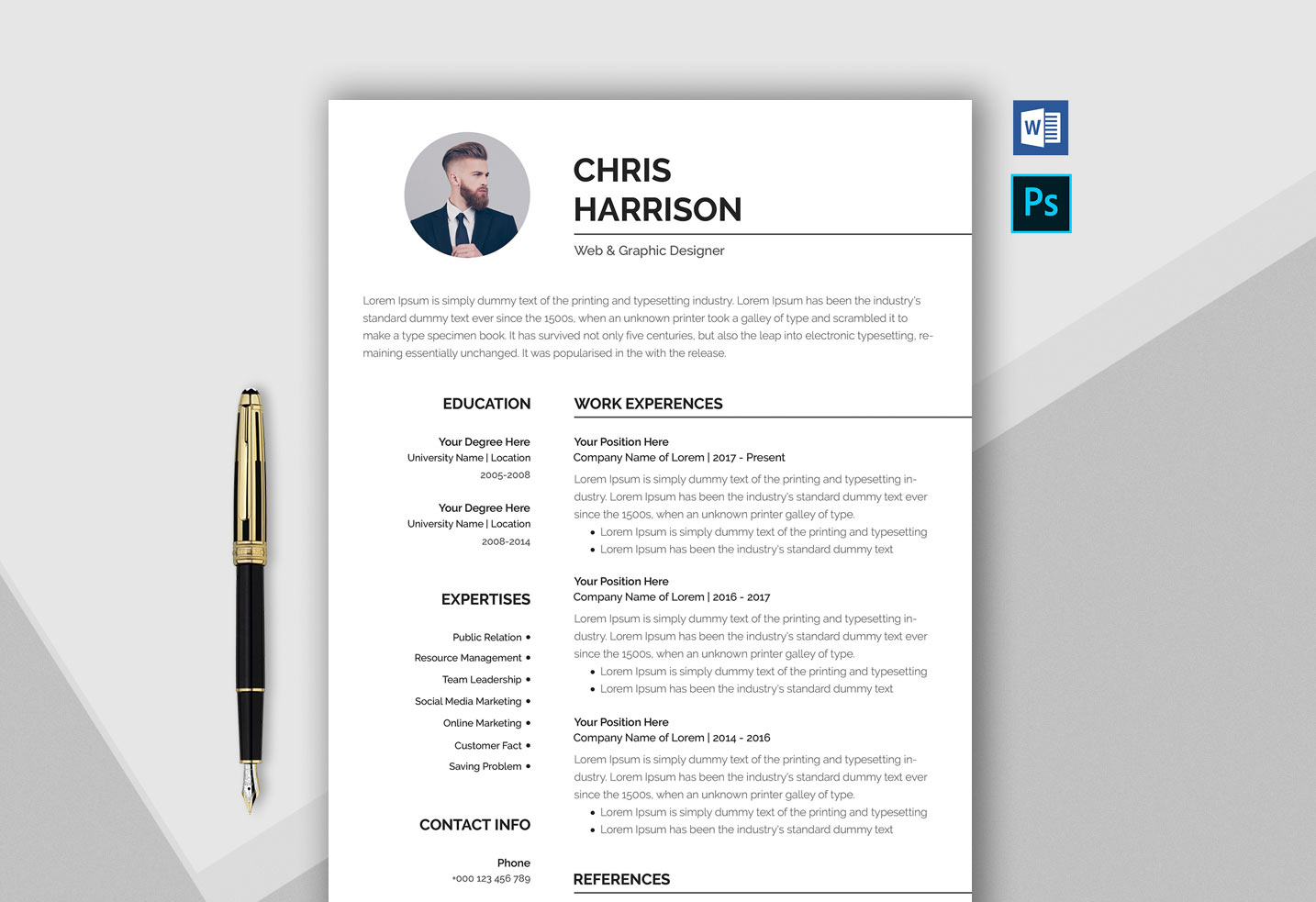
How To Find A Resume Template On Word is the question that haunts every job‑hunter who stares at a blank document and feels the weight of the future pressing against the margins. The answer lies not in endless scrolling, but in mastering the dark corridors of Microsoft Word’s template engine, tweaking its hidden settings, and turning a sterile page into a weaponized showcase of your professional soul. In this guide we cut through the fluff, strip away the UI pretenses, and hand you the exact steps, shortcuts, and mindset needed to summon a polished resume that slashes through applicant tracking systems and leaves hiring managers with a lingering impression.
Understanding Word’s Built‑In Template Library
Why the native library matters
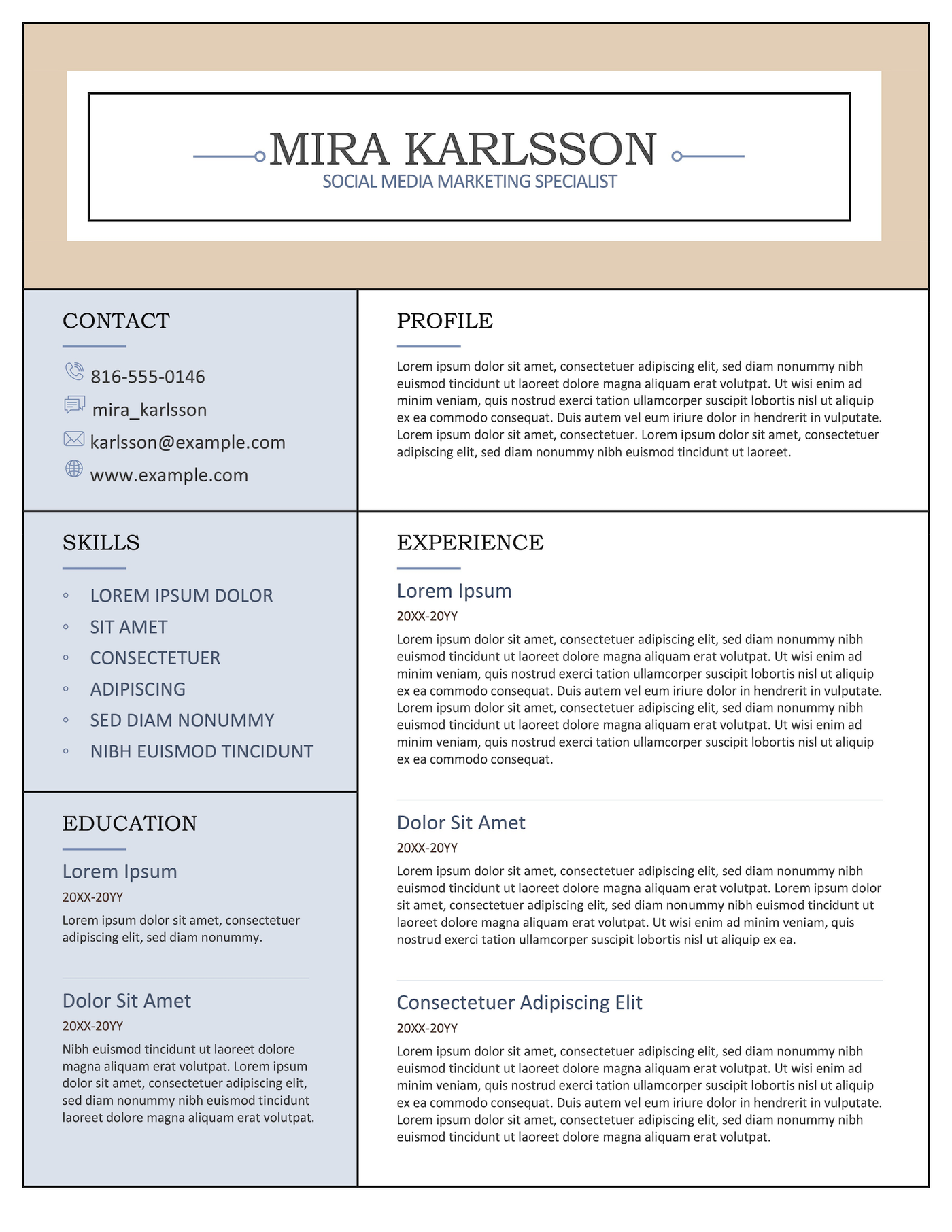
Microsoft Word ships with a curated vault of templates that have been battle‑tested by recruiters for decades. These files are pre‑styled with clean typography, logical section hierarchy, and hidden tables that keep content aligned without a single extra click. By tapping into this internal repository you avoid the pitfalls of third‑party downloads—malware, broken formatting, or design trends that have already faded into the abyss.
The anatomy of a Word template
A Word template (file extension .dotx or .dotm) is essentially a skeleton file that Word treats as a master copy. When you create a new document from it, the master remains untouched while your version inherits the styles, placeholders, and content controls. This separation means you can update the master once and instantly propagate changes to every resume you’ve ever birthed from it.
Accessing Templates Directly from the Word Interface
Step‑by‑step navigation
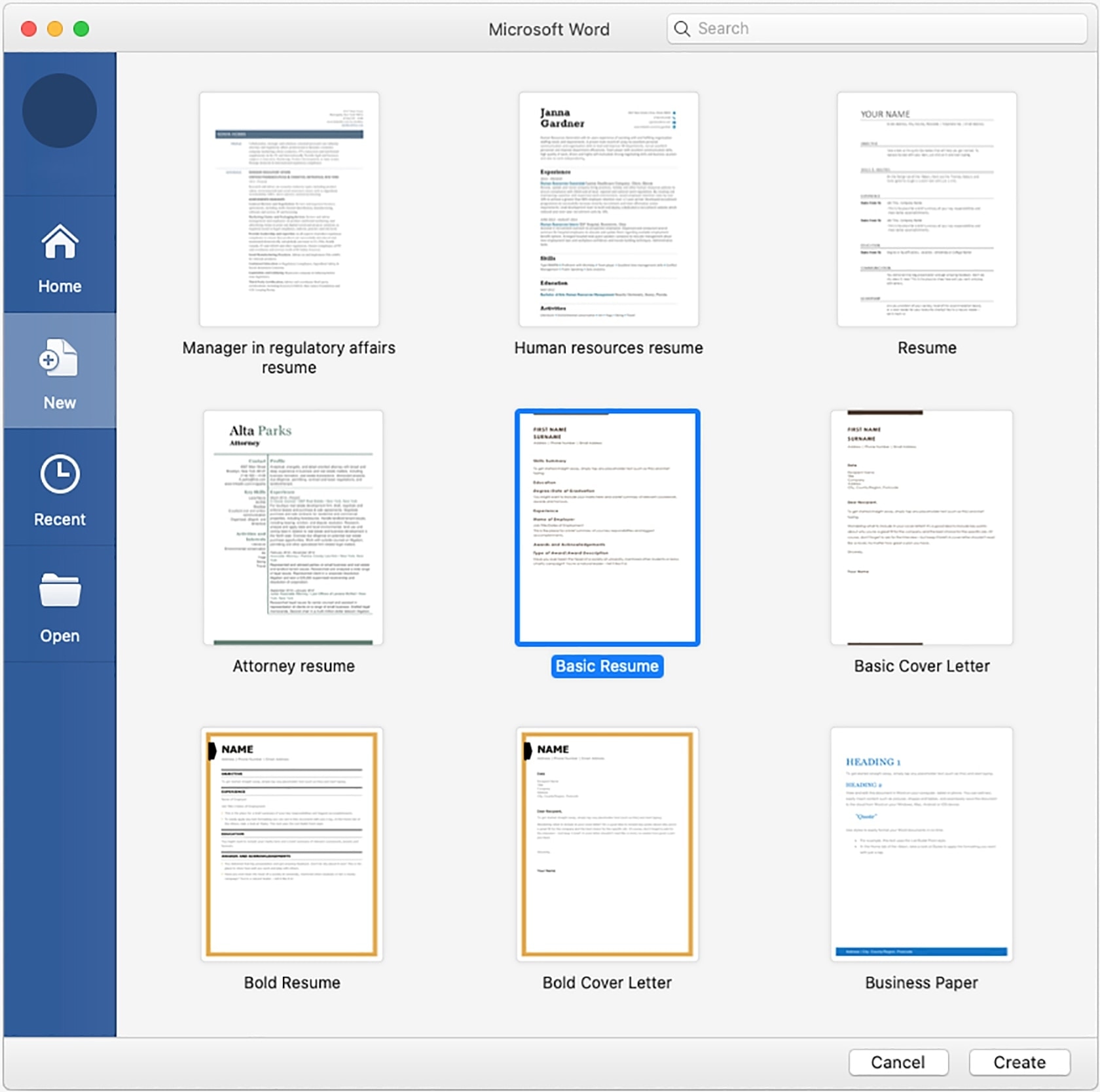
- Launch Microsoft Word and land on the start screen. If you’re already inside a document, press Ctrl+N to open the New dialog.
- Switch to the Featured or Personal tab, depending on your version. The “Featured” tab surfaces the official Microsoft library; “Personal” surfaces any templates you have saved locally.
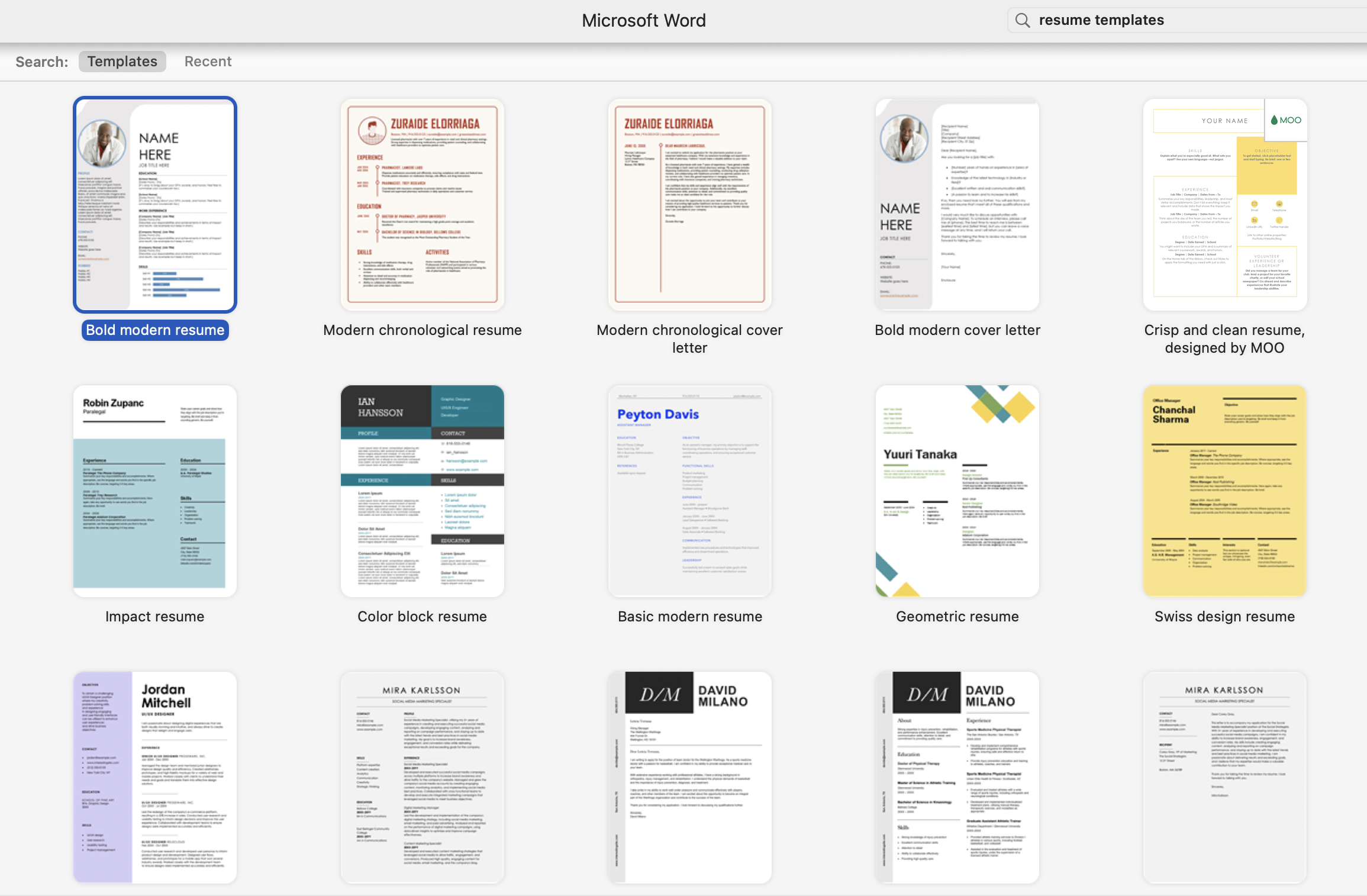
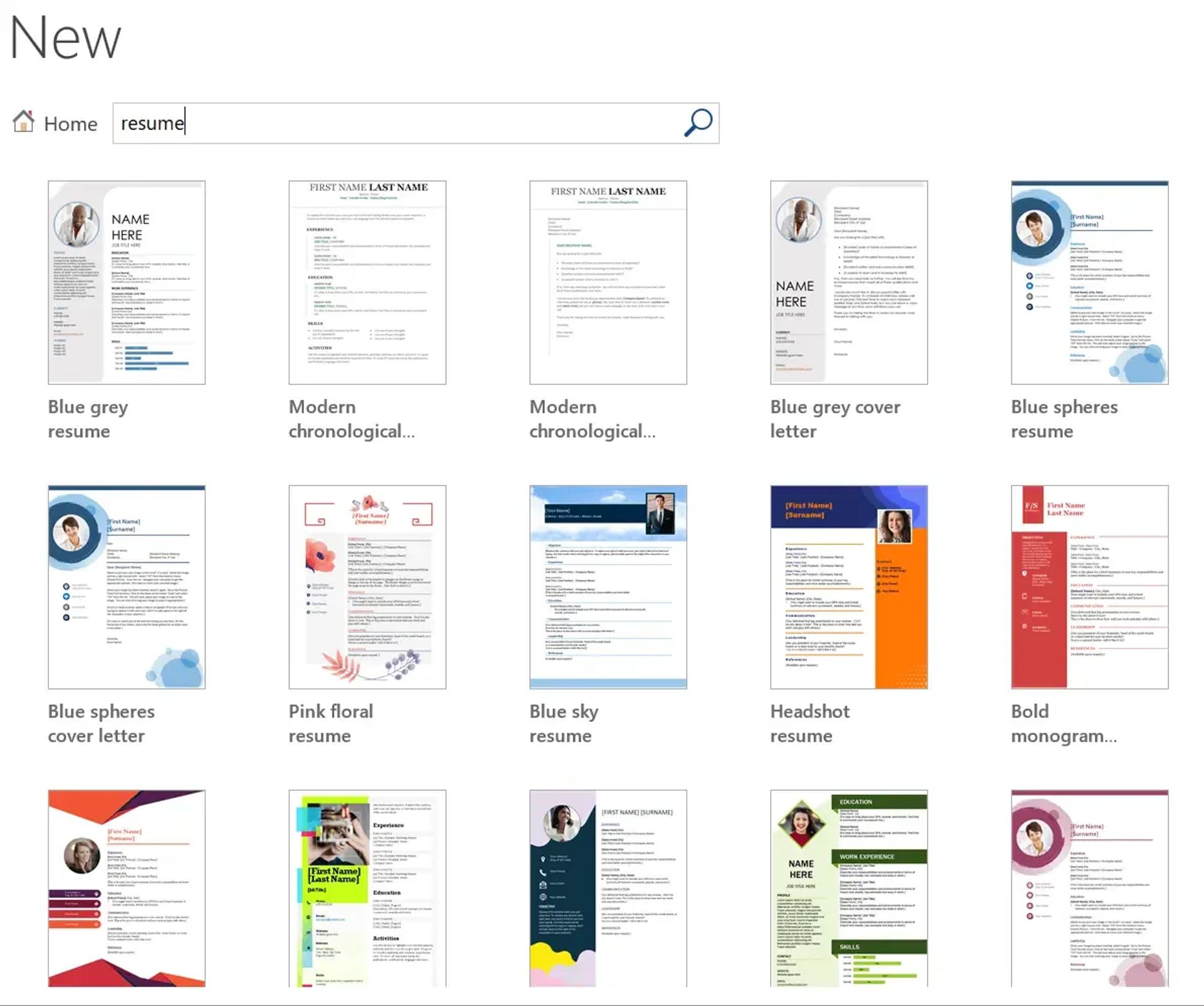
- Enter “resume” into the search bar. Word will filter the library and present you with a dark‑themed collection ranging from minimalist to executive.
- Hover over a thumbnail, click Create, and a fresh document materializes, anchored to the template’s master.
Keyboard shortcuts for the impatient
If you’re the type who lives by keystrokes, type Ctrl+Shift+F1 (or Alt+F then N on older versions) to invoke the template picker instantly. Once the dialog appears, type “resume” and press Enter. Word will obey without ever touching the mouse.
Downloading External Templates Safely
Where to look and what to avoid
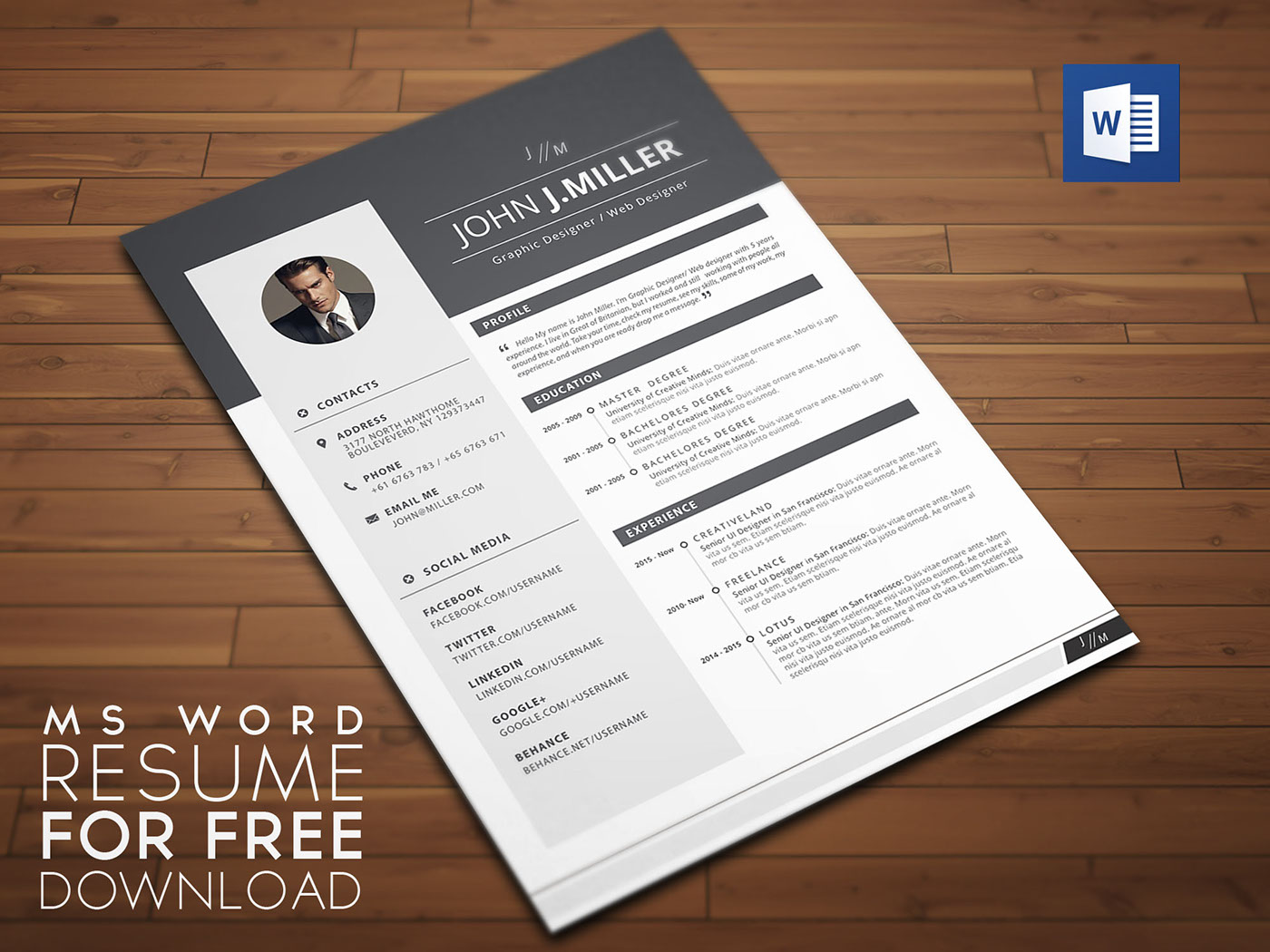
Even the most hardened professionals sometimes need a fresh aesthetic. Reputable design marketplaces and professional career sites host templates that adhere to ATS‑friendly guidelines. Avoid sites that demand suspicious software installations or ask for personal data before a download. A quick check for HTTPS, user reviews, and a clear file description usually separates the genuine from the garbage.
How to import a downloaded .dotx file
- Save the .dotx file to a dedicated folder—ideally
C:\Users\YourName\Documents\CustomTemplates. - In Word, go to File → Options → Advanced and scroll to the File Locations button.
- Click User templates, then Modify and point the path to the folder you just created.
- Close the Options window. Now your external templates appear alongside the built‑in ones whenever you open the New dialog.
Customizing a Template to Fit Your Brand

Typography, color, and layout tweaks
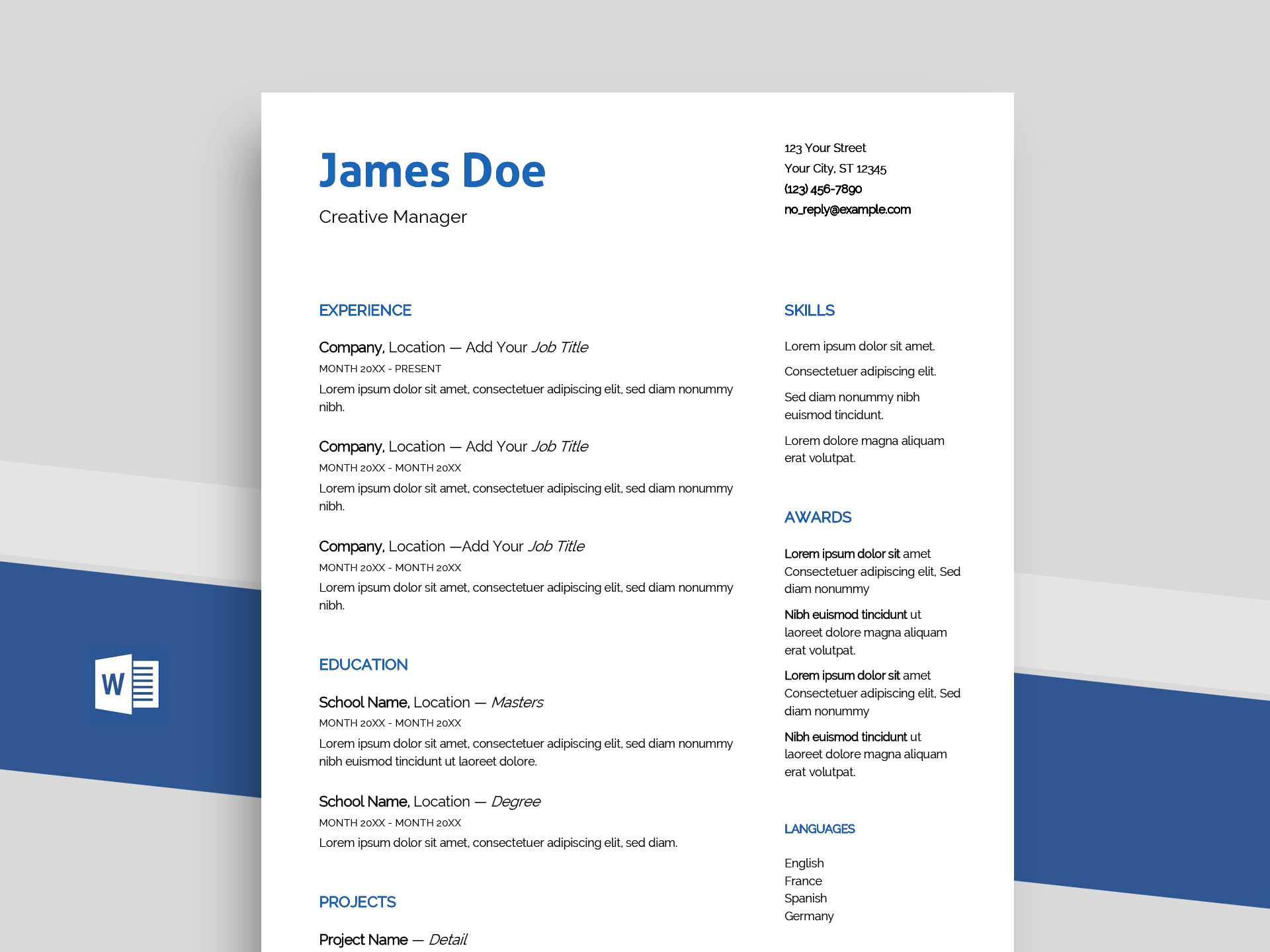
Even a perfect template can feel generic if you don’t imprint your personal brand. Start by altering the Heading 1 style: change the font to a bold serif like Georgia or a sleek sans‑serif like Calibri, adjust the size to 14‑16 pt, and set the color to a dark charcoal (#333333). For body text, a 11‑pt Calibri or Helvetica keeps readability high while maintaining a professional vibe.
Next, inject a subtle accent color into section dividers or bullet points. A muted deep red or midnight blue can convey confidence without screaming for attention. Use the Design → Colors menu to create a custom palette, then apply it to the template’s built‑in style set.
Saving your own master template
When you’ve sculpted the template to your liking, save it as a master file: File → Save As, select Word Template (*.dotx), and store it in your custom template folder. Naming it “My_Executive_Resume.dotx” makes it instantly recognizable. From now on, any new resume you need will be a single click away, preserving every stylistic decision you’ve made.
Common Pitfalls and How to Dodge Them
Formatting ghosts
Word’s hidden formatting marks—extra paragraph breaks, stray table cells, and lingering style overrides—can resurrect themselves when you paste content from LinkedIn or a PDF. The antidote is to paste as Keep Text Only (Ctrl+Shift+V) and then reapply the appropriate style. Run the Reveal Formatting pane (Shift+F1) to hunt down any rogue attributes that escaped your purge.
Version incompatibility
Templates created in Word 2019 may behave oddly when opened in Word 2016, especially if they rely on newer content controls. Always keep a backup in the older .docx format if you anticipate sharing the file with someone stuck on a legacy suite. This ensures the core layout survives even if the decorative elements degrade.
SEO‑Smart Content for Your Resume
Keyword placement without sounding robotic
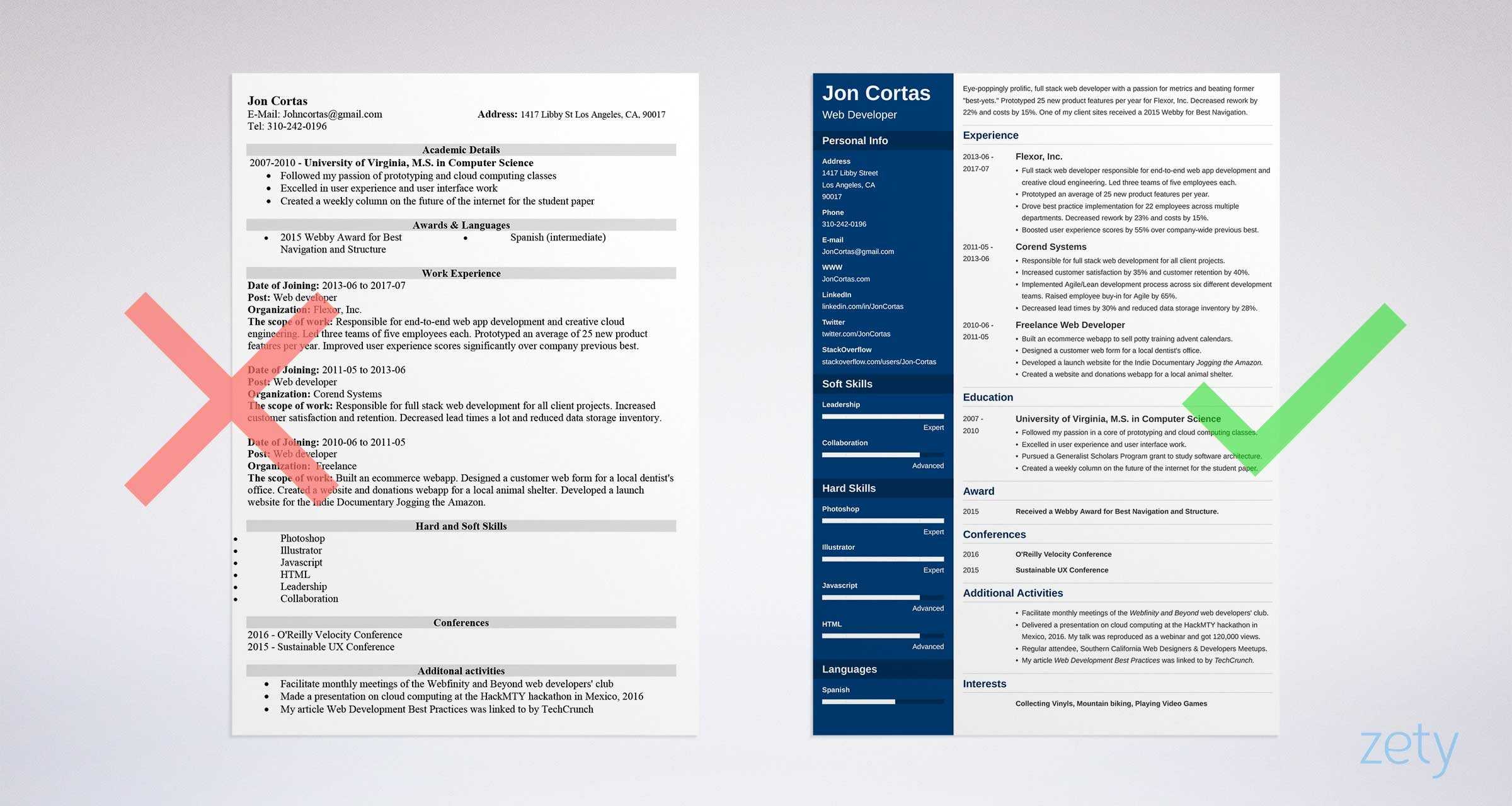
Applicant Tracking Systems scour resumes for exact phrase matches. Identify the top three keywords from the job description—often “project management,” “data analysis,” and “cross‑functional leadership.” Sprinkle them naturally throughout your experience bullet points, but avoid forced repetition. For example: “Led cross‑functional teams to deliver data‑driven project management solutions that increased efficiency by 22 %.”
File naming for ATS friendliness
When you export your masterpiece, name the file with your full name and the target role: Jane_Doe_Senior_Product_Manager.docx. Avoid spaces and special characters; use underscores or hyphens. This tiny detail can be the difference between landing in the recruiter’s inbox or vanishing into the system’s black hole.
Final Checklist Before Hitting Send
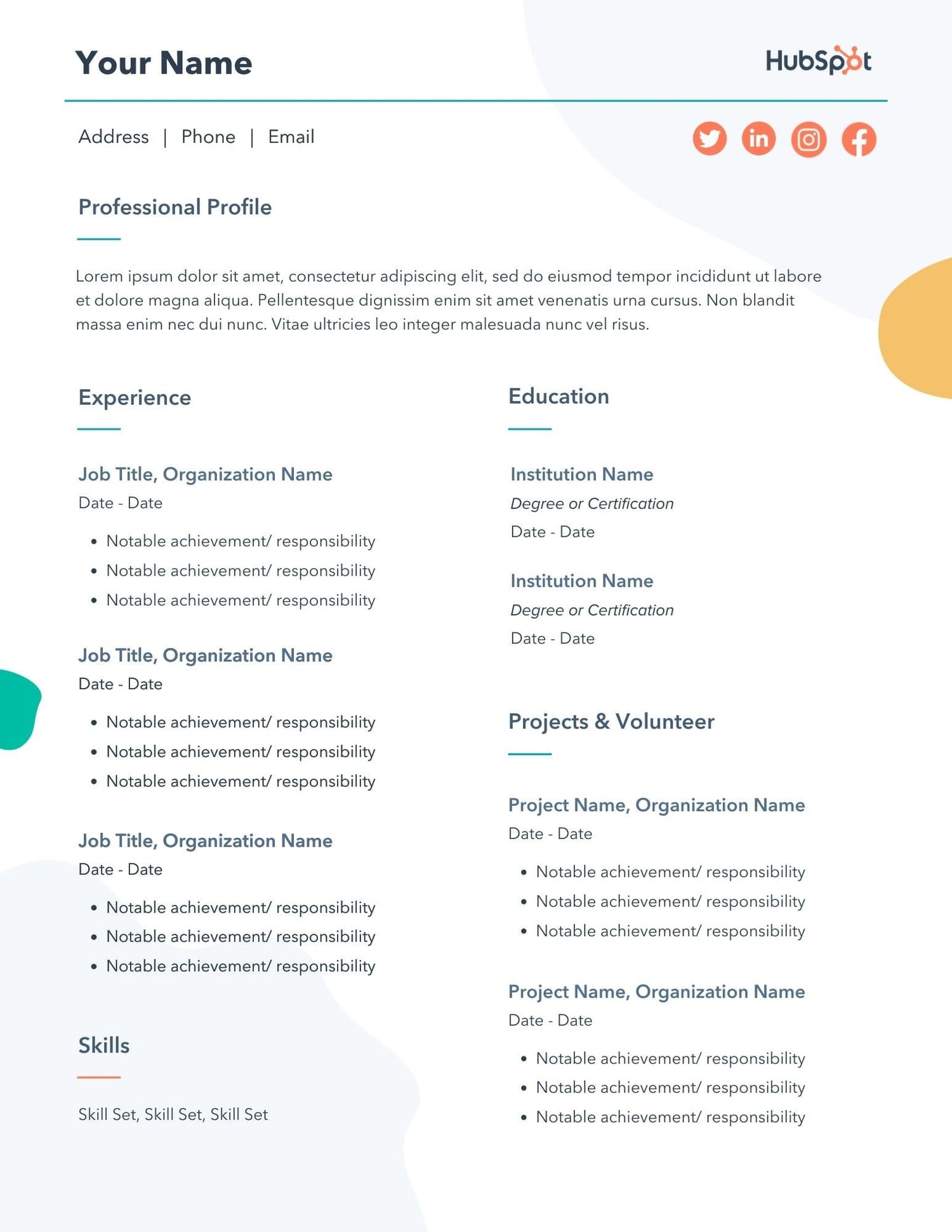
- Confirm all sections are populated—Contact, Summary, Experience, Education, Skills, and optional Projects or Certifications.
- Run a spell‑check in the Review tab and manually scan for homophones that the checker may miss.
- Validate that all dates follow a consistent format (e.g., “Jan 2020 – Present”).
- Ensure the file size stays under 1 MB to avoid email attachment rejections.
- Export a PDF version using File → Save As → PDF to preserve layout when the recruiter’s ATS can’t render Word files perfectly.
- Test the PDF on a different device to confirm fonts embed correctly and no sections shift.
- Rename the PDF with the same ATS‑friendly naming convention used for the Word file.
Conclusion
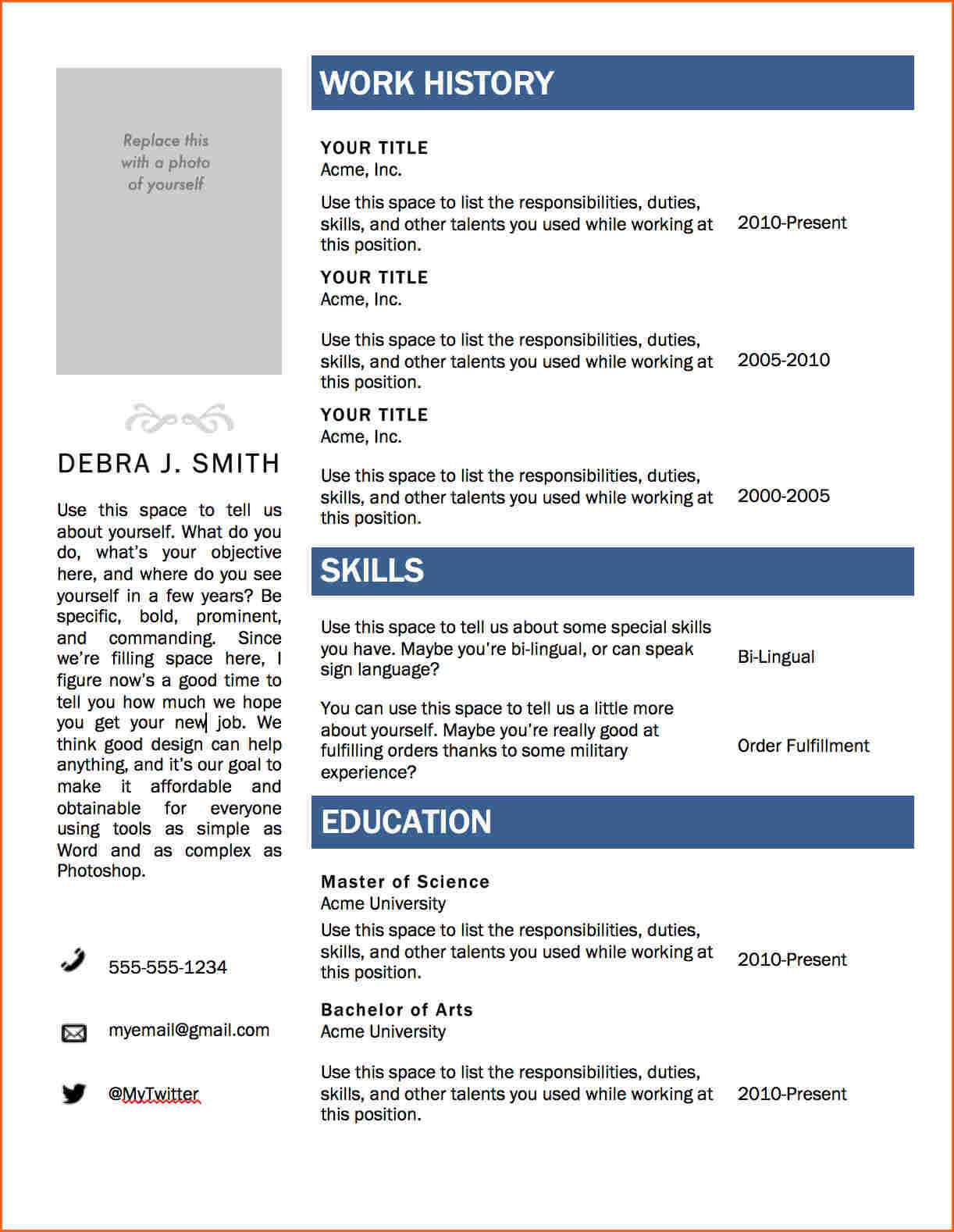
Finding a resume template on Word is not a mere click‑through exercise; it is a strategic maneuver that blends the darkness of software intricacies with the bright ambition of your career aspirations. By exploiting the native library, safely importing external designs, customizing every typographic nuance, and embedding SEO‑savvy content, you forge a resume that cuts through digital noise and lands squarely on the hiring manager’s desk. Follow the checklist, keep your master template alive, and remember: a well‑crafted resume is your silent advocate, working tirelessly in the shadows to secure the next opportunity.





Related posts of "How To Find A Resume Template On Word"
