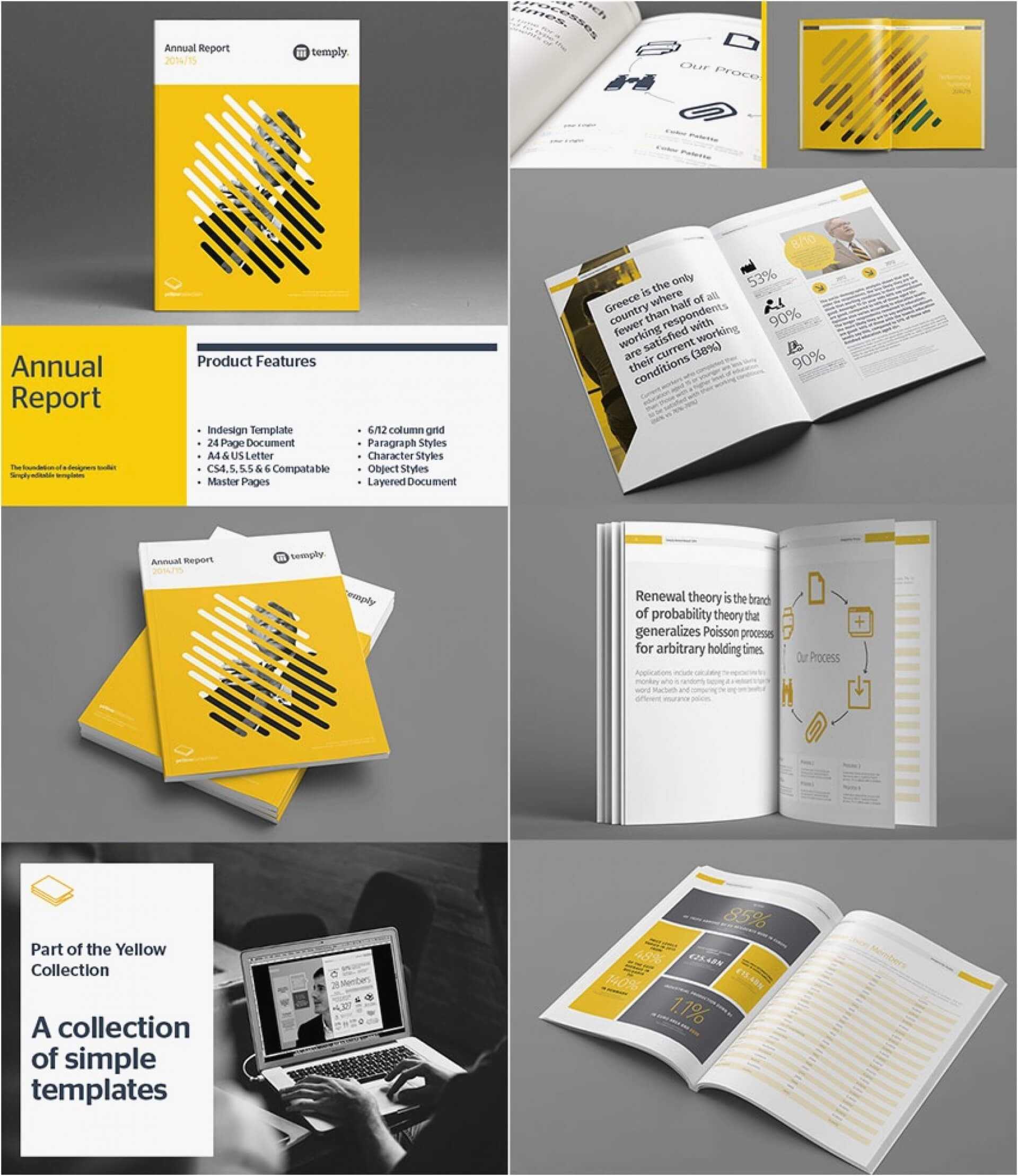
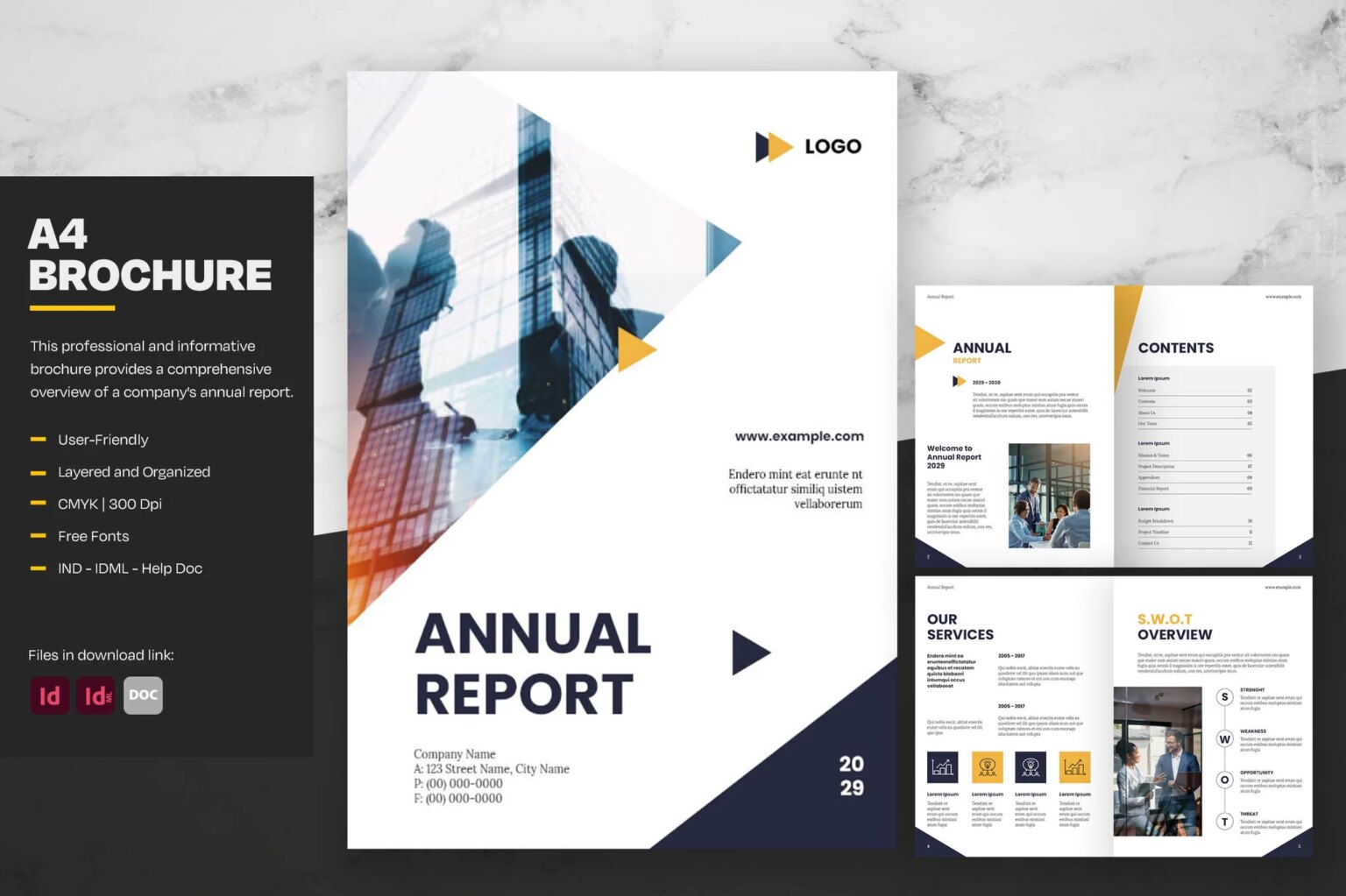
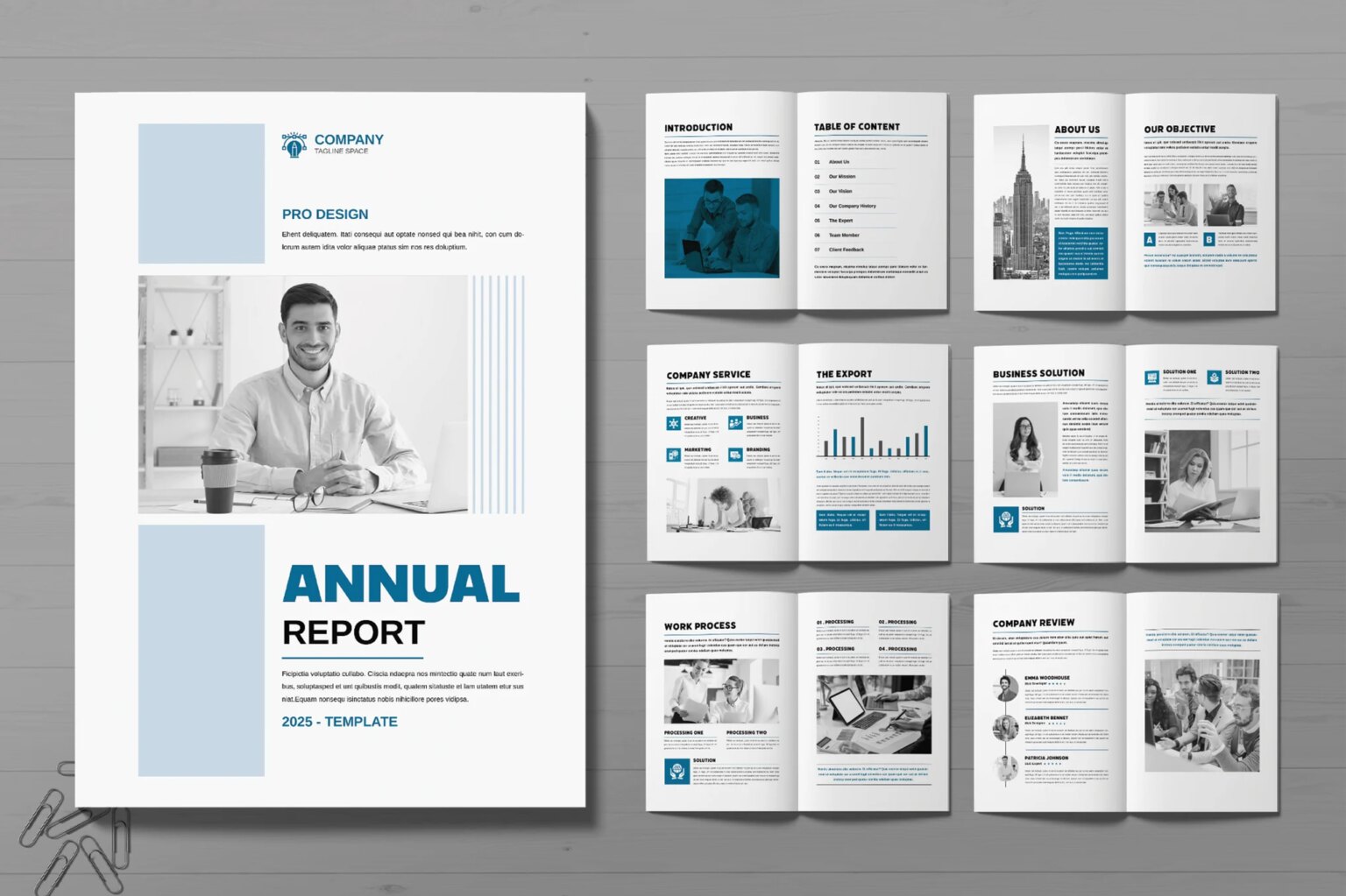
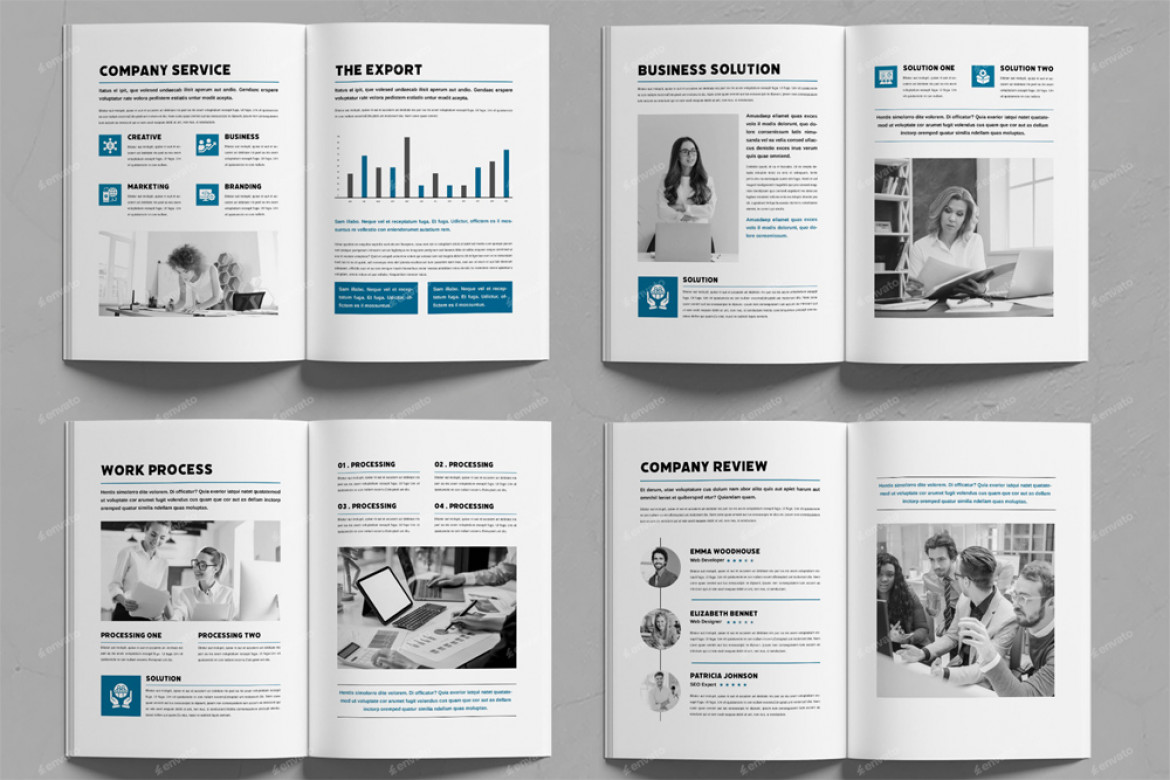
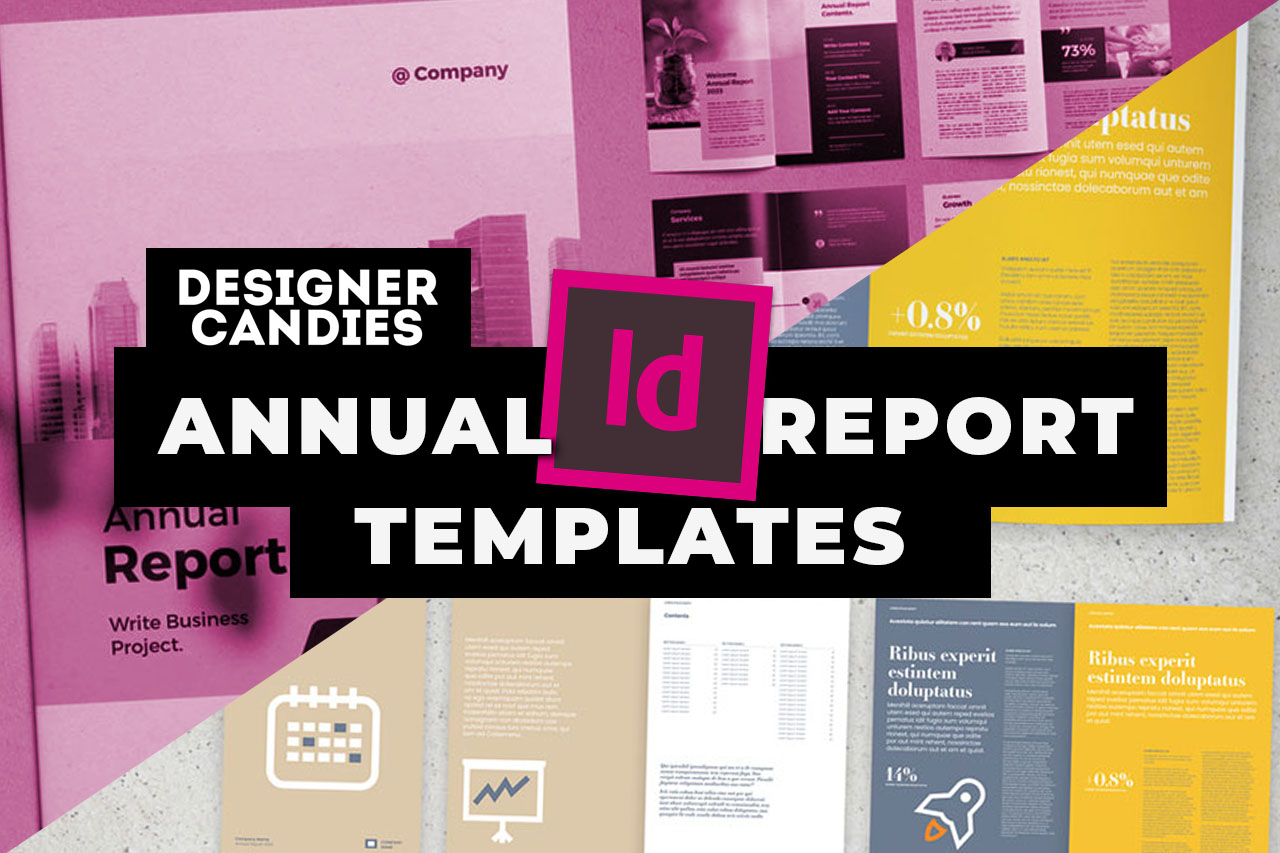
Free Indesign Report Templates are the secret sauce that turns a bland report into a dazzling masterpiece without draining your wallet. Picture this: you’re juggling numbers, charts, and deadlines, and suddenly your PDF looks like it was designed by a committee of cats with no idea what a grid is. Fear not! With the right templates and a dash of humor, you can transform that chaos into a polished, professional presentation that even your boss will applaud (without asking you to buy a coffee). Let’s dive into the whimsical yet practical world of free InDesign templates and discover how they can become your new best friend.
Why Free Indesign Report Templates Are a Life‑Saver for Budgets

The Cost of Creativity: When a Budget Cuts the Budget
Remember the last time you spent a fortune on a designer and still ended up with a report that looked like a Pinterest board? That’s the horror of outsourcing every single element. Free templates eliminate that upfront cost, giving you a ready‑made foundation to customize. You save money on design fees, licensing, and the countless hours of trial‑and‑error that usually accompany custom layouts.
Time Is Money: How Templates Speed Up Your Workflow
Time is a precious commodity, especially when you’re juggling quarterly numbers, market analyses, and stakeholder meetings. Templates come pre‑formatted with master pages, object styles, and placeholder graphics, meaning you can jump straight to the data instead of fiddling with margins and font sizes. The result? A 30‑50% reduction in design time, freeing you to focus on the substance of your report.
Choosing the Right Free Template: Not All Templates Are Created Equal

Read the Fine Print: Licensing and Usage Rights
Even if a template is advertised as “free,” that doesn’t always mean you can use it for anything you want. Some licenses restrict commercial use or require attribution. Always review the license terms to ensure compliance, especially if you’re planning to distribute the report widely or include it in a marketing campaign.
Look for Professional Layouts: Symmetry, Grid, and Visual Hierarchy
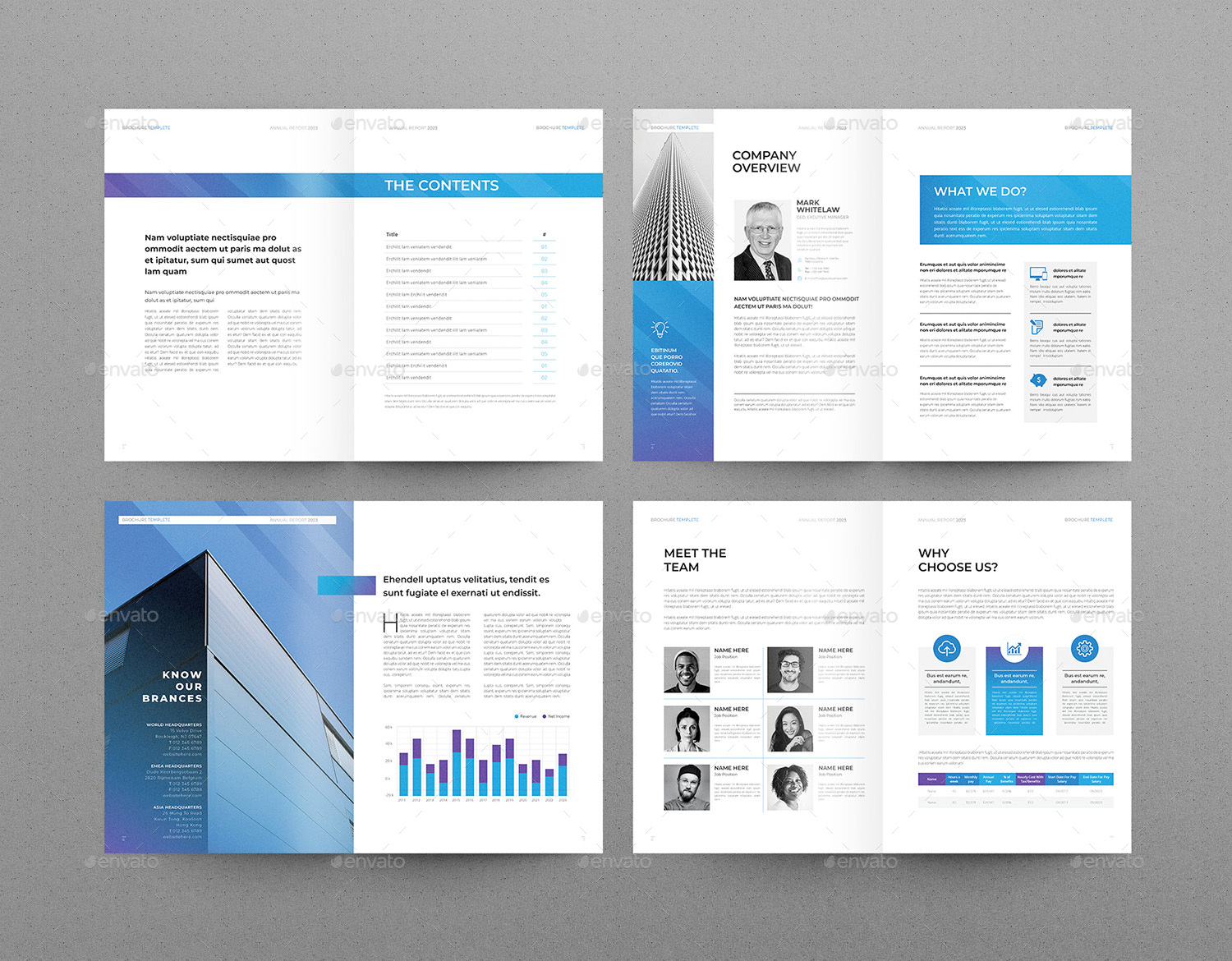
A template’s true value lies in its design logic. Good templates use a consistent grid system, clear visual hierarchy, and balanced white space. When you open a template, you should instantly recognize sections, headings, and data blocks that align perfectly. This built‑in organization reduces the need for manual adjustments later.
Check Compatibility: Adobe InDesign Version and PDF Export Settings
Older templates might rely on features that have changed or been deprecated in newer InDesign releases. Likewise, some templates are optimized for specific PDF export settings (like PDF/X-1a for print). Verify that the template’s version aligns with your software and that it supports the export format you need.
Getting Started: Installing and Customizing Your Template

Opening the Template in InDesign
Double‑click the .indd file, and InDesign will pop up a wizard if the file is from an older version. Follow the prompts to migrate the file to the current version. Once the document opens, take a quick glance at the Master Pages to understand the overall layout.
Replacing Placeholder Text and Images
Placeholder text is usually highlighted in a light grey and labeled “Enter Title Here” or “Insert Image.” Simply select the text and start typing your content. For images, drag and drop the desired file into the frame. Remember to maintain the frame’s aspect ratio or choose “Fit Content Proportionally” from the Object menu.
Tweaking Fonts and Color Schemes
One of the joys of using a template is the ability to match your brand’s visual identity. Navigate to the Character Styles panel, double‑click the style you wish to edit, and choose a new font or color. If your brand uses a specific Pantone, convert it to RGB or CMYK in the Swatches panel before applying.
Adding Your Own Charts and Data Visualizations
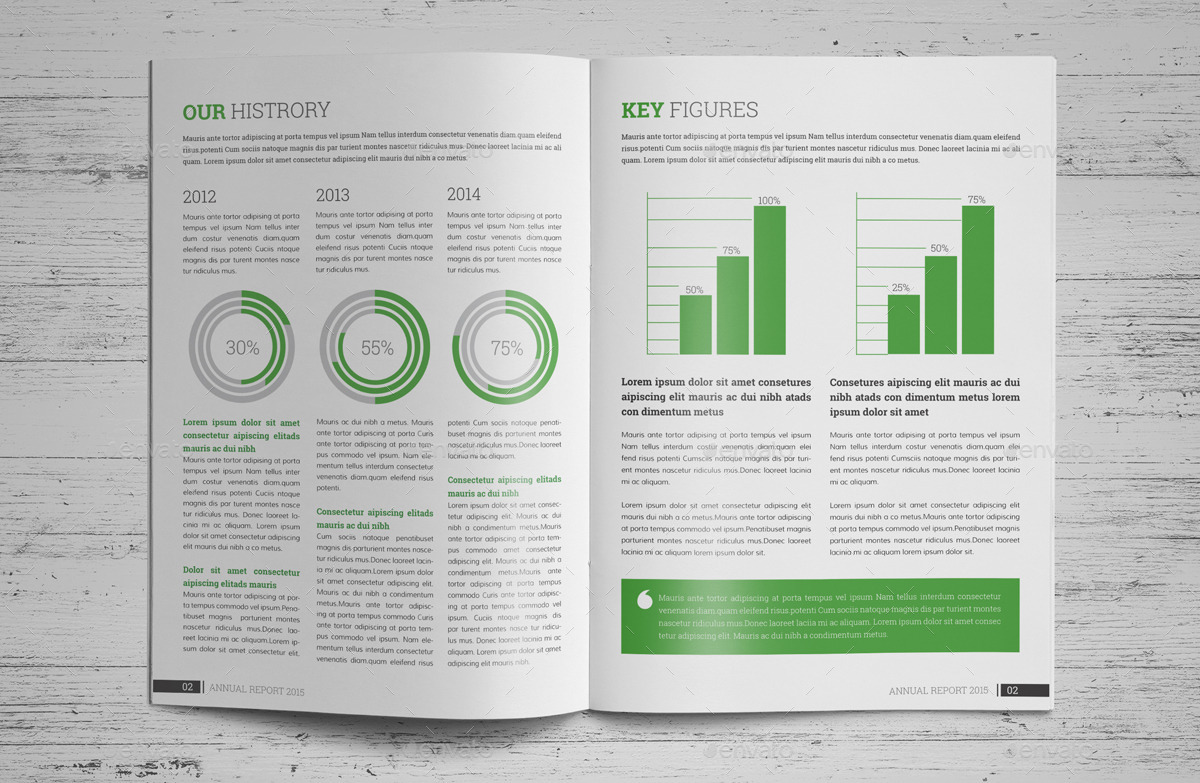
InDesign can handle basic charts using the Chart feature, but for complex data visualizations, consider exporting charts from Excel or Tableau and importing them as vector graphics. Keep the data layers locked to avoid accidental changes when editing text.
Advanced Tricks to Make Your Report Stand Out
Using Master Pages for Consistency
Master Pages act like a blueprint for every page. Add recurring elements such as a company logo, footer, or page numbers to the master. Any changes made here propagate automatically across the document, saving you from the tedious task of editing each page individually.
Mastering Object Styles for Quick Updates
Object Styles allow you to define and apply formatting to shapes, text boxes, and other objects. If you want to change the border color of every chart, simply edit the Object Style, and every chart updates instantly. This technique keeps your design consistent and your edits efficient.
Incorporating Interactive Elements in PDF
Need a report that pops? Use InDesign’s interactive features: hyperlinks, buttons, and even simple animations. When exporting, choose “Adobe PDF (Interactive)” to preserve these elements. Just be mindful that interactive PDFs may not print correctly, so keep a separate print‑ready version for distribution.
Real‑World Success Stories: Businesses That Beat the Odds

Startup That Sold 1,000 Units in 48 Hours
A fledgling company used a free InDesign template to create a product launch report. By customizing the template with engaging visuals and a compelling narrative, they convinced investors to back their project. Within two days, they had sold 1,000 units, proving the power of a well‑crafted report.
Non‑Profit That Gained 500 New Donors
A local charity leveraged a free template to showcase their impact report. The clean layout and powerful storytelling helped them secure 500 new donors in a single month—an impressive leap that would have been impossible with a generic PDF.
Troubleshooting Common Template Pitfalls
Missing Fonts and How to Fix Them
When opening a template on a different computer, you might see “Missing Font” warnings. To resolve this, either replace the missing font with a similar one or embed the required fonts during export. InDesign’s “Find Font” dialog lists all fonts used, making replacement quick.
Layout Shifts When You Change Page Size
Changing the page size can throw off the alignment of elements. Always use the “Document Setup” to adjust dimensions before editing. If you must resize, use the “Auto‑Resize” feature on master pages, and double‑check that text frames and images stay within their bounds.
Exporting to PDF: Avoiding Image Compression Issues
When exporting to PDF, choose “High Quality Print” if the report will be printed. For online use, “Smallest File Size” is appropriate. Be cautious: low‑quality settings can cause images to blur or lose clarity, which defeats the purpose of a polished report.
Where to Find the Best Free Indesign Report Templates
Creative Market and Other Online Communities
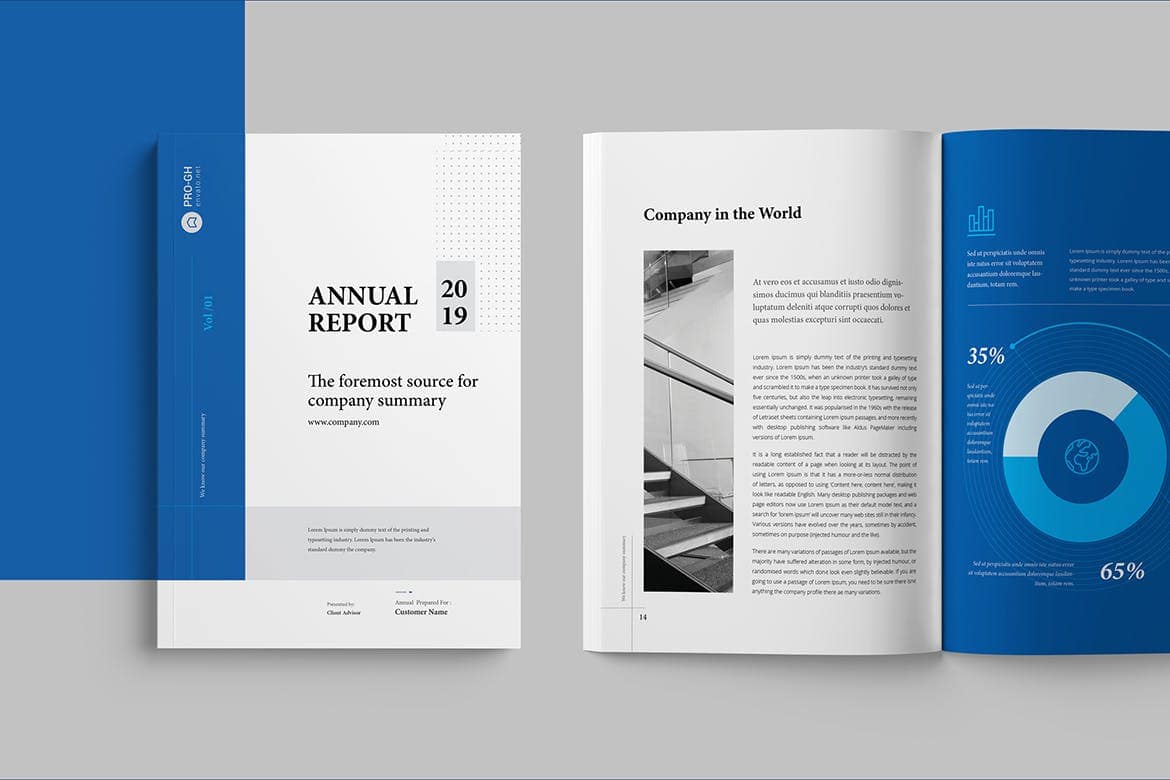
Many communities host free templates, often contributed by designers looking to build a portfolio. Search for “free InDesign report templates” within these sites, and you’ll find a treasure trove of options ranging from minimalist corporate designs to colorful, data‑heavy layouts.
University Libraries and Academic Resources
Universities frequently share templates for research reports, theses, and grant proposals. These templates adhere to rigorous academic standards and can be adapted for business use. Look for institutional repositories or design courses that provide downloadable assets.
Open Source Design Platforms
Platforms dedicated to open‑source design often feature downloadable InDesign files. Because they are community‑maintained, they tend to stay updated with the latest design trends and software versions.
Wrap‑Up: Your Next Steps to Mastering Free Indesign Report Templates

Armed with a solid understanding of why free templates are a financial win, how to choose the right one, and the step‑by‑step process to customize them, you’re ready to produce professional, eye‑catching reports on a shoestring budget. Remember to always respect licensing, leverage master pages and object styles for consistency, and don’t shy away from adding interactive elements for a modern touch. Whether you’re a startup, a non‑profit, or an established corporation, these templates can help you save money, time, and sanity—all while delivering reports that look as good as they feel. So grab your favorite template, fire up InDesign, and let the creative magic begin. Happy reporting!