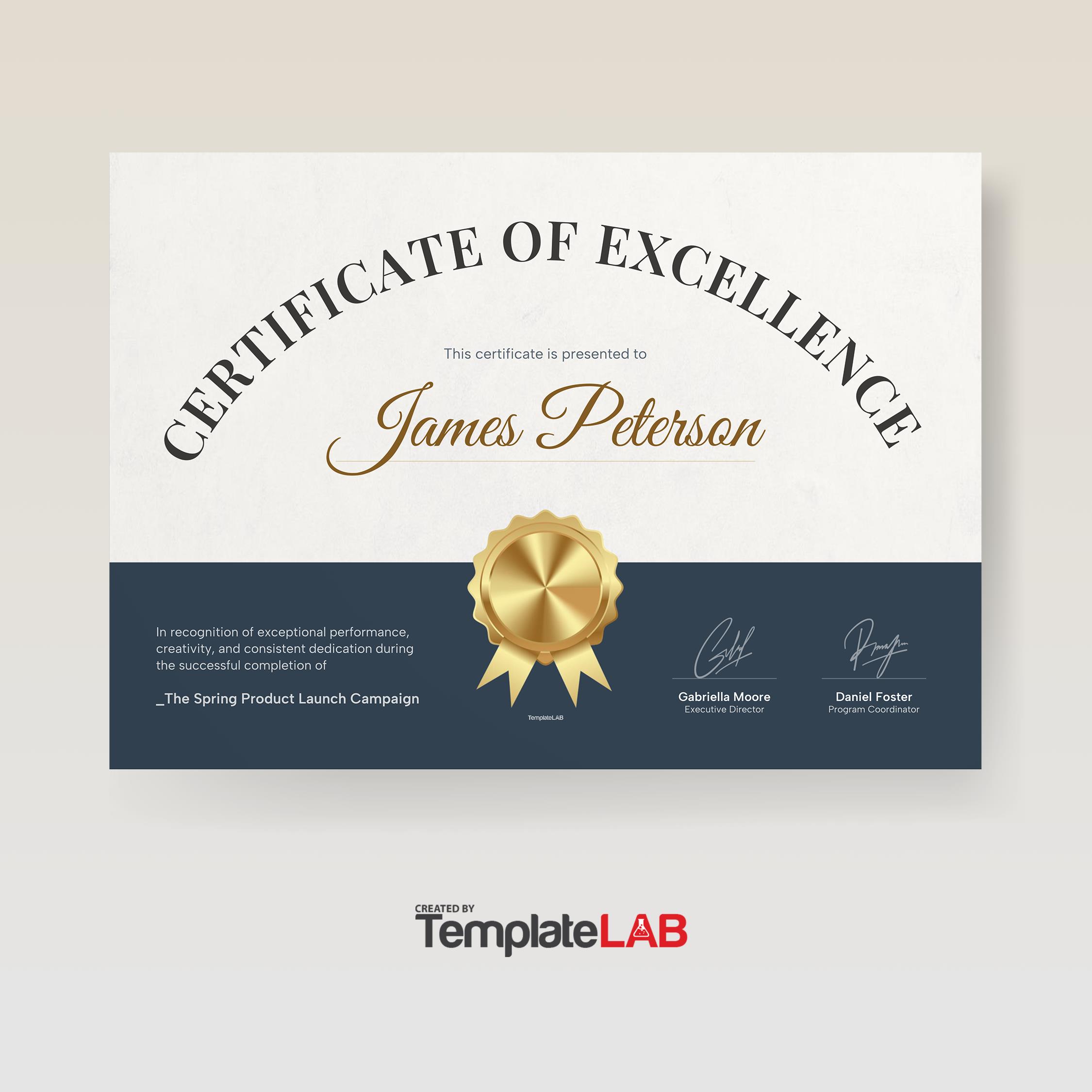
Certificate Of Excellence Template Word serves as a versatile tool for educators, organizations, and individuals aiming to recognize outstanding achievements in a polished and customizable format. By leveraging pre-designed layouts, you can quickly craft certificates that convey prestige, gratitude, and motivation—all while saving time and resources.
What Makes a Certificate of Excellence Stand Out
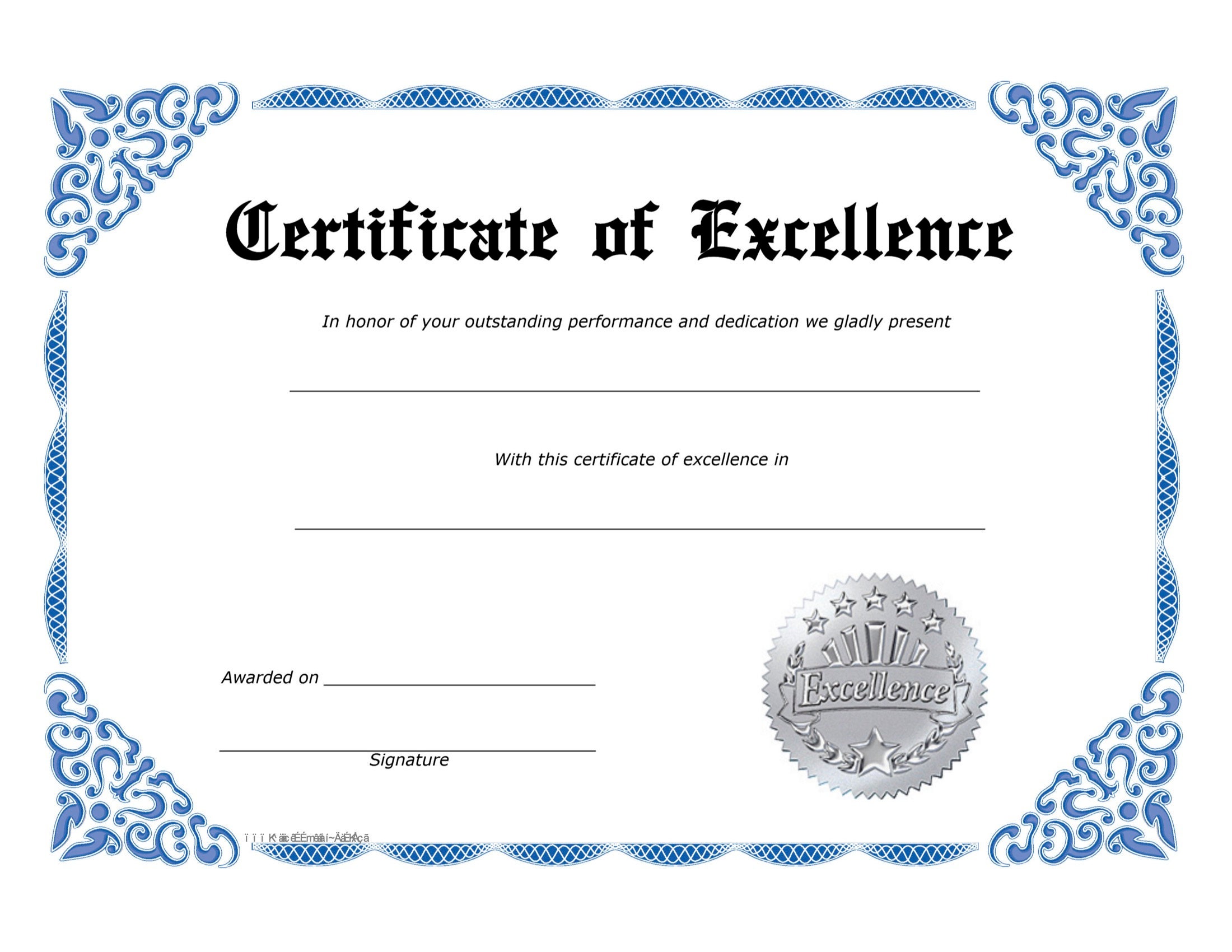
Key Elements of a High-Impact Design
- Clear Hierarchy: Use font sizes and weights to differentiate titles, names, and award details.
- Consistent Branding: Incorporate logos, color palettes, and typography that align with your organization’s identity.
- Credible Credence: Include signatures, official seals, or QR codes to validate the certificate’s authenticity.
- Clean Layout: Avoid clutter by allocating ample white space, ensuring each section is easily readable.
- Personal Touch: Add individualized remarks or specific achievements to make each certificate feel unique.
Psychological Impact of Recognition
When recipients receive a well-crafted Certificate of Excellence, it triggers a sense of accomplishment that boosts confidence and encourages continued effort. The physical document also serves as a tangible reminder of their capabilities, motivating both personal growth and community inspiration.
Choosing the Right Template

Assess Your Audience and Purpose
Select a template that matches the occasion—whether it’s an academic award, employee recognition, or community service honor. A formal, serif-based design suits academic settings, while a bold, sans-serif layout works well for corporate awards.
Compatibility and Ease of Use
- Ensure the template is available in Microsoft Word (.docx) format for seamless editing.
- Check that the file uses standard fonts and styles to avoid compatibility issues across different computers.
- Look for templates that include placeholder text and images to reduce manual formatting.
- Verify that the template’s layout adapts well to both portrait and landscape orientations.
Accessibility Considerations
For recipients with visual impairments, choose fonts that are legible at larger sizes and maintain high contrast between text and background. Adding alt text for images and providing a digital PDF version can further enhance accessibility.
Customizing Your Template for Impact
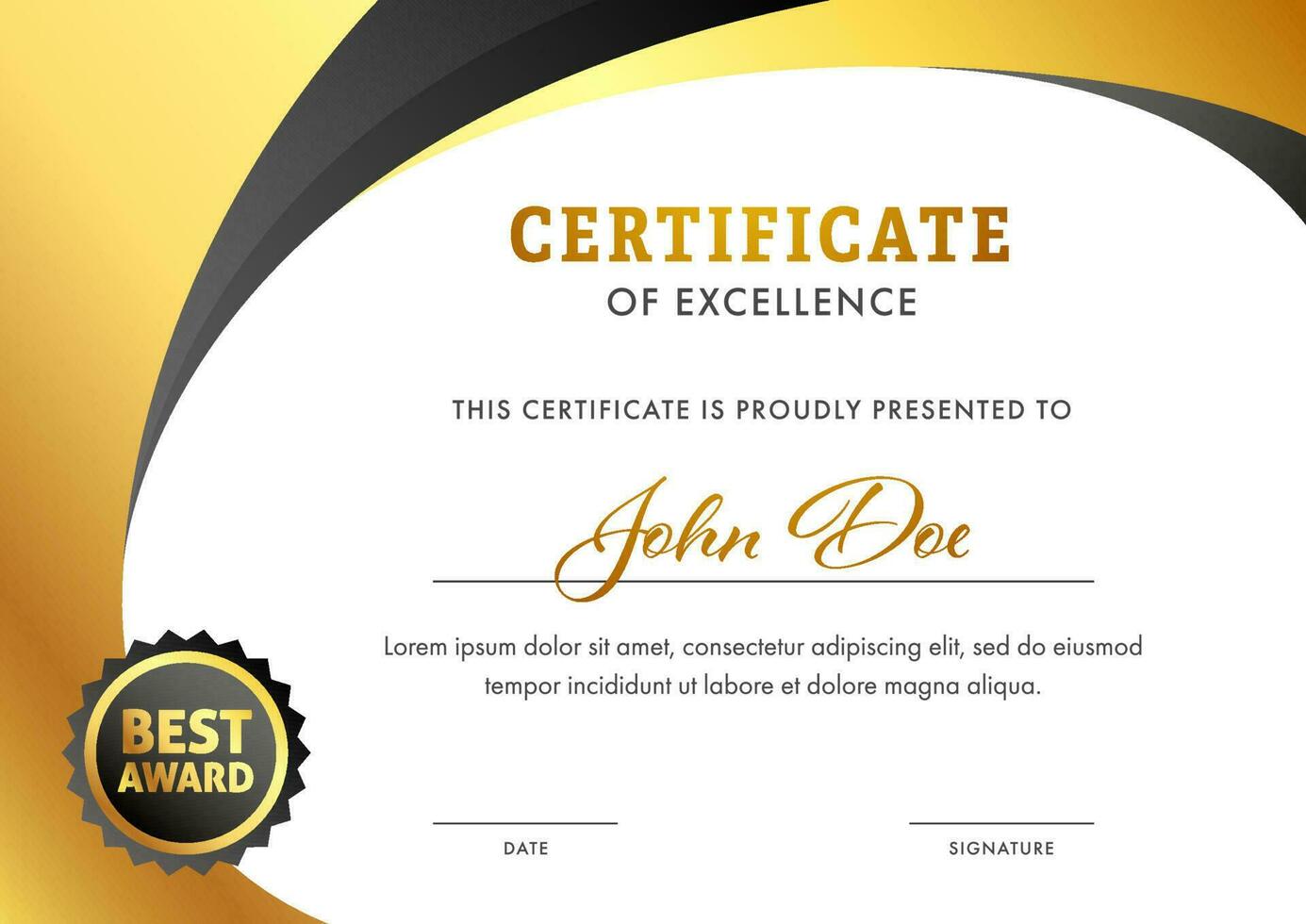
Step-by-Step Personalization Guide
- Open the Template: Double‑click the .docx file to launch it in Word.
- Replace Placeholder Text: Highlight each placeholder (e.g., “Recipient Name”) and type the specific details.
- Adjust Font Styles: Highlight the text you want to emphasize and choose a suitable font size, weight, or color.
- Insert Images: Click Insert > Pictures to add logos, award seals, or custom graphics.
- Insert Signature Lines: Use Insert > Shape > Line or a pre‑made signature field for authorized signatories.
- Check Alignment: Use Word’s alignment tools (center, left, right) to ensure symmetry.
- Proofread: Verify names, dates, and award titles for accuracy.
- Save as PDF: Go to File > Save As, choose PDF, and set the quality to “Best for Print.”
- Print or Share: Print on high‑quality paper or distribute digitally via email.
Real-World Example: High School Graduation
Suppose a high school wishes to award a Certificate of Excellence to its top science student. The template’s “Recipient Name” field is replaced with “Alex Martinez,” the award title becomes “Outstanding Achievement in STEM,” and a small science icon is added to the header. The principal’s signature is placed beneath the recipient’s name, and the school crest is positioned in the top corner, creating a memorable keepsake for the student.
Design Tips for Professional Look
Color Palette Strategy
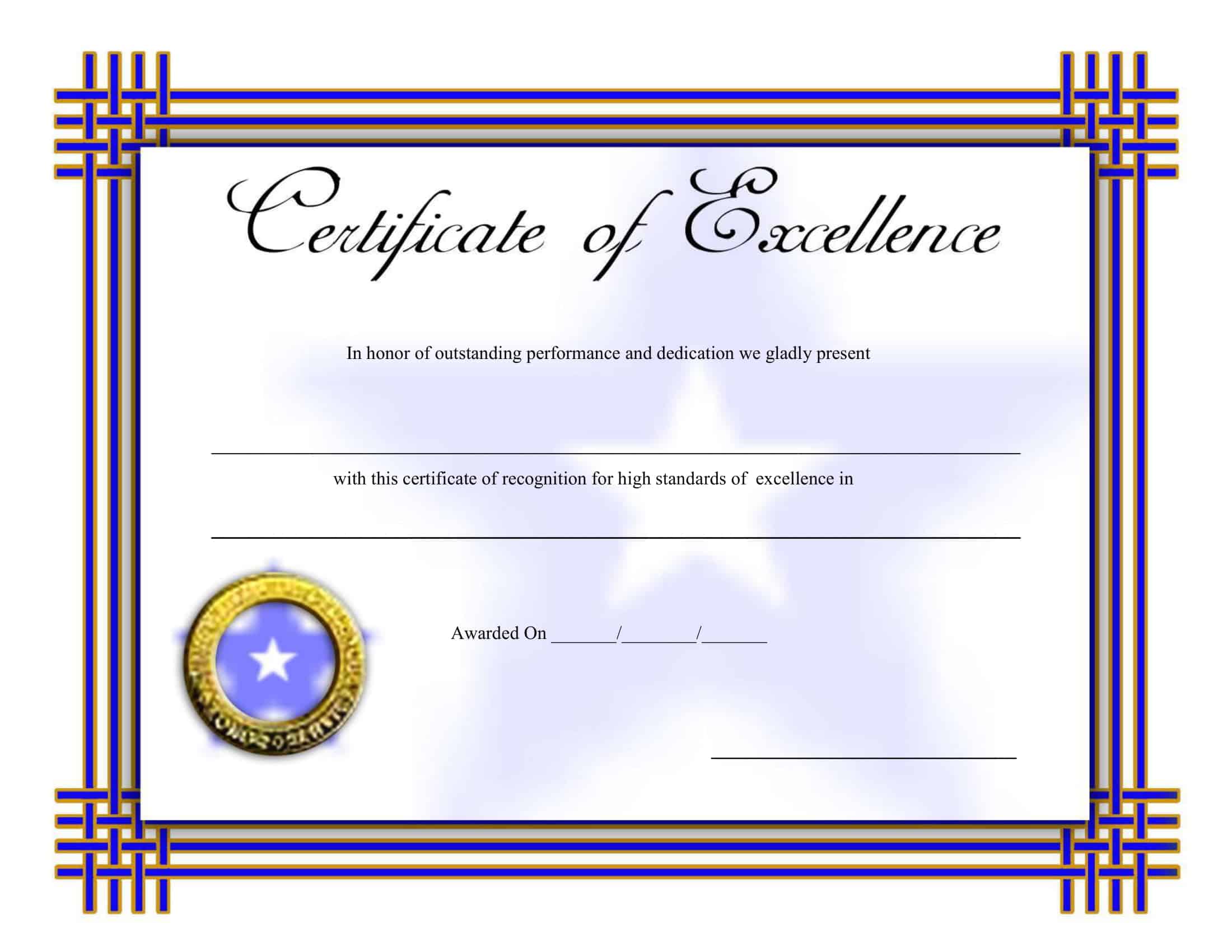
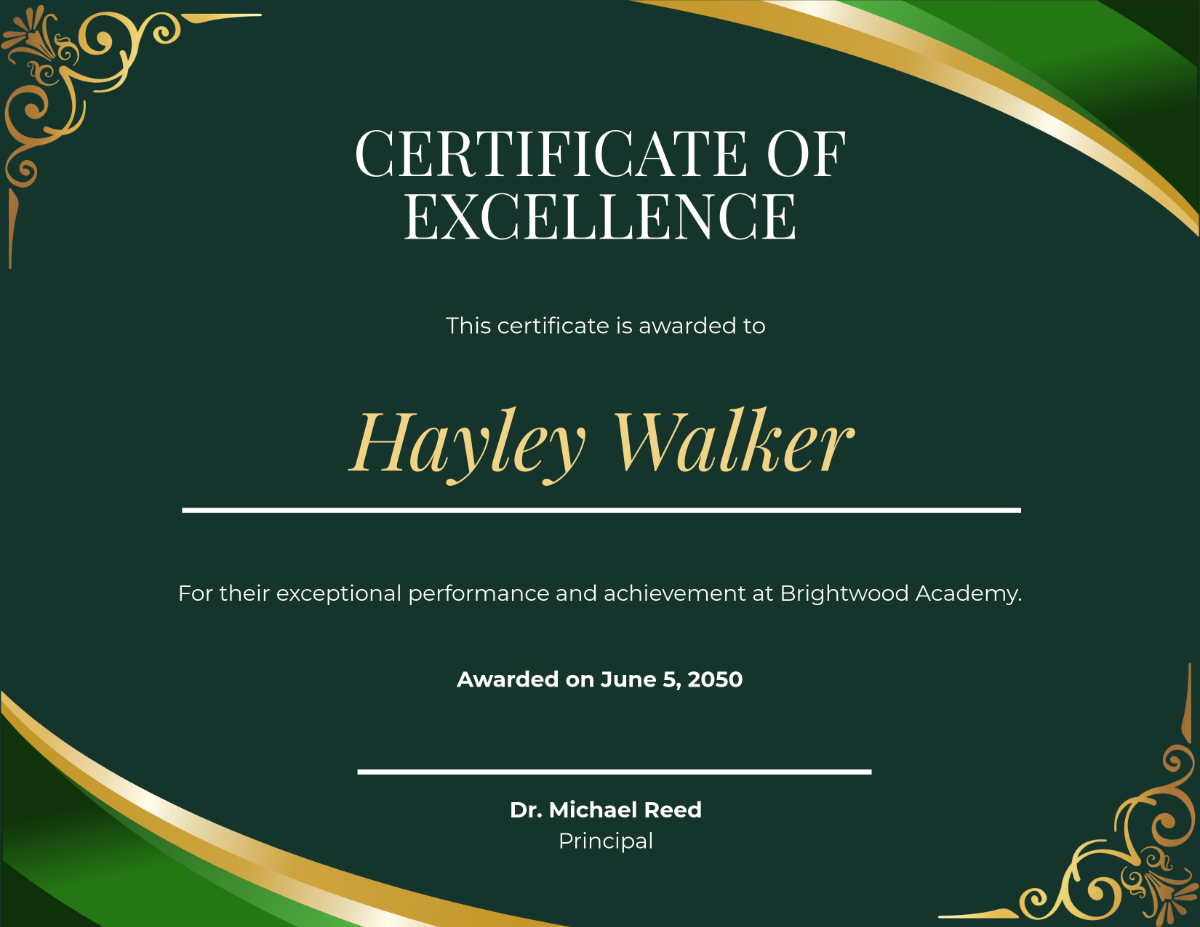
Select a limited palette of 2–3 colors that reflect the theme. For example, a university may use deep navy, gold, and white to project academic tradition and prestige.
Typography Pairing
- Choose a serif font for titles (e.g., Garamond) to convey formality.
- Use a clean sans-serif font for body text (e.g., Calibri) for readability.
- Maintain consistent font sizes: title 18–24 pt, subheading 14–16 pt, body 11–12 pt.
Border and Frame Usage
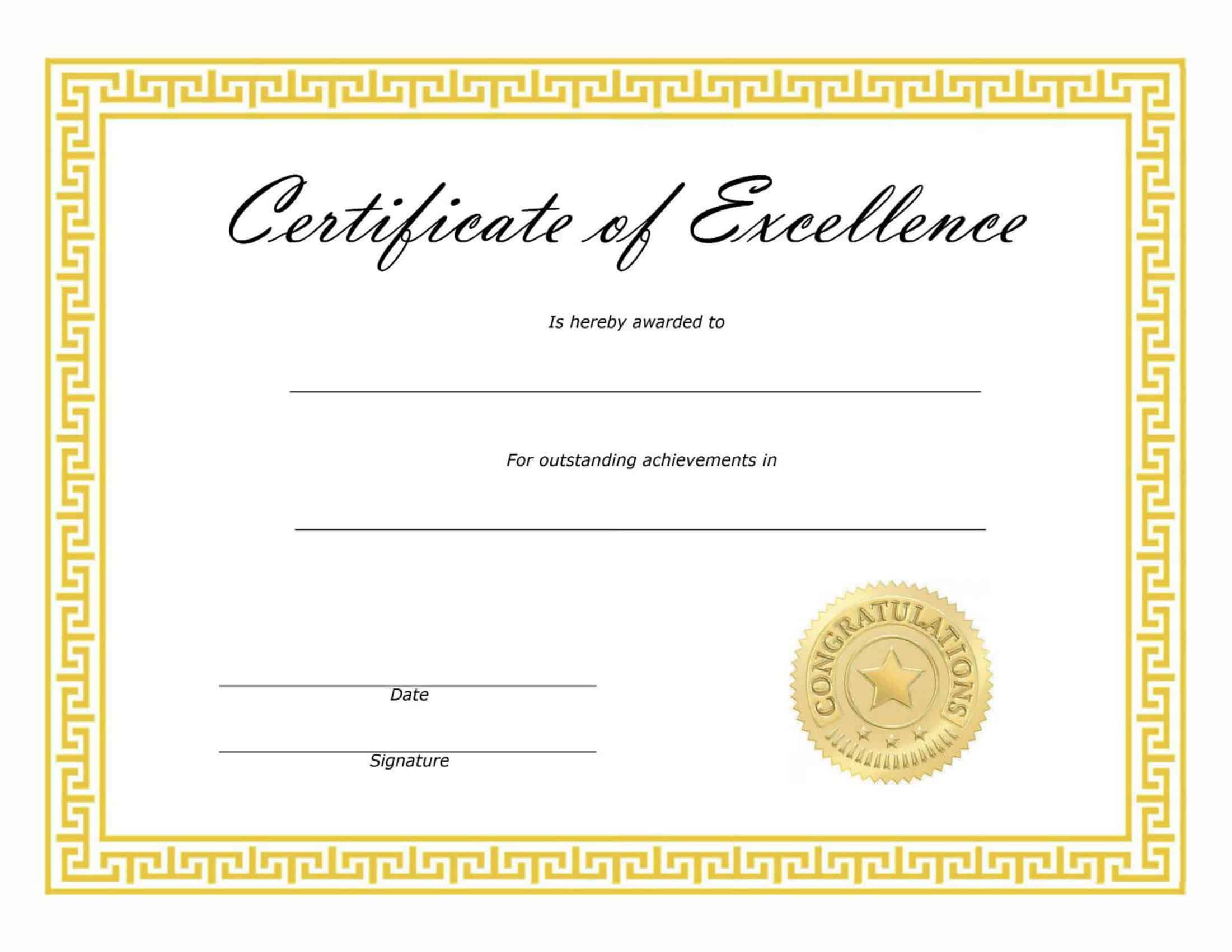
Subtle borders or decorative frames add a polished touch. However, avoid heavy or overly ornate borders that distract from the content. A simple gold line or a subtle watermark works best.
Paper Quality and Printing Tips
Printing on cardstock with a matte finish enhances durability. Ensure the printer’s settings are set to “High Quality” and that the PDF is not compressed, preserving the crispness of logos and text.
Common Mistakes to Avoid

Overloading Information
Including too many details, such as long descriptions or multiple award categories, can clutter the certificate. Stick to the essential elements: recipient name, award title, date, and signatures.
Using Inconsistent Fonts
Mixing too many font styles breaks visual harmony. Limit your design to two complementary fonts throughout the document.
Neglecting Proofreading
Typos or misspelled names diminish credibility. After editing, have a second pair of eyes review the certificate before final printing.
Ignoring Accessibility
For recipients with color blindness or low vision, ensure sufficient contrast and avoid relying solely on color to convey meaning.
Printing and Distribution

Print on a Reliable Printer
For large batches, use a commercial printing service that offers custom cardstock, die‑cutting, and lamination. Verify proofs before committing to a full run.
Digital Distribution Best Practices
- Send certificates as high‑resolution PDFs to preserve quality.
- Attach a personalized message to the email to enhance engagement.
- Use a secure email platform to prevent accidental sharing of certificates.
Archiving and Record Keeping
Maintain digital copies of each certificate in a secure cloud folder. Include metadata such as recipient name, date, and award title for easy retrieval and future reference.
Conclusion

Mastering the art of creating a Certificate Of Excellence Template Word empowers you to celebrate achievements with dignity and style. By selecting the right template, customizing thoughtfully, and paying close attention to design nuances, you can deliver certificates that not only recognize excellence but also inspire continued success. Whether you’re acknowledging a student’s academic triumph, honoring an employee’s dedication, or celebrating community service, a well‑crafted certificate becomes a lasting token of appreciation and pride.






Related posts of "Certificate Of Excellence Template Word"
