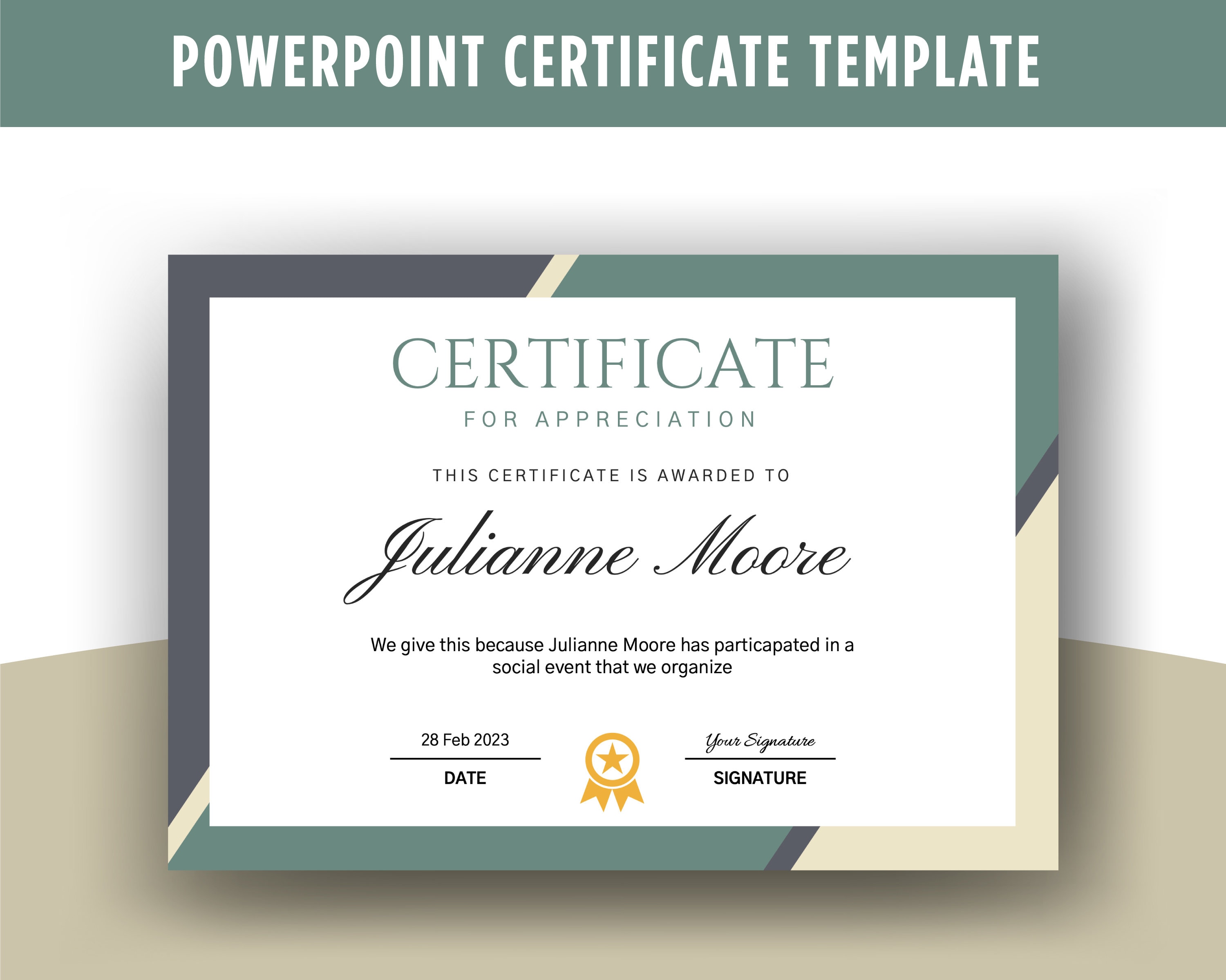
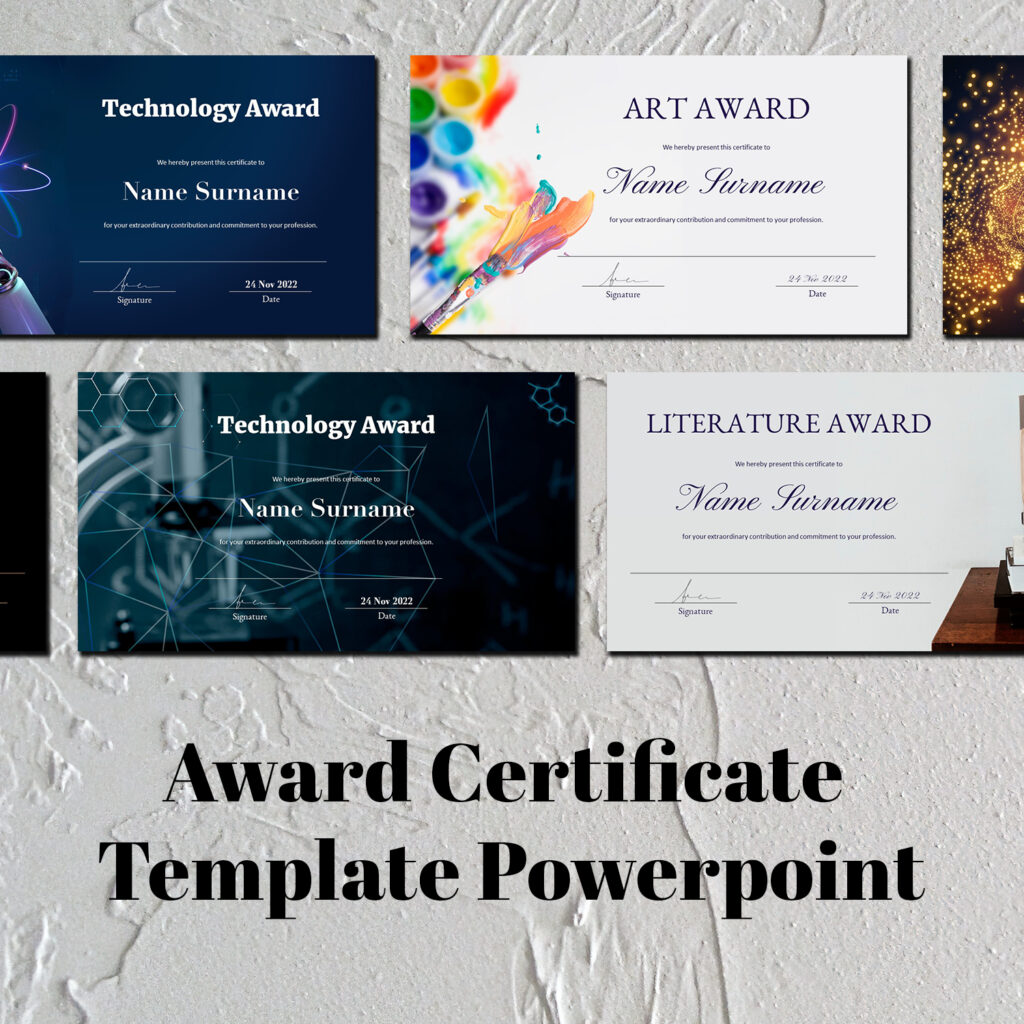
Award Certificate Template Powerpoint is the key to creating professional, eye‑catching certificates that celebrate achievements in school, business, or community events. By starting with a ready‑made template, designers and organizers save hours of design work while ensuring consistent branding, typography, and layout. In the following guide, we dive deep into the world of PowerPoint certificates, uncovering how to choose, customize, and perfect a template that feels authentic, polished, and tailored to your audience.
Understanding the Core Elements of a Certificate Design
Typography: The Voice of Your Award
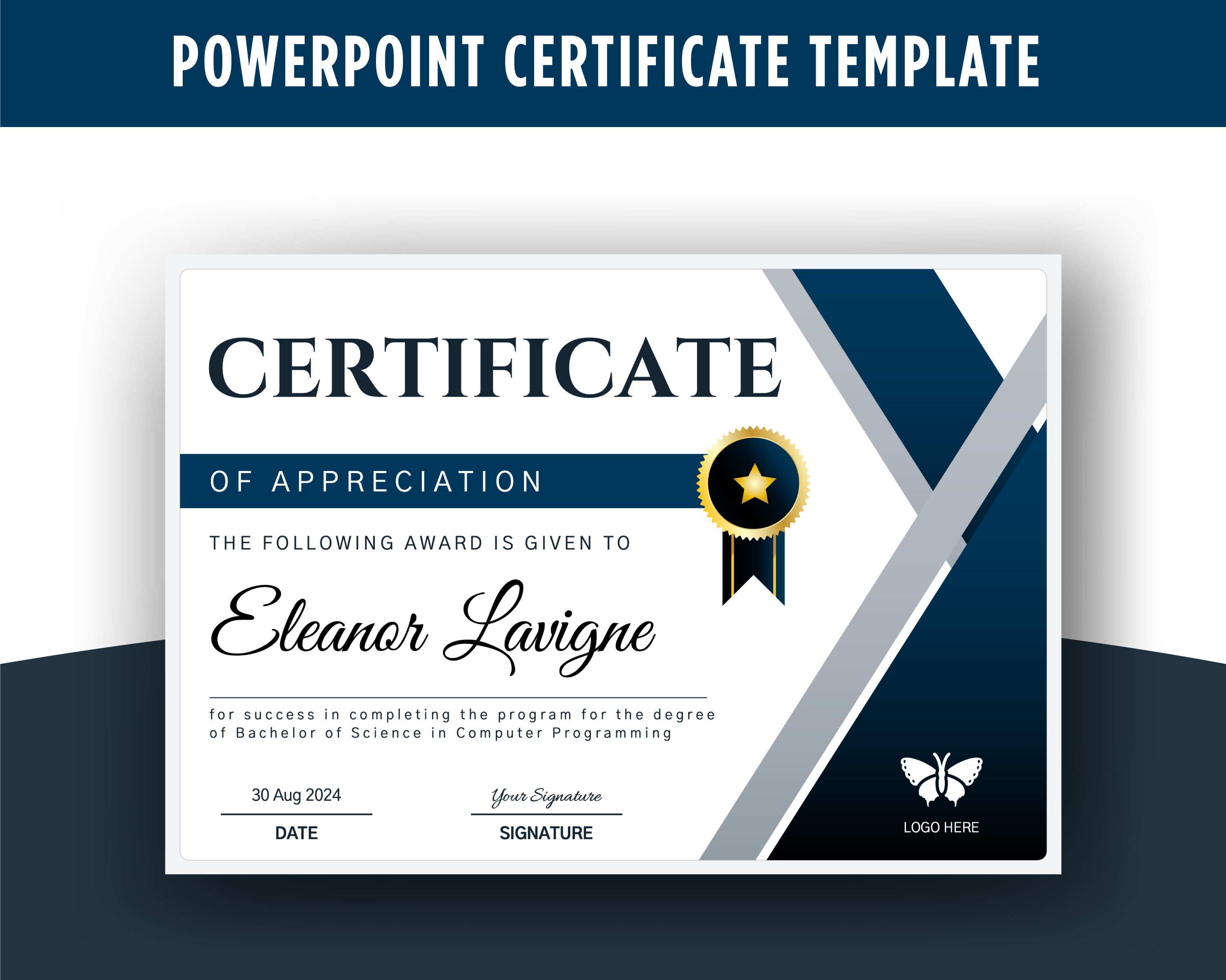
Choosing the right typefaces sets the tone for the whole certificate. Classic serif fonts such as Times New Roman, Garamond, or Georgia convey tradition and gravitas, making them ideal for academic or civic awards. For a modern, energetic vibe, sans‑serif fonts like Helvetica, Arial, or Calibri are more suitable. When selecting fonts, aim for a maximum of two styles: one for headings and one for body text. Consistency is essential; mismatched typefaces can undermine credibility.
Color Palette: Reflecting Brand or Event Identity
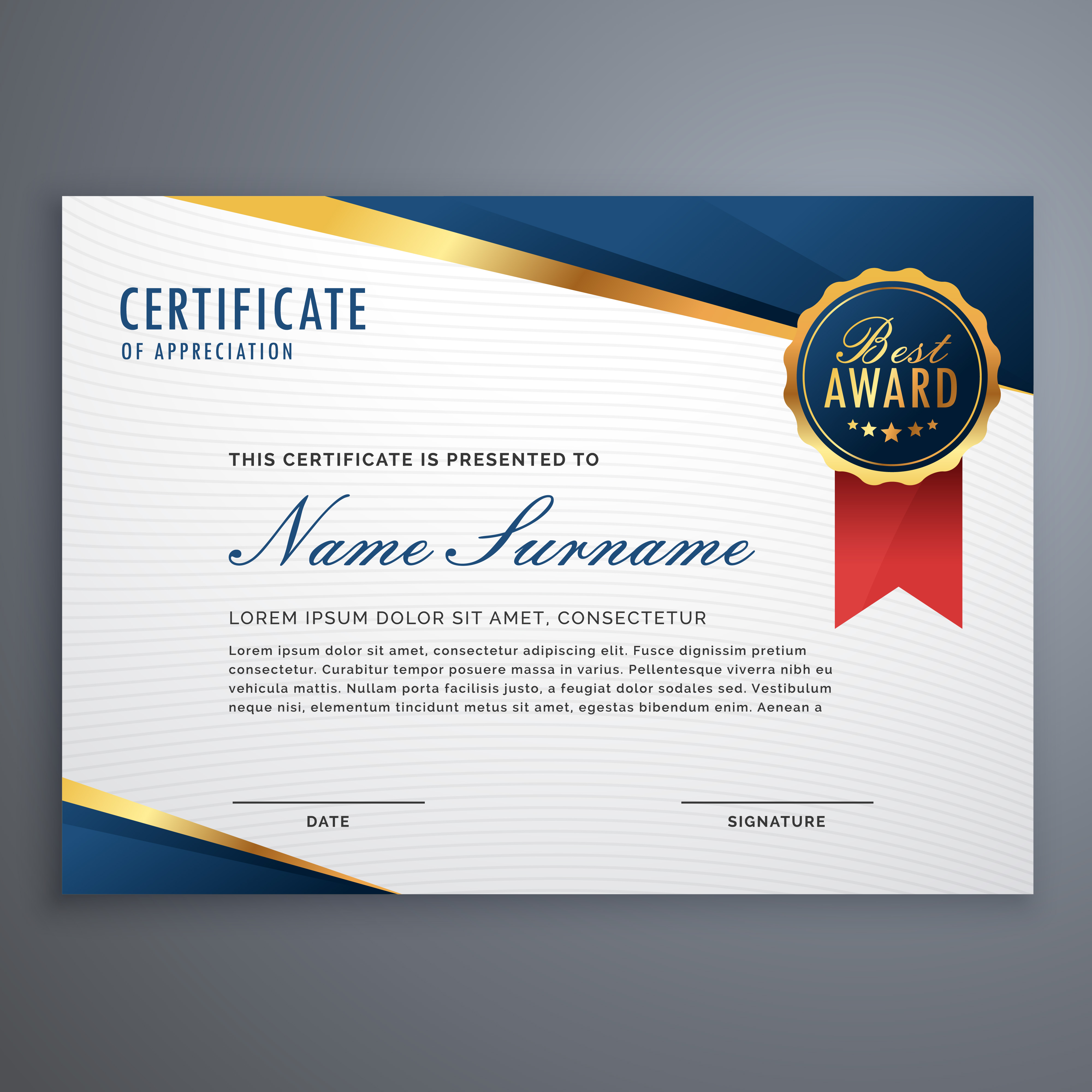
Even though the template often comes in a neutral background, you can enhance it by incorporating brand colors or thematic hues. Use high‑contrast colors for the main text to maintain readability. For example, a dark navy or charcoal gray text on a white or off‑white background yields a classic, professional look. If you want to celebrate a holiday or themed event, subtle accents—like a gold ribbon or a festive border—can add flair without overwhelming the layout.
Imagery: Logos, Icons, and Decorative Elements
Logos should be high‑resolution vector files or PNGs with transparent backgrounds. Place them strategically—typically in the top left or right corner—so they do not compete with the award text. Decorative icons, such as laurels, stars, or ribbons, can be incorporated as watermarks or subtle background layers. Ensure these graphics remain low opacity (15–25%) so the main text remains the focal point.
Layout: Balancing Hierarchy and Readability
A clean, centered layout usually works best. The certificate title, recipient name, award description, and signature area should be spaced evenly. Use lines or boxes to delineate sections, but avoid clutter. A well‑balanced design not only looks professional but also guides the reader’s eye through the hierarchy of information.
Choosing the Right PowerPoint Template for Your Purpose

Academic Awards
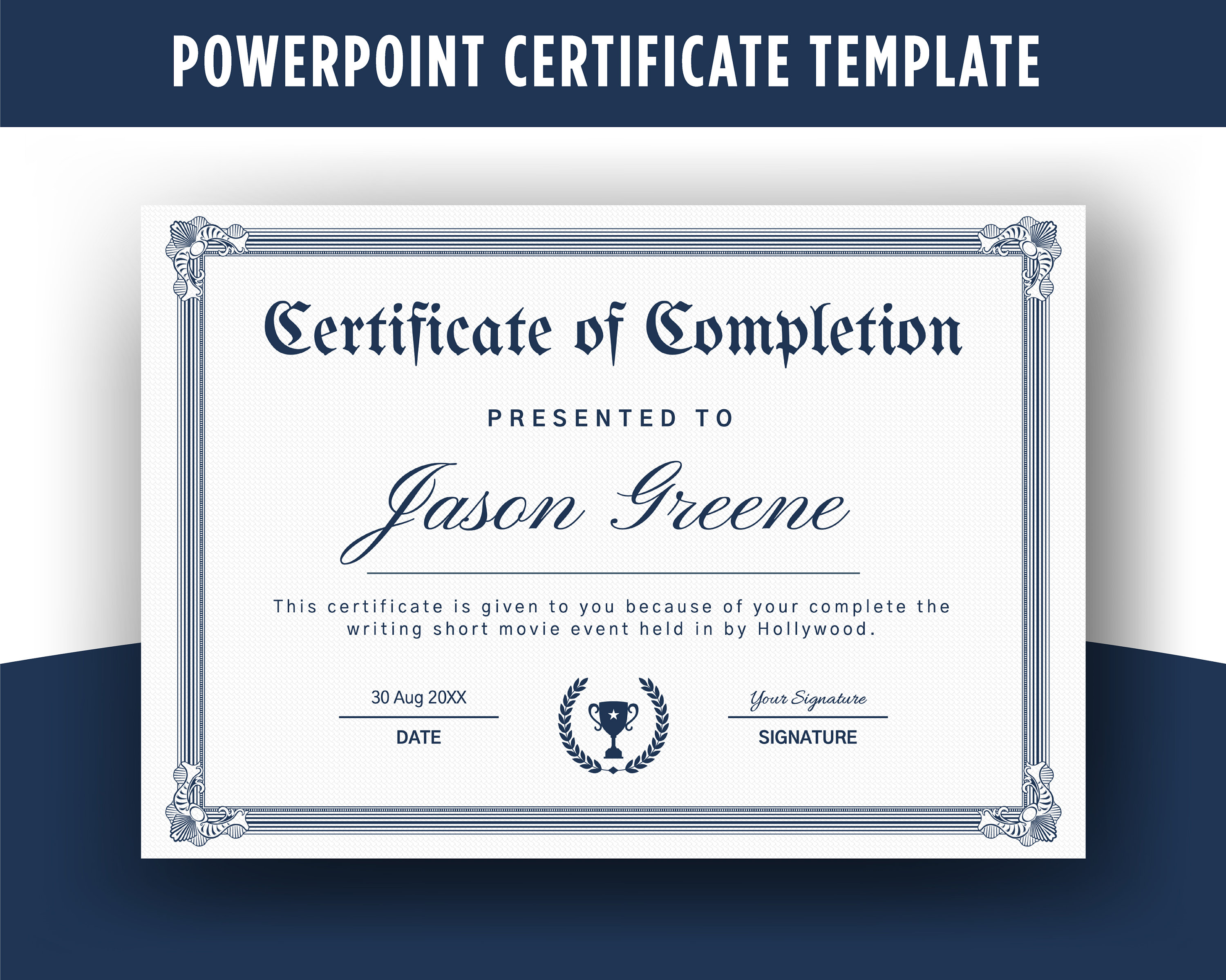
For diplomas, honor roll certificates, or research awards, look for templates with serif fonts, elegant borders, and a subtle color scheme. Include space for the issuing institution’s seal or crest. A classic template often includes a header with the university name and a footer with a registration number, providing an official feel.
Corporate Recognition
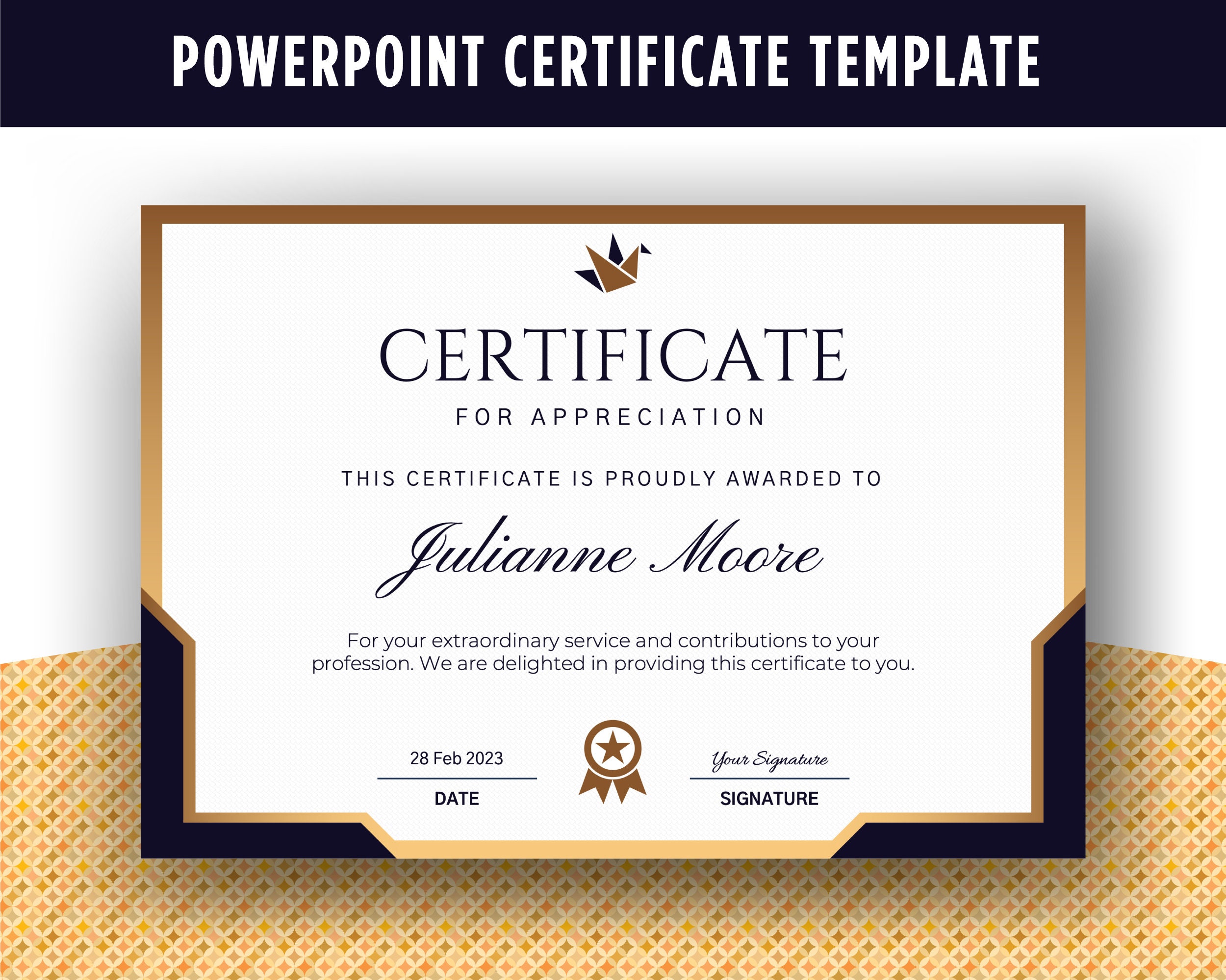
Employee of the Month, Sales Excellence, or Innovation Awards benefit from sleek, minimalistic templates. Opt for modern sans‑serif fonts and a clean grid. Add the company logo at the top center and a subtle brand color accent (such as a thin ribbon or line). Corporate templates often include a signature line for the CEO or HR manager.
Community and Non‑Profit Honors
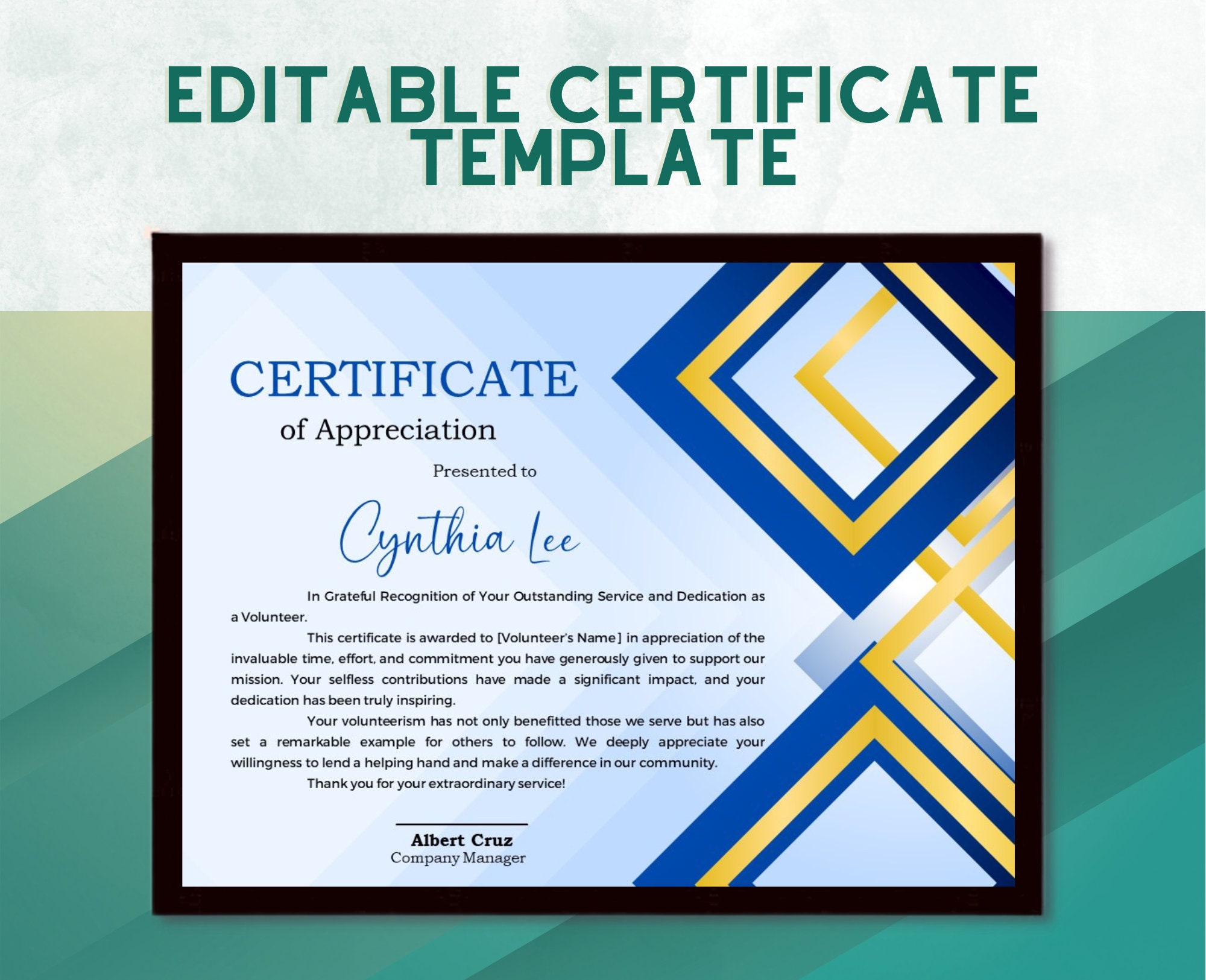
Volunteer Appreciation, Service Awards, or community milestones usually require a warm, approachable design. Choose templates with softer colors, rounded corners, and decorative flourishes that reflect the community spirit. Space for a sponsor or partner logo can also add credibility.
Event or Conference Certificates
Workshops, webinars, or conference participation certificates call for a dynamic layout. Incorporate event logos, dates, and location details. If the event is themed, integrate related imagery (e.g., tech icons for a coding conference). Keep the text concise and highlight the title, participant name, and achievement.
Step‑by‑Step Customization Guide
1. Open the Template and Review the Slide Master
Open the PowerPoint file and navigate to “View” → “Slide Master.” Here you can see the default layout and make global changes. Adjust background colors, header/footer text, and font styles that will apply to all slides.
2. Replace Placeholder Text with Your Content
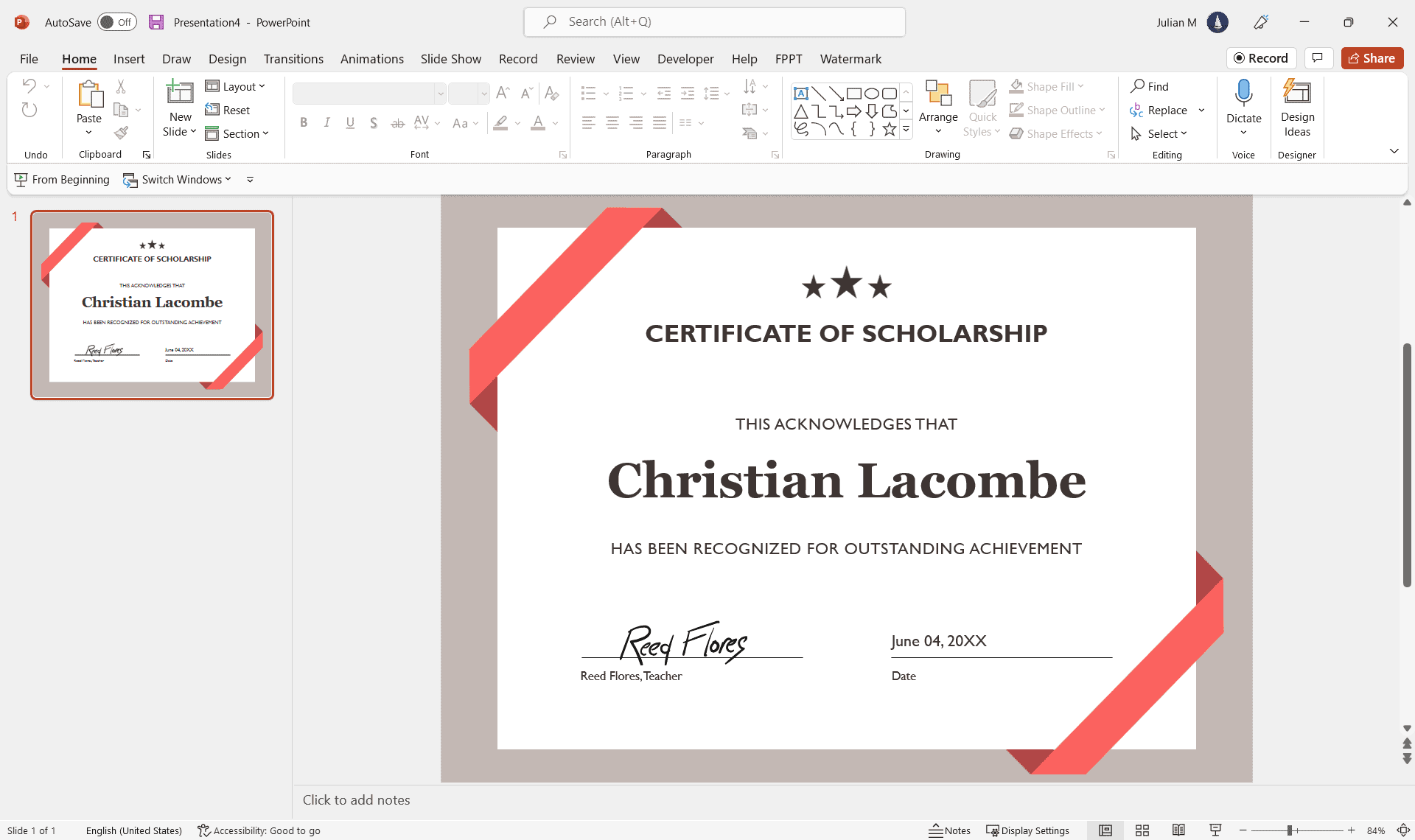
Click on each text box and delete the placeholder. Enter your award title, recipient name, and award description. Use the “Font” group on the Home tab to adjust size, weight, and color. For a personalized touch, consider using a different font weight for the recipient’s name.
3. Insert the Logo and Decorative Elements
Go to “Insert” → “Pictures” and choose your logo or image. Resize it to fit the designated area. If you want to add a watermark, insert the image and reduce its transparency under “Picture Format” → “Transparency.” For borders, use “Shapes” → “Line” or “Rectangle” with no fill and a thin outline.
4. Add Signature Lines or Digital Signatures
Place a line shape where the signature should go. Right‑click and choose “Edit Text” to add “Signature” or the name of the signing authority. For digital signatures, you can embed an image of the signature or use the “Draw” tool to hand‑draw directly onto the slide.
5. Adjust the Footer
In the Slide Master, click on the footer placeholder. Add the organization’s name, registration number, or date of issue. Use a smaller font size to keep the footer unobtrusive.
6. Preview the Certificate in Slide Show Mode
Press F5 or “Slide Show” to view the certificate full‑screen. Ensure that all elements align correctly, text is readable, and no objects overlap. If adjustments are needed, return to the Slide Master.
7. Export to PDF for Distribution
Click “File” → “Export” → “Create PDF/XPS Document.” Select “Best for Print” to maintain high resolution. If you plan to mail physical copies, confirm that the PDF file size is suitable for printing on the chosen paper stock.
Design Tips to Elevate Your Certificate
Use Consistent Margins
Maintain a margin of at least 0.5 inches on all sides to ensure the certificate looks balanced on both screen and paper. PowerPoint’s “Slide Size” setting allows you to adjust dimensions to 8.5×11 inches for standard letter paper or A4 size for international use.
Leverage SmartArt for Lists or Bullet Points
If the certificate requires a list (e.g., achievements, criteria), SmartArt can provide a visually appealing arrangement. Choose “List” and select a style that matches the overall design.
Incorporate Subtle Gradients or Texture
Adding a light gradient to the background or a faint texture can give depth to the design. Use “Format Background” → “Gradient Fill” and keep the gradient subtle (e.g., light gray to white).
Add a QR Code for Digital Verification
Insert a QR code that links to a verification page or the award details. Use an online QR generator to create the image, then insert it into the certificate. Position it in a corner where it does not disturb the main content.
Real‑World Examples of Award Certificate Success
High School Graduation Award
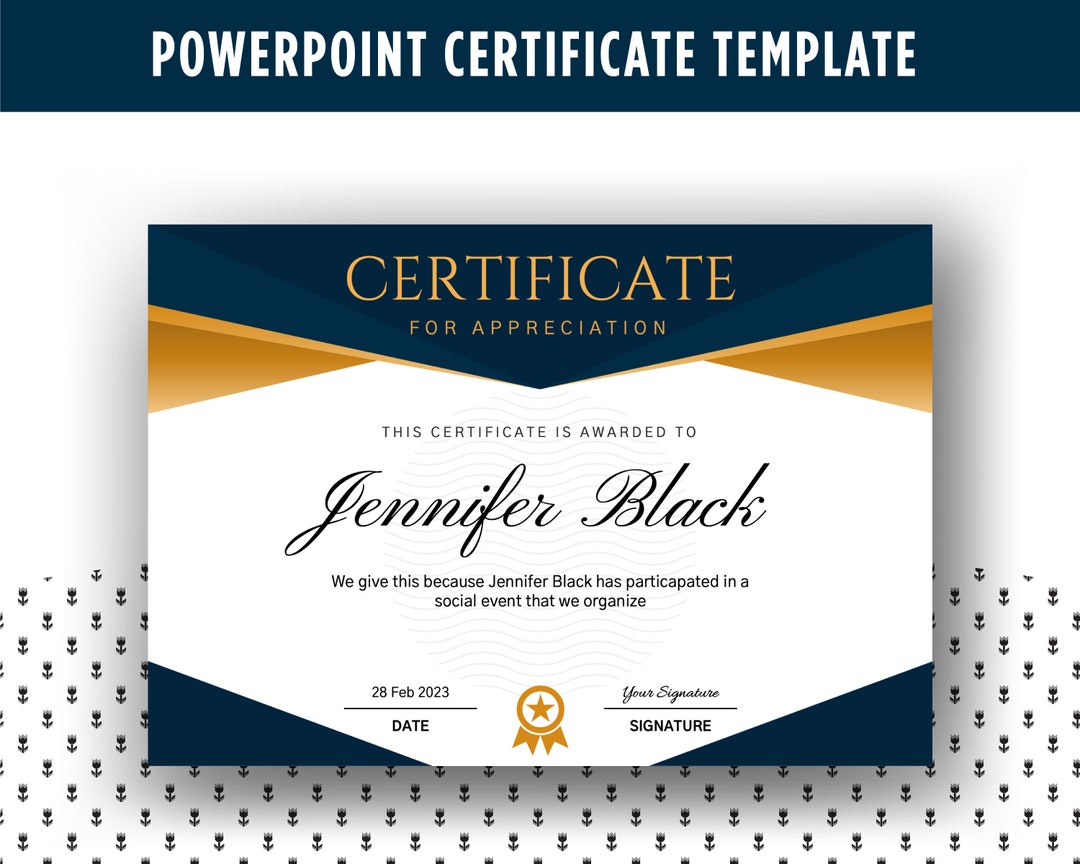
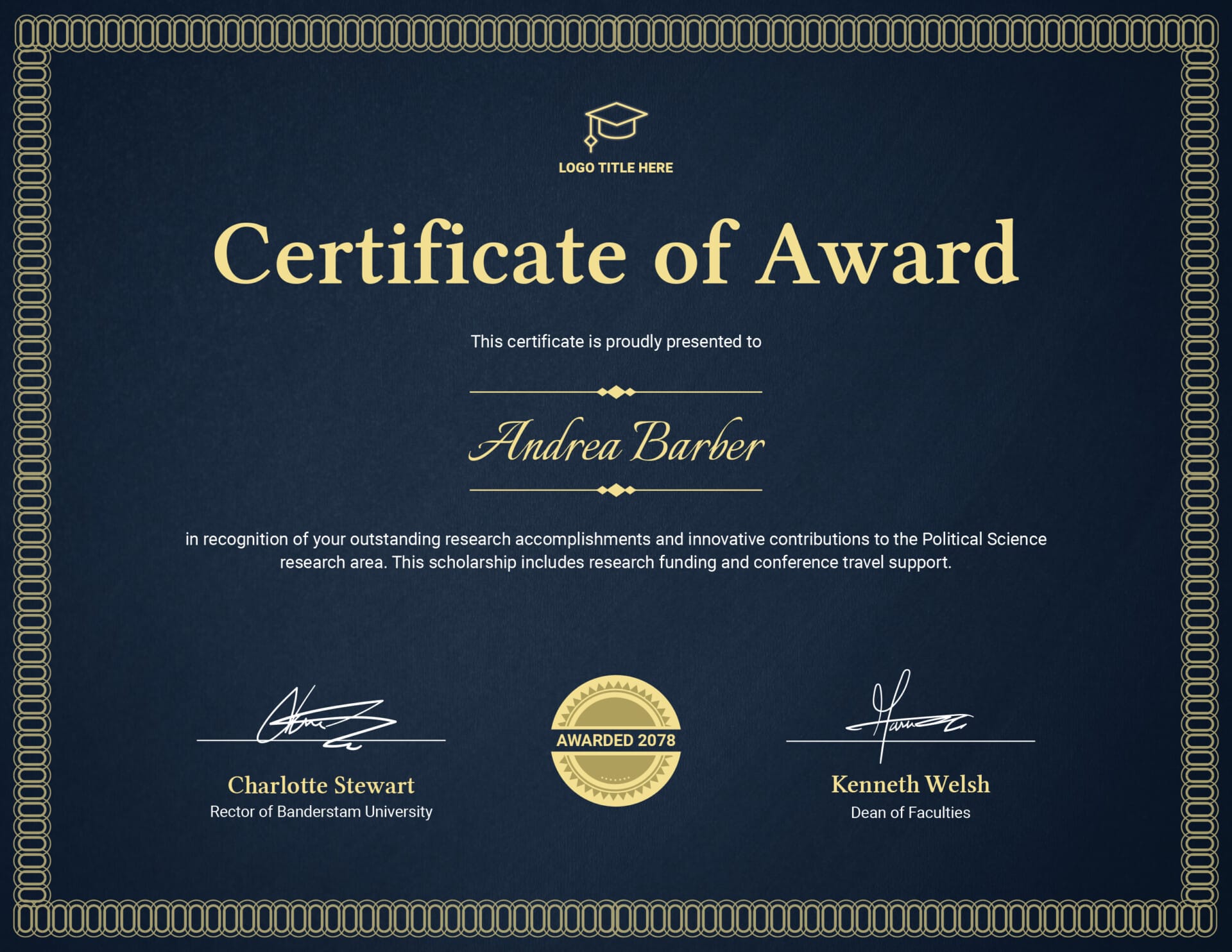
A public high school used a template with a navy blue header, the school seal, and a gold ribbon border. The recipients’ names were in bold serif font, and the graduation year appeared beneath. The final PDF was printed on thick, matte cardstock and hand‑signed by the principal.
Corporate Employee of the Year
A tech startup customized a minimalist template using their brand colors (teal and charcoal). The certificate featured the company logo in the top left, a large title “Employee of the Year,” the employee’s name in a larger font, and a short commendation. A QR code linked to an internal recognition page, and a CEO signature was added digitally.
Community Service Award for Volunteers
A local non‑profit selected a template with a green border and a tree icon. The background was a soft beige, and the volunteer’s name was highlighted in bold. The certificate included a brief statement of gratitude and the organization’s mission statement in smaller text. It was printed on recycled paper and distributed at the annual volunteer day.
Common Mistakes to Avoid
Overloading the Certificate with Text
Certificates should convey information quickly. Avoid long paragraphs. Keep the award description concise and focus on key achievements.
Using Low‑Quality Images or Logos
Blurry or pixelated logos ruin professionalism. Always use vector files or high‑resolution PNGs with transparent backgrounds.
Neglecting Accessibility
Ensure sufficient contrast between text and background for readability. Use readable font sizes (at least 18 pt for the recipient’s name) and avoid overly fancy fonts that may be hard to read.
Printing on the Wrong Paper Stock
A certificate’s impact is amplified by paper quality. Opt for heavyweight card stock (200–300 gsm) or premium textured paper. Printing on standard copier paper will make the award look cheap.
Advanced Tips for PowerPoint Experts

Using Macros to Automate Batch Creation
For events that require dozens of certificates, PowerPoint macros can auto‑populate recipient names from a CSV file. Record a macro that replaces a placeholder text box with data from a cell range, then loop through each record to generate individual slides.
Embedding Multimedia Elements
For digital certificates, you can embed a short congratulatory video clip or an audio message. Insert the media into the slide, set it to play automatically, and export as an MP4 file for online sharing.
Integrating with Google Sheets for Live Data
Use the Office Add‑In “Google Sheets” connector to pull real‑time data. This is especially useful for conferences where attendee information is stored in a shared spreadsheet.
Conclusion: Crafting Certificates That Speak Volumes

Mastering Award Certificate Template Powerpoint is more than a design exercise; it’s an opportunity to celebrate achievement with authenticity and style. By understanding typography, color, layout, and the unique needs of your audience, you can transform a generic template into a personalized masterpiece. Remember to keep the text concise, prioritize readability, and choose high‑quality graphics and paper for a lasting impression. With these strategies, your certificates will not only acknowledge accomplishments but also elevate your organization’s professional image.




Related posts of "Award Certificate Template Powerpoint"
